11 Events Feature Nodes
Available Feature Nodes
Events Feature Nodes List
This table lists the feature nodes available from the Events palette group in the ACS Control Plan Editor.
Table 11-1 Event Feature Nodes
| Node name | Node description |
|---|---|
| Event Branching | Enables alternative control plan branches to be taken, based on the value of a particular event count. |
| Event Counting | Increments a specified counter by a specified amount each time a call is routed through this node. |
| Event Setting | Resets an event counter to a specified number each time a call is routed through this node. |
Event Branching
Node description
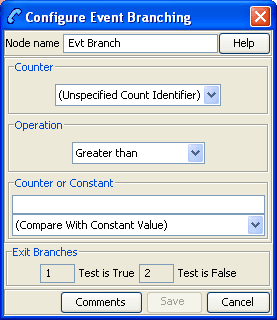
This node will enable alternative control plan branches to be taken, based on the value of a particular event count. A comparison of the current value of a particular counter may be made against a constant value or another event count.
To configure this node, two statistics counters are specified, or a statistics counter and a constant value. The two counters (or the counter and the constant) are compared according to a specified comparison operation. For example, a constant value of 6 may be specified, with a comparison operation of “greater than”. In this case, calls will be routed down the “Comparison is True” branch whenever the first statistics counter registers a value greater than 6. All other calls are routed down the “Comparison is False”.
A control plan may contain as many Event Branching nodes as required.
Node icon

If the CPE has been configured to use the static panel CPE palette style, the CPE displays the icon shown below to represent the feature node.

Node exits
This node has one entry and two exits. The number of exits cannot be changed.
| Exit | Cause | Description |
|---|---|---|
| 1 | True | The result of the comparison is true for the factors set in the node screen. |
| 2 | False | The result of the comparison is false for the factors set in the node screen. |
Configuring the node
Follow these steps to configure the Event Branching node.
| Step | Action |
|---|---|
| 1 |
From the Counter list, select the counter that is to be monitored by the node. Counters are configured through the Event Counters tab on the ACS Resources screen. For more information, see ACS User's Guide |
| 2 | From the Operation list, select the type of comparison that is to be made. |
| 3 | From the Counter or Constant list, select a
statistics counter or (Compare with Constant Value).
If comparing with a constant value, enter the value in the field
above the list field.
|
| 4 | Click Save. |
Event Counting
Node description
This node increments a specified counter by a specified amount, each time a call is routed through the node.
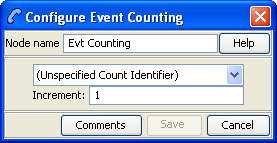
The Event Counting Node must be given a statistics counter in which to save the statistics, and an amount by which to increment each time the node has a call routed through it. This is set in the Configure Event Counting screen shown below. The Configure Event Counting screen is available from the Edit Node Data option on the shortcut menu.
A control plan may contain as many Event Counting nodes as required.
Node icon

If the CPE has been configured to use the static panel CPE palette style, the CPE displays the icon shown below to represent the feature node.

Configuring the node
Follow these steps to configure the Event Counting node.
| Step | Action |
|---|---|
| 1 | Select the event counter from the drop-down list to which this Event Counting node is counting. Event counters are set up in the Event Counters tab on the ACS Resources screen. |
| 2 |
In the Increment field, enter the number that the counter will increment each time a call is routed through the node. The increment value must be between -99999 and 999999. |
| 3 | Click Save. |
Event Setting
Node description
This node will reset a event counter to a specified number each time a call is routed through this node.
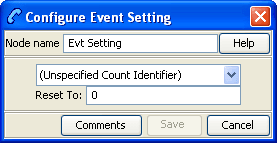
The Event Setting node must have a statistics counter that is to be reset specified and the amount that the statistics counter is to be reset to. These things are set in the Configure Event Setting screen.
A control plan may contain as many Event Setting nodes as required.
Node icon

If the CPE has been configured to use the static panel CPE palette style, the CPE displays the icon shown below to represent the feature node.

Configuring the node
Follow these steps to configure the Event Setting Node.
| Step | Action |
|---|---|
| 1 |
Select the event counter that is to be reset from the drop-down list. Event counters are set up in the Event Counters tab on the ACS Resources screen. |
| 2 | Enter the number to which the statistics counter is to be reset. A Statistics Counter may be reset to any value between -99999 and 999999. |
| 3 | Click Save. |