12 Interaction Feature Nodes
Available Feature Nodes
Interaction Feature Nodes List
This table lists the feature nodes available from the Interaction palette group in the ACS Control Plan Editor and the fast keys for the feature nodes in the list. You can use fast keys to search for feature nodes in the palette or the canvas.
| Node name | Node description |
|---|---|
| Collect Date to Tag |
Collects and saves a date and/or time to a profile field. Input is either another profile or subscriber. Fast key: CDTT |
| Collect Digits to Buffer |
Prompts the user to enter digits and will then store the entered digits in a nominated buffer from where they may be later used in the control plan. Fast key: CDB |
| Collect Digits to Sub-tag |
Prompts the user to enter digits and will save digits to the sub tag variable for use in other nodes. Fast key: CDST |
| PIN Authorisation |
Verifies the PIN number, prompting the caller for the PIN if necessary. Fast key: PINA |
| Play Announcement |
Plays a specified announcement to the caller. Fast key: PLAY Shortcut keys: Alt+P |
| Play Variable Part Announcement |
Plays an announcement to the caller containing up to five variable "parts" containing, for example, numbers and prices. Fast key: PAPV |
| Selection Dependent Routing |
Menu node which prompts the caller to enter a digit and takes an exit based on that digit. Fast key: SD Shortcut keys: Alt+M |
| Send Notification |
This node constructs message text from the given notification template and then sends the message using one of the available transport mechanisms. Fast key: NOTF |
Collect Date to Tag
Node description
Collects and saves a date and/or time to a profile field. Input is either another profile or subscriber.
Node icon
If the CPE has been configured to use the static panel CPE palette style, the CPE displays the icon shown below to represent the feature node.

Node exits
This node has one entry and three exits. The number of exits cannot be changed.
| Exit | Cause | Description |
|---|---|---|
| 1 | Success | The date and /or time was successfully saved in the target location. |
| 2 | Error |
Any of:
|
| 3 | Abandoned |
Any of:
|
Configuration screen
Here is an example Configure Collect Date To Tag screen. The active areas on the screen change depending upon the options selected on it, so the example is split into each section.
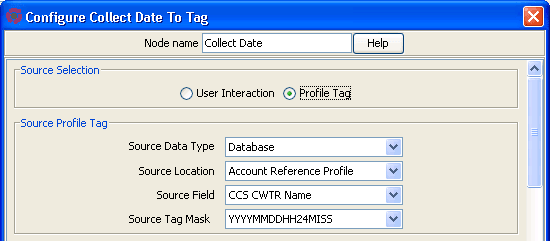
Source Profile Tag
Here is an example of part of the Configure Collect Date to Tag screen, showing active fields if the Profile Tag option is selected.
User Interaction Configuration
Here is an example of part of the Configure Collect Date to Tag screen, showing the User Interaction Configuration frame.

Date configuration
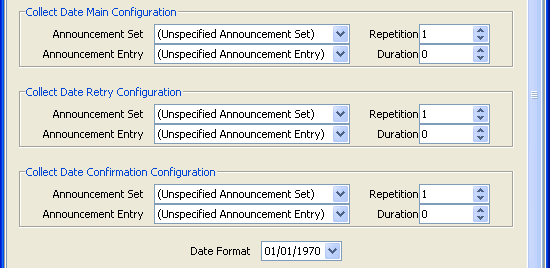
Here is an example of part of the Configure Collect Date to Tag screen, showing active fields if the User Interaction and Collect Date Only options are selected.
Time configuration
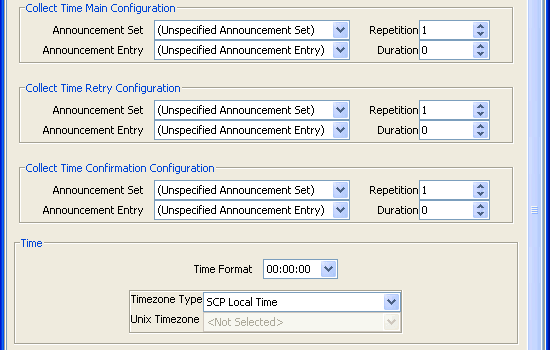
Here is an example of part of the Configure Collect Date to Tag screen, showing active fields if the User Interaction and Collect Time Only options are selected.
Date +Time configuration
If the User Interaction and Collect Date + Time options are selected, the fields displayed in the example Date configuration and Time configuration are active.
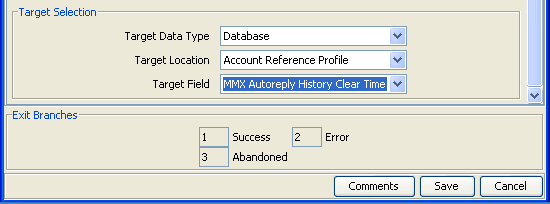
Target Selection
Here is an example of part of the Configure Collect Date to Tag screen showing the target selection fields.
Response defaults
When collecting date and /or time from a subscriber, there are defaults used if the complete date or time are not entered.
The defaults for dates are:
- The month value must be entered by the subscriber.
- Missing year is substituted by the current sysdate year value.
- Missing day is substituted by "01".
- When time only collected, date is defaulted to "01/01/1970"
The defaults for times are:
- The hour value must be entered by the subscriber.
- Missing minutes are substituted by "00".
- Missing seconds are substituted by "00".
- When date only collected, time is defaulted to "00240000".
Configuring the node
Follow these steps to configure the node.
| Step | Action | |
|---|---|---|
| 1 |
Select the source profile tag. The options are:
Result: The relevant fields are made available, others are grayed out. |
|
| User Interaction | ||
| 2 |
Select what data is to be requested from the subscriber. The options are:
Result: The relevant date/time fields are available or grayed out. |
|
| 3 |
Select Maximum number of retries from the scroll box. Notes:
|
|
| 4 |
For the option:
|
|
| 5 | Follow the steps for Target Selection. | |
| 6 | Click Save. | |
| Profile Tag | ||
| 2 | Select the Source Profile Tag from the Data Type, Location and Field drop down lists. | |
| 3 | Select the date and time format from the Source Tag Mask drop down list. | |
| 4 | Follow the steps for Target Selection. | |
| 5 | Click Save. | |
Note: The list of data types is fixed at installation time for each feature node or screen.
Further reference:
- For information about profile blocks (data type, location, and field) and how to use them, see Profile Blocks and Tags.
- The primary tag lists are configured in the SMS > Services > ACS Service > Configuration > Profile Tag Details and Profile Tag Mapping tabs (see ACS User's Guide, Profile Tag Details for more information).
Configuring the node
Follow these steps to configure the date only interaction.
| Step | Action |
|---|---|
| 1 | Select the date entry announcement to play from the Collect Date Main Configuration drop down lists. |
| 2 | Select the maximum number of times to repeat the announcement from the Collect Date Main Configuration Repetition scroll box. |
| 3 | Select the maximum duration (in seconds)to wait for user interaction from the Collect Date Main Configuration Duration scroll box. |
| 4 | Select the retry announcement to play from the Collect Date Retry Configuration drop down lists. |
| 5 | Select the maximum number of times to repeat the announcement from the Collect Date Retry Configuration Repetition scroll box. |
| 6 | Select the maximum duration (in seconds)to wait for user interaction from the Collect Date Retry Configuration Duration scroll box. |
| 7 | Select the confirmation announcement to play from the Collect Date Confirmation Configuration drop down lists. |
| 8 | Select the maximum number of times to repeat the announcement from the Collect Date Confirmation Configuration Repetition scroll box. |
| 9 | Select the maximum duration (in seconds) to wait for user interaction from the Collect Date Confirmation Configuration Duration scroll box. |
| 10 | Select the Date Format from the drop down list. |
Configuring the node
Follow these steps to configure the time only interaction.
| Step | Action |
|---|---|
| 1 | Select the time entry announcement to play from the Collect Time Main Configuration drop down lists. |
| 2 | Select the maximum number of times to repeat the announcement from the Collect Time Main Configuration Repetition scroll box. |
| 3 | Select the maximum duration (in seconds)to wait for user interaction from the Collect Time Main Configuration Duration scroll box. |
| 4 | Select the retry announcement to play from the Collect Time Retry Configuration drop down lists. |
| 5 | Select the maximum number of times to repeat the announcement from the Collect Time Retry Configuration Repetition scroll box. |
| 6 | Select the maximum duration (in seconds)to wait for user interaction from the Collect Time Retry Configuration Duration scroll box. |
| 7 | Select the confirmation announcement to play from the Collect Time Confirmation Configuration drop down lists. |
| 8 | Select the maximum number of times to repeat the announcement from the Collect Time Confirmation Configuration Repetition scroll box. |
| 9 | Select the maximum duration (in seconds) to wait for user interaction from the Collect Time Confirmation Configuration Duration scroll box. |
| 10 | Select the Time Format from the drop down list. |
| 11 |
Select the Timezone type from the drop down list. Options are:
|
| 12 | If you selected the type - Explicit Unix TZ, select
the Unix Timezone from the drop down list.
|
Configuring the node
Follow these steps to select the target where to store the date and time data.
| Step | Action |
|---|---|
| 1 |
Select in the Target Selection frame, the target Data Type, Location and Field drop down lists. Note: This may require scrolling to the bottom of the screen. |
Note: The list of data types is fixed at installation time for each feature node or screen.
Further reference:
- For information about profile blocks (data type, location, and field) and how to use them, see Profile Blocks and Tags.
- The primary tag lists are configured in the Profile Tag Details and Profile Tag Mapping tabs, within the Configuration menu in ACS Service, in Services within SMS (see ACS User's Guide, Profile Tag Details for more information).
Collect Digits to Buffer
Node description
This node prompts the user to enter digits which it then stores in the nominated buffer or profile location. The digits may be retrieved later and used in the Control Plan. Any buffer may be selected; however some buffers may be used by subsequent nodes that are expecting a different value.
Node icon
If the CPE has been configured to use the static panel CPE palette style, the CPE displays the icon shown below to represent the feature node.

Node exits
This node has one entry and three exits. The number of exits cannot be changed.
| Exit | Cause | Description |
| 1 | Success | The correct number of digits was collected successfully. |
| 2 | Not Updated | The correct number of digits was not collected after the specified number of retries. |
| 3 | Abandoned | The caller abandoned the call. |
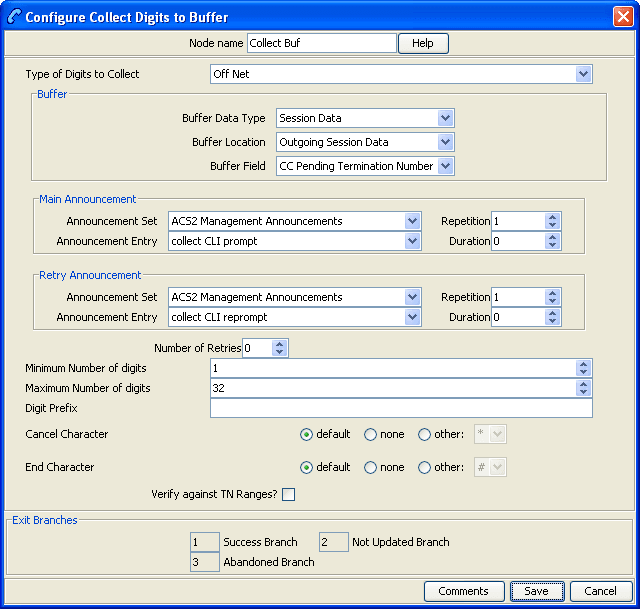
Configuring the node
Follow these steps to edit the feature node.
| Step | Action |
|---|---|
| 1 |
The Type of Digits to Collect field is only
relevant if you are going to select
If relevant, select a value for this field; otherwise ignore it. |
| 2 |
From the lists in the Buffer frame, select the location to use to store the collected digits. Notes:
|
| 3 |
From the Main Announcement frame, select:
|
| 4 | Set the Repetition field to the number of times to repeat the main announcement while the system waits for the caller to take an action. If set to zero, the announcement will be repeated for the length of the duration set. |
| 5 | Set the Duration field to the length of time in seconds that the announcement is to be played. If set to zero, the announcement will be played for its full length. |
| 6 |
The retry announcement contains the announcement you want to play to the caller if the number of digits collected is not within the range specified. In the Retry Announcement frame, select the:
Then set:
|
| 7 | In the Number of Retries field, set the number of times that the feature node will attempt to collect data from the caller, before routing the call to the Not Updated branch. This value may be between 0 and 10. |
| 8 |
In the Minimum Number of digits field, set the minimum number of digits that must be collected. The value set must be between 1 and 32. The minimum number of digits must be less than, or equal to, the maximum number of digits. |
| 9 |
In the Maximum Number of digits field, set the maximum number of digits that must be collected. The value set must be between 1 and 32. The maximum number of digits must be greater than, or equal to, the minimum number of digits. |
| 10 |
(Optional) To include a prefix before the digits collected value, enter the prefix in the Digit Prefix field. The prefix may be up to 32 valid characters. Valid characters include 0-9, A-F. |
| 11 |
From the Cancel Character options, select the character that the caller can use to cancel the digit collection. The switch on the answering device is used by default. |
| 12 |
From the End Character options, select the character that the caller can use to indicate the end of the digit collection. The switch on the answering device is used by default. |
| 13 |
(Optional) To check that the collected digits are within the TN ranges for this client, select the Verify Against TN Ranges? check box. This will check the termination number range rules set up for this customer (through the New or the Edit Customer screen in ACS) and verify according to the rules set. For more information, see the discussion on Adding customers in ACS User's Guide. |
| 14 |
Click Save. Note: The Save button becomes available when you have entered all the required information. Result: The feature node data will be saved. |
Note: The announcement set and announcement entry lists are populated with data that is specified using the Announcements tab of the ACS Configuration screen.
For more information about configuring announcement sets and announcement entries, see the Announcements topic in ACS User's Guide.
Collect Digits to Sub-tag
Node description
This node will prompt the user to enter digits, and will save the digits to a sub-tag. This sub-tag will be a part of a profile block (for example, the speed dial block contains the sub-tag list of speed dial numbers). See Sub-tags for a definition.
The node can be used to add digits to a sub-tag in a profile, or to access a previously configured sub-tag in a profile. Consequently, this node is usually used immediately before a profile node.
For information on profiles and how to use them, see Selecting profile locations and fields.
Refer to the Copy node, Use Stored Sub-Tag description for an example of using this node, in conjunction with the Copy node, to change a speed dial number.
Node icon
If the CPE has been configured to use the static panel CPE palette style, the CPE displays the icon shown below to represent the feature node.

Node exits
This node has one entry and three exits. The number of exits cannot be changed.
| Exit | Cause | Description |
|---|---|---|
| 1 | Success | The digits were entered and collected successfully. |
| 2 | Not Updated | The digits could not be collected. |
| 3 | Abandoned | The caller abandoned the call. |
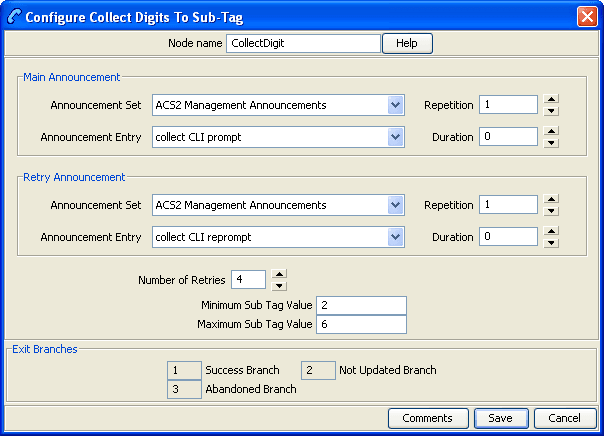
Configuring the node
Follow these steps to edit the Collect Digits to Sub-Tag node.
| Step | Action |
|---|---|
| 1 |
From the Main Announcement area, select the Announcement Set that contains the main announcement you want to play to the caller. The main announcement will be played to prompt for digits to enter into a sub-tag. Result: The Announcement Entry drop-down box will become available. |
| 2 | From the Announcement Entry drop-down list, select the main announcement you want to play to the caller. |
| 3 | Set the Repetition field to the number of times to repeat the main announcement while the system waits for the caller to take an action. If set to zero, the announcement will be repeated for the length of the duration set. |
| 4 | Set the Duration field to the length of time in seconds that the announcement is to be played. If set to zero, the announcement will be played for its full length. |
| 5 |
The retry announcement contains the announcement you want to play to the caller if the sub-tag value is not within the range specified in step 7. In the Retry Announcement area, select the:
as described in steps 1 - 4. |
| 6 | In the Number of Retries field, set the number of times that the node will attempt to collect data from the caller, before routing the call to the Not Updated branch. This value may be between 0 and 10. |
| 7 | In the Minimum Sub Tag Value and Maximum Sub Tag Value fields, set the minimum and maximum sub-tag value to be collected. This is the range of values that the user can set, for example, speed dial numbers between 10 and 20. |
| 8 |
Click Save. Note: Save is not available until all the required information has been selected or entered. |
Note: The announcement set and announcement entry lists are populated with data that is specified using the Announcements tab of the ACS Configuration screen.
For more information about configuring announcement sets and announcement entries, see the Announcements topic in ACS User's Guide.
PIN Authorisation
Node description
This node checks that there is a PIN in the PIN buffer. If there is none there, it prompts the user to enter their PIN and places the received digits in the PIN buffer. It then checks that the PIN is correct. If it is not, then it prompts for PIN entry (maximum of ten times). It then collects the PIN accesses in the station profile (if there is none, it uses the network profile default). A check is made that the attempted action is permitted.
Note: A PIN can be set for a service number or CLI number in ACS. See the ACS Numbers topic in ACS User's Guide for details.
Node icon
If the CPE has been configured to use the static panel CPE palette style, the CPE displays the icon shown below to represent the feature node.

Node exits
This node has one entry and three exits. The number of exits cannot be changed.
| Exit | Cause | Description |
|---|---|---|
| 1 | Success | The valid PIN is entered. |
| 2 | Not Allowed | The entered PIN is not recognized. |
| 3 | Abandoned | An error has occurred and the PIN has not been collected. |
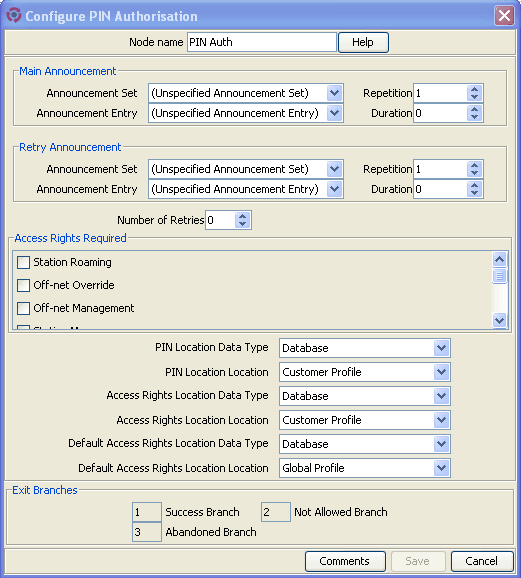
Configuring the node
Follow these steps to edit the PIN Authorisation node.
| Step | Action |
|---|---|
| 1 |
From the Main Announcement area, select the Announcement Set that contains the main announcement you want to play. Result: The Announcement Entry drop-down box will become available. |
| 2 | From the Announcement Entry drop-down list, select the main announcement you want to play to the caller to request a PIN. |
| 3 | Set the Repetition field to the number of times to repeat the main announcement while the system waits for the caller to take an action. If set to zero, the announcement will be repeated for the length of the duration set. |
| 4 | Set the Duration field to the length of time in seconds that the announcement is to be played. If set to zero, the announcement will be played for its full length. |
| 5 |
The retry announcement contains the announcement you want to play to the caller if an incorrect PIN is entered. In the Retry Announcement area, select the:
as described in steps 1 - 4. |
| 6 | In the Number of Retries field, set the number of times that the node will attempt to collect the correct PIN from the caller, before routing the call to the Not Allowed branch. This value may be between 0 and 10. |
| 7 | Tick the Access Rights Required check boxes that you wish to give right of access to the information that the node requires. These relate directly to the application in which the PIN was stored. |
| 8 |
Select the profile blocks in which the information that the node requires is located. A profile block must be selected for each of the PIN, the Access Rights, and the default Access. Note: For information about profile blocks, see Profile Blocks and Tags. |
| 9 |
Click Save. Note: Save is not available until all the required information has been selected or entered. |
Note: The announcement set and announcement entry lists are populated with data that is specified using the Announcements tab of the ACS Configuration screen.
For more information about configuring announcement sets and announcement entries, see the Announcements topic in ACS User's Guide.
Play Announcement
Node icon
If the CPE has been configured to use the static panel CPE palette style, the CPE displays the icon shown below to represent the feature node.

Node exits
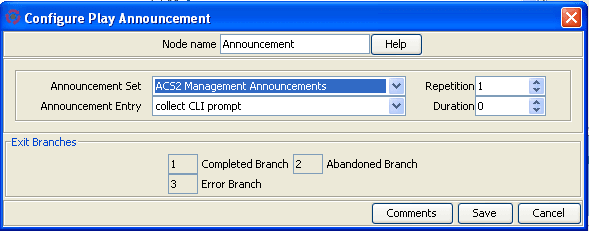
This feature node has one entry and two exits. The number of exits cannot be changed.
| Exit | Cause | Description |
|---|---|---|
| 1 | Completed | The announcement completed playing to the caller without any problems, the caller interrupting (by pressing keys on their telephone or speaking in a voice recognition system), or hanging up. |
| 2 | Abandoned | The playing of the announcement was abandoned for some reason. This could be that the caller hung up before the announcement had completed playing, or the announcement could not be played correctly as there was some sort of error. |
| 3 | Error | Continue session control after announcement failures and aborts. |
Configuring the node
Follow these steps to edit the Play Announcement node.
| Step | Action |
|---|---|
| 1 |
In the Main Announcement frame, select the Announcement Set which contains the main announcement to play to the caller. Result: The Announcement Entry field becomes available. |
| 2 | From the Announcement Entry drop-down list, select the main announcement to play to the caller. |
| 3 | Set the Repetition field to the number of times to repeat the main announcement while the system waits for the caller to take an action. If set to zero, the announcement is played for the duration set. |
| 4 | Set the Duration field to the length of time, in seconds, that the announcement is to be played. When set to zero, the announcement will be played for its full length. |
| 5 | Click Save. |
Note: The announcement set and announcement entry lists are populated with data that is specified using the Announcements tab of the ACS Configuration screen.
For more information about configuring announcement sets and announcement entries, see the Announcements topic in ACS User's Guide.
Play Variable Part Announcement
Node description
The Play Variable Part Announcement feature node announces to the user up to five variables that were loaded from the profile block.
The feature node must have an announcement selected with variable parts. This announcement will be played and the variable parts specified will be played in the announcement.
You can configure variable part announcements to comply with the
3GPP CAMEL specification: 3GPP TS 29.078, by setting the
TypeOfIVR parameter to CAMEL in the srf (Special
Resource Function) configuration in the acs.conf
configuration file. When set, the Play Variable Part Announcement
feature node plays dates sent over the network with a size of four
octets in announcements. By default, the feature node plays dates
sent over the network with a size of three octets. For more
information about srf configuration, see the discussion on
acsChassis srf configuration in ACS Technical Guide.
Node icon
If the CPE has been configured to use the static panel CPE palette style, the CPE displays the icon shown below to represent the feature node.

Restrictions
A control plan may contain as many Play Variable Part Announcement feature nodes as required.
Node exits
This feature node has one entry and two exits. The number of exits cannot be changed.
Note: These exit descriptions are specific to the responses received from an Oracle VWSbilling engine. For specific information about how responses from other billing engines map to these exits, see the technical guide for the interface for billing engine being used.
| Exit | Cause | Description |
|---|---|---|
| 1 | Completed | The announcement completed playing to the caller without any problems, the caller interrupting (by pressing keys on their telephone or speaking in a voice recognition system), or hanging up. |
| 2 | Abandoned | The playing of the announcement was abandoned for some reason. This could be that the caller disconnected the call before the announcement had completed playing, or the announcement could not be played correctly as there was some sort of error. |
| 3 | Error | Continue session control after announcement failures and aborts. |
Configuring the node
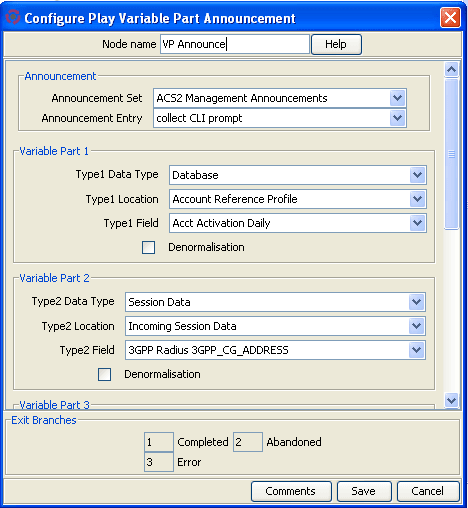
Follow these steps to edit the Play Variable Part Announcement node.
| Step | Action |
|---|---|
| 1 |
From the Main Announcement frame, select the Announcement Set which contains the main announcement you want to play to the caller. Result: The Announcement Entry list becomes available. Select the main announcement you want to play to the caller from the Announcement Entry drop down list. |
| 2 |
For each of the variable parts:
|
| 3 |
Click Save. Note: Save is not available until all the required information has been selected or entered. |
Note: The announcement set and announcement entry lists are populated with data that is specified using the Announcements tab of the ACS Configuration screen.
For more information about configuring announcement sets and announcement entries, see the Announcements topic in ACS User's Guide.
Note: The list of data types is fixed at installation time for each feature node or screen.
Further reference:
- For information about profile blocks (data type, location, and field) and how to use them, see Profile Blocks and Tags.
- The primary tag lists are configured in the SMS > Services > ACS Service > Configuration > Profile Tag Details and Profile Tag Mapping tabs (see ACS User's Guide, Profile Tag Details for more information).
Selection Dependent Routing
Node description
Use the Selection Dependent Routing feature node to play an announcement to the caller and to route the call according to their response. In addition, you can configure a fast timeout period that enables callers to exit directly from the feature node after timing out. For example, you can use this feature to connect calls directly to the operator after timing out.
This feature node routes calls based on a single digit, letter, or character entered on the caller’s telephone keypad. You map valid digits, letters, or characters to the feature node exits in the feature node configuration window. Valid digits, letters, and characters are:
- Numbers ranging from 0 (zero) to 9
- Letters ranging from A to F
- Special characters * and #
You configure the fast timeout period (in seconds) by mapping the letter "T" to the required feature node exit and entering a value for the fast timeout period in the Configure Selection Dependent Routing configuration window. When you configure this option, the caller is not prompted for a number after timing out. For details, see Setting the Fast Timeout Period.
Node icon
If the CPE has been configured to use the static panel CPE palette style, the CPE displays the icon shown below to represent the feature node.

Restrictions
A control plan may contain as many Selection Dependent Routing feature nodes as required.
Node exits
This node has one entry and may have 2 through 20 exits. You can configure the number of exits within this range as required, using the Edit Node Exits option on the shortcut menu. See Editing node exits.
There are two cases in which a caller will be sent to a branch other than the branch corresponding to a digit selected by the caller. These are:
| Exit | Cause | Description |
|---|---|---|
| 1 | Not Collected | The branch that the call will be sent to after the Timeout Announcement is played to them the number of times set in the Max Iterations field. |
| 2 | Hang Up | The branch that the call is to be routed down, when the caller hangs up or there is a network error. |
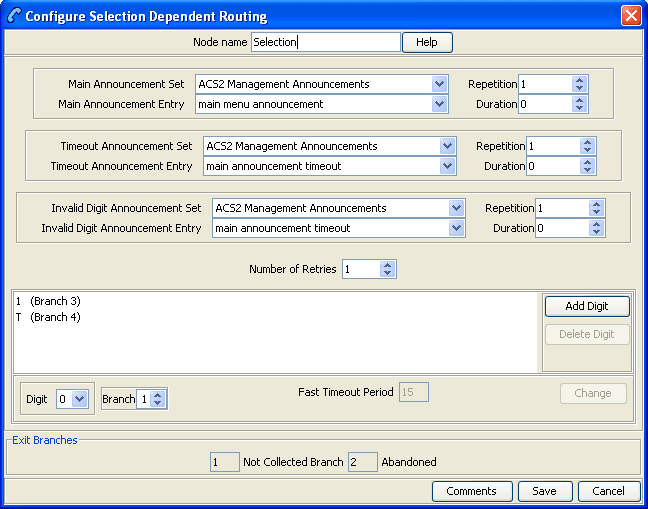
Configuring the node
Follow these steps to configure the Selection Dependent Routing node.
| Step | Action |
|---|---|
| 1 |
From the Main Announcement area, select the Main Announcement Set that contains the main announcement to play to the caller. Note: It is not necessary to have all the announcements that are to be played by this node in the same announcement set. Result: The Main Announcement Entry drop-down box will become available. |
| 2 | From the Main Announcement Entry drop-down list, select the main announcement to play to the caller. |
| 3 | Set the Repetition field to the number of times to repeat the main announcement while the system waits for the caller to take an action. If set to zero, the announcement will be repeated for the length of the duration set. |
| 4 |
The timeout announcement contains the announcement you want to play to the caller when the caller has waited too long before entering a digit. In the Timeout Announcement frame, select the following, as described in steps 2 - 5:
|
| 5 |
The invalid digit announcement contains the announcement you want to play to the caller when the caller has entered a disallowed digit. In the Invalid Digit Announcement frame, select the following, as described in steps 2 - 5:
|
| 6 | In the Number of Retries field, set the number of times that the node will attempt to collect a number from the caller, before routing the call to the Not Collected branch. This value may be between 0 and 10. |
| 7 |
In the standard range entry field in the lower half of the screen, map the digits that a caller may enter to an exit branch. To add a digit:
Repeat for the required number of mappings. |
| 8 |
Click Save. Note: Save is not available until all the required information has been selected or entered. |
Note: The announcement set and announcement entry lists are populated with data that is specified using the Announcements tab of the ACS Configuration screen.
For more information about configuring announcement sets and announcement entries, see the Announcements topic in ACS User's Guide.
Setting the Fast Timeout Period
To configure the Selection Dependent Routing feature node to exit directly after timing out:
| Step | Action |
|---|---|
| 1 | Open the configuration window for the Selection Dependent Routing feature node. |
| 2 |
Specify the branch that you want to use for the fast timeout exit by changing the current configuration for a branch to T or by adding T to a branch. To change the current configuration for a branch to T.
The Fast Timeout Period field is enabled and set to the preconfigured default value of 10. Note: If set, the value for the SDRfastTimeoutDefault parameter in the smsGui.bat/smsGui.sh file overrides the fast timeout period default value. For more information on configuring ACS smsGui.bat/smsGui.sh parameters, see Advanced Control Services Technical Guide. |
| 3 |
(Optional) Change the timeout period by performing the following steps:
|
| 4 |
Click Save. The feature node configuration is saved. |
Send Notification
Node description
This node constructs message text from the given notification template and then sends the message using one of the available transport mechanisms.
Node icon
If the CPE has been configured to use the static panel CPE palette style, the CPE displays the icon shown below to represent the feature node.
Node exits
This node has one entry and eleven exits. The number of exits cannot be changed.
| Exit | Cause | Description |
|---|---|---|
| 1 | Success | The notification was constructed and sent. |
| 2 | Delivery Failure | The notification was constructed, but encountered a problem when attempting to send. |
| 3 | No Language | No language was selected in the node configuration. |
| 4 | No Template | No template could be found to construct the message. |
| 5 | Missing Information | The template expected more information than could be found. |
| 6 | Subscriber Opt-out | The subscriber has opted out of receiving any notifications. This option is set in ACS Configuration > Notifications tab > Add/Edit Notification Type panel. |
| 7 | Node Failure | Internal node error. Message not sent. |
| 8 | Timeout | Did not get the expected response within the Timeout number of seconds. |
| 9 | Temporary Error | The returned cause code maps to a temporary error. |
| 10 | Permanent Error | The returned cause code maps to a permanent error. |
| 11 | Abort | The returned cause code maps to an abort error. |
Note: The temporary, permanent and abort errors are all configured in the Messaging Manager Action and Error Codes screens. From the main SMS screen, see Services > Messaging Manager > Action and Error Codes and the Error Type column.
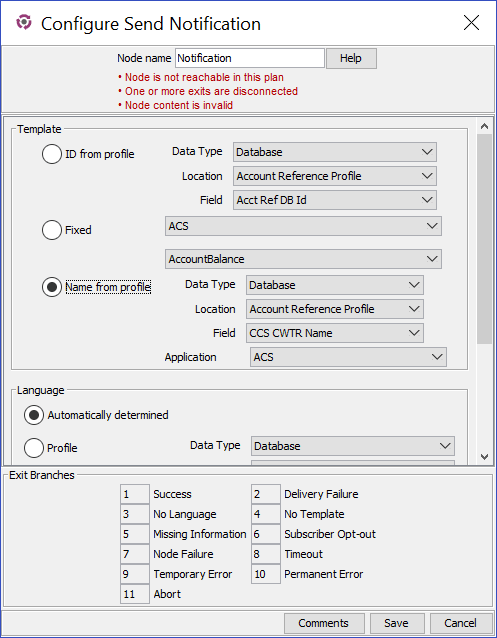
Configuring the node
Follow these steps to configure the node.
| Step | Action |
|---|---|
| 1 |
In the Template section, do one of:
|
| 2 |
In the Language section, do one of:
|
| 3 |
If a response is expected, to avoid missing the response, select the Wait for Response check box and then enter the number of seconds to wait for the response in the Timeout field in the Options section. Tip: If the check box is deselected, then the node will exit the Success exit immediately. |
| 4 | Click Save. |
Send Short Message
Node description
Warning: This feature node has now been deprecated and should no longer be used. This feature node will still function in existing control plans. For new control plans please use the Send Notification feature node.
This feature node sends a short message to the caller when triggered by a nominated application.
Node icon

If the CPE has been configured to use the static panel CPE palette style, the CPE displays the icon shown below to represent the feature node.

Node exits
This node has one entry and two exits. The number of exits cannot be changed.
| Exit | Cause | Description |
|---|---|---|
| 1 | Success | The short message was successfully sent. |
| 2 | Failure | The message could not be sent. |
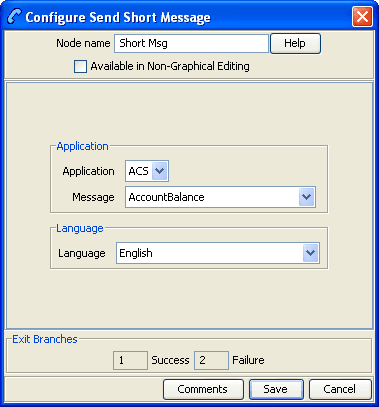
Configuring the node
Follow these steps to configure the Send Short Message node.
| Step | Action |
|---|---|
| 1 | From the Application drop down list, select application that will trigger the short message to be sent. |
| 2 |
From the Message drop down list, select the message that will be sent. Note: Messages are created and maintained through the ACS > Configuration > Notification tab. |
| 3 |
From the Language drop down list, select the language the message will be sent in. Note: Available languages are maintained through the ACS > Tools > Language tab. |
| 4 | Click Save. |
Notes:
- The calling number is normalized before it is sent to the notificationIF.
- This node sends a SLEE notification event to the notificationIF.
- The notificationIF will then forward the message to either Messaging Manager or the SMSC interface depending on configuration.
- See SMSC Technical Guide for details on how to install and configure the notificationIF.