13 LCP Feature Nodes
Available Feature Nodes
LCP Feature Nodes List
This table lists the feature nodes available from the LCP palette group in the ACS Control Plan Editor and the fast key for each feature node in the list. You can use fast keys to search for feature nodes in the palette or the canvas.
| Node Name | Node Description |
|---|---|
| In The Zone |
The In The Zone node allows a location-based service to be provided to the end-users to allow differential service depending on the location or MSISDN. Fast key: ITZ |
| Set My Zone |
The Set My Zone node allows a “self-care” service to be provided to the end-users to set a zone of a selected type. Fast key: SMZ |
| Store My Location |
The Store My Location feature node provides an alternative location-based service, by allowing the end-user’s current location or MSISDN to be stored in a context field for later comparison. Fast key: STML |
| Store My Network ID |
The Store My Network Identity node stores the retrieved IMSI or MSRN in a profile tag. Fast key: STMN |
Exits
Introduction
All of the LCP feature nodes contain the following two exits:
- No Location Info
- Error
The exit taken by a LCP feature node depends on the communication plug-in used by LCP to communicate with the location servers on the customer's network.
Using MAP ATI Plug-in
If the plug-in selected is MAP ATI Plugin and the
location application returns one of the results listed below, then
the No Location Info exit will be followed:
- Unknown subscriber
- Absent subscriber
- System failure
- Unauthorized network
- Unauthorized application
- Position method failure
These conditions are outside the scope of the Location Application (the errors are generated by external entities rather than the Location Application itself).
Using POSREQ Plug-in
If the plug-in selected is IS41 POSREQ Plugin and
the location application returns one of the results listed below,
then:
-
Errorexit is taken: - Operation Sequence Problem = 132
- Parameter Error = 136
- Invalid Parameter Value = 138
- Feature Inactive = 139
- Missing Parameter = 140
-
No Location
Info
exit is taken: - OSA Unknown Subscriber
- Unrecognized MIN = 129
- Unrecognized ESN = 130
- Unrecognized MDN = 143
- OSA Absent Subscriber
- MIN/HLR Mismatch = 131
- OSA Unauthorized Network
- Operation Not Supported = 134
- OSA System Failure
- System Failure = 137
- Resource Shortage = 133
- Trunk Unavailable = 135
Using SRI-MSRN Plug-in
SRI-MSRN Plugin, or
SRI-IMSI Plugin and the location application returns
one of the results listed below, then the No Location
Info- System failure
- Unauthorized network, caused by:
- Facility not supported
- OR not allowed
- Bearer service not provided
- Tele service not provided
- CUG reject
- Call barred
- Forwarding Violation
- Unknown subscriber, caused by:
- Unknown subscriber
- Number changed
- Absent subscriber
- Busy subscriber
- No subscriber reply
These conditions are outside the scope of the Location Application (the errors are generated by external entities rather than the Location Application itself).
In The Zone
Node description
The In The Zone node allows a location-based service to be provided to the end-users to allow differential service depending on the location or MSISDN.
This node denormalizes the number currently held in the MSISDN buffer, using the standard rules defined in acs.conf or the default rule configured.
Node icon
If the CPE has been configured to use the static panel CPE palette style, the CPE displays the icon shown below to represent the feature node.

Restrictions
A control plan may contain as many In the Zone nodes as required.
Warning: This node will only work with the MAP ATI Plugin node. For more information about this plug-in, see Using MAP ATI plug-in.
Node exits
This node has one entry and five exits. The number of exits cannot be changed.
| Exit | Cause | Description |
|---|---|---|
| 1 | In Zone | The current location is in the zone specified. |
| 2 | Not In Zone | The current location is outside the zone specified. |
| 3 | No Location Info | Unable to obtain the location information. |
| 4 | No Zones | There are no zones configured for the current service provider |
| 5 | Error | An internal error has occurred. |
Note: Refer to Exits for a description of errors that will cause the No
Location Info and Error exits to be taken.
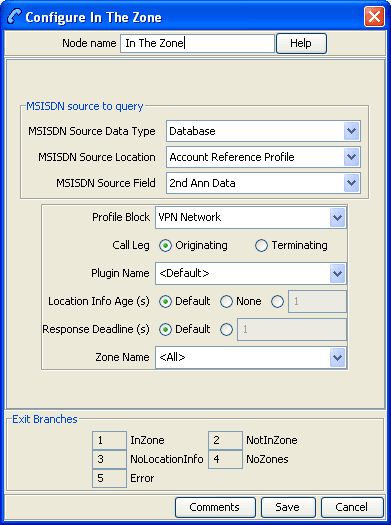
Configuring the node
Follow these steps to edit the In The Zone node.
| Step | Action |
|---|---|
| 1 |
In the MSISDN source to query section, select the MSISDN that will be used to query the HLR:
|
| 2 | In Profile Block, select where the zone will be read from. |
| 3 |
Specify the Call Leg to be used for the location query. Select one of the following:
|
| 4 | In Plugin Name, select which location plug-in to use. The default setting is the locApp configured plug-in. |
| 5 |
Specify the Location Info Age. This is how old location information is allowed to be (if in cache). Select one of the following:
|
| 6 |
Specify a Response Deadline. This is how long the locApp is allowed (in number of seconds) before a reply is returned (note that if a timeout occurs a timeout result will be returned). Select one of the following:
|
| 7 |
In Zone Name, select which zone type this node
is comparing against, or This field is populated by the Zone type entries in the ACS Configuration, Profile Tag Details tab. For more information about this tab, see ACS User's Guide. Note: The location information returned by the HLR is always compared against the zones configured for the A-Party. |
Note: The list of data types is fixed at installation time for each feature node or screen.
Further reference:
- For information about profile blocks (data type, location, and field) and how to use them, see Profile Blocks and Tags.
- The primary tag lists are configured in the SMS > Services > ACS Service > Configuration > Profile Tag Details and Profile Tag Mapping tabs (see ACS User's Guide, Profile Tag Details for more information).
Set My Zone
Node description
The Set My Zone node allows a “self-care” service to be provided to the end-users to set a zone of a selected type.
This node denormalizes the number currently held in the MSISDN buffer, using the standard rules defined in acs.conf or the default rule configured.
Node icon
If the CPE has been configured to use the static panel CPE palette style, the CPE displays the icon shown below to represent the feature node.

Restrictions
A control plan may contain as many Set My Zone nodes as required.
Warning: This node will only work with the MAP ATI Plugin node. For more information about this plug-in, see Using MAP ATI plug-in.
Node exits
This node has one entry and four exits. The number of exits cannot be changed.
| Exit | Cause | Description |
|---|---|---|
| 1 | Success | The action to set a zone completed successfully. |
| 2 | Too Many Zone Shapes | The number of zone shapes for the zone type has exceeded the maximum number (the maximum zone types is set to 5). |
| 3 | No Location Info | Unable to obtain the location information. |
| 4 | Error | An internal error has occurred. |
Note: Refer to Exits for a description of errors that will cause the No
Location Info and Error exit branches to be taken.
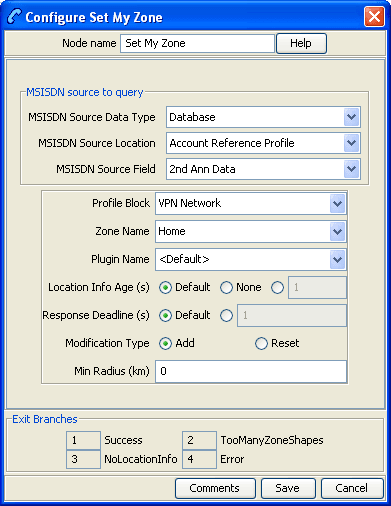
Configuring the node
Follow these steps to edit the Set My Zone node.
| Step | Action |
|---|---|
| 1 |
In the MSISDN source to query section, select the MSISDN that will be used to query the HLR:
|
| 2 | In Profile Block, select where the zone will be written to. |
| 3 |
In Zone Name, select which zone to set for this node. This field is populated by the Zone type entries on the ACS Configuration, Profile Tag Details tab. For more information about this tab, see ACS User's Guide. |
| 4 | In Plugin Name, select which location plug-in to use. Default setting is to use the locApp configured plug-in. |
| 5 |
Specify the Location Info Age. This is how old location information is allowed to be (if in cache). Select one of the following:
|
| 6 |
Specify a Response Deadline. This is how long the locApp is allowed (in number of seconds) before a reply is returned (note that if a timeout occurs a timeout result will be returned). Select one of the following:
|
| 7 |
Specify a Modification Type. Select one of the following:
|
| 8 | In Min Radius, specify the minimum radius of a zone. If the locApp returns an uncertainty radius smaller than the minimum radius specified, the min radius (in km) is used. |
Note: The list of data types is fixed at installation time for each feature node or screen.
Further reference:
- For information about profile blocks (data type, location, and field) and how to use them, see Profile Blocks and Tags.
- The primary tag lists are configured in the SMS > Services > ACS Service > Configuration > Profile Tag Details and Profile Tag Mapping tabs (see ACS User's Guide, Profile Tag Details for more information).
Store My Location
Node description
The Store My Location feature node provides an alternative location-based service, by allowing the end-user’s current location or MSISDN to be stored in a context field for later comparison.
This feature node can also be used to find the location details or MSISDN of a subscriber; for example, to include in billing for callback when the subscriber is roaming.
The MSISDN used to query the HLR will be denormalized as per the standard denormalization rules specified in the acs.conf or the default rule configured.
Node icon

If the CPE has been configured to use the static panel CPE palette style, the CPE displays the icon shown below to represent the feature node.

Node exits
This feature node has one entry and three exits. The number of exits cannot be changed.
| Exit | Cause | Description |
|---|---|---|
| 1 | Success | The current location has been stored in the context specified. |
| 2 | No Location Info | Unable to obtain the location information. |
| 3 | Error | An internal error has occurred. |
Note: See Exits for a description of the errors that cause the No
Location Info and Error exit branches to be taken.
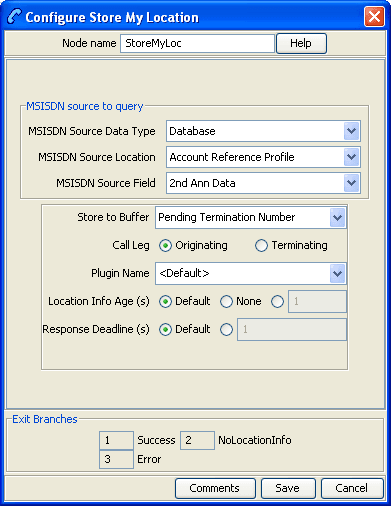
Configuring the node
Follow these steps to configure the Store My Location node.
| Step | Action |
|---|---|
| 1 | Using the drop down lists in the MSISDN source to query area, select the field containing the MSISDN that will be used to query the HLR. |
| 2 |
In Store to Buffer, select where the location information will be stored. The following buffers are available in the drop down list:
|
| 3 |
Choose which Call Leg to use for the location query. Select one of the following:
|
| 4 | From the Plugin Name drop down list, select
which location plug-in to use. Select <Default>
to use the locApp configured plug-in.
|
| 5 |
Specify the Location Info Age. This is how old location information is allowed to be (if in cache). Select one of the following:
|
| 6 |
Specify a Response Deadline. This is how long the locApp is allowed (in number of seconds) before a reply is returned (note that if a timeout occurs a timeout result will be returned). Select one of the following:
|
Note: The list of data types is fixed at installation time for each feature node or screen.
Further reference:
- For information about profile blocks (data type, location, and field) and how to use them, see Profile Blocks and Tags.
- The primary tag lists are configured in the SMS > Services > ACS Service > Configuration > Profile Tag Details and Profile Tag Mapping tabs (see ACS User's Guide, Profile Tag Details for more information).
Store My Network ID
Node description
The Store My Network Identity node stores the retrieved IMSI or MSRN in a profile tag.
Node icon

If the CPE has been configured to use the static panel CPE palette style, the CPE displays the icon shown below to represent the feature node.

Node exits
This node has one entry and three exits. The number of exits cannot be changed.
| Exit | Cause | Description |
|---|---|---|
| 1 | Success | The IMSI location information has been successfully retrieved. |
| 2 | NoLocationInfo | Unable to retrieve location information. |
| 3 | Error | An internal error has occurred. |
Configuration fields
This table describes the function of each field in the Configure Store My Network Id node screen.
| Field | Description |
|---|---|
| Node name | The name of the node. |
| MSISDN Data Type | The MSISDN profile block data type. |
| MSISDN Location | The profile block containing the MSISDN location. |
| MSISDN Field | The profile field containing the MSISDN. |
| IMSI Data Type | The IMSI profile block data type. |
| IMSI Location | The profile block location for the retrieved IMSI. |
| IMSI Field | The profile field where the retrieved IMSI will be stored. |
| Call Leg | Whether to retrieve the IMSI from the originating (caller) or terminating (called) party. |
| Plugin Name | The name of the plug-in to use to retrieve the IMSI. By default the MAP SRI-MSRN plug-in will be used. |
| Location Info Age (s) |
Maximum age allowed for location information (if in cache). One of the following:
|
| Response Deadline (s) |
Maximum length of time allowed (in seconds) before receiving a response (if a timeout occurs a timeout result will be returned). One of the following:
|
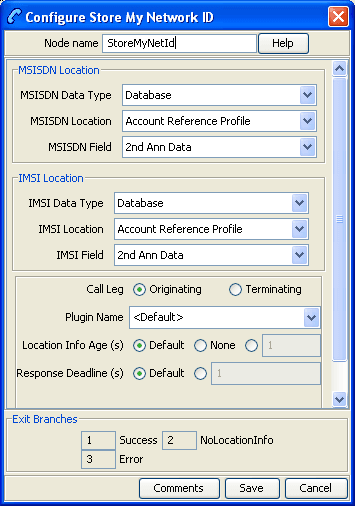
Configuring the node
Follow these steps to configure the node.
Note: For more information on the configuration fields, see Configuration fields.
| Step | Action |
|---|---|
| 1 | From the MSISDN Location area, using the drop down boxes, select the profile containing the MSISDN. |
| 2 | From the IMSI Location area, using the drop down boxes, select the profile where the IMSI will be stored. |
| 3 |
Choose which Call Leg to use for the location query. Select one of the following:
|
| 4 | In Plugin Name, select which location plug-in to use. |
| 5 | Specify the Location Info Age. |
| 6 | Specify a Response Deadline. |
| 7 | Click Save. |
Note: The list of data types is fixed at installation time for each feature node or screen.
Further reference:
- For information about profile blocks (data type, location, and field) and how to use them, see Profile Blocks and Tags.
- The primary tag lists are configured in the SMS > Services > ACS Service > Configuration > Profile Tag Details and Profile Tag Mapping tabs (see ACS User's Guide, Profile Tag Details for more information).