14 NTS Feature Nodes
Available Feature Nodes
NTS Feature Nodes List
This table lists the feature nodes available from the NTS palette group and the fast key for each feature node in the list. You can use fast keys to search for feature nodes in the palette or the canvas.
| Node name | Node description |
|---|---|
| Account Code Entry |
Prompts for an account number to be entered and saves the digits in a buffer. Fast key: ACE |
| Activate Control Plan |
Activates a specified control plan. Fast key: ACP |
| Load Profile |
Loads the specified customer, control plan, service number or CLI profile. Fast key: ALP |
Account Code Entry
Node description
The Account Code entry node prompts for an account number to be entered and collects the digits. Collected digits are placed in the Account Code buffer.
The access code entered by the caller is added to the Call Data Record.
Account Codes are also known as access codes. You can set the access code policy for service numbers and CLIs in ACS.
Note: Depending on the Access Code Policy that is selected for the Service Number or CLI, the account code entered using this node may be one of:
- Not required
- Required and verified
- Required and not verified
See the ACS Numbers topic in the ACS User Guide for details about Access Mode Management and Access Code Policy.
Node icon
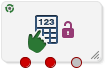
If the CPE has been configured to use the static panel CPE palette style, the CPE displays the icon shown below to represent the feature node.

Node exits
This node has one entry and three exits. The number of exits cannot be changed.
| Exit | Cause | Description |
|---|---|---|
| 1 | Success | The Account Code was entered and collected successfully. |
| 2 | Not Allowed | The Account Code entered is invalid. |
| 3 | Abandoned | The Account Number or Code entered was not found by the system. |
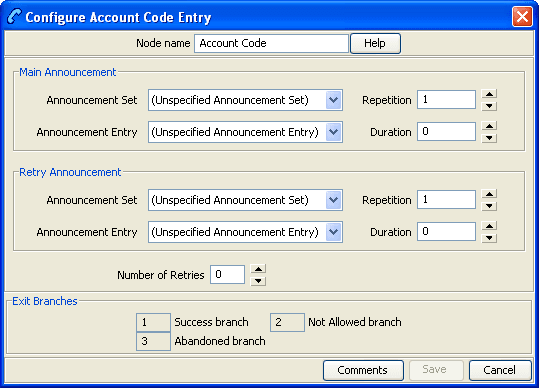
Configuring the node
Follow these steps to configure the Account Code Entry node, to set or amend the Main Account Number Announcement.
| Step | Action |
|---|---|
| 1 |
The main announcement is the announcement that will be played to prompt for an Account number. In the Main Announcement area, select the Announcement Set which contains the main announcement you want to play to the caller. Result: The Announcement Entry field becomes available. |
| 2 | From the Announcement Entry drop-down list, select the main announcement you want to play to the caller. |
| 3 | Set the Repetition field to the number of times you wish to repeat the announcement, by increasing or decreasing the value in the spin box. The allowable values are from 1 (default) to 127. If set to zero, the announcement will be repeated for the length of the duration set. |
| 4 | Set the Duration field to the length of time in seconds that the announcement is to be played. The allowable values are from 0 (default) to 32767. If set to zero, the announcement will be played for its full length. |
| 5 |
Amending the Retry announcement on Invalid Entry. The retry announcement will be played if the Account Number entered after the main announcement is not valid. In the Retry Announcement area, select the:
as described in steps 1 - 4. |
| 6 | Set the Number of Retries field to the number of times that the node will attempt to collect the correct Account Number from the caller, before routing the call to the Not Allowed branch. This value may be between 0 and 10. |
| 7 |
Click Save. Note: Save is not available until all the required information has been selected or entered. |
Note: The announcement set and announcement entry lists are populated with data that is specified using the Announcements tab of the ACS Configuration screen.
For more information about configuring announcement sets and announcement entries, see the Announcements topic in ACS User's Guide.
Activate Control Plan
Node description
This node enables a caller to schedule a control plan using a touch tone phone. It should be used as part of an IVR control plan (for example, the ACS Management Control Plan).
The caller specifies which control plan to schedule by entering the control plan's control plan ID (that is, MF Identifier). The node can also be set up to enable the caller to specify the time and date the control plan will become active. If a time is not specified, the control plan becomes active immediately.
The control plan can be scheduled against either an SN or CLI according to the following rules:
- If the Load Profile node most recently triggered in the control plan loaded an SN or CLI profile, the control plan will be scheduled against a number of the same type.
- If neither the SN not CLI profile has been loaded, the node will schedule against the type of number specified in the pending TN type buffer.
For more information about:
- MF Identifier, see MF Identifier.
- Pending TN type buffer, see Pending termination number variables.
Node icon
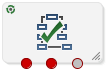
If the CPE has been configured to use the static panel CPE palette style, the CPE displays the icon shown below to represent the feature node.

Restrictions
A control plan may contain as many Activate Control Plan nodes as required. It must follow either a Load Profile node which loads an SN or CLI profile, or a node which sets the Pending TN Type variable.
Node exits
This node has one entry and three exits. The number of exits cannot be changed.
| Exit | Cause | Description |
|---|---|---|
| 1 | Success | The control plan was activated successfully. |
| 2 | Not Updated |
There was a problem with activating the control plan. In addition to other possible faults, this exit is taken if the node cannot establish whether to schedule the control plan against an SN or a CLI. |
| 3 | Abandoned | The caller abandoned the call. |
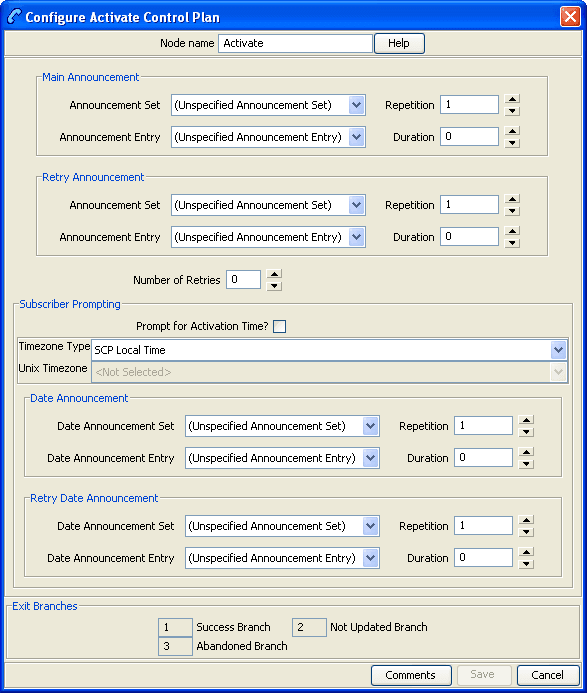
Configuring the node
Follow these steps to configure the Activate Control Plan node.
| Step | Action |
|---|---|
| 1 |
From the Main Announcement area, select the Announcement Set which contains the main announcement you want to play to the caller. The main announcement will be played to prompt for a Control Plan ID (MF identifier). Result: The Announcement Entry field becomes available. |
| 2 | From the Announcement Entry drop-down list, select the main announcement you want to play to the caller. |
| 3 | Set the Repetition field to the number of times to repeat the main announcement while the system waits for the caller to take an action. If set to zero, the announcement will be repeated for the length of the duration set. |
| 4 | Set the Duration field to the length of time, in seconds, that the announcement is to be played. If set to zero, the announcement will be played for its full length. |
| 5 |
The retry announcement contains the announcement you want to play to the caller if an invalid ID is entered after the main announcement. In the Retry Announcement area, select the:
as described in steps 1 - 4. |
| 6 | Set the Number of Retries field to the number of times that the node will attempt to collect the correct ID from the caller, before routing the call to the Not Updated branch. This value may be between 0 and 10. |
| 7 |
If you:
|
| 8 |
From the Timezone Type drop-down list, select the timezone you want to use. If you select the Explicit Unix TZ option, you need to select a specific region from the Unix Timezone field. For more Time zone information, see Time Zones. |
| 9 |
The Date Announcement area contains the announcement you want to play to the caller. Select the:
as described in steps 1 - 4. |
| 10 |
The Retry Date Announcement area contains the announcement you want to be repeat while the system waits for the caller to take an action. Select the:
as described in steps 1 - 4. |
| 11 |
Click Save. Note: Save is not available until all the required information has been selected or entered. |
Note: The announcement set and announcement entry lists are populated with data that is specified using the Announcements tab of the ACS Configuration screen.
For more information about configuring announcement sets and announcement entries, see the Announcements topic in ACS User's Guide.
Example use of node
Here is an example of using the Activate Control Plan node to activate a control plan for a service number or CLI.
For detailed information on the ACS Management control plan, see the chapter - Dial-up Control Plan Management in ACS, in ACS User's Guide.
| Stage | Description | |
| 1 | A customer is set up with an 0800 number and the self management screens. | |
| 2 | The customer creates 2 control plans. | |
| 3 |
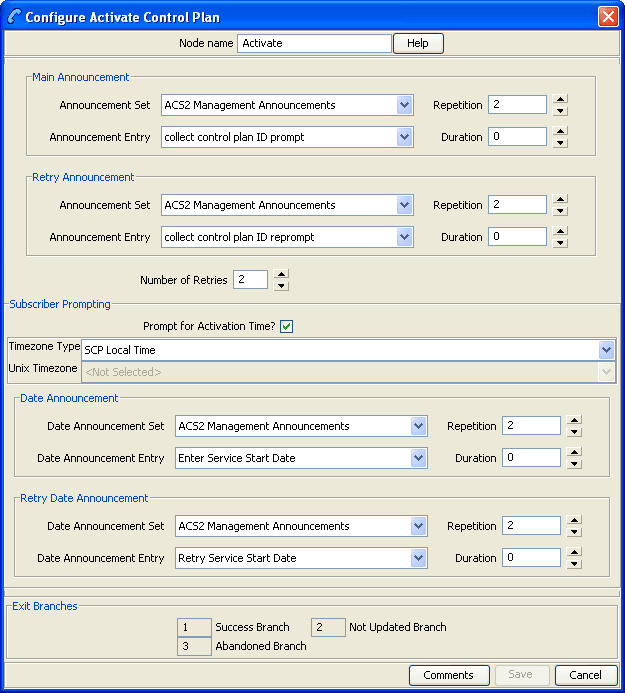
The customer phones a number attached to the ACS management control plan to change which control plan is active for the number. Here is an example of a Configure Activate Control Plan screen in ACS management control plan that does this. See the ACS Management Control Plan example in <ACS_User_sn> to see the other feature nodes required when using this with option 1 (Activate Control Plan - Service Number) and option 2.(Activate Control Plan - CLI). |
|
|
||
|
In this example, the caller is prompted to enter the:
|
||
Load Profile
Node description
This node will load the specified profile.
This allows you to read the profile in the database and makes it available to be updated by other nodes that can write back to the profile.
Node icon
If the CPE has been configured to use the static panel CPE palette style, the CPE displays the icon shown below to represent the feature node.

Node exits
This node has one entry and three exits. The number of exits cannot be changed.
| Exit | Cause | Description |
|---|---|---|
| 1 | Success Branch | The profile was loaded successfully. |
| 2 | Not Loaded Branch | The profile was not loaded. |
| 3 | Abandoned Branch | The caller abandoned the call. |
Configuring the node
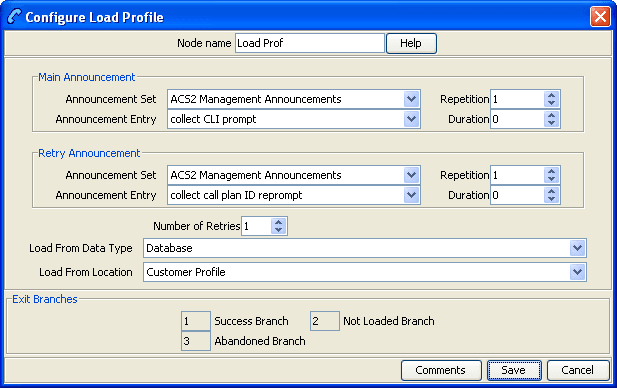
Follow these steps to configure the Load Profile node.
| Step | Action |
|---|---|
| 1 |
From the Main Announcement area, select the Announcement Set that contains the main announcement you want to play to the caller. Result: The Announcement Entry drop-down box will become available. |
| 2 | From the Announcement Entry drop-down list, select the main announcement you want to play to the caller. |
|
Note: The announcement set and announcement entry lists are populated with data that is specified using the Announcements tab of the ACS Configuration screen. For more information about configuring announcement sets and announcement entries, see the "Announcements" topic in the ACS User Guide. |
|
| 3 | Set the Repetition field to the number of times to repeat the main announcement while the system waits for the caller to take an action. If set to zero, the announcement will be repeated for the length of the duration set. |
| 4 | Set the Duration field to the length of time in seconds that the announcement is to be played. If set to zero, the announcement will be played for its full length. |
| 5 |
The retry announcement contains the announcement you want to play to the caller if the number of digits collected is not within the range specified. In the Retry Announcement area, select the:
as described in steps 1 - 4. |
| 6 | In the Number of Retries field, set the number of times that the node will attempt to collect data from the caller, before routing the call to the Not Updated branch. This value may be between 0 and 10. |
| 7 |
Using the drop down lists in the Load From Data Type and Load From Location fields, select the profile block from which information is to be loaded onto the node. Note: Only profiles that can be updated are listed. |
| 8 |
Click Save. Note: Save is not available until all the required information has been selected or entered. |
Note: The list of data types is fixed at installation time for each feature node or screen.
Further reference:
- For information about profile blocks (data type, location, and field) and how to use them, see Profile Blocks and Tags.
The primary tag lists are configured in the SMS > Services > ACS Service > Configuration > Profile Tag Details and Profile Tag Mapping tabs (see ACS User's Guide, Profile Tag Details for more information).
Example use of node
Here is an example of using the Load Profile node to load the customer profile, in order to access the Dial-up self management options.
For detailed information on the ACS Management control plan, see the chapter - Dial-up Control Plan Management in ACS, in ACS User's Guide.
| Stage | Description | |
| 1 | A customer is set up with an 0800 number and the self management screens. | |
| 2 |
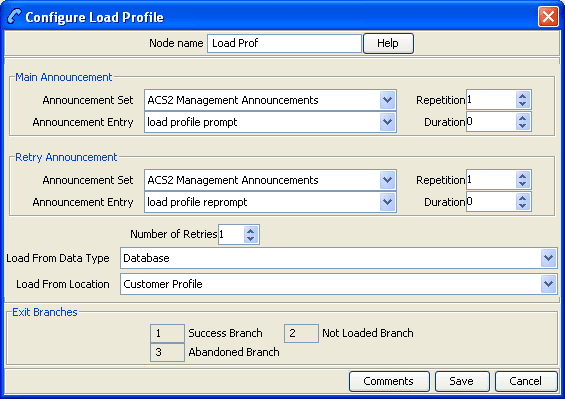
The customer phones a number attached to the ACS Management control plan. Here is an example of a Configure Load Profile screen in an ACS Management control plan that prompts the caller for a Customer Profile. See the ACS Management Control Plan example in ACS User's Guide to see the entire control plan. |
|
|
||
| In this example, the caller is prompted to enter their management ID. | ||