15 Network Feature Nodes
Overview
Introduction
This chapter describes the Oracle Communications Convergent Charging Controller Network feature nodes. Use Network feature nodes for decisions and actions relating to INAP protocol.
Note: To use network feature nodes, you should have a good working knowledge of networks, switches and the INAP protocol.
Available Feature Nodes
Network Feature Nodes List
This table lists the feature nodes available from the Network palette group and the fast key for each feature node in the list. You can use fast keys to search for feature nodes in the palette or the canvas.
| Node name | Node description |
|---|---|
| Branch on Bearer Type |
Will route calls to different branches depending on the incoming calling party bearer type and the node configuration. Fast key: BoBT |
| Branch On Call Forwarding Pending |
Branches, depending on the presence or not of a pending call forward, retrieved from the call context. Fast key: BCFW |
| Branch on Event Report Request BCSM Code |
Branches depending on the result of the previous Request Report BCSM Event operation. Fast key: BoEC |
| Branch on Indicator |
Takes an exit based on the: number incomplete, screening, or presentation restricted indicator of a specified number. Fast key: BoCP |
| Branch on Protocol |
Branches on the protocol used by the current call. Fast key: BOP |
| Branch on Service Key |
Compares an ACS IDP service key with a fixed value configured in the node. The node routes calls to different branches depending on the node configuration and whether or not a match is found. Fast key: BoSK |
| Call Forwarded Branching |
Determines which Control Plan branch is taken based on the whether or not the callForwarded flag, is set. Fast key: CFB |
| Call Progression |
Allows the user to change parameters controlling call progression. Fast key: CCPN |
| Set Cut and Paste |
Instructs the switch to remove digits from the called party number, prepend the termination number and terminate to the resulting number. Fast key: CNPA |
| Set Indicator |
Set the number incomplete, screening, or presentation restricted indicator of a specified number. Fast key: SCPT |
| TCAP Handover |
Hand over control of the call to another network element. Fast key: THFN |
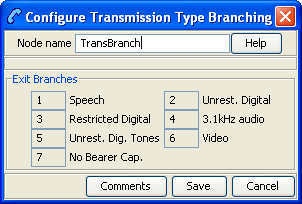
| Transmission Type Branching |
Will route the call to different branches depending on the incoming calling party transmission type. Fast key: TTB |
Branch on Bearer Type
Node description
The Branch on Bearer Type (Bearer Capability) node will route calls to different branches depending on the incoming calling party bearer capability or the high layer characteristic and the node configuration.
Node icon
If the CPE has been configured to use the static panel CPE palette style, the CPE displays the icon shown below to represent the feature node.

Node exits
This node has one entry and may have 4 through 10 exits. You can configure the number of exits within this range as required, using the Edit Node Exits option on the shortcut menu. See Editing node exits.
Node exits 1 through 3 are set by the system and may not be changed.
| Exit | Cause | Description |
|---|---|---|
| 1 | No Match Found | No match was found for any rule in the Bearer Capacity structure extracted from the Initial Detection Point. |
| 2 | Bearer Not Available | The bearer specified in the node was not available in the Bearer Capacity structure extracted from the Initial Detection Point. |
| 3 | Error | A error occurred. |
| 4 to 10 | Exit 4 | These exits are followed depending on the rules attached to them. |
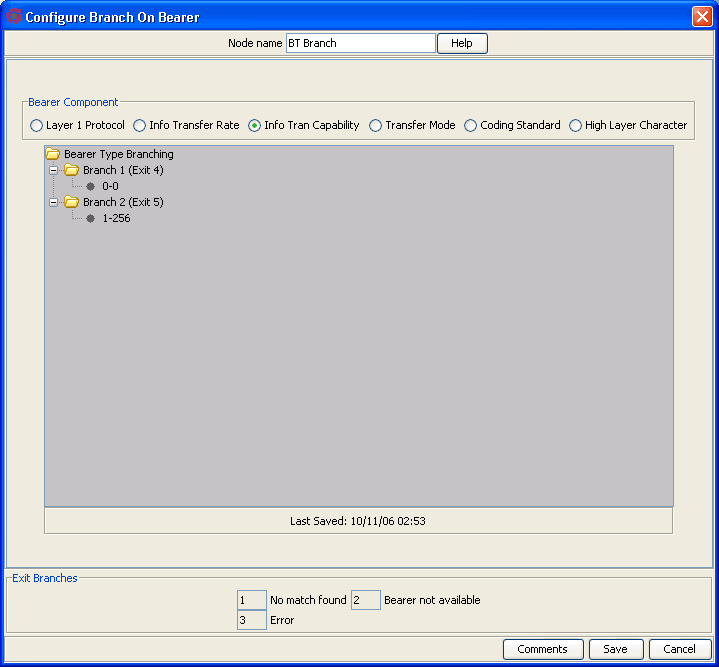
Configuring the node
Follow these steps to edit the Branch on Bearer node.
| Step | Action |
|---|---|
| 1 |
Edit the node exits to add exits as required. See Editing node exits for details. Note: The new number of exits is represented on the node icon, but not on the configuration screen exit list. |
| 2 |
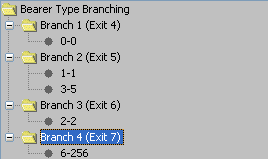
Open the Configure Branch on Bearer screen. Result: The Bearer Type Branching tree lists all the exits that have been added, as in the example below, showing 7 exits. By default, Branch 1 and Branch 2 are pre-configured.
Note: The number of branches to configure will always be the total number of exits configured, minus the three pre-configured branches. In this example node, there are 7 exits, therefore there are 4 configurable branches. |
| 3 |
In the Bearer Component frame, select the option on which to branch.
|
| 4 |
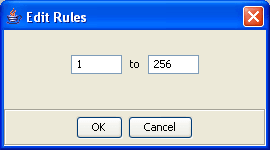
Branches are made up of rules. A rule is either a range of bearer types or a single value. The maximum number you can enter in the rules is 256. Before you can add rules to any other branches, you must edit the rules for Branch 2 (that is, 1-256) and change 256 to the number appropriate to the branch. This will allow you to add rules to the branches. To edit a rule, right-click on a rule and click Edit. Result: The Edit Rules dialog will appear.
To create a rule:
Note: The numbers must not overlap any other rule ranges. Make the change and click OK. |
| 5 |
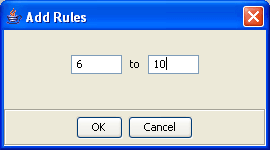
To add rules to a branch, right-click on the branch. From the pop-up menu displayed, select Add. You see the Add Rules screen.
|
| 6 | Create the rule as required. |
| 7 |
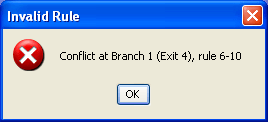
Click OK. Result: One of the following will occur:
Note: You may create as many rules per Branch as you require. |
| 8 |
Edit or delete rules under each branch. To delete a rule, right-click on a rule and click Delete. Result: The rule is deleted from the branch. |
| 9 |
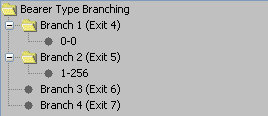
When rules have been added to all branches as shown in the example below, the Save button will become available.
Click Save. Result: The node data is saved. |
Notes:
- After configuration, you may add or remove exits for the node using Edit Node Exits, then edit the node branches again.
-
If you remove exits, when you open the Configure Branch on Bearer screen again you will see a warning, such as this example.
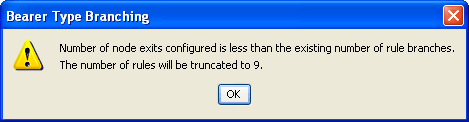
Click OK to continue, then edit the node.
Branch On Call Forwarding Pending
Node description
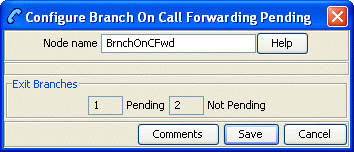
The Branch On Call Forwarding Pending node branches depending on whether there is a call forward pending or not.
This node uses the callForwardingSS-Pending
parameter flag to determine which branch to take. See standard 3GPP
TS 29.078, version 5.0.0 for full details.
Node icon

If the CPE has been configured to use the static panel CPE palette style, the CPE displays the icon shown below to represent the feature node.

Restrictions
A control plan may contain as many Branch On Call Forwarding Pending nodes as required.
This node is applicable to the CAP protocol and all other protocol usage will result in the Not Pending branch 2 exit being taken.
Branch on Event Report Request BCSM Code
Node description
The BoEC node branches depending on the result of the previous Request Report BCSM Event operation. The TDP codes that the node recognizes are from these events:
- oDisconnect
- tDisconnect
- oCalledPartyBusy
- tCalledPartyBusy
- RouteSelectFailure
Note: The "o" and "t" indicate Originating and Terminating respectively.
Node icon
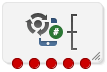
If the CPE has been configured to use the static panel CPE palette style, the CPE displays the icon shown below to represent the feature node.

Restrictions
A control plan may contain as many Branch on Event Report Request BCSM Code (BoEC) nodes as required.
Node exits
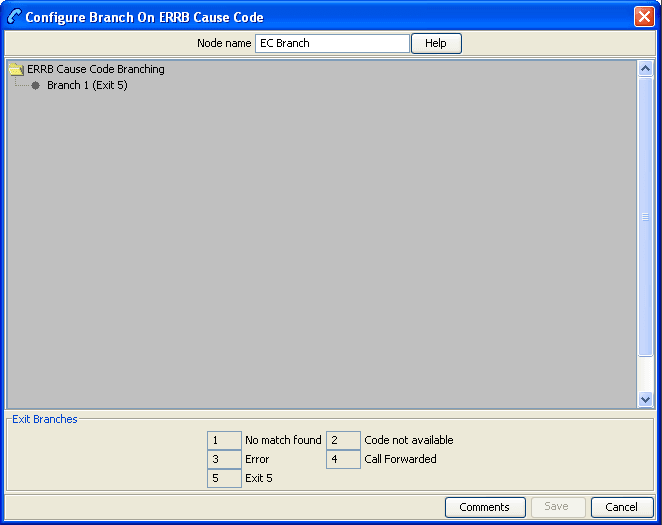
This node has one entry and initially five exits. You can manually add up to another five exits, making a total of 10 exits.
| Exit | Label | Cause |
| 1 | No match found | The cause code being passed to the node is not defined in any of the node's branch rules. |
| 2 | Code not available | ACS did not pass a cause code to the node. |
| 3 | Error | A software error occurred. |
| 4 | Call Forwarded | ACS has been advised that a terminating call has been forwarded. |
| 5 through 10 | Exit 5 through Exit 10 | Determined by branch rules specified for the exit. |
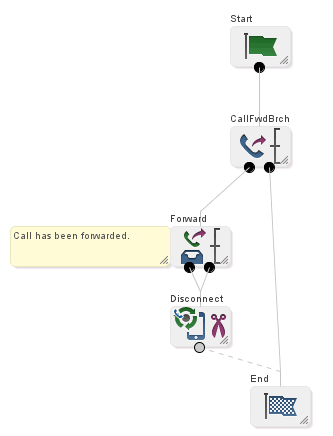
Note: The call-forwarded exit scenario for this node is identical to that of the Call Forwarded Branching node. Refer to the section on the Call Forwarded Branching node; in particular Node exits .
Configuring the node
Branches are made up of Cause code rules. A rule is either a range of Event Report Request BCSM Codes or a single value. Each branch can have as many rules as required, provided that the cause code has not been configured in another rule within this node.
Cause codes are defined in the following two documents.
-
ETS 300 374-1
Intelligent Network (IN):
Intelligent Network Capability Set 1 (CS1);
Core Intelligent Network Application Protocol (INAP);
Part 1: Protocol specification
European Telecommunications Standards Institute
In particular, see EventSpecificInformationBCSM
-
ITU-T Recommendation Q.850
Usage of Cause and Location
in the Digital Subscriber Signalling
System No. 1 and the Signalling
System No. 7 ISDN User Part
International Telecommunications Union
Follow these steps to edit the Branch on ERRB Cause Code node.
| Step | Action |
|---|---|
| 1 |
Edit the node exits to add up to another five exits as required. See Editing node exits for details. Note: The new number of exits is represented on the node icon, but NOT on the configuration screen exit list. |
| 2 |
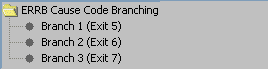
Open the Configure Branch on ERRB Cause Code screen. Result: The ERRB Cause Code Branching tree lists all the exits that have been added, as in the example below, showing 7 exits.
Note: The number of branches to configure will always be the total number of exits configured, minus the 4 pre-configured branches. In this example node, there are 7 exits, therefore there are 3 configurable branches. |
| 3 |
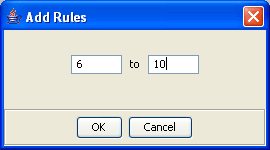
To add rules to a branch, right-click on the Branch. From the pop-up menu displayed, select Add. You see the Add Rules screen.
|
| 4 |
Create the rule as required. To create a rule:
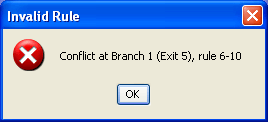
Note: The numbers must not overlap any other rule ranges. The maximum value of a rule is 256. |
| 5 |
Click OK. Result: Either:
Note: You may create as many rules per Branch as you require. |
| 6 |
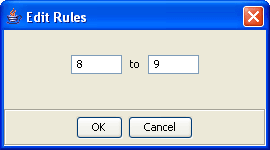
Edit or delete rules under each branch. To:
|
|
|
| 7 |
When rules have been added to all branches as shown in the example below, the Save button will become available.
Click Save. Result: The node data is saved. |
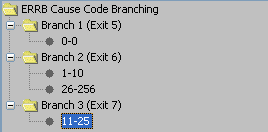
Note: After configuration, you may add or remove exits for the node using Edit Node Exits, then edit the node branches again.
If you remove exits, when you open the Configure Branch on Bearer screen again you will see a warning, such as this example.
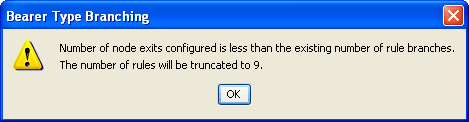
Click OK to continue, then edit the node.
Example of the use of the node
For a terminating call, suppose you want to select the following outcomes, depending on the values of cause numbers.
- If ACS was notified of call-forwarding, you want to play an announcement about call-forwarding.
- For cause number 1, you want to play an announcement about the telephone number being unallocated.
- For cause numbers 17 through 20, you want to play an announcement about the telephone number being either busy, unresponsive, unanswered or unanswerable because the telephone is switched off.
- For all other cause numbers, you want to simply disconnect the call.
To implement this scenario, you could set up the control plan shown below.
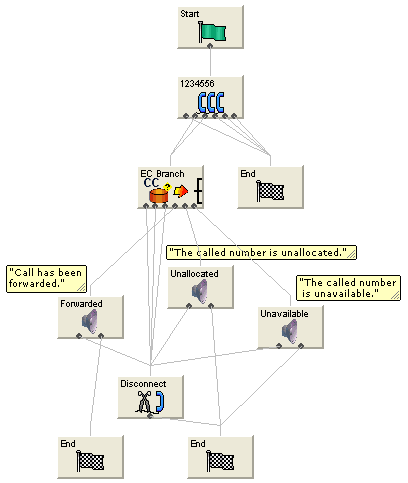
You would set up the configurable exits of the branch on ERRB Cause Code node as shown below.
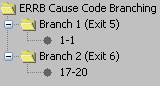
The non-configurable exit branches would remain as shown below.

Branch on Indicator
Node description
The Branch on Indicator node allows you to take an exit based on one of the indicators of a specified number:
- Number incomplete
- Screening
- Presentation restricted
Node icon
If the CPE has been configured to use the static panel CPE palette style, the CPE displays the icon shown below to represent the feature node.

Node exits
This node has one entry and five exits. The number of exits cannot be changed.
| Exit | Cause | Description |
|---|---|---|
| 1 | Value 0 | Bit value of 0 |
| 2 | Value1 | Bit value of 1 |
| 3 | Value 2 | Bit value of 2 |
| 4 | Value 3 | Bit value of 3 |
| 5 | Error | Error |
The interpretation of the value depends on the indicator selected.
Interpretation of values
This table describes the meaning of each value, depending on the indicator selected.
| Value | Presentation Restricted | Screening | Number Incomplete |
|---|---|---|---|
| 0 | The presentation is allowed | User provided, but not verified | Complete |
| 1 | The presentation is restricted | User provided, verified and passed | Incomplete |
| 2 | The address is not available | User provided, verify failed | NA |
| 3 | Spare | Network provided | NA |
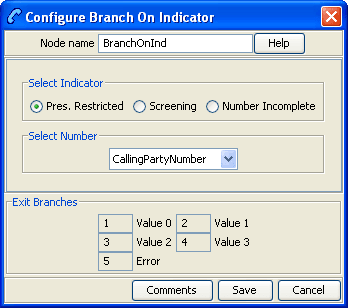
Configuring the node
Follow these steps to edit the node configuration.
| Step | Action |
|---|---|
| 1 |
Select the indicator option:
|
| 2 |
Select the number from the drop down list.
|
| 3 | Click Save. |
Branch on Protocol
Node description
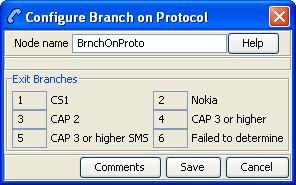
The Branch on Protocol node allows you to determine the protocol used by the current call and branch accordingly.
Node icon
If the CPE has been configured to use the static panel CPE palette style, the CPE displays the icon shown below to represent the feature node.

Node exits
This node has one entry and six exits. The number of exits cannot be changed.
| Exit | Cause | Description |
|---|---|---|
| 1 | CS1 | CS1 Protocol |
| 2 | Nokia | (for future use) |
| 3 | CAP 2 | CAP 2 protocol |
| 4 | CAP 3 or higher | CAP 3, or higher, protocol |
| 5 | CAP 3 or higher SMS | (for future use) |
| 6 | Failed to determine | Unspecified error |
Branch on Service Key
Node description
The Branch on Service Key (BoSK) feature node compares an ACS IDP service key with a fixed value configured in the feature node. The feature node routes calls to different branches depending on the feature node configuration and whether or not a match is found.
You configure the BoSK feature node by allocating a service key number or range of numbers to each exit. The service key number can have up to 10 digits and must be less than or equal to 2147483647.
To increase the number of available exits for which you can specify service key numbers and ranges, edit the feature node structure.
Node icon

If the CPE has been configured to use the static panel CPE palette style, the CPE displays the icon shown below to represent the feature node.

Node exits
This feature node can have between three and ten exits. You can configure the number of exits within this range as required, using the Edit Node Exits option on the shortcut menu. See Editing node exits.
Exits 1 and 2 are set by the system and may not be changed by the user.
| Exit | Cause | Description |
|---|---|---|
| 1 | No match found | No match was found for the service key extracted from the Initial Detection Point. |
| 2 | Error | The service key rules are incorrectly configured or an internal error has occurred. |
| 3 to 10 | Exit 3 | These exits are followed depending on the rules attached to them. |
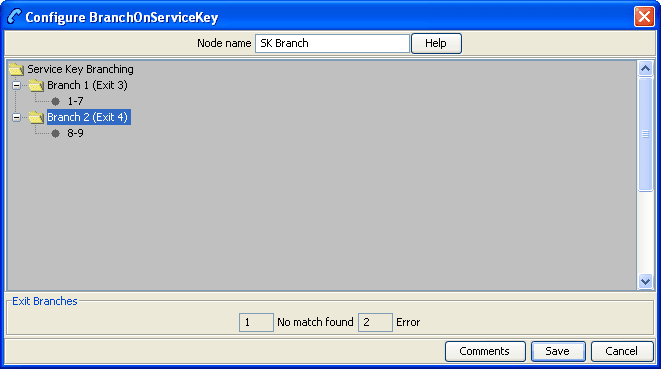
Configuring the node
Follow these steps to edit the feature node configuration.
| Step | Action |
|---|---|
| 1 |
Edit the number of feature node exits to create one or more additional exits. See Editing node exits for details. Note: The new number of exits is represented on the feature node icon, but NOT in the exit list in the feature node configuration window. |
| 2 |
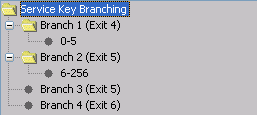
Open the Configure Branch on Service Key window. The Service Key Branching tree displays, listing all the configurable exit branches. This will be the total number of feature node exits, minus the two pre-configured exits. You configure the feature node by specifying the branching rules for each exit, where a rule is either a range of service keys or a single value. For example, the following diagram shows the service key rules configured for two exit branches.
|
| 3 |
Add the rules to each branch by performing the following steps:
Note: You can add multiple rules to a branch, but you must specify at least one rule for each branch. |
| 4 |
To edit a previously configured rule, perform the following steps:
|
| 5 | To delete a previously configured rule, right-click on the rule and select Delete from the pop-up menu. |
| 6 |
Click Save to save the feature node configuration. Note: You must configure at least one rule for each branch before you will be able to save the feature node configuration. |
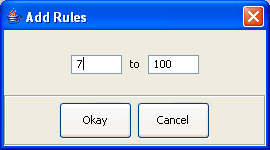
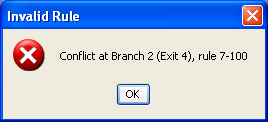
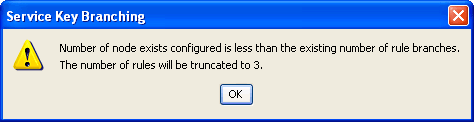
Note: You can configure additional exits for, or remove exits from the feature node, at any time. If you remove an exit then the next time you open the Configure Branch on Service Key window, a warning message displays:
Call Forwarded Branching
Node description
This node branches in either of two directions, depending on whether or not ACS has been advised that a terminating call has been forwarded.
ACS may receive advice about call-forwarding from a Service Switching Point (SSP) that complies with the CAMEL Application Part (CAP) specification. To use the Call Forwarded Branching node, you need to be familiar with the CAP specification. The specification is contained in the following document.
3GPP TS 29.078 v3.7.0
3rd Generation Partnership Project;
Technical Specification Group Core Network;
Customised Applications for Mobile network Enhanced Logic
(CAMEL) Phase 3
CAMEL Application Part (CAP) specification
(Release 1999)
Note: This node can only be used with terminating calls passed to ACS by an SSP that complies with the CAP specification.
Node icon

If the CPE has been configured to use the static panel CPE palette style, the CPE displays the icon shown below to represent the feature node.

Restrictions
A control plan may contain as many Call Forwarded Branching nodes as required.
Note: This node is only available in ACS 2.4.1 and later versions, for users of the CAMEL protocol.
Node exits
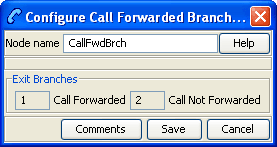
The Call Forwarded Branching node has one entry and two exits. The number of exits is fixed and cannot be changed.
| Exit | Label | Cause |
| 1 | Call Forwarded | ACS has been advised that a terminating call has been forwarded. |
| 2 | Call Not Forwarded | ACS has not been advised that a terminating call has been forwarded. |
Note: ACS is advised that a terminating call has been forwarded when an EventReportBCSM is received from the SSP. EventReportBCSM indicates to ACS's tBusy and tNoAnswer detection points that a "call forwarded" has been received.
Call Progression
Node description
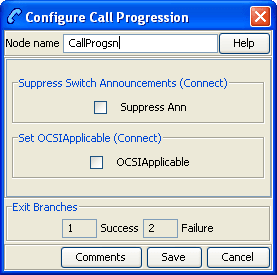
The Call Progression node allows you to configure the following parameters in the outgoing connect message:
- Suppress Switch Announcements
- Set OCSI Applicable
Node icon
If the CPE has been configured to use the static panel CPE palette style, the CPE displays the icon shown below to represent the feature node.

Restrictions
A control plan may have as many Call Progression nodes as required. A later instance of the node parameters will override the previous ones.
Node exits
This node has one entry and two exits. The number of exits cannot be changed.
| Exit | Cause | Description |
|---|---|---|
| 1 | Success | The node parameters have been set. |
| 2 | Failure | The node parameters have not been set. |
Configuring the node
Follow these steps to edit the node configuration.
| Step | Action |
|---|---|
| 1 | Select the Suppress Ann check box to suppress switch announcements in the outgoing Connect message. |
| 2 | Select the OCSIApplicable check box to set the OCSIApplicable parameter in the outgoing Connect message. |
| 3 | Click Save. |
Set Cut and Paste
Node description
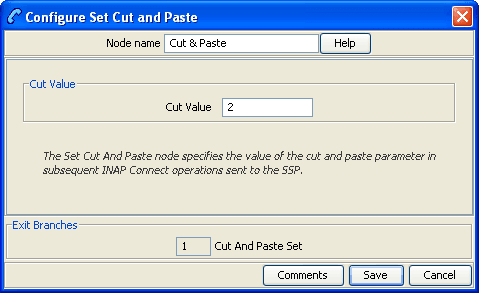
The number entered in the node configuration dialog is sent in
all following INAP Connect operations as the value of the
cutAndPaste parameter.
For details about the effect of cutAndPaste, see
ETS 300 374-1.
Node icon
If the CPE has been configured to use the static panel CPE palette style, the CPE displays the icon shown below to represent the feature node.

Node exits
This node has one entry and one exit. The number of exits cannot be changed.
| Exit | Cause | Description |
|---|---|---|
| 1 | Cut and Paste Set | The cut and paste has been set. |
Configuring the node
Follow these steps to configure the Set Cut and Paste node.
| Step | Action |
|---|---|
| 1 |
In the Cut Value field, enter the value to set the cutAndPaste parameter to in INAP Connect operations sent to the switch from here on. Note: If you set Cut Value to 23 or more, ACS will stop setting the cutAndPaste parameter in INAP Connect operations. |
| 2 | Click Save. |
Set Indicator
Node description
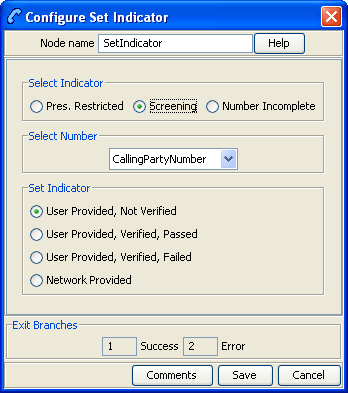
The Set Indicator node allows you to set the value one of the indicators of a specified number sent in the CONNECT message:
- Number incomplete
- Screening
- Presentation restricted
Node icon
If the CPE has been configured to use the static panel CPE palette style, the CPE displays the icon shown below to represent the feature node.

Node exits
This node has one entry and two exits. The number of exits cannot be changed.
| Exit | Cause | Description |
|---|---|---|
| 1 | Success | Value successfully set. |
| 2 | Error | Value not set due to error |
Configuration screen
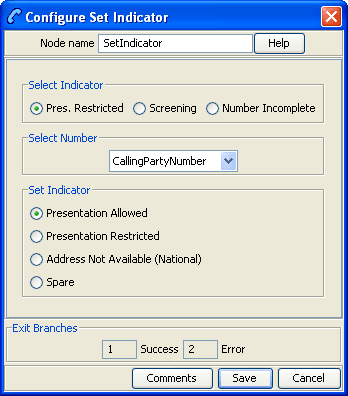
Here is an example Configure Set Indicator screen for the Presentation Restricted indicator.
Configuration screen
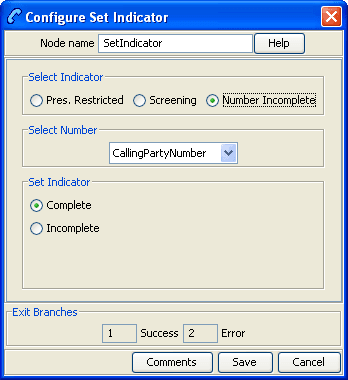
Here is an example Configure Set Indicator screen for the Number Incomplete indicator.
Configuring the node
Follow these steps to configure the node.
| Step | Action |
|---|---|
| 1 |
From the Select Indicator options, select the indicator to set:
|
| 2 |
From Select Number drop down list, select the phone number to apply the indicator to.
Note: This list contains all the valid phone number options. |
| 3 |
From the Set Indicator options, select the value to apply to the selected phone number indicator. Refer to the interpretation of values table below. |
| 4 | Click Save. |
Interpretation of values
This table describes the meaning of each value, depending on the indicator selected.
| Value | Presentation Restricted | Screening | Number Incomplete |
|---|---|---|---|
| 0 | The presentation is allowed | User provided, but not verified | Complete |
| 1 | The presentation is restricted | User provided, verified and passed | Incomplete |
| 2 | The address is not available | User provided, verify failed | NA |
| 3 | Spare | Network provided | NA |
TCAP Handover
Node description
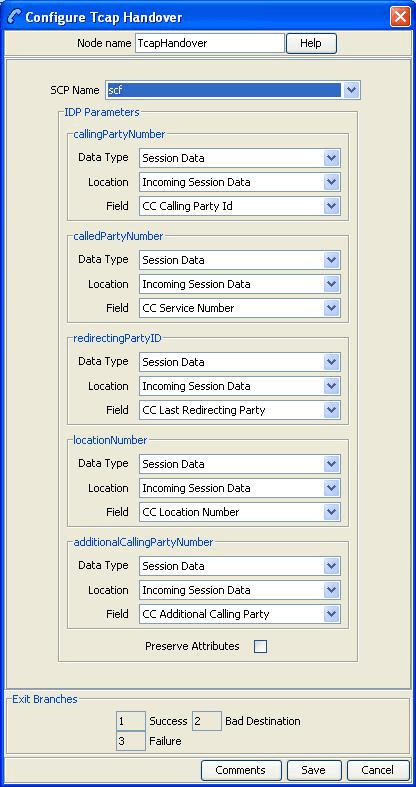
The TCAP Handover node calls a chassisAction to construct an IDP on the existing SLEE dialog. It then calls the TCAP interface to hand over the SLEE dialog to an external network entity.
The available network entities are defined in acs.conf and made available to this node (SCP Name list) through the acsGui.bat/acsGui.sh or smsGui.bat/smsGui.sh files (scfs parameter). These will typically be SLCs, see ACS Technical Guide, topic Customizing the screens for details.
The following IDP parameters can be configured in the node to use a specific ACS termination number or buffer:
- Calling Party Number
- Called Party Number
- Redirecting Party ID
- Location Number
- Additional Calling Party Number
The available buffers are listed in the Buffer list.
Note: All other fields in the constructed IDP are taken from the calling information for the original call.
Node icon
If the CPE has been configured to use the static panel CPE palette style, the CPE displays the icon shown below to represent the feature node.

Node exits
This node has one entry and three exits. The number of exits cannot be changed.
| Exit | Cause | Description |
|---|---|---|
| 1 | Success | The node successfully passed the TCAP dialog to another entity. |
| 2 | Bad Destination | The hand over destination defined for the specified network entity could not be found. |
| 3 | Failure | The hand over was unsuccessful. |
Specifying values in profile selection fields
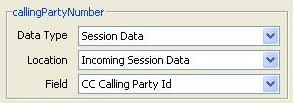
For each combo box combination on this screen, there are two methods of entering a value:
- Use the drop down lists in the Data Type, Location and Field boxes, as in this example, to select the relevant values:
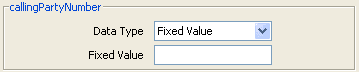
- Select Fixed Value in the Data Type box.
Result: The fields will change, as in this example, and you can type the required value in the Fixed Value field.
Configuring the node
Follow these steps to edit the TCAP Handover feature node.
| Step | Action |
|---|---|
| 1 | Select the SCP Name of the network entity for the handover destination. |
| 2 | In the IDP Parameters area, for each IDP parameter, specify the value. |
|
You can specify the following optional IDP parameters:
|
|
| 3 |
When a TCAP handover is performed it is often desirable to preserve fields from original incoming IDP into fields in outgoing IDP. By default, the original IDP parameter values are preserved - the Preserve Attributes check box is selected. To disable the original IDP parameter values preservation, deselect the check box . |
| 4 | Click Save. |
For more information on profile blocks and tags, see ACS User's Guide.
Transmission Type Branching
Node description
The Transmission Type Branching node allows you to route the call to different branches depending on the incoming calling party transmission type.
Node icon
If the CPE has been configured to use the static panel CPE palette style, the CPE displays the icon shown below to represent the feature node.