16 Number Feature Nodes
Available Feature Nodes
Number Feature Nodes List
This table lists the feature nodes available from the Number palette group and the fast key for each feature node in the list. You can use fast keys to search for feature nodes in the palette or the canvas.
| Node name | Node description |
|---|---|
| Call Filtering |
Checks the number in the selected call-digit buffer to determine whether it matches a number in the allowed or barred list stored in the configured profile location. Fast key: CF |
| Calling Party |
Routes a call based on the number that the call is coming from. Fast key: CP Shortcut keys: Alt+C |
| Calling Party Category |
Routes a call based on the category of phone from which the call originates. Fast key: CPC Shortcut keys: Alt+Shift+C |
| Dialled Number |
Allows branching based on the service number that was dialed by the calling party. Fast key: DN |
| Geographical Routing |
Allows a control plan to be branched, based on the geographic location of the calling party. Fast key: GR Shortcut keys: Alt+Shift+G |
| Number Lookup and Translation |
Takes a number that is entered by the user and translates it to another number that is stored in the database. Fast key: NLT |
| Number Matching |
Allows the user to enter one or more search patterns, against which the selected number is matched. Fast key: MTCH |
| Number Normalisation |
Normalizes the specified number variable, following the rules defined in acs.conf. Fast key: NumN |
| Table Lookup |
Maps a specified prefix or CLI to a geographical routing code, such as a postal code or an exchange code, by looking up the code in a selected table lookup dataset. The feature node stores the resulting code in a profile field. The exit taken from the feature node depends on whether or not a match is found for the prefix or CLI. Fast key: TBLU |
Call Filtering
Node description
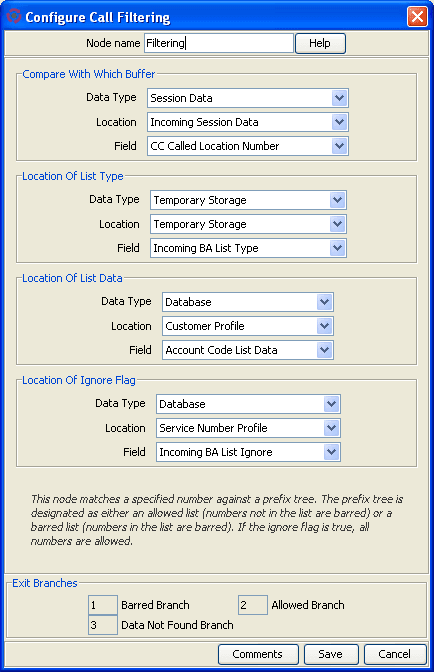
Use the Call Filtering feature node to check the number in the selected call-digits buffer to determine whether it matches a number in the allowed or barred list stored in the configured profile location.
Node icon

If the CPE has been configured to use the static panel CPE palette style, the CPE displays the icon shown below to represent the feature node.

Node exits
This feature node has one entry and three exits. The number of exits cannot be changed.
| Exit | Cause | Description |
| 1 | Barred | The call is barred, so it is routed down branch 1. This may then be followed by the required functionality, such as a Play Announcement or Disconnect feature node. |
| 2 | Allowed | The call is allowed, so it is routed down branch 2. This may then be followed by the required functionality, such as a Termination Unchanged feature node. |
| 3 | Data Not Found | No data is found to identify the number as allowed or barred. The call is routed down branch 3. It may then be followed by the required functionality, such as a Play Announcement or Disconnect feature node. |
Configuring the node
To edit the Call Filtering feature node:
| Step | Action |
|---|---|
| 1 | From the lists in the Compare With Which Buffer area, select the buffer that contains the number to check in the allowed or barred numbers list. You specify the number list to use in the location fields. |
| 2 | From the Location Of List Type lists, select the profile field that sets whether the list type is allowed or barred. |
| 3 | From the Location Of List Data lists, select the prefix tree profile field that contains the list of allowed or barred numbers. |
| 4 | From the Location Of Ignore Flag lists, select the profile field that sets whether the list should be used or ignored. When the value in the profile field is set to true, the list is ignored and all numbers are allowed. |
| 5 | Click Save. |
Calling Party
Node description
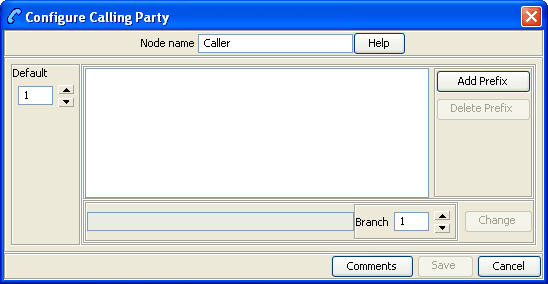
This node routes calls based on the telephone number from which the call is made. This allows callers whose phone numbers have specified prefixes to be routed to different exits. Calls are routed to the exit that is mapped to the best match between the calling party number and the prefixes that are in the node data.
Example: If the prefixes entered into the node data are 04, 09, 04477 and 044, a caller from 044773384 will be routed down the branch associated with 04477, as this is the best match found for the calling party number.
For calls where there is no match found in the prefix list, the call is routed down the default exit.
Node icon

If the CPE has been configured to use the static panel CPE palette style, the CPE displays the icon shown below to represent the feature node.

Node exits
This node has one entry and may have two through 20 exits. You can configure the number of exits within this range as required, using the Edit Node Exits option on the shortcut menu. See Editing node exits.
Configuring the node
Follow these steps to configure the node.
| Step | Action |
|---|---|
| 1 | Edit the node exits to add up to another eighteen exits as required. See Editing node exits for details. |
| 2 |
Click Add Prefix. Result: A highlighted entry appears in the display grid. This creates the new Prefix entry, and is edited in the following steps. |
| 3 |
Type the prefix in the entry field to the left of the Branch box. Calls made from numbers with this prefix are routed to the exit specified in this step. |
| 4 | Use the Branch box to select the exit these calls should be routed to. |
| 5 |
Click Change. Result: The Prefix appears in the display grid, with the exit displayed in brackets. |
| 6 | Repeat Steps 1 – 4 for as many prefix additions as required. |
| 7 | Set the default branch for all calls which do not match a specified prefix. |
| 8 |
Click Save. Note: Save is not available until all the required information has been selected or entered. |
Calling Party Category
Node description
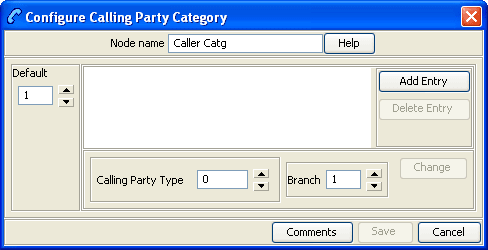
This node routes a call based on the category of phone from which the call originates. A category number identifies calls within the system, indicating the type of telephone from which the call is made (for example, pay phones, hotels or prisons).
This node is used by System Administrators only, for advanced editing. It will only work if the Telco’s system is set up to provide the IDP calling party category information. This configuration must be configured on the switch at system level.
Node icon

If the CPE has been configured to use the static panel CPE palette style, the CPE displays the icon shown below to represent the feature node.

Node exits
This node has one entry and may have two through seven exits. You can configure the number of exits within this range as required, using the Edit Node Exits option on the shortcut menu. See Editing node exits.
Configuring the node
Follow these steps to edit the Calling Party Category node.
| Step | Action |
|---|---|
| 1 | Edit the node exits to add up to another five exits as required. See Editing node exits for details. |
| 2 |
Select the default branch. Where the system is not configured to process calling party category data, the system will use the default branch for any calls using a Control Plan containing this node. |
| 3 |
Click Add Entry. Result: A highlighted entry appears in the display grid. This creates the new entry, and is edited in the following steps. |
| 4 |
Use the Calling Party Type spin box to select the category number of the required type of phone. Any value from 0 – 255 may be used to indicate any given category of phone. These values are network-specific, so they may be set to reflect the needs of the market. The table below details the standard values used for ISUP. Result: Calls from phones of the selected calling party type will route down the selected branch. Example: If values are selected from the ITU/ETSI CS1 standards, category 4 represents calls from the Russian language operator, and category 15 represents calls from payphones. If the incoming call is from an undefined category, or if the system is not configured to process calling party category data, the call will be routed down the default branch. |
| 5 |
Use the Branch spin box to select the exit. This is the exit to which calls made from phones of this category are routed. |
| 6 |
Click Change. Result: The Category appears in the display grid, with the exit displayed in brackets. |
| 7 | Repeat Steps 1 – 4 for as many category additions as required. |
| 8 |
Click Save. Note: Save is not available until all the required information has been selected or entered. |
ISUP: Enumerated Values for Calling Party Category
The table below detail the standard values.
| Integer value | Station type |
|---|---|
| -1 | Unknown (not provided) |
| 0 | Unknown |
| 1 | Operator, language French |
| 2 | Operator, language English |
| 3 | Operator, language German |
| 4 | Operator, language Russian |
| 5 | Operator, language Spanish |
| 6 - 8 | Available to administration for selecting a particular language by mutual agreement |
| 9 | Reserved |
| 10 | Ordinary Calling subscriber |
| 11 | Calling subscriber with priority |
| 12 | Data call (voice band data) |
| 13 | Test call |
| 14 | Spare |
| 15 | Payphone |
| 16 - 223 | Spare |
| 224 - 254 | Reserved for national use |
| 255 | Spare |
| In IS-41 NP(MSID) type | |
| 0 | Mobile Identification Number |
| 1 | International Mobile Station Identity |
For more information about the Calling Party Category, see ITU-T standard Q763.
Dialled Number
Node description
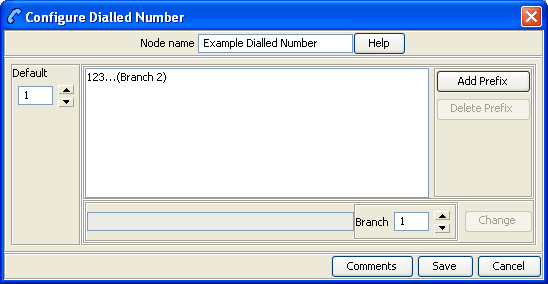
The Dialled Number node allows branching, based on the service number (SN) that was dialed by the person making the call. This allows several service numbers to use the same control plan and be routed down different branches, based on the service number that the caller used.
Node icon

If the CPE has been configured to use the static panel CPE palette style, the CPE displays the icon shown below to represent the feature node.

Node exits
This node has one entry and may have 2 through 20 exits. You can configure the number of exits within this range as required, using the Edit Node Exits option on the shortcut menu. See Editing node exits.
Configuring the node
Follow these steps to add a prefix to the node data, using the Configure Dialled Number screen.
| Step | Action |
|---|---|
| 1 | Edit the node exits to add up to another eighteen exits as required to accommodate the numbers you are planning to configure. See Editing node exits for details. |
| 2 |
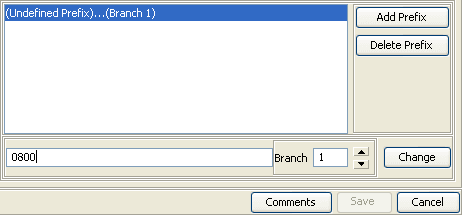
Click Add Prefix. Result: You see an undefined prefix displayed in the list box to the left of the button. |
| 3 |
Enter the prefix into the field to the left of the Branch field, as shown below.
To determine the routing, prefixes (or the entire number) must be entered into the node data. The routing will be based on the best match between the dialed number and the prefixes that are in the node data. The dialed number list takes up to 1500 characters in total, which limits the number of entries in the list. It is recommended that a maximum of 50 entries be made in the list. Example: If 0800447732 is dialed and the prefixes entered into the node data are 0800, 0900, 0800447 and 080044, the call will be routed down the branch associated with 0800447 because this is the best match found for the number dialed. |
| 4 |
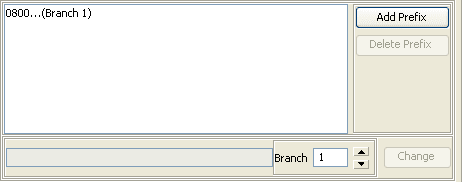
In the Branch field, select the branch down which calls whose dialed number best matches this prefix are to route. When the entry is correct, click Change. Example:
|
| 5 | Repeat steps 1-4 until you have specified the dialed number ranges required. |
| 6 | From the Default box, select the branch that dialed numbers that do not match any prefix entered into the node will route down. |
| 7 | Click Save. |
Geographical Routing
Node description
This node allows a control plan to branch based on the geographic location of the calling party. This node may be used to offer different service to calls from certain locations. For example, routing to a local office.
A control plan may contain as many Geographic Routing nodes as required.
Node icon

If the CPE has been configured to use the static panel CPE palette style, the CPE displays the icon shown below to represent the feature node.

Node exits
This node has one entry and may have two through 20 exits. Although this node accepts up to 20 exits, it is recommended that this number is restricted to a maximum of 10. You can configure the number of exits within this range as required, using the Edit Node Exits option on the shortcut menu. See Editing node exits.
Geographic routing
A geography set is made up of multiple nested geography entries. Each entry is mapped to a unique prefix, and may also be connected to a (or several) region. A region is a group of geography entries. The entries contained in a single region may come from different branches and different nested levels, or may contain whole branches.
Routing may be based on either region or geography entry prefix. A geography entry may only appear once on a branch. That is, it may not appear on two branches.
The routing will be based on the best match between the calling party number (or other selected buffer) and the number prefix that has been set for the region in the Geography tab of the configuration screens.
Nested subtrees
If an entire nested subtree within a geography set is allocated to a branch then the root of the subtree should be allocated to the branch.
Example: If the number prefix entered for a region used in this node was 0447 and the number prefix for another region used in this node was 04477, a caller from 044773384 will be routed down the branch associated with 04477 because this is the best match found for the calling party number.
Allocating individual prefixes vs allocating folders
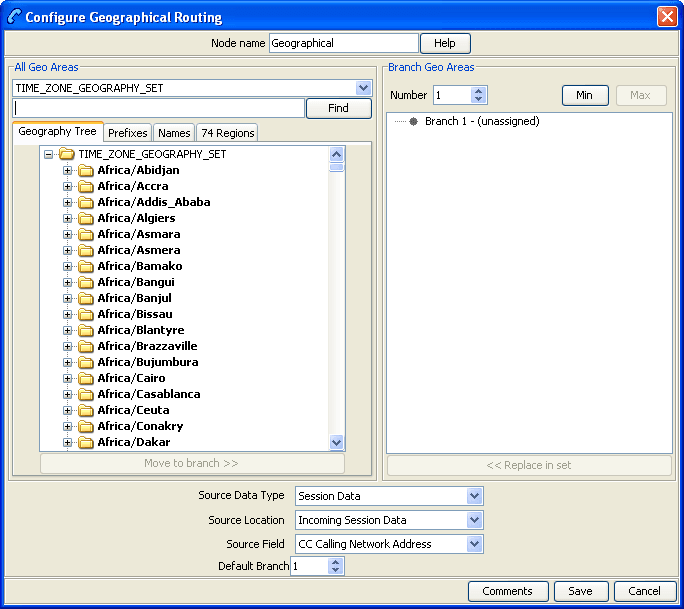
It can be visually clearer to allocate every individual prefix to a branch in the All Geo Areas frame but this is not necessary. When allocating a folder to a branch all prefixes (and sub-folder prefixes) will route down that branch even though the Branch Geo Area (right side) does not list each prefix. However if any prefixes or sub-folders in the root folder are allocated to another branch then calls to those prefixes will route down the new branch instead. You will notice that the prefixes or sub-folders will not be highlighted in the All Geo Areas (left side) of the root folder when allocated to other branches.
Example:
The geography set has a folder called Eastern Province which contains 3 prefixes, 2 of which are in a sub-folder called Northern District.
If the Eastern Province folder is allocated to a branch then all matched prefixes will go down that branch (even though the Branch Geo Areas frame will only display the Eastern Province folder name).
If the sub-folder, Northern District, is now allocated to another branch then all calls that best match the prefixes in this sub-folder will go down the new branch.
While the third prefix, Southern District (Prefix 12), will still go down the branch allocated to the root folder Eastern Province.
The Northern District folder will not be highlighted in the All Geo Areas frame indicating it is allocated on another branch instead.
Default branch
For calls where there is no match found for the allocated prefixes in the Branch Geo Areas frame, the call will be routed down the default exit branch, as specified by the Default Branch field.
Add a geographic entry or Region to an exit branch
Follow these steps to add a geographic entry or region to an exit branch.
| Step | Action |
|---|---|
| 1 |
Select the location of the number data from the Source Data Type, Location and Field drop down lists. Note: For information on profiles and how to use them, see Selecting profile locations and fields. |
| 2 |
Select the required geography set from the list. The list will display all the Geography sets that the customer has access to. To the left of the screen is the full tree structure of the geography set. Branches of the tree may be condensed and expanded by:
|
| 3 |
Enter the branch number to which the geographic entry or region is to be routed in the Number field. Example:
|
| 4 |
Select the entry that is to be routed to that branch from the geography tree at the left. Notes:
|
| 5 | Either press Ctrl+B or click Move to Branch >>. The entry will be added to the tree structure for the specified branch. If a condensed branch of the geography tree is added to the branch sub-tree, the entry selected and all levels below that will be added to the branch sub-tree. To add geography entries to another branch, select a new branch and use Move to Branch >> or << Replace in Set to add and remove geography tree entries. |
| 6 | Add entries and regions to all branch exits as required. |
| 7 | Select the Default Branch. |
| 8 |
When you have finished all editing, click Save. Note: Save is not available until changes have been made. |
 and
and 
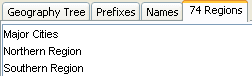
Remove geography entries from a branch subtree
Follow these steps to remove Geography Entries from a Branch sub-tree.
| Step | Action |
|---|---|
| 1 |
Select the geography set that is required from the list. The list will display all the geography sets that the customer has access to. To the left of the screen is the full tree structure of the geography set. Branches of the tree may be condensed by:
|
| 2 | Select the branch to which a geography tree branch is currently routed by entering a number into the Branch field. |
| 3 |
From the Branch Geo Areas frame, select the entry that is to be removed. Note: You can select the root branch by pressing Alt+B, and navigate around the tree using the arrow keys. You can also select any of the first nine entries by pressing Ctrl and the corresponding number key. |
| 4 |
Either press Ctrl+S or click << Replace in Set. Result: The geography entry is replaced in the full geography set tree. This entry may now be added to another branch sub-tree if required. |
| 5 |
When finished all editing, click Save. Note: Save is not available until changes have been made. |
 and expanded by clicking on the
Finding a number in the geographic tree
Follow these steps to find where a specific telephone number or prefix is in the geography tree.
| Step | Action |
|---|---|
| 1 | In the Configure Geographical Routing screen, press Ctrl+R to place your cursor into the field next to the Find button. |
| 2 |
Type the number or prefix you want to search for and press Ctrl+F to activate the Find button. Result: The All Geo Areas tree will expand and highlight the best match for your query. |
Example control plan
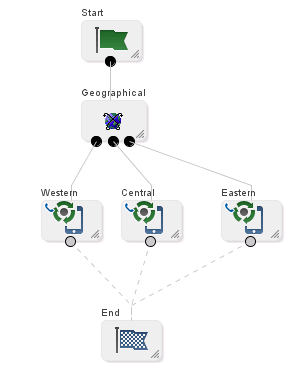
Here is an example control plan containing a Geographical Routing feature node.
This control plan will route calls to different service centers based on where the call originates from (for example, routes to the nearest Pizza shop).
This control plan is triggered when the caller dials a certain termination number (for example 0800 PIZZA).
Number Lookup and Translation
Node description
This node takes a number that is either entered by the user or is held as a data item, and translates it to another number.
The new number is stored in a field in a specified location for later use, for example, as a pending termination number.
Node icon
If the CPE has been configured to use the static panel CPE palette style, the CPE displays the icon shown below to represent the feature node.

Restrictions
A control plan may contain as many Number Lookup and Translation nodes as required.
The number translation data and announcements must be set up before this node can be configured correctly.
Node exits
This node has one entry and four exits. The number of exits cannot be changed.
| Exit | Cause | Description |
|---|---|---|
| 1 | Success | The number has been successfully translated. |
| 2 | Not Translated | The number has not been translated. |
| 3 | Abandoned | The caller has abandoned the call. |
| 4 | Not Updated | The number could not be updated. |
Configuring the node
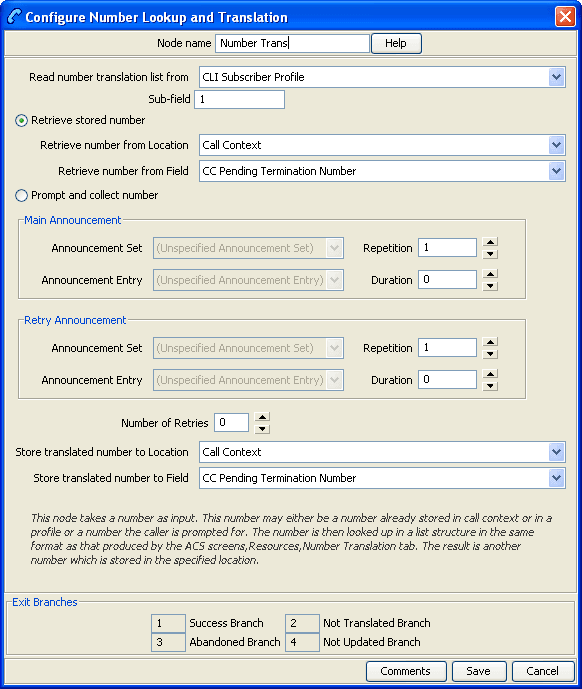
Follow these steps to configure the node.
Note: For information about profiles and how to use them, see Selecting profile locations and fields.
| Step | Action |
|---|---|
| 1 |
In the Read number translation list from field, select the location in which the number translations are stored. The Control Plan designer must verify that this field contains the correct selection. Note: If this number translation has been established by using the ACS > Resource > Number Translation screen, the information will always be in Customer Profile, Sub-field 1. |
| 2 |
In the Sub-field field, enter the sub-tag that selects a group of number translations. This field entry does not have a default value. See Sub-tags for a definition of sub-tags. The list that is stored under the sub-field is a prefix tree data structure, which allows the input number to be quickly looked up and verified. Example:
|
| 3 |
Select the method of obtaining the number:
|
| 4 | If you selected the Retrieve stored number option, in the Retrieve number from location and Retrieve number from field drop down lists, select the location of the data to retrieve. |
| 5 | Go to Step 12. |
| 6 |
If you selected the Prompt and collect number option, from the Main Announcement area, select the Announcement Set that contains the main announcement you want to play to the caller. Result: The Announcement Entry drop-down box will become available. |
| 7 |
From the Announcement Entry drop-down list, select the main announcement you want to play to the caller. Note: All announcements are established in the ACS > Configuration > Announcements screens. |
| 8 | Set the Repetition field to the number of times to repeat the main announcement while the system waits for the caller to take an action. If set to zero, the announcement will be repeated for the length of the duration set. |
| 9 | Set the Duration field to the length of time in seconds that the announcement is to be played. If set to zero, the announcement will be played for its full length. |
| 10 |
The retry announcement contains the announcement you want to play to the caller if the digits they enter are not recognised. In the Retry Announcement area, select the:
as described in steps 5 - 9. |
| 11 | In the Number of Retries field, set the number of times that the node will attempt to collect data from the caller, before routing the call to the Not Translated branch. This value may be between 0 and 10. |
| 12 | From the Store translated number to Location and Store translated number to Field drop down lists, select where to store the translated number. |
| 13 |
Click Save. Note: Save is not available until all the required information has been selected or entered. |
Note: The announcement set and announcement entry lists are populated with data that is specified using the Announcements tab of the ACS Configuration screen.
For more information about configuring announcement sets and announcement entries, see the Announcements topic in ACS User's Guide.
Example
The following have been set up in the ACS > Resource > Number Translation screens (list of Sub-field 1 numbers):
| Input Number | Termination Number |
|---|---|
| 08004567 | 041234567 |
| 08009876 | 063456789 |
The number to translate is compared to the Input Number list.
When a match is found, the matching termination number is stored in the configured location.
Number Matching
Node description
The Number Matching node finds numbers that match:
- One or more search patterns
- A profile block and field
Node icon

If the CPE has been configured to use the static panel CPE palette style, the CPE displays the icon shown below to represent the feature node.

Restrictions
A control plan can contain one or more Number Matching nodes.
When entering a search pattern list, the maximum length of the list is 2000 characters per node instance.
The node can search for profiles with a String data type only.
Node exits
This node has one entry and three exits. The number of exits cannot be changed.
| Exit | Cause | Description |
| 1 | Number Found | The selected number matches a search pattern. |
| 2 | Number Not Found | The selected number does not match a search pattern. |
| 3 | Number is Undefined |
One of:
|
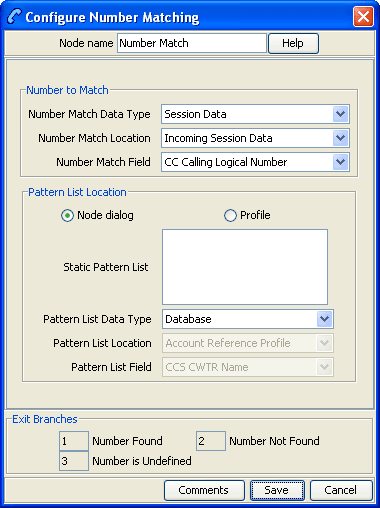
Search patterns
The Number Matching feature node allows you to enter one or more search patterns in the Static Pattern List field.
The search patterns are entered using regular expressions. Some characters have special meaning when used in a regular expression; other characters stand for themselves. Under ACS, telephone number matching is customized for patterns of telephone numbers. The "number" character set is represented by digits zero through nine, asterisk, pound sign (hash mark), and the letters A through F.
The control plan compiler notifies you if the pattern entered is invalid.
Special characters
Here are the definitions of special characters used in search patterns.
| Special Character | Definition |
|---|---|
| c | For the purposes of this feature node, the character c refers to the "number" character set as defined above. |
| ? | Any single character in the pattern. |
| (r) | The regular expression r. For example, (r)x(y)z is the combination of regular expressions rxyzy. This is typically used to group number sequences as distinct units. |
| r% | Zero or more successive occurrences of the regular expression r. The longest left-most match is chosen. |
| rx | The occurrence of regular expression r, followed by the occurrence of regular expression x. |
| r<m:n> | Any number of m through n successive occurrences of the regular expression r. The regular expression r<m> matches exactly m occurrences; r<m:> matches at least m occurrences. The occurrence counting angle brackets allows only numbers and a colon within the brackets. The angle brackets and colon have no meaning outside of this context. |
| [s] |
Any character in the set s, where s is a sequence of characters and/or a range of characters, for example [0-9]. When used in square brackets, the dash denotes a range, for example [cc]. Note: The dash has no special meaning if it occurs immediately after the open bracket, or before the closing bracket: for example, ([-c] or [c-]). |
| [^s] | Any character not in the set s, where s is defined as in the previous entry. The circumflex has the meaning "complement of", where it immediately follows the open bracket for example, [^s]. A circumflex is not part of a telephone number, so a match will never be found for a pattern where the circumflex does not immediately follow the open bracket. |
Examples:
Here are some examples of search patterns.
| Search Pattern | Definition |
|---|---|
| 123 | Match digit sequence '123' exactly |
| 123% | Match digit sequence '12' followed by none or more '3' digits {matches 12, 123, 1233, 12333} |
| 123<1:> | Match digit sequence '12' followed by one or more '3' digits {matches 123, 1233, 12333, ..} |
| (123)% | Match none or more entire sequences of '123' {matches nothing, 123, 123123, 123123123, ...} |
| (123)<1:2> | Match on at least one and no more than two sequences '123' {matches ONLY 123 and 123123} |
| 021?<6:7> | Match on prepaid (at least 6 of any digits) & subscriber (most 7 digits) |
| 025?<6:> | Match on at least 6 of any digit, no upper limit of digits |
| 02[15]?<6:> | Match on a number that starts with 02, is directly followed by a single digit 1 or 5, and followed by at least 6 occurrences of any digit |
| 123?% | Match on a number where 123 is followed by anything or nothing |
| ??123??? | Match on any 8-digit number where the 3rd to 5th digits are 123 |
| ?%123 | Match on any number ending in 123, including 123 |
Configuring the node
Follow these steps to configure the node.
| Step | Action |
|---|---|
| 1 | In the Number to Match frame, using the drop down lists, specify the number to match. |
| 2 |
Select the pattern list location. If you select:
|
| 3 |
If you selected Node dialog, fill in the Number Match Pattern List field. See Search patterns for a list of example patterns. Warning: Do not leave this field empty. If you leave this field empty, exit 2 will be taken, as there is nothing to match against. If you selected Profile, select from the drop-down lists:
Note: Only String data types are accepted. To be able to find a profile with an Integer data type, you must add a Copy node to your control plan just before the Number Matching Node. Configure the Copy node to temporarily change the profile data type from Number to String.
|
| 4 | Click Save. |
Note: If any control plan containing Number Matching nodes were exported prior to the profile block functionality being introduced and you import them again, you will need to re-save to allow the control plan to recompile.
Note: The list of data types is fixed at installation time for each feature node or screen.
Further reference:
- For information about profile blocks (data type, location, and field) and how to use them, see Profile Blocks and Tags.
- The primary tag lists are configured in the SMS > Services > ACS Service > Configuration > Profile Tag Details and Profile Tag Mapping tabs (see ACS User's Guide, Profile Tag Details for more information).
Example
This example is based on the configuration screen shown for this node:
- The number to match against is held in the Calling Logical Number field in the call context.
- The search pattern looks for the digits 123, starting in position 3, in an eight digit number.
The exit taken is shown in this table for the various Calling Logical Number examples:
| CLN | Exit taken | Why |
|---|---|---|
| 3 - Number is Undefined | No number found at configured location - Logical Calling Number buffer is empty. | |
| 04123678 | 1 - Number Found | 123 found, starting at position 3, in an eight digit number. |
| 0412367 | 2 - Number Not Found | Not an eight digit number - only 7 digits. |
| 12345678 | 2 - Number Not Found | 123 not at position 3 - occurs at position 2. |
| 0212345678 | 2 - Number Not Found | Not an eight digit number - 9 digits. |
Number Normalisation
Node description
The Number Normalisation node normalizes the number currently held in the selected buffer, following the rules defined in acs.conf.
Note: Any changes made to acs.conf will necessitate a SLEE restart for the changes to be registered with this node.
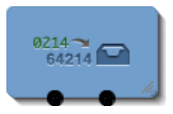
Node exits
This node has one entry and two exits. The number of exits cannot be changed.
| Exit | Cause | Description |
|---|---|---|
| 1 | Success | The caller has successfully exited the node. |
| 2 | Error |
Invalid value found in selected buffer. Error exit branch is followed whenever the value held in buffer is NULL/empty or has more than 32 characters. |
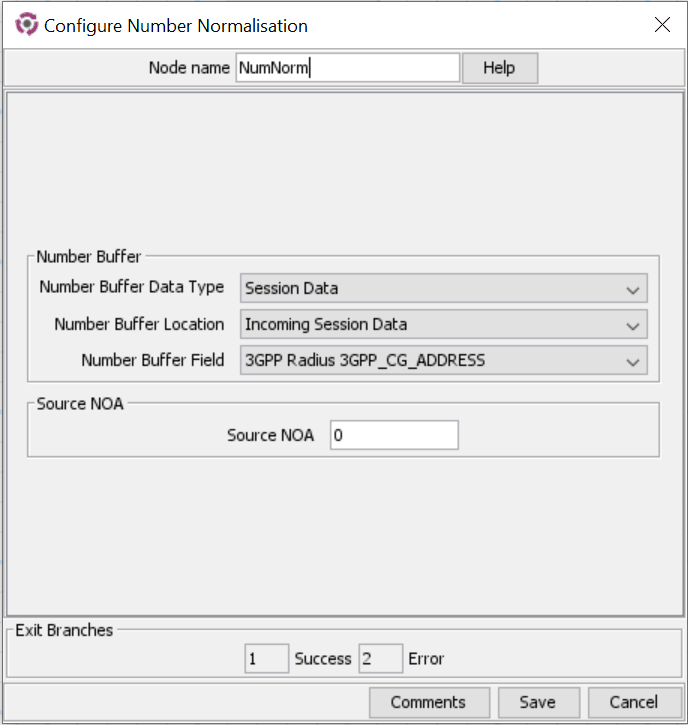
Configuring the node
Follow these steps to edit the node configuration.
See the ACS technical Guide, topic acsChassis Normalisation Parameters (SCP) for information on number normalisation.
| Step | Action |
|---|---|
| 1 | Using the drop down lists in the Number Buffer area, specify the buffer containing the number to normalise. |
| 2 | Type the Source NOA value. |
| 3 | Click Save. |
Note: The list of data types is fixed at installation time for each feature node or screen.
Further reference:
- For information about profile blocks (data type, location, and field) and how to use them, see Profile Blocks and Tags.
The primary tag lists are configured in the SMS > Services > ACS Service > Configuration > Profile Tag Details and Profile Tag Mapping tabs (see ACS User's Guide, Profile Tag Details for more information).
Table Lookup
Node description
The Table Lookup feature node maps a specified prefix or CLI to a geographical routing code, such as a postal code or an exchange code, by looking up the code in a selected table lookup dataset. The feature node stores the resulting code in a profile field. The exit taken from the feature node depends on whether or not a match is found for the prefix or CLI.
About table lookup datasets
A table lookup dataset contains a group of related codes, for example, for a specific geographic area or suburb.
A table lookup dataset can be public or private. A private table lookup dataset belongs to a specific customer. It is only available to that customer and the parent customers linked to that customer in the customer hierarchy. A public table lookup dataset is available to all customers.
Node icon

If the CPE has been configured to use the static panel CPE palette style, the CPE displays the icon shown below to represent the feature node.

Node exits
This node has one entry and three exits. The number of exits cannot be changed.
| Exit | Name | Cause |
|---|---|---|
| 1 | Matched | A prefix has been mapped to a code. |
| 2 | No Match | No matching prefix was found in the dataset |
| 3 | Error | An internal error has occurred. |
Configuring the node
To configure the Table Lookup feature node:
| Step | Action |
|---|---|
| 1 | Open the configuration window for the Table Lookup feature node. |
| 2 | In the Lookup Input source area select the location of the prefix or CLI that you want the feature node to look up from the Source Data Type, Source Location and Source Field lists. |
| 3 | In the Lookup Result target area select the location to store the resulting code from the Target Data Type, Target Location and Target Field lists. |
| 4 | From the Dataset list, select the dataset that corresponds to the type of code you want. You can select a publicly owned dataset or a dataset that belongs to the customer. For more information about table lookup datasets, see About table lookup datasets . |
| 5 | Click Save. |