23 SES Feature Nodes
Overview
Introduction
This chapter describes the Oracle Communications Convergent Charging Controller Subscriber Event Service (SES) feature nodes.
You use SES feature nodes to check which subscribers are entering or leaving a network using SES, and to configure which messages should be sent to these subscribers.
Available Feature Nodes
SES Feature Nodes List
Use SES feature nodes in your control plans to determine if a subscriber qualifies for messages, and to configure the selection of the messages to send.
This table lists the feature nodes available from the SES palette group and the fast key for each feature node in the list. You can use fast keys to search for feature nodes in the palette or the canvas.
| Node name | Node description |
|---|---|
| In-Roamer Contact Check |
This feature node checks for the last time the subscriber was contacted on entering the network. Fast key: IRCC |
| In-Roamer Messages Selection |
This feature node configures which messages to send to an inbound subscriber. Fast key: IRMS |
| Out-Roamer Contact Check |
This feature node checks for the last time the subscriber was contacted on leaving the network. Fast key: ORCC |
| Out-Roamer Messages Selection |
This feature node configures which messages to send to an outbound subscriber. Fast key: ORMS |
In-Roamer Contact Check
Node description
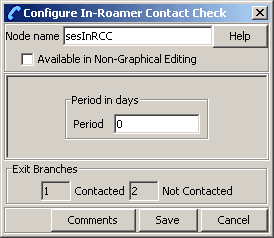
When a roaming subscriber enters your network, this node checks the duration since any previous inbound roaming contact with the subscriber, by looking up the contact history, and compares the duration with the period of days configured in the node.
Node icon

If the CPE has been configured to use the static panel CPE palette style, the CPE displays the icon shown below to represent the feature node.

Node exits
This node has one entry and two exits. The number of exits cannot be changed.
| Exit | Cause | Description |
|---|---|---|
| 1 | Contacted | The subscriber has been contacted within the configured number of days. |
| 2 | Not Contacted | The subscriber has not been contacted within the configured number of days (includes never been contacted and any system failures). |
In-Roamer Messages Selection
Node description
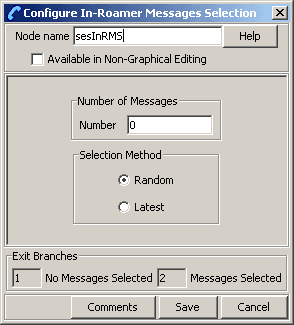
This node selects the messages for sending to the subscriber, based on the message priority, the number of messages to be sent, and the message selection option used. For more information, see SES User's and Technical Guide, System Overview chapter.
Node icon

If the CPE has been configured to use the static panel CPE palette style, the CPE displays the icon shown below to represent the feature node.

Restrictions
A control plan may contain as many In-Roamer Messages Selection nodes as required, however they should be placed after an In-Roamer Contact Check node to ensure they do not get messages every time.
Node exits
This node has one entry and two exits. The number of exits cannot be changed.
| Exit | Cause | Description |
|---|---|---|
| 1 | No Messages Selected | No messages were selected (includes system failures). |
| 2 | Messages Selected | At least one message was selected. |
Using the node
For descriptions of how this node is used, refer to the following topics in SES User's and Technical Guide:
- Example Control Plan - In-Roamer
- Example scenarios
Editing the node
Follow these steps to edit the In-Roamer Messages Selection node.
| Step | Action |
|---|---|
| 1 |
Type the maximum number of messages to send to the subscriber in the Number field. Note: Currently the maximum is about 2 billion. |
| 2 |
Select either the Random or Latest message Selection Method. Note: Messages are configured to be priority, or non priority (see SES User's and Technical Guide, SES Configuration - Messages Tab). For either option, the priority messages are used to fulfill the Number parameter before the non priority messages. See SES User's and Technical Guide, SES Example scenarios. Note: Latest is the message with the most recent availability date. |
| 3 | Click Save. |
Out-Roamer Contact Check
Node description
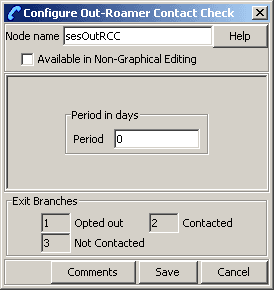
When a roaming subscriber leaves your network, this node checks the duration since any previous out-roaming contact with the subscriber, by looking up the contact history, and compares the duration with the period of days configured in the node.
Node icon

If the CPE has been configured to use the static panel CPE palette style, the CPE displays the icon shown below to represent the feature node.

Node exits
This node has one entry and three exits. The number of exits cannot be changed.
| Exit | Cause | Description |
|---|---|---|
| 1 | Opted Out |
The subscriber has opted out of being contacted on leaving the network.
Note: This flag is configurable. Refer to
SES User's and Technical Guide, |
| 2 | Contacted | The subscriber has been contacted within the configured number of days. |
| 3 | Not Contacted | The subscriber has not been contacted within the configured number of days (includes never been contacted and any system failures). |
Out-Roamer Messages Selection
Node description
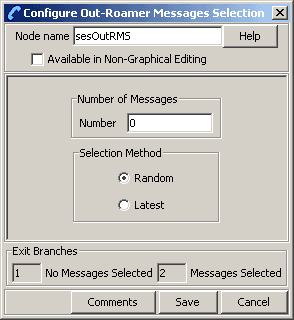
This node selects the messages for sending to the subscriber, based on the message priority, the number of messages to be sent, and the message selection option used. For more information, see the discussion of system overview in Subscriber Event Service User's and Technical Guide.
Node icon

If the CPE has been configured to use the static panel CPE palette style, the CPE displays the icon shown below to represent the feature node.

Restrictions
A control plan may contain as many Out-Roamer Messages Selection nodes as required, however they should be placed after an Out-Roamer Contact Check node to ensure they do not get messages every time.
Node exits
This node has one entry and two exits. The number of exits cannot be changed.
| Exit | Cause | Description |
|---|---|---|
| 1 | No Messages Selected | No messages were selected (includes system failures). |
| 2 | Messages Selected | At least one message was selected. |
Using the node
For descriptions of how this feature node is used, see the following topics in Subscriber Event Service User's and Technical Guide:
- Example Control Plan - Out-Roamer
- Example scenarios
Configuring the node
Follow these steps to edit the Out-Roamer Messages Selection node.
| Step | Action |
|---|---|
| 1 |
Type the maximum number of messages to send to the subscriber in the Number field. Note: Currently this is about 2 billion. |
| 2 |
Select either the Random or Latest message Selection Method. Note: Messages are configured to be priority or no priority (see SES Configuration - Messages Tab). For either option, the priority messages are used to fulfill the Number parameter before the no priority messages. See SES Example scenarios. Note: Latest is the message with the most recent availability date. |
| 3 | Click Save. |