27 VPN Feature Nodes
Available Feature Nodes
VPN Feature Nodes List
This table lists the Convergent Charging Controller feature nodes available from the VPN palette group in the Control Plan Editor. If any custom feature nodes have been created and installed to fit your specific customer requirements, they will not appear in this list.
| Node Name | Node Description |
|---|---|
| VPN Analyze | Used to break down the digits contained in the Pending TN Buffer. |
| VPN Load Station | Used to load an alternate calling station profile. |
| VPN Lookup | Used to translate an OnNet number to the corresponding Network address from VPN_STATION in the database. |
| VPN CLI Lookup | Used to set the Originating Network ID for the current service interaction. |
| VPN Mobile Analyze | Used to break down the digits contained in the Pending Termination Number Buffer. |
| VPN Caller is On-Net | Used to check if the incoming caller is on-net. |
| VPN Get Hunting Number | Used to search a list of termination numbers and timeout pairs. |
| VPN Redirection Counter Branching | Allows comparison of the Redirection Information Counter received in the invoking message. |
| VPN Set Redirection Counter | Allows an integer constant to be set as the redirection information counter. |
| VPN Set Tariff Code From Profile | Used to add network charging data to the next outgoing TCAP primitive. |
| VPN Subscriber Lookup | Allows you to look up a number buffer and load the VPN network and station profiles associated with that number. |
| VPN Voice Mail Number Configuration | Allows modification of the Pending Termination Number to provide compatibility with voicemail systems. |
| VPN Originating CUG | Analyzes the calling and called numbers contained in the Calling Private Network or Logical Calling Buffer, and the PendingTN Buffer, respectively. |
| VPN Terminating CUG | Analyzes the calling and called numbers contained in the Calling Private Network or Logical Calling Buffer, and the PendingTN Buffer respectively. |
Profile Blocks and Fields
Nodes using profile blocks
The following VPN nodes use the profile blocks listed below:
- VPN Analyze
- VPN Mobile Analyze
- VPN Set Tariff Code From Profile
Profile block availability
The service loader you are using determines the profile blocks that are available to the control plan and whether they are read-only or can be updated. All service loaders include the Global Profile.
For example, you can read the VPN Network Profile, VPN Station Profile and Customer Profile if the VPN service loader is used.
The VPN service loader specifies the Station Profile as updateable and the Network Profile as read-only. This means that any nodes that can write back to a profile can update the VPN Station Profile in the database.
The service loader also specifies the uses of Application Specific profiles 1-8. Some of these will be specified as temporary profiles, which are never written back to the database and are cleared at the end of the call. They can be used for such things as moving data from one application to another within the control plan (for example between a USSD node and a DAP node).
Profile block list
Here are the profile blocks.
| Name | Description |
|---|---|
| VPN Network Profile |
Contains most of the information you can specify in the VPN edit network, for example:
Note: Only relevant if you have the VPN service installed. |
| VPN Station Profile |
Contains most of the information you can specify in the VPN edit station, for example:
Note: Only relevant if you have the VPN service installed. |
| Customer Profile |
Contains customer information, for example:
|
| Control Plan Profile | This profile contains current switch node exits only. |
| Global Profile |
Contains global information, for example:
|
| CLI Subscriber Profile |
Contains most of the information you can specify in the CLI tab of the Numbers screen, for example:
Note: Only relevant to the 0800 service. |
| Service Number Profile |
Contains most of the information you can specify in the Service Number tab of the Numbers screen, for example:
Note: Only relevant to the 0800 service. |
|
App Specific Profile 1 App Specific Profile 2 App Specific Profile 3 App Specific Profile 4 App Specific Profile 5 App Specific Profile 6 App Specific Profile 7 App Specific Profile 8 |
Contains information specific to an application (for example, Messaging Manager or CCS). Note: Unless it is in use by a specific application, these profiles, for example, App Specific Profile 7 can be specified as a temporary profile (where nothing is written back to the database) in order to pass information from one application to another, for example between USSD and DAP). |
| Any Valid Profile | Allows you to search for tags in all profiles that have been loaded. |
ACS primary tags
Here is a list of ACS primary tags.
| Description | Hex | Decimal |
|---|---|---|
| DO NOT USE | 0x0000 | 0 |
| PIN Prefix | 0x0001 | 1 |
| PIN Length | 0x0002 | 2 |
| Account Code Prefix | 0x0003 | 3 |
| Account Code Max Length | 0x0004 | 4 |
| A/S Prefix | 0x0005 | 5 |
| A/S Length | 0x0006 | 6 |
| Off Net Prefix | 0x0007 | 7 |
| S/D Prefix | 0x0008 | 8 |
| Outgoing Barred/Allowed List Type | 0x0009 | 9 |
| Outgoing Barred/Allowed List | 0x000a | 10 |
| Incoming Barred/Allowed List Type | 0x000b | 11 |
| Incoming Barred/Allowed List | 0x000c | 12 |
| Account Code Values | 0x000d | 13 |
| Account Code Policy | 0x000e | 14 |
| -RESERVED- | 0x000f | 15 |
| Divert RSF | 0x0010 | 16 |
| Divert Busy | 0x0011 | 17 |
| Divert No Answer | 0x0012 | 18 |
| Divert Follow Me | 0x0013 | 19 |
| Divert TOW Schedule | 0x0014 | 20 |
| PIN Digits | 0x0015 | 21 |
| PIN Rights | 0x0016 | 22 |
| Off Net Bar | 0x0017 | 23 |
| Follow on Break Out Sequence | 0x0018 | 24 |
| Station is Manager | 0x0019 | 25 |
| Speed List | 0x001a | 26 |
| Divert Barred/Allowed List Type | 0x001b | 27 |
| Divert Barred/Allowed List | 0x001c | 28 |
| Divert Locations | 0x001d | 29 |
| Break Limit | 0x001e | 30 |
| LCR Old National | 0x001f | 31 |
| LCR New National | 0x0020 | 32 |
| LCR Old International | 0x0021 | 33 |
| LCR New International | 0x0022 | 34 |
| Multi Lingual Announcements | 0x0023 | 35 |
| Number Lists | 0x0024 | 36 |
| Language | 0x0025 | 37 |
| Switch Configuration | 0x0026 | 38 |
| Virtual Message List | 0x0027 | 39 |
| Number Of Messages | 0x0028 | 40 |
| GUI Language | 0x0029 | 41 |
| Carrier Code | 0x002a | 42 |
| Barred Categories | 0x002b | 43 |
| Outgoing Barred/Allowed Ignore | 0x002c | 44 |
| Incoming Barred/Allowed Ignore | 0x002d | 45 |
| Divert Barred/Allowed Ignore | 0x002e | 46 |
| Account Code Minimum Length | 0x002f | 47 |
| Timezone Geographical Map | 0x0030 | 48 |
| PIN Encryption Method | 0x0031 | 49 |
| Silent Disconnect | 0x0032 | 50 |
| Postpaid Flag | 0x0033 | 51 |
| Hunt On Busy | 0x0034 | 52 |
| Hunt On No Answer | 0x0035 | 53 |
| Hunt Always | 0x0036 | 54 |
| Hunt RESERVED | 0x0037 | 55 |
| Help Line Address | 0x0038 | 56 |
| Legacy | 0x0039 | 57 |
| Disable | 0x003a | 58 |
| VARS | 0x003b | 59 |
| VARS Mapping | 0x003c | 60 |
| Toll Free Beep ID | 0x003d | 61 |
| Toll Free Beep Type | 0x003e | 62 |
| Termination Number Ranges | 0x003f | 63 |
| Termination Number Range Policy | 0x0040 | 64 |
| Control Plan Version Hiding | 0x0041 | 65 |
| Toll Free Beeps Required | 0x0042 | 66 |
| Bar Pay Phone Callers | 0x0043 | 67 |
| Bar Cell Phone Callers | 0x0044 | 68 |
Note: Each service may have its own specific tags in a separate tag range.
VPN primary tags
Here is a list of the VPN primary tags, used in the VPN service.
| Description | Hex | Decimal |
|---|---|---|
| Network SD No Check | 0x30001 | 196609 |
| Present Private Address | 0x30002 | 196610 |
| Bar All Incoming | 0x30003 | 196611 |
| Bar Off Network Incoming | 0x30004 | 196612 |
| PIN Prefix | 0x30005 | 196613 |
| Account Code Prefix | 0x30006 | 196614 |
| Alternate Station Prefix | 0x30007 | 196615 |
| Off Network Prefix | 0x30008 | 196616 |
| Speed Dial Prefix | 0x30009 | 196617 |
| PIN Length | 0x3000a | 196618 |
| Account Code Length | 0x3000b | 196619 |
| Station Length | 0x3000c | 196620 |
| Off Network Call Barred | 0x3000d | 196621 |
| Station Is Manager | 0x3000e | 196622 |
| Restrict Calling Address | 0x3000f | 196623 |
| Allow Short Extensions | 0x30010 | 196624 |
| Hunting List 1 | 0x30011 | 196625 |
| Hunting List 2 | 0x30012 | 196626 |
| Hunting List 3 | 0x30013 | 196627 |
| Hunting List 4 | 0x30014 | 196628 |
| Hunting List 5 | 0x30015 | 196629 |
| Hunting List Default | 0x30016 | 196630 |
| Hunting To List 1 | 0x30017 | 196631 |
| Hunting To List 2 | 0x30018 | 196632 |
| Hunting To List 3 | 0x30019 | 196633 |
| Hunting To List 4 | 0x3001a | 196634 |
| Hunting To List 5 | 0x3001b | 196635 |
| Hunting To List Default | 0x3001c | 196636 |
| Send Identical CPN | 0x3001d | 196637 |
| Match Undefined Extensions | 0x3001e | 196638 |
| Hunting Configuration | 0x30020 | 196640 |
| Hunting Scheduling | 0x30060 | 196704 |
| SCI ID | 0x30100 | 196864 |
| SCI Data | 0x30101 | 196865 |
| Dialing Prefix Length | 0x30200 | 197120 |
| Calling On Network List | 0x30310 | 197392 |
| Calling On Network List Type | 0x30311 | 197393 |
| Calling Off Network List | 0x30320 | 197408 |
| Calling Off Network List Type | 0x30321 | 197409 |
| Calling PIN Always List | 0x30330 | 197424 |
| Calling PIN Always List Type | 0x30331 | 197425 |
| Calling PIN Never List | 0x30340 | 197440 |
| Calling PIN Never List Type | 0x30341 | 197441 |
| Called On Network LIST | 0x30350 | 197456 |
| Called On Network List Type | 0x30351 | 197457 |
| Called Off Network List | 0x30360 | 197472 |
| Called Off Network List Type | 0x30361 | 197473 |
| Called PIN Always List | 0x30370 | 197488 |
| Called PIN Always_List Type | 0x30371 | 197489 |
| Called PIN Never List | 0x30380 | 197504 |
| Called PIN Never List Type | 0x30381 | 197505 |
VPN Analyze
Node description
The VPN Analyze node allows you to break down the digits contained in the Pending TN Buffer. It parses the optional VPN prefix fields, placed into dedicated buffers, and the content and type of the actual termination number, placed in Pending TN Buffer. Depending on the outcome, it may replace the original content of the Pending TN Buffer.
VPN Analyze checks the following:
- VPN Network Site Code
- Mapped Network Prefix
- Optional Prefixes
- Termination Number
Node description
VPN Network Site Code
The first digits in the Pending TN Buffer are compared with the site codes for all defined VPNs. If a match is found, then the network id for the VPN of the matched site code is compared with the network id for the current VPN. If the ids are the same, then the Pending TN Type is set to 'Private' (called number is on-net). If they are different, then the Pending TN Type is set to 'Public' (called number is off-net).
Mapped Network Prefix
If no match is found for the VPN site code, then VPN Analyze tries to match the first digits of the Pending TN Buffer against all the mapped network prefixes of the owning VPN. If a match is found then the site code of the VPN of the matched network prefix is replaced in the Pending TN Buffer by the mapped network prefix. The network id of the VPN for the matched network prefix is compared with the network id for the current VPN. If the ids are the same, then the Pending TN Type is set to 'Private' (called number is on-net). If they are different, then the Pending TN Type is set to 'Public' (called number is off-net).
Optional Prefixes
The dialed digits can be prefixed with one or more of the following components. They can appear in any order.
| PIN Number: | Indicated by the PIN Prefix. If present, this is placed in the PIN Buffer. |
| Account Code: | Indicated by the Account Code prefix. If present, this is placed in the Account Code Buffer. |
| Alternate Station ID: | Indicated by the Alternate Station prefix. If present, this is placed in the Calling OnNet Address Buffer. |
Termination Number
Only one of the following must be present. This must be the last item in the digits string.
| Speed Dial: | Indicated by the Speed Dial prefix. There must be at least one and at most three digits remaining. The remaining digits are taken as the speed dial number and are copied into the Sub-Tag Buffer as a numeric value. |
| Off-Net: | Indicated by the Off Net prefix. The remaining digits are taken off net number and are copied into the Pending TN Buffer. |
| On-net: | In the absence of either of the above prefixes, the remaining digits are considered to be an On-Net address and are copied into the Pending TN Buffer. |
Node icon
If the CPE has been configured to use the static panel CPE palette style, the CPE displays the icon shown below to represent the feature node.

Node exits
This node has one entry and four exits. The number of exits cannot be changed.
| Exit | Cause | Description |
|---|---|---|
| 1 | Success | The decode did not fail and no alternate station was found. |
| 2 | AltStation | An alternate station has been found |
| 3 | DecodeFail | A decode failure has occurred. |
| 4 | CollectFail | A collect info failure has occurred. |
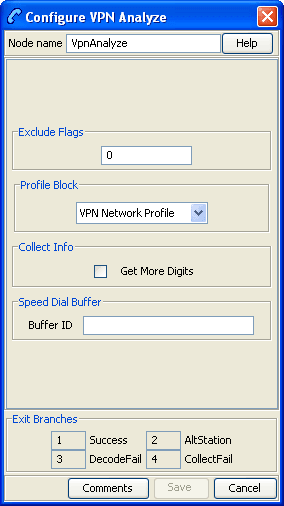
Configuring the node
Follow these steps to set prefix numbers.
| Step | Action |
|---|---|
| 1 |
Options can be excluded using the following values in the Exclude Flags box. Exclude:
|
| 2 | The Get More Digits box lets you specify that CollectInformation should be used if there are insufficient digits for parsing. |
| 3 | The Buffer ID value for the Speed Dial Buffer must be 5, to match the Collect To SubTag buffers (which are currently fixed at 5 and cannot be modified). |
| 4 | Click Save. |
Note: Decode failure occurs when:
- Insufficient digits are present to decode an optional prefix.
- Field already parsed.
- Excluded fields are present.
VPN Caller is On-Net
Node description
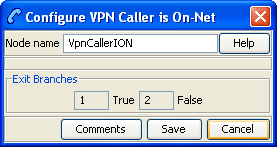
The VPN Caller is On-Net node allows you to check if the incoming caller is on-net.
Node icon

If the CPE has been configured to use the static panel CPE palette style, the CPE displays the icon shown below to represent the feature node.

VPN CLI Lookup
Node description
The VPN CLI Lookup node allows you to set the Originating Network ID for the current service interaction. The node matches a calling number buffer with the physical address of a VPN station.
Node icon

If the CPE has been configured to use the static panel CPE palette style, the CPE displays the icon shown below to represent the feature node.

Node exits
This node has one entry and four exits. The number of exits cannot be changed.
| Exit | Cause | Description |
|---|---|---|
| 1 | On This Net | The value matched the physical address of a VPN station in this network. |
| 2 | On Another Net | The value matched the physical address of a VPN station in another network. |
| 3 | Off Net | The value did not match any known VPN station physical address. |
| 4 | Macro Fail | There was a failure. |
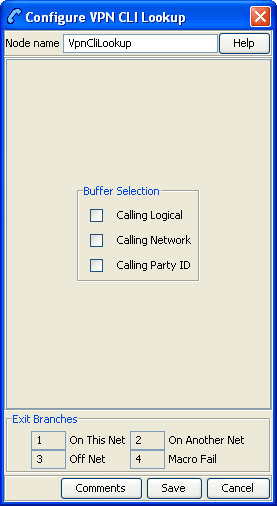
Configuring the node
Follow these steps to configure the VPN CLI Lookup.
| Step | Action |
|---|---|
| 1 |
You can set the node to check the:
from the invoking message. Note: If multiple buffers have been selected, the first will be used. |
| 2 |
Click Save. Result: The node will then branch based on the result. |
VPN Get Hunting Number
Node description
Warning: This feature node has now been deprecated and should no longer be used. This feature node will still function in existing control plans. For new control plans please use the Get Hunting Number feature node.
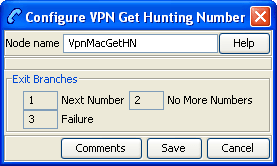
The VPN Get Hunting Number feature node allows you to search a list of termination numbers and timeout pairs. On each iteration, the node sets the PendingTN and timeout using the next number on the list until no numbers remain.
Node icon
If the CPE has been configured to use the static panel CPE palette style, the CPE displays the icon shown below to represent the feature node.

VPN Load Station
Node description
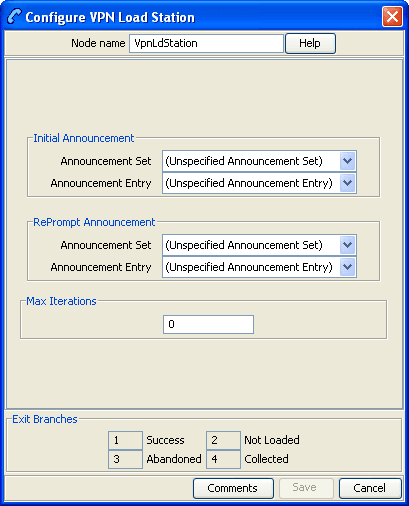
The VPN alternate station allows you to load an alternate calling station profile.
If defined, the network address of the station to call is in Calling On-Net Address. If it is not defined, then the VPN alternate station node prompts you to enter a station ID, using the specified announcements. You are prompted up to a defined maximum number of times before following the Not Loaded exit.
Node description
The Load Station process is described below.
| Stage | Description |
| 1 |
Calling on-net address is defined? If there is a value currently defined in the calling on-net address, then skip directly to stage 3. |
| 2 |
Prompt for Input.
|
| 3 |
Load the profile?
|
| 4 |
Success. Update the callingOnNetAddress in the engine context to correspond to the new station profile. |
Notes:
- If you were prompted, then the collected digits are not placed in the engine context callingOnNetAddress buffer until the profile has been successfully loaded.
- If max iterations is set to 0, then the you should never be prompted. In this case the announcement ids may not actually be defined. This is permitted by the editor and compiler.
- This feature does not check the PIN for the remote profile, or any specific access rights. A subsequent PIN authorization feature node is typically required.
Node icon
If the CPE has been configured to use the static panel CPE palette style, the CPE displays the icon shown below to represent the feature node.

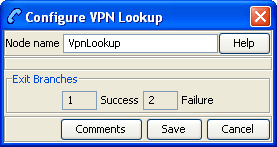
VPN Lookup
Node description
The VPN Lookup allows you to translate an On-Net number to the corresponding Network address from VPN_STATION in the database. The node uses the PendingTN type to determine if a lookup should be performed.
The VPN Lookup process is described below.
| Stage | Description |
|---|---|
| 1 |
If the PendingTN type is:
|
| 2 |
Look up the corresponding NETWORK address from VPN_STATION in the database using the current network ID. If:
|
Node icon

If the CPE has been configured to use the static panel CPE palette style, the CPE displays the icon shown below to represent the feature node.

VPN Mobile Analyze
Node description
The VPN Mobile Analyze node allows you to break down the digits contained in the Pending Termination Number Buffer. This node differs from the VPN Analyze node in that it does not use the network defined prefixes to analyze the type of call being made, unless the option to strip prefixes is enabled in the configuration file.
The logic of the node is to check, in order:
- Network Site Code
- Mapped Network Prefix
- Global Special Numbers
- Network Speed Dial
- Station Speed Dial
- Network Station Extensions.
If a match is:
- Found, the number type is set accordingly and the node exits through the appropriate exit.
- Not found, the number of digits needed to make the shortest possible match is used to collect more digits and the whole process is started again.
This matching process is repeated until a valid match is found. If no match is found, then the number is assumed to be off-net and the off-net branch is taken.
Node description
Network Site Code
VPN Mobile Analyze compares the first digits in the pending TN buffer with the site codes for all defined VPNs. If a match is found, then the network ID of the VPN for the matched site code is compared with the network ID of the current VPN. If the IDs are the same, then the pending TN type is set to 'Private' (on-net), if they are different, it is set to 'Public' (off-net).
Mapped Network prefix
If there is no match for the network site code, then the first digits of the pending TN buffer are compared with all the mapped network prefixes of the owning VPN. If a match is found, then the site code of the VPN for the matched network prefix is replaced in the pending TN buffer by the mapped network prefix. In addition, the network ID of the VPN for the matched network prefix is compared with the network ID for the current VPN. If the IDs are the same, then the pending TN type is set to 'Private' (on-net), otherwise it is set to 'Public' (off-net).
Stripping off number prefixes
When the corresponding configuration option in the eserv.config file is enabled, the node strips off the VPN network speed dial or off-net prefix prior to number matching. If a match is found, the node exits via the appropriate branch, depending on the applicable number match.
Global Special Numbers
The global special number check, network speed dial check, and station speed dial checks can be enabled and disabled using the check boxes in the node.
Node icon
If the CPE has been configured to use the static panel CPE palette style, the CPE displays the icon shown below to represent the feature node.

Node exits
This node has one entry and six exits. The number of exits cannot be changed.
| Exit | Cause | Description |
|---|---|---|
| 1 | Global Special | Match has been made with Global Special number. |
| 2 | Network Speed Dial | Match has been made with Network Speed Dial number. |
| 3 | Station Speed Dial | Match has been made with Station Speed Dial number. |
| 4 | On Net | Match was made with extension number of a VPN station on the same VPN Network as the caller. |
| 5 | Off Net | No match was made. |
| 6 | Error | General failure |
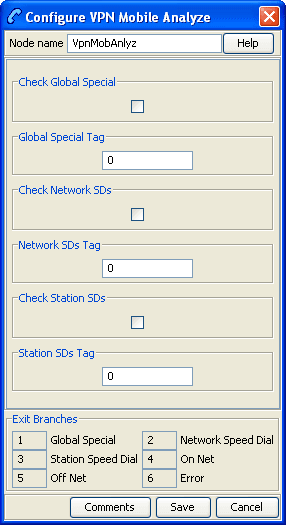
Configuring the node
Follow these steps to configure the node.
| Step | Action |
|---|---|
| 1 |
Select the following check boxes to enable or disable the check comparisons against specific number lists:
|
| 2 |
Enter the decimal value of the tag for the profile block in the text box below any selected box. Note: The tag for Speed Dial is 26. Refer to Profile Blocks and Tags . |
| 3 | Click Save |
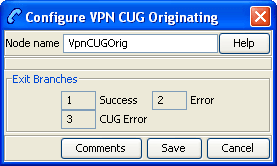
VPN Originating CUG
Node description
The Originating CUG node analyzes the calling and called numbers contained in the calling private network or logical calling buffer, and the pending TN buffer, respectively.
It determines whether the calling and called numbers are in the same logical CUG, and it determines the CUG type. The following rules apply:
- If the calling number is in a restricted CUG, then the called number must be in the same CUG. If it is not in the same CUG, then the CUG failure branch of the node is followed.
- If a VPN station is in more than one CUG, one of which is non-restricted, then the VPN station is also deemed to be non-restricted.
- If the calling number is not in a CUG or it is in a non-restricted CUG, then the success branch of the node is followed.
Node icon
If the CPE has been configured to use the static panel CPE palette style, the CPE displays the icon shown below to represent the feature node.

Node exits
This node has one entry and three exits. The number of exits cannot be changed.
| Exit | Cause | Description |
|---|---|---|
| 1 | Success |
Decode succeeded as follows:
|
| 2 | Error |
General errors:
|
| 3 | CUG Error |
Decode failed as follows:
|
VPN Redirection Counter Branching
Node description
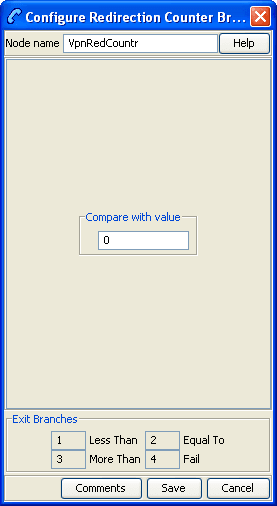
The Redirection Counter branching node allows you to compare the Redirection Information Counter received in the invoking message. The node lets you define an integer constant for the comparison. One of the following branches is taken, as appropriate:
- Less than
- Equal to
- More than
Note: If no value is supplied for the redirection counter, then the error branch is taken.
Node icon

If the CPE has been configured to use the static panel CPE palette style, the CPE displays the icon shown below to represent the feature node.

Node exits
This node has one entry and four exits. The number of exits cannot be changed.
| Exit | Cause | Description |
|---|---|---|
| 1 | Less Than | The redirection counter was less than the value. |
| 2 | Equal To | The redirection counter was equal to the value. |
| 3 | More Than | The redirection counter was more than the value. |
| 4 | Fail | The redirection counter was not supplied. |
VPN Set Redirection Counter
Node description
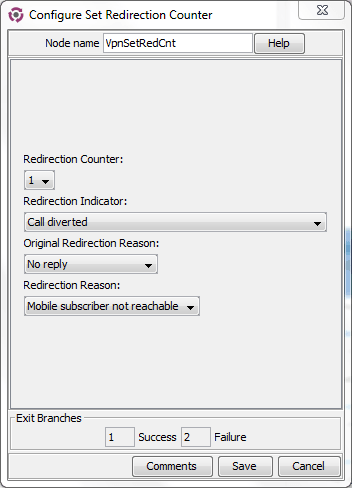
The Set Redirection Counter node allows you to set an integer constant as the redirection information counter. This value is then used as the redirection information counter in the next Connect message sent by the system.
You can also configure the following redirection information for inclusion in the Connect message:
- Indicator (for example, call was diverted)
- Original reason (for example, no reply)
- Redirection reason (for example, mobile subscriber busy)
Node icon

If the CPE has been configured to use the static panel CPE palette style, the CPE displays the icon shown below to represent the feature node.

Node exits
The VPN Set Redirection Counter feature node has one entry and two exits. The number of exits cannot be changed.
| Exit | Cause | Description |
|---|---|---|
| 1 | Success | Redirection succeeded |
| 2 | Failure | Redirection failed |
Configuring the node
Follow these steps to configure the Set Redirection Counter feature node.
| Step | Action |
|---|---|
| 1 | From the Redirection Counter list, select the number of redirections to send in the connect message. |
| 2 | From the Redirection Indicator list, select the redirection indicator to send in the connect message. |
| 3 | From the Original Redirection Reason list, select the original reason for the redirection to send in the connect message. |
| 4 | From the Redirection Reason list, select the redirection reason to send in the connect message. |
| 5 | Click Save. |
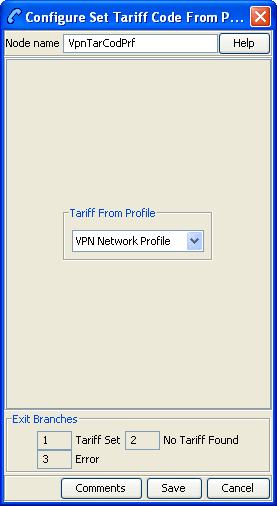
VPN Set Tariff Code From Profile
Node description
The Set Tariff Code node allows you to add network charging data to the next outgoing TCAP primitive. The node first looks at the station profile, then the network profile and finally the customer profile, and selects the network charging data, based on the first successful match.
The SCI/FCI data for the Customer/Network/Station can be accessed and set through the VPN Customer/Network/Station provisioning screens.
Node icon
If the CPE has been configured to use the static panel CPE palette style, the CPE displays the icon shown below to represent the feature node.

VPN Subscriber Lookup
Node description
The VPN Subscriber Lookup node allows you to look up a number buffer and load the VPN network and station profiles associated with that number. This will store them in chassis context so that other nodes (for example, Set Pending TN from Profile, Profile Branching) can use the information.
Note: This can be used with any service library, not just VPN.
Node icon

If the CPE has been configured to use the static panel CPE palette style, the CPE displays the icon shown below to represent the feature node.

Restrictions
A control plan may contain as many VPN Subscriber Lookup nodes as required. This node may be made available in Non-Graphical Editing mode (see CPE User's Guide for further explanation).
Node exits
This node has one entry and two exits. The number of exits cannot be changed.
| Exit | Cause | Description |
|---|---|---|
| 1 | Success | Profile was successfully retrieved from the database. |
| 2 | Failure | Profile was not retrieved from the database. |
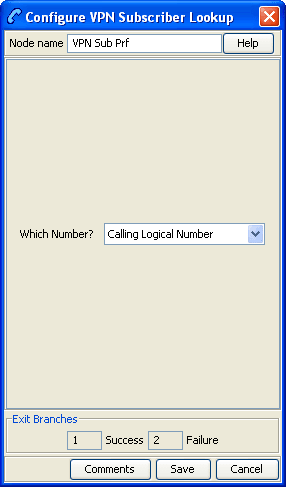
Configuring the node
Follow these steps to edit the node configuration.
| Step | Action |
|---|---|
| 1 |
Select the number buffer from the Which Number? drop down list. Available buffers are:
|
| 2 | Click Save. |
Note: For more information on number buffers, refer to the CPE User's Guide.
VPN Terminating CUG
Node description
The VPN Terminating CUG node analyzes the calling and called numbers contained in the Calling Private Network or Logical Calling Buffer, and the PendingTN Buffer respectively.
The node determines whether the calling and called numbers are in the same logical CUG, and also determines the CUG type. If required, it also collects the PIN for the called number's CUG. The following rules apply:
- If the CUG PIN is required, and the called number is in a CUG, and the calling number is not in a CUG, and the maximum number of retry attempts is reached, then the CUG PIN failure branch of the node is followed.
- If the called number is in a CUG, and the calling number is not in a CUG, and the correct PIN has been entered, then the success branch of the node is also followed.
Node icon
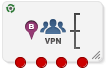
If the CPE has been configured to use the static panel CPE palette style, the CPE displays the icon shown below to represent the feature node.

Node exits
This node has one entry and three exits. The number of exits cannot be changed.
| Exit | Cause | Description |
|---|---|---|
| 1 | Success |
Decode succeeded as follows:
|
| 2 | Error |
General errors:
|
| 3 | CUG Error |
Decode failed as follows:
|
| 4 | CUG PIN Error |
Decode failed as follows:
|
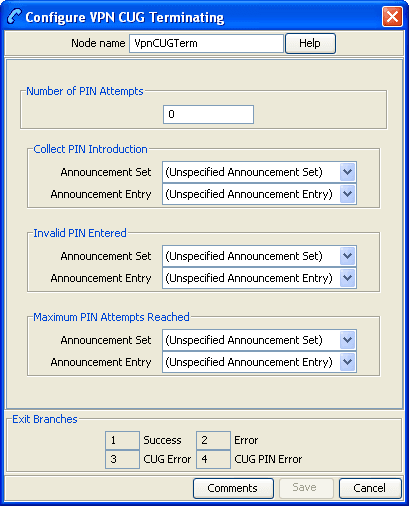
Configuring the node
Follow these steps to configure the node.
| Step | Action |
|---|---|
| 1 | Enter the number of retry attempts for collecting the PIN in the Number of PIN Attempts field. |
| 2 | Select the Collect PIN Introduction announcement from the lists. |
| 3 | Select the Invalid PIN Entered announcement from the lists. |
| 4 | Select the Maximum PIN Attempts Reached announcement from the lists. |
| 5 | Click Save. |
VPN Voice Mail Number Configuration
Node description
The Voice Mail Number Configuration node allows you to modify the Pending Termination Number to provide compatibility with voicemail systems. The node allows you to modify a selected number buffer by inserting some defined digits at an offset, also defined in the feature node.
Example:
| Insert At Position: | 5 |
| Insert What (Pattern): | 888 |
| Buffer (Call Context Number): | pendingTN (01473200) |
In this case the final number would be 01473888200.
The final number is copied to the pendingTN buffer and the node is exited through the SUCCESS branch.
If the length of the final number is too long ( typically 32 digits or more), or if there is no number available for the selected buffer under the processing call, then no number is copied to the pendingTN buffer and the node is exited though the ERROR branch.
Node icon

If the CPE has been configured to use the static panel CPE palette style, the CPE displays the icon shown below to represent the feature node.

Restrictions
A control plan may contain as many VPN Voice Mail Number Configuration nodes as required.
Node exits
This node has one entry and two exits. The number of exits cannot be changed.
| Exit | Cause | Description |
|---|---|---|
| 1 | Success | See node description. |
| 2 | Error | See node description. |
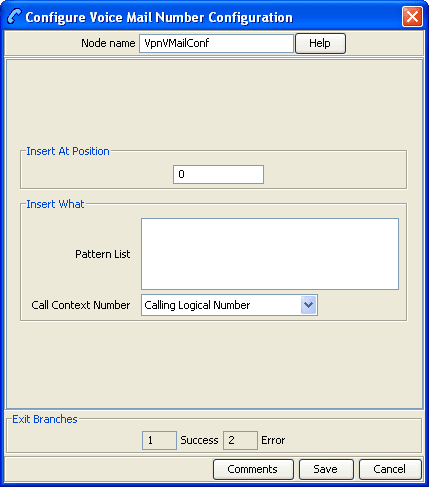
Configuring the node
Follow these steps to configure the node.
| Step | Action |
|---|---|
| 1 | Enter the offset where the pattern list should be inserted in the Insert At Position field. |
| 2 | Enter the string to be inserted in the Pattern List field. |
| 3 |
Select the buffer to use to form the final voice mail number from The Call Context Number drop down list. Note: For a definition of each buffer, refer to the CPE User's Guide. |
| 4 | Click Save. |