28 XMS Content Feature Nodes
Available Feature Nodes
XMS Content Feature Nodes List
This table lists all the available Messaging Manager feature nodes in the XMS Content feature group. If any custom feature nodes have been created and installed to fit your specific customer requirements, they will not appear in this list.
Note: For information about the available Messaging Manager profile fields, see Messaging Manager Profile Fields (on page 12).
| Node Name | Node Description |
|---|---|
| Extract Content (see page 644) | The Extract Content feature node extracts a part of a profile field, or incoming SMS message, and stores it in a specified profile field. |
| Extract Number (on page 647) | The Extract Number feature node extracts the MSISDN from business card data held in either the SMS TEXT context or configured profile field, and then stores the MSISDN in a profile field. |
| Format Text (see page 650) | The Format Text feature node enables a buffer to be populated with a formatted string based on a static string that may include place holders for the contents of other selectable buffers. |
| Keyword Search and Replace (see page 653) | The Keyword Search and Replace node branches, depending on whether or not a particular word was matched in the message. |
| Message Data Branching (on page 655) | The Message Data Branching node branches depending on whether the current message contains text or data, according to the data coding scheme. |
| Text Content Branching (see page 655) | The Text Content Branching node branches depending on the content of the short message. |
Extract Content
Node description
The Extract Content feature node extracts a part of a profile field, or incoming SMS message, and stores it in a specified profile field.
Note: The part extracted is a string (that can represent a number or text) delimited by a white space character. For the various white space characters used by the supported alphabets see www.unicode.org.
Node icon

If the CPE has been configured to use the static panel CPE palette style, the CPE displays the icon shown below to represent the feature node.

Node exits
This node has one entry and two exits. The number of exits cannot be changed.
| Exit | Cause | Description |
|---|---|---|
| 1 | Success | The required section of the SMS was extracted and stored. |
| 2 | Error |
The section of SMS could not be extracted, for the following reasons:
|
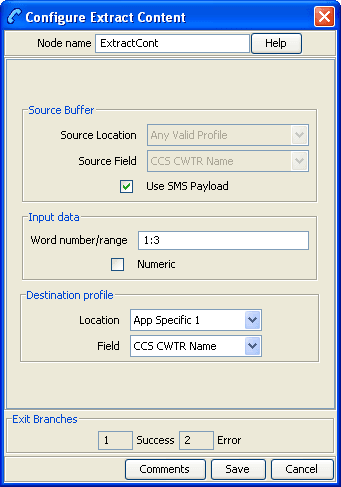
Configuring the node
Follow these steps to edit the node configuration.
| Step | Action |
|---|---|
| 1 |
For the source, you can select either a profile, or the SMS buffer. To select:
|
| 2 |
In the Word number field, enter the number of the word, or range of words, to extract from the source. Note: The Word number can be positive, zero or negative. Suppose the message reads "
Note: Some ranges, such as 3:-7 for this example will just produce a blank string in the target field and will exit from the Error branch because there are not enough words. |
| 3 | If the extracted word needs to be validated as a number, select the Numeric check box. The node will exit from the Error branch if the selection is not numeric. |
| 4 | Select the extracted content store location from the Location drop down list. |
| 5 | Select the store location field from the Field drop down list. |
| 6 | Click Save. |
Example
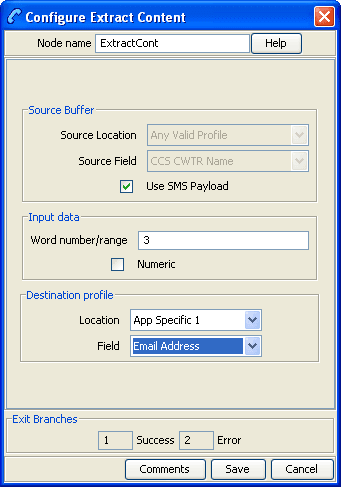
Here is an example of the process, using the Extract Content node to extract the email forwarding address.
| Stage | Description |
| 1 |
Users can enable forwarding by sending an SMS, for example: Fwd on joe.bloggs@telco.com
|
| 2 | The control plan would use the Format Text node to check if it was a valid message. |
| 3 |
The Extract Content node is configured as shown below.
Result: This node would store the third word (that is, 'joe.bloggs@telco.com') in the user's profile under the 'Email Address' tag. |
Extract Number
Node description
The Extract Number feature node extracts the MSISDN from business card data held in either the SMS TEXT context or configured profile field, and then stores the MSISDN in a profile field.
The node will process the provided text to extract a valid MSISDN. Non-numeric numbers will be ignored unless they constitute part of the number.
The following examples demonstrate valid formats:
- "(012) 345 6789"
- "0123,456,789"
- "+44-123-456"
- "+44 123 456789"
- "(+44)123-456789"
Note: The business card data must contain only one MSISDN. The MSISDN will be extracted without normalization.
Node icon

If the CPE has been configured to use the static panel CPE palette style, the CPE displays the icon shown below to represent the feature node.

Node exits
This node has one entry and three exits. The number of exits cannot be changed.
| Exit | Cause | Description |
|---|---|---|
| 1 | Success | MSISDN successfully extracted and stored in the specified profile field |
| 2 | Too Many Numbers |
Unable to extract the MSISDN as there was more:
|
| 3 | Error |
Either of the following:
|
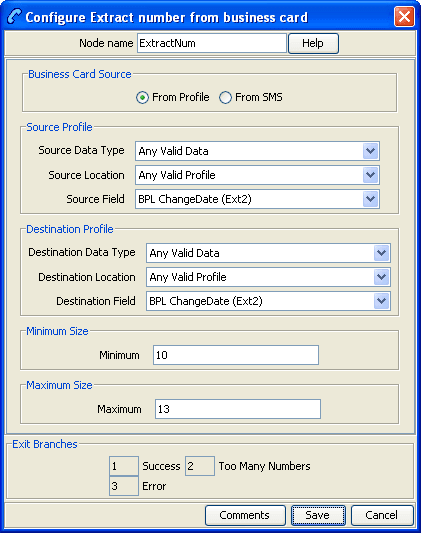
Configuring the node
Follow these steps to configure the node.
| Step | Action |
|---|---|
| 1 |
Select the Business Card Source:
|
| 2 | For a profile location, select the Source Profile from the Source Data Type, Location and Field drop down lists. |
| 3 |
select the Destination Profile where the extracted MSISDN will be stored from the Destination Data Type, Location and Field drop down lists. Warning: Unexpected behavior encountered if the source and destination profiles are the same. |
| 4 |
In the Minimum field, type the minimum length allowed for the MSISDN. Note: The error branch will be followed if the length of the extracted MSISDN is less than the defined minimum length. |
| 5 |
In the Maximum field, type the maximum length allowed for the MSISDN. Note: The too many numbers branch will be followed if the length of the extracted MSISDN is greater than the defined maximum length. |
| 6 | Click Save. |
Format Text
Node description
The Format Text feature node enables a buffer to be populated with a formatted string based on a static string that may include place holders for the contents of other selectable buffers.
Node icon

If the CPE has been configured to use the static panel CPE palette style, the CPE displays the icon shown below to represent the feature node.

Node exits
This node has one entry and two exits. The number of exits cannot be changed.
| Exit | Cause | Description |
|---|---|---|
| 1 | Success | The formatting was successful. |
| 2 | Error | There is something wrong with the format string and it cannot be formatted. The output buffer will be unchanged. |
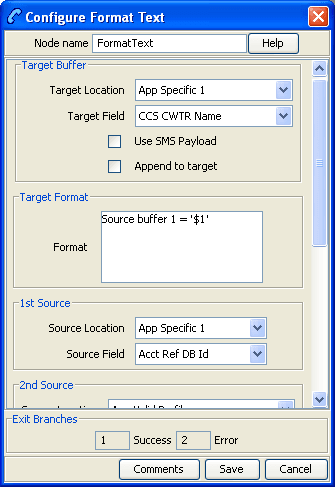
Configuring the node
Follow these steps to configure the node.
| Step | Action |
|---|---|
| 1 |
In the Target Buffer area, select the buffer to store the formatted string. You can:
|
| 2 | If you wish to add the text created in this node to the end of the existing contents of the target buffer, select the Append to target check box. |
| 3 |
The Format field is where you supply the format of the string. This is free-form and allows any text. The variables starting with $ will be substituted at run time by the text in the source buffer specified by the number, for example $1 is the 1st Source, $2 the 2nd Source. Note: The only valid characters to follow the $ are 1, 2, 3, 4, 5, and $. Anything other than these values will result in the node exiting the Error exit. If you wish to use the dollar sign in the string, you must prefix it with $, that is, $$. |
| 4 |
There are 5 source areas available. In each of the required source areas, select the Source Location and Source Field. These buffers can be strings, integers, prefix trees, or dates. Note: If the source buffer is a date, then a date format can be supplied. This is in the format field followed by {} containing the formatting values, for example, $4{%d/%m/%y}. If no format is specified then the system locale date format will be used. |
Example
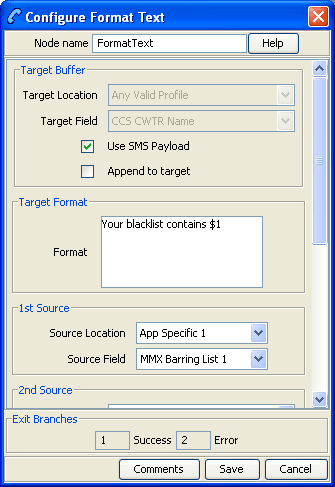
Here is an example of the process, using the Format Text node to store the blacklist contents of a user's profile to send to them.
| Stage | Description |
|---|---|
| 1 |
The user's blacklist contains the following numbers: 123000112300151230004
|
| 2 |
You can use the Format Text node to create a string containing the blacklist by configuring the node as shown below.
Result: The formatted string is: "Your blacklist contains 1230001 1230015 1230004" This is stored in the SMS payload target buffer. It can then be sent using another node in the control plan. |
Keyword Search and Replace
Node description
The Keyword Search and Replace node branches, depending on whether or not a particular word was matched in the message.
The node allows up to five different keywords to be searched for in the short message and will branch according to the word that was matched. It is also possible to replace the word that was matched in the message with something else.
Node icon
If the CPE has been configured to use the static panel CPE palette style, the CPE displays the icon shown below to represent the feature node.

Node exits
This node has one entry and seven exits. The number of exits cannot be changed.
| Exit | Cause | Description |
|---|---|---|
| 1 | Matched 1 | The keyword specified as Pattern 1 was matched in the message. |
| 2 | Matched 2 | The keyword specified as Pattern 2 was matched in the message. |
| 3 | Matched 3 | The keyword specified as Pattern 3 was matched in the message. |
| 4 | Matched 4 | The keyword specified as Pattern 4 was matched in the message. |
| 5 | Matched 5 | The keyword specified as Pattern 5 was matched in the message. |
| 6 | Not Matched | None of the patterns specified in the node were matched |
| 7 | Bypass |
Configuring the node
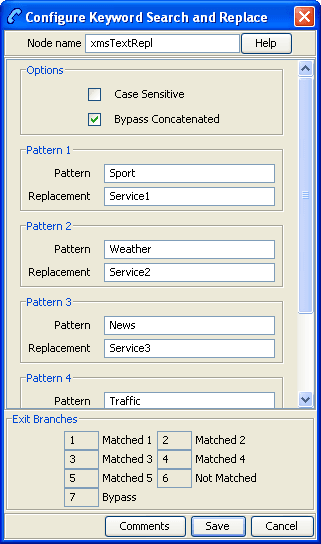
Follow these steps to edit the Keyword Search and Replace node.
| Step | Action |
|---|---|
| 1 | Enter the patterns that are to be searched for in the message. |
| 2 | Enter the replacement values for each searchable pattern. |
| 3 | Select the Case Sensitive check box to make search patterns case sensitive. |
| 4 | Select the Bypass Concatenated check box to not check for the patterns in concatenated messages. |
| 5 | Click Save. |
Note: The node will search the message for the patterns to be matched in order, and once a match is made will not search any further.
Message Data Branching
Node description
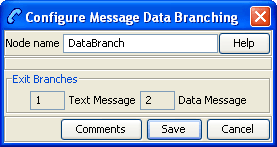
The Message Data Branching node branches depending on whether the current message contains text or data, according to the data coding scheme.
Node icon

If the CPE has been configured to use the static panel CPE palette style, the CPE displays the icon shown below to represent the feature node.

Text Content Branching
Node description
The Text Content Branching node branches depending on the content of the short message.
It takes the regular expressions entered into the node and tries to match these expressions to the content of the short message. Matches are done in the order that they appear in the node, as soon as a match is made the branch corresponding to that expression will be taken. The node does not do a "best match", but looks for and takes the first match found.
When a match is found, it branches accordingly; if no match is found the node exits the "Not Matched" exit.
Node icon
If the CPE has been configured to use the static panel CPE palette style, the CPE displays the icon shown below to represent the feature node.

Restrictions
A service control plan may contain as many Text Content Branching nodes as required.
The Text Content Branching node makes use of the internal regular expression functions, for best results it is recommended that you avoid the use of recursive regular expressions. The use of * and + operators placed inside of parentheses "()" and other * and + operators is likely to result in erroneous branching.
This is an example of a bad regular expression: ^( *[0-9]+)+ *$
While this is a good version of the same expression: ^ *[0-9][0-9 ]* *$
Node exits
This node has one entry and seven exits. The number of exits cannot be changed.
| Exit | Cause | Description |
|---|---|---|
| 1 | Match 1 | Short message received matches regular expression 1. |
| 2 | Match 2 | Short message received matches regular expression 2. |
| 3 | Match 3 | Short message received matches regular expression 3. |
| 4 | Match 4 | Short message received matches regular expression 4. |
| 5 | Match 5 | Short message received matches regular expression 5. |
| 6 | Not Matched | None of the regular expressions matched the short message. |
| 7 | Exception | Exceptions thrown while matching the expressions from content of short message. |
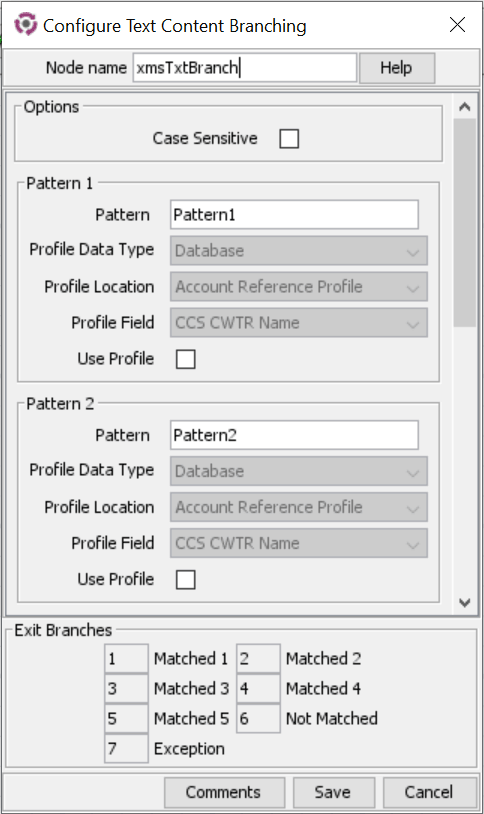
Configuring the node
Follow these steps to edit the Text Content Branching node.
| Step | Action |
|---|---|
| 1 | Determine whether the regular expressions that are to matched against the short messages are to be case sensitive; if so, select the check box. |
| 2 | Enter up to five regular expressions that the short message is to be matched against. |
| 3 | Click Save. |