30 XMS Parameters Feature Nodes
Available Feature Nodes
XMS Parameters Feature Nodes List
This table lists all the available Messaging Manager feature nodes in the XMS Parameters feature group. If any custom feature nodes have been created and installed to fit your specific customer requirements, they will not appear in this list.
Note: For information about the available Messaging Manager profile fields, see Messaging Manager Profile Fields .
| Node name | Node description |
|---|---|
| Alphabet Branching | The Alphabet Branching node determines if the message text is using the alphabet specified in this node and branches accordingly. |
| Content Size Branching | The Content Size Branching node branches depending on the size of the short message (in bytes). It takes the threshold entered into the node and chooses either the small or large branch. |
| Message Attribute Branching | Branches on the value of a message attribute. |
| Segment Number Branching | The Segment Number Branching node branches, depending on if the current message is the last (or only) component in a concatenated, multi-part, message. It compares the current segment number with the total number of segments and takes the appropriate exit. |
| Set Data Coding | The Set Data Coding node sets the character set of the message to be used when the ACS Control Plan passes the message on to Messaging Manager for delivery. |
| Set Message Attribute | Allows the modification various attributes of the message data by overriding the options requested by a caller. |
| Set Time Zone Message Attribute | Sets the message time zone attribute to the user's time zone. |
| Test Data Coding | The Test Data Coding node checks the message for compatibility with the specified (in this node) destination alphabet. |
Alphabet Branching
Node description
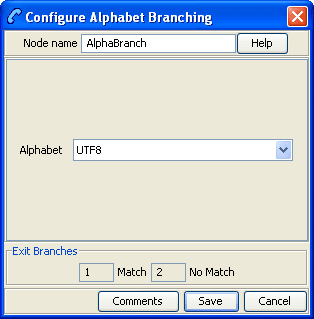
The Alphabet Branching node determines if the message text is using the alphabet specified in this node and branches accordingly.
Node icon

If the CPE has been configured to use the static panel CPE palette style, the CPE displays the icon shown below to represent the feature node.

Content Size Branching
Node description
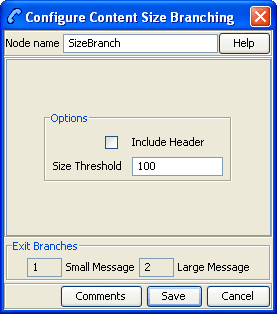
The Content Size Branching node branches depending on the size of the short message (in bytes). It takes the threshold entered into the node and chooses either the small or large branch.
Node icon

If the CPE has been configured to use the static panel CPE palette style, the CPE displays the icon shown below to represent the feature node.

Message Attribute Branching
Node description
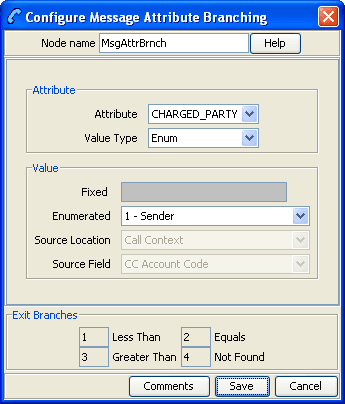
Branches on the value of a message attribute. Branching is based on the result of a logical comparison between a value and the value in the corresponding message attribute.
Node icon

If the CPE has been configured to use the static panel CPE palette style, the CPE displays the icon shown below to represent the feature node.

Node exits
This node has one entry and four exits. The number of exits cannot be changed.
| Exit | Cause | Description |
|---|---|---|
| 1 | Less Than | The value in the message is lower than the value configured in the node. |
| 2 | Equals | The value in the message is the same as the value configured in the node. |
| 3 | Greater Than | The value in the message is greater than the value configured in the node. |
| 4 | Not Found | An error occurred during the comparison. |
Note: Strings are evaluated against ASCII order, on a character-by-character basis starting with the left-hand character.
Configuring the node
Follow these steps to configure the node.
| Step | Action |
|---|---|
| 1 |
Configure this record by entering data in the fields on the Configure Set Message Attribute screen. For more information about the fields on this screen, see Configuration fields . |
| 2 | Click Save. |
Configuration fields
This table describes the function of each field.
| Field | Description |
|---|---|
| Attribute | The message attribute to compare. |
| Value Type | The type of value the attribute will be compared with. |
| Fixed |
The value the message attribute will be compared with.
Note: This field is only available if the
Value Type field is set to |
| Enumerated |
The value the message attribute will be compared with. Notes:
|
| Source Location |
The profile block which stores the value the message attribute will be compared with. Notes:
|
| Source Field |
The profile field which stores the value the message attribute will be compared with. Notes:
|
For more information about profiles, see Selecting profile locations and fields.
Enumerated fields
This table describes the list of enumerated values which are available to the Message Attribute nodes.
| Group Name | Value | Description |
|---|---|---|
| ATTRIBUTE | SRR | Status report (delivery receipt) request |
| RRR | Read-reply report request | |
| SMS_CLASS | SMS Message class | |
| MW_TYPE | Message waiting type | |
| MW_SENSE | Message waiting sense | |
| MW_GROUP | Message waiting group | |
| PRIORITY | NA | |
| SINGLE_SHOT | Single-shot | |
| RECIPIENTS | Number of recipients | |
| RECIPIENT | Current recipient | |
| SIZE | Message size | |
| MMS_CLASS | MMS message class | |
| ADAPTATION | Content adaptation | |
| TIME_ZONE | NA | |
| SERVICE_CODE | NA | |
| BILLING_INFO | Billing Identifier | |
| VP_TYPE | Validity Period Type | |
| VALIDITY | Validity Period | |
| MESSAGE_TYPE | NA | |
| CHARGED_PARTY | NA | |
| VAS_ID | NA | |
| VASP_ID | NA | |
| SRR | 0 | None requested |
| 1 | SME requested | |
| 2 | MMX requested | |
| 3 | Both requested | |
| RRR | 0 | Not requested |
| 1 | Requested | |
| SMS_CLASS | 0 | None |
| 1 | Display (GSM 0) | |
| 2 | Mobile Equipment (GSM 1) | |
| 3 | SIM (GSM 2) | |
| 4 | External (GSM 3) | |
| MW_TYPE | 0 | None |
| 1 | Voicemail | |
| 2 | Fax | |
| 3 | ||
| 4 | Other | |
| MW_SENSE | 0 | Inactive |
| 1 | Active | |
| MW_GROUP | 0 | None |
| 1 | Discard | |
| 2 | Store | |
| PRIORITY | 0 | Normal |
| 1 | Interactive | |
| 2 | Urgent | |
| 3 | Emergency | |
| SINGLE_SHOT | 0 | False |
| 1 | True | |
| MMS_CLASS | 0 | None |
| 1 | Personal | |
| 2 | Advert | |
| 3 | Info | |
| 4 | Auto | |
| ADAPTATION | 0 | False |
| 1 | True | |
| VP_TYPE | 0 | Relative |
| 1 | Absolute | |
| MESSAGE_TYPE | 0 | Submit |
| CHARGED_PARTY | 0 | Neither |
| 1 | Sender | |
| 2 | Recipient | |
| 3 | Both | |
| 0 |
*/*
|
|
| 1 |
text/*
|
|
| ... |
Segment Number Branching
Node description
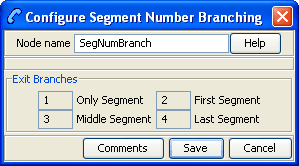
The Segment Number Branching node branches, depending on if the current message is the last (or only) component in a concatenated, multi-part, message. It compares the current segment number with the total number of segments and takes the appropriate exit.
Node icon

If the CPE has been configured to use the static panel CPE palette style, the CPE displays the icon shown below to represent the feature node.

Node exits
This node has one entry and four exits. The number of exits cannot be changed.
| Exit | Cause | Description |
|---|---|---|
| 1 | Only Segment | The message contains only one segment. |
| 2 | First Segment | There is more than one segment in the message and the segment number is one. |
| 3 | Middle Segment | There is more than one segment in the message and the segment number does not match the number of segments. |
| 4 | Last Segment | There is more than one segment in the message and the segment number matches the number of segments. |
Set Data Coding
Node description
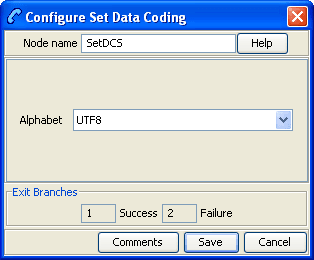
The Set Data Coding node sets the character set of the message to be used when the ACS Control Plan passes the message on to Messaging Manager for delivery.
Node icon

If the CPE has been configured to use the static panel CPE palette style, the CPE displays the icon shown below to represent the feature node.

Node exits
This node has one entry and two exits. The number of exits cannot be changed.
| Exit | Cause | Description |
|---|---|---|
| 1 | Success |
The configured alphabet has been successfully selected. Note: The Set Data Coding node does not change the data coding in ACS, but it does define the data coding used when the message is returned to Messaging Manager. This occurs when the message is actually ready to be sent. Consequently, the TP-DCS known to ACS in the Control Plan is still the original TP-DCS, and its value does not change when leaving this node through the Success branch. |
| 2 | Failure | General error occurred. |
Set Message Attribute
Node description
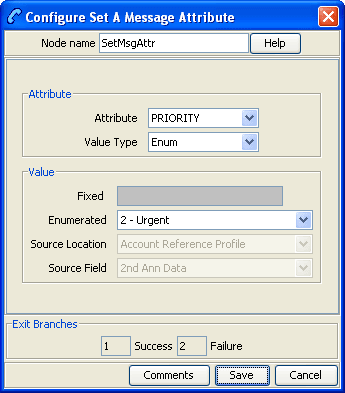
Allows the modification various attributes of the message data by overriding the options requested by a caller.
To set a message's time zone to the time zone of the user, see Set Time Zone Message Attribute .
Node icon

If the CPE has been configured to use the static panel CPE palette style, the CPE displays the icon shown below to represent the feature node.

Node exits
This node has one entry and two exits. The number of exits cannot be changed.
| Exit | Cause | Description |
|---|---|---|
| 1 | Success | The specified attribute was set successfully. |
| 2 | Failure | The node failed to change the specified attribute. |
Configuring the node
Follow these steps to configure the node.
| Step | Action |
|---|---|
| 1 |
Configure this record by entering data in the fields on the Configure Set Message Attribute screen. For more information about the fields on this screen, see Configuration fields . |
| 2 | Click Save. |
Configuration fields
This table describes the function of each field.
| Field | Description |
|---|---|
| Attribute | The message attribute to change. |
| Value Type | The type of value the attribute will be set to. |
| Fixed |
The value the message attribute will be set to.
Note: This field is only available if the
Value Type field is set to |
| Enumerated |
The value the message attribute will be set to. Notes:
|
| Source Location |
The profile block which stores the value the message attribute will be set to. Notes:
|
| Source Field |
The profile field which stores the value the message attribute will be set to. Notes:
|
For more information about profiles, see Selecting profile locations and fields.
Set Time Zone Message Attribute
Node description
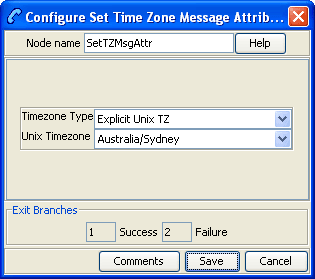
Sets the message time zone attribute to the user's time zone.
To set other message attributes, see Set Message Attribute .
To branch on message attributes (including time zone), see Message Attribute Branching .
Node icon

If the CPE has been configured to use the static panel CPE palette style, the CPE displays the icon shown below to represent the feature node.

Node exits
This node has one entry and two exits. The number of exits cannot be changed.
| Exit | Cause | Description |
|---|---|---|
| 1 | Success | The time zone was set successfully. |
| 2 | Failure | An error occurred and the time zone was not set. |
Configuring the node
Follow these steps to configure the node.
| Step | Action |
|---|---|
| 1 |
Configure this record by entering data in the fields on the Configure Set Time Zone Message Attribute screen. For more information about the fields on this screen, see Configuration fields . |
| 2 | Click Save. |
Configuration fields
This table describes the function of each field.
| Field | Description |
|---|---|
| Timezone Type | The source of the timezone value. |
| Unix Timezone |
The timezone to use from the standard unix timezone set.
Note: This field is only available if
Timezone Type is set to
|
For more information about profiles, see Selecting profile locations and fields.
Test Data Coding
Node description
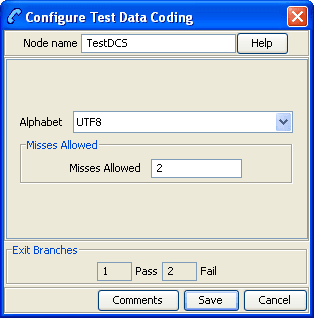
The Test Data Coding node checks the message for compatibility with the specified (in this node) destination alphabet.
This node is used to determine if the message can be converted to the specified alphabet. If not then the control plan can be set to compare against another alphabet in another instance of this mode.
Node icon

If the CPE has been configured to use the static panel CPE palette style, the CPE displays the icon shown below to represent the feature node.

Node exits
This node has one entry and two exits. The number of exits cannot be changed.
| Exit | Cause | Description |
|---|---|---|
| 1 | Pass | The message will be convertible to the destination alphabet with less than or equal to the allowed character conversion failures. |
| 2 | Fail | The message will not be converted to the destination alphabet without incurring more than the allowed character conversion failures. |
Configuring the node
Follow these steps to edit the node configuration.
| Step | Action |
|---|---|
| 1 | Select the destination alphabet for the message to be converted to from the Alphabet drop down list. |
| 2 | Enter the maximum number of characters that cannot be converted to the destination alphabet before failing the conversion test in the Misses Allowed field. |
| 3 | Click Save. |