9 Configuration Scenarios
Mobile to SMSC Messaging
Description
The Mobile to SMSC messaging (MO SMS) service allows subscribers to send short messages from their mobile phone to the SMSC, for delivery to another mobile phone.
This example covers creating a routing scheme to route messages to an SMSC through IP. Each set of steps for this example follow in the order presented.
MO SMS diagram
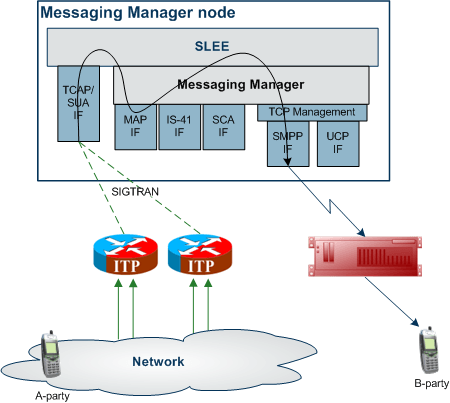
Using only the Messaging Manager base module, MM can be configured to provide an MO SMS service. In this example we will receive mobile originating MAP messages and deliver to the SMSC over TCP/IP using the SMPP protocol. The following diagram shows the modules required.
Process overview
This table lists the procedures that you need to follow to complete this scenario.
| Step | Action |
|---|---|
| 1 | Create MAP adapter |
| 2 | Create routing scheme |
| 3 | Create message center |
| 4 | Create SMPP adapter |
| 5 | Create SMSC path |
| 6 | Create SMSC connection |
| 7 | Create domain |
| 8 | Create submit routing rule (using MAP domain out to SMSC path) |
Create MAP adapter
The adapter name in the GUI must match exactly the
adapterName parameter in the
eserv.config for the MAP protocol.
For this example we assume the eserv.config has the following:
# Adapter definitionsadapters = [# First adapter (MAP){#
adapter identifier.#adapterName = "MAP1"..}
Follow these steps to configure a MAP adapter, which will be used for receiving inbound SMSs.
| Step | Action |
|---|---|
| 1 | Configure the MAP adapter in the MM eserv.config file. For more information, see MM Technical Guide. |
| 2 |
On the Configuration screen, Adapters tab, click New. Result: The New Adapter screen opens. |
| 3 | In the Name field, enter MAP1.
|
| 4 |
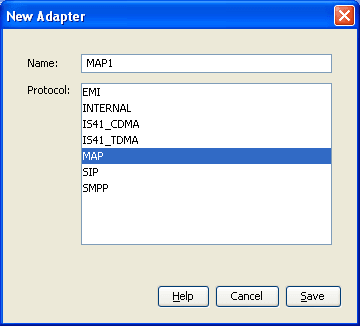
In the Protocol field, select
Result: The screen should look like this:
|
| 5 | Click Save to save the new adapter record in the configuration database. |
Create Routing Scheme
Follow these steps to create a new routing scheme.
| Step | Action |
|---|---|
| 1 |
On the Configuration screen, Schemes tab, click New. Result: The New Scheme screen opens. |
| 2 |
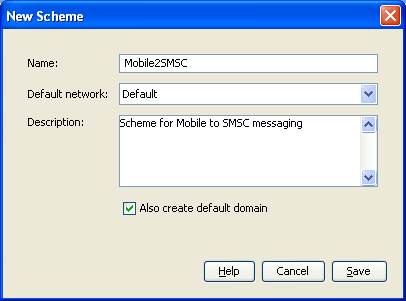
In the Name field, enter
Result: The Save button becomes available. |
| 3 | Ensure the Default network field is set to
Default.
|
| 4 |
In the Description field, enter a description for this scheme.
Example:
|
| 5 |
Ensure the Also create default domain check box is selected. Result: The screen should now look like this:
|
| 6 |
Click Save to save the new scheme record in the configuration database. Result: Messaging Manager automatically generates an MC (to/from an SMSC) and an SME (to from an MSC/HLR) path for the MAP1 adapter created in step 1. |
Create Message Center
Follow these steps to create a Message Center.
| Step | Action |
|---|---|
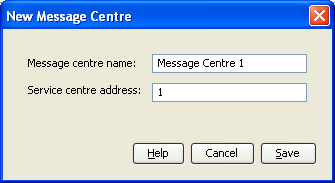
| 1 |
On the Configuration screen, Message Centres tab, click New. Result: The New Message Centre screen opens. |
| 2 | In the Message Centre Name field, enter
Message Centre 1
|
| 3 |
In the Service centre address field you would normally enter the global title of the service center to be used. For IP service centers, this is not used, but something has to be entered. Result: The Save button will appear.
|
| 4 | Click Save to save the new record to the database. |
Create SMPP adapter
The adapter name in the GUI must match exactly the
adapterName parameter in the
eserv.config for the SMPP protocol.
For this example we assume the eserv.config has the following:
# Adapter definitionsadapters = [# Third adapter (SMPP){#
adapter identifier.#adapterName = "SMPP1"..}
Follow these steps to configure an SMPP adapter, which will be used for submitting SMSs to the SMSC.
| Step | Action |
|---|---|
| 1 |
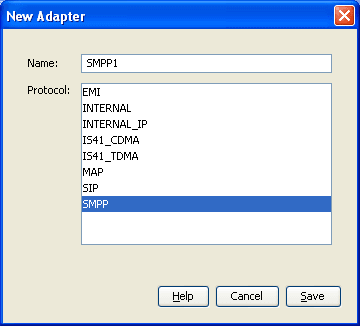
On the Configuration screen, Adapters tab, click New. Result: The New Adapter screen opens. |
| 2 | In the Name field, enter SMPP1
|
| 3 |
In the Protocol field, select
Result: The screen should look like this.
|
| 4 | Click Save to save the new adapter in the configuration database. |
Create SMSC path
Configure one or more outbound paths to the SMSC over the SMPP protocol.
Follow these steps to add the required paths.
| Step | Action |
|---|---|
| 1 |
In the grid on the Configuration screen,
Schemes tab, click on the Result: The Messaging Manager Scheme 'Mobile2SMSC' screen opens. |
| 2 |
Select the Paths tab and click New. Result: The New Path screen opens. |
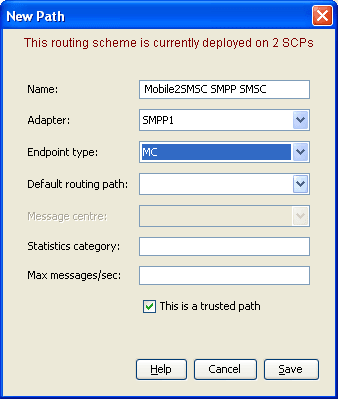
| 3 | In the Name field, type |
| 4 |
From the Adapter drop down list, select
Result: The Save button becomes available. |
| 5 |
From the Endpoint type drop down list, select
Result: The screen should now look like this:
Note: Where the message is being sent using SMPP to an SMSC, we select MC as the endpoint. Where the message is being sent to an ASP, we select SME as the endpoint. |
| 6 | Click Save to save the new Path to the configuration database. |
| 7 | Repeat steps 3 to 8, adding the SME.
|
Create SMSC connection
Follow these steps to add a connection to the outbound path.
| Step | Action |
|---|---|
| 1 | In the table on the Paths tab, select the
Mobile2SMSC SMPP SMSC path.
|
| 2 |
Click Add Connection. Result: The New SMPP Connection panel opens. |
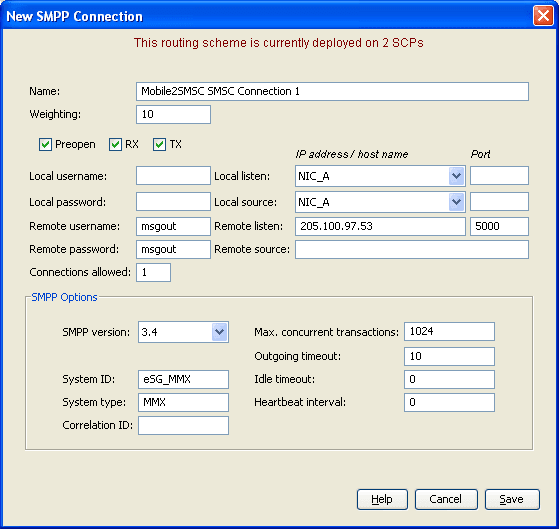
| 3 | In the Name field, enter |
| 4 | In the Weighting field, enter
10
|
| 5 | Select the Preopen, RX and TX check boxes to allow the receiving and sending of transmissions. |
| 6 | In the Remote username field, enter
msgout
|
| 7 | In the Remote password field, enter
msgout
|
| 8 | In the Remote listen field, enter
205.100.97.53
|
| 9 |
In the Remote Listen Port field, enter
Result: The screen should now look like this. |
|
|
| 10 | Click Save to save the new connection to the configuration database. |
| 11 | In the table on the Paths tab, select
Mobile2SMSC SMPP
ASP
path and click New
Connection.
|
| 12 | In the Name field, enter |
| 13 | In the Weighting field, enter
10.
|
| 14 | Select the RX and TX check boxes. |
| 15 | In the Local Username and Local
Password fields, enter lclout.
|
| 16 | In the Remote Username and Remote
Password fields, enter msgout.
|
| 17 | In the Remote Listen field, enter
205.100.97.53.
|
| 18 |
In the Port field, enter Result: The screen should look like this: |
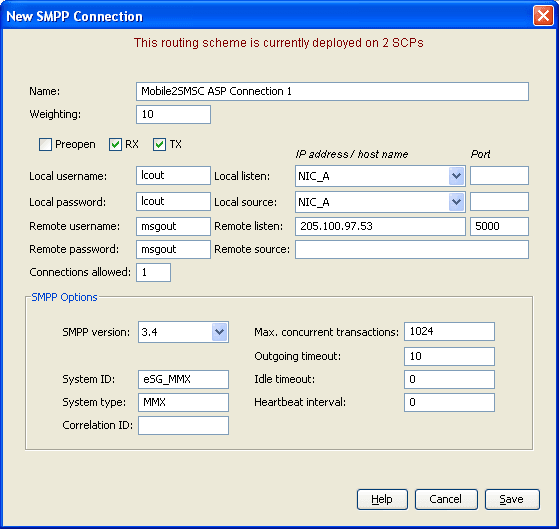
|
|
| 19 | Click Save to save the new connection to the configuration database. |
Create domain
Identify the domains that are wanted to route to the SMSC through IP.
Follow these steps to add routing address prefixes:
| Step | Action |
|---|---|
| 1 |
In the table on the Configuration screen,
Schemes tab, click on the Result: The Messaging Manager Scheme 'Mobile2SMSC' screen opens. |
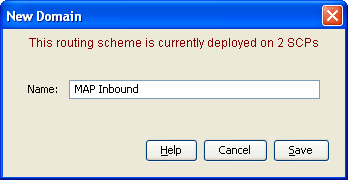
| 2 | Select the Domains tab and click New. |
| 3 |
In the Name field, enter
Result: The screen should now look like this:
|
| 4 |
Click Save. Result: The Domain will be saved and be selected in the table. |
| 5 | Select the Screening tab and select the Originating Address Screening rule. |
| 6 | Click Add. |
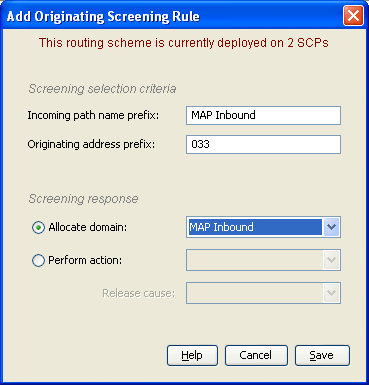
| 7 | In the Incoming path name prefix field, enter
MAP
Inbound
.
|
| 8 | In the Originating address prefix field, enter
033.
|
| 9 |
Select MAP Inbound from the Allocate domain drop-down list. Result: The screen should now look like this:
|
| 10 | Click Save. |
| 11 | Steps 7 to 11can be repeated to build up a list of routing address prefixes for this routing scheme. |
Create Submit routing rule
The Routing rules enable Messaging Manager to have a list of paths to attempt routing over. Messaging Manager will attempt routing using the first path, second and so on down the list.
Follow these steps to establish a list of paths.
| Step | Action |
|---|---|
| 1 |
In the table on the Configuration screen,
Schemes tab, click on the Result: The Messaging Manager Scheme 'Mobile2SMSC' screen opens. |
| 2 | Select the Routing tab and click New. |
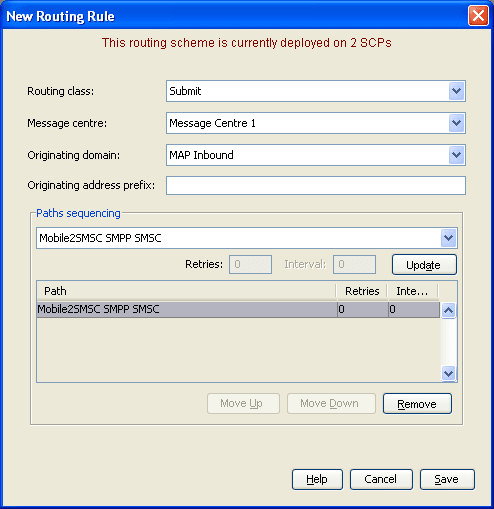
| 3 | In the Routing Class drop down list, select
Submit.
|
| 4 | In the Message centre drop down list, select
Message Centre 1.
|
| 5 | In the Originating domain drop down list,
select MAP Inbound.
|
| 6 | From the Paths sequencing drop down list,
select Mobile2SMSC SMPP SMSC.
|
| 7 |
Click Add. Result: The screen should look like this. |
|
|
| 8 | Click Save. |
Application to Mobile Messaging
Description
Application to mobile is a simple service that provides basic delivery of SMSs to a mobile phone.
Application to Mobile diagram
Using only the Messaging Manager Base module, MM can be configured to provide an application to mobile service. In this example we will receive EMI protocol messages from ASPs and deliver them to an SMSC over SS7 using the IS-41 protocol.
The following diagram shows the modules required:
Process overview
This table lists the procedures that you need to follow to complete this scenario.
| Step | Action |
|---|---|
| 1 | Create EMI adapter |
| 2 | Create routing scheme |
| 3 | Create EMI SMSC path |
| 4 | Create EMI SMSC connection |
| 5 | Create EMI ASP path |
| 6 | Create EMI ASP connection |
| 7 | Create address range |
| 8 | Create throttling rule |
| 9 | Configure trigger rule |
| 10 | Configure routing rule |
| 11 | Configure Messaging Manager node |
Create EMI Adapter
The adapter name in the GUI must match exactly the
adapterName parameter in the eserv.config for the EMI
protocol.
For this example we assume the eserv.config has the following:
# Adapter definitionsadapters = [# Second Adapter (EMI){#
adapter identifier.#adapterName = "EMI1"..}
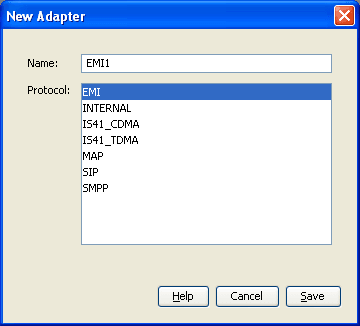
Follow these steps to configure an EMI adapter, which will be used for receiving inbound SMSs:
| Step | Action |
|---|---|
| 1 | Configure the EMI Adapter in the Messaging Manager eserv.config file. For more information, see the MM Technical Guide. |
| 2 |
On the Configuration screen, Adapters tab, click New.... Result: The New Adapter screen opens. |
| 3 | In the Name field, type EMI1.
|
| 4 |
In the Protocol field, select
Result: The screen should look like this:
|
| 5 | Click Save to save the new Adapter record in the configuration database. |
Create Routing Scheme
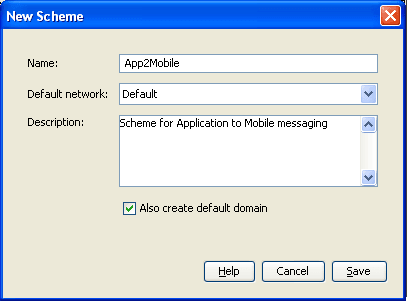
Follow these steps to create a new routing scheme.
| Step | Action |
|---|---|
| 1 |
On the Configuration screen, Schemes tab, click New. Result: The New Scheme screen opens. |
| 2 |
In the Name field, type
Result: The Save button becomes available. |
| 3 | In the Description field, type a description for this scheme. |
| 4 |
Ensure the Also create default domain check box is ticked. Result: The screen should now look similar to this:
|
| 5 | Click Save to save the new Scheme record in the configuration database. |
Create EMI SMSC path
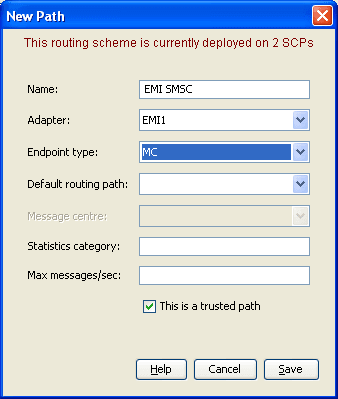
Follow these steps to create a default routing path to an SMSC via EMI:
| Step | Action |
|---|---|
| 1 | In the grid on the Schemes tab, click on the
App2Mobile scheme.
|
| 2 | Click Open. |
| 3 |
Select the Paths tab and click New. Result: The New Path screen opens. |
| 4 |
In the Name field, type
Note: The Name can be generic since this path can also be used by other paths as their default routing path. |
| 5 |
From the Adapter drop down list, select
Result: the Save button becomes available. |
| 6 |
From the Endpoint type field, select
Result: The screen should now look similar to this:
|
| 7 | Click Save to save the new Path to the configuration database. |
Create EMI SMSC connection
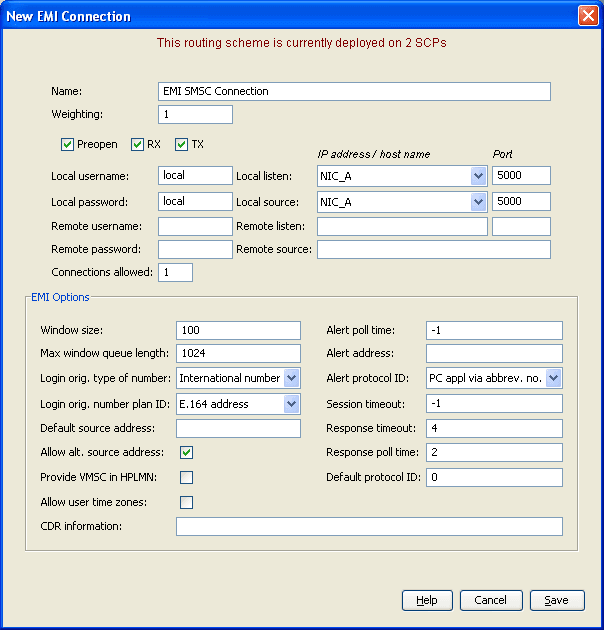
Follow these steps to create and configure an EMI SMSC connection:
| Step | Action |
|---|---|
| 1 | In the grid on the Paths tab, click on the
EMI SMSC path.
|
| 2 |
Click Add Connection. Result: The New EMI Connection screen displays. |
| 3 |
In the Name field, type
Result: The Save button becomes available. |
| 4 | In the Weighting field, type
10.
|
| 5 | Tick the Preopen, RX and TX check boxes to allow the receiving and sending of transmissions. |
| 6 | In the Local username and Local
password fields, type local.
|
| 7 | In the Port fields, type 5000.
|
| 8 |
The EMI Options will have default values assigned. These can be changed as required. For instance, select Allow Alternative Source Address and force a Session Timeout of 60 seconds. Result: The screen should now look similar this: |
|
|
| 9 | Click Save to save the new Connection to the configuration database. |
Create EMI ASP path
Follow these steps to create and configure the inbound ASP path:
| Step | Action |
|---|---|
| 1 | In the grid on the Schemes tab, click on the
App2Mobile scheme.
|
| 2 | Click Open. |
| 3 |
Click the Paths tab and click New. Result: The New Path panel opens. |
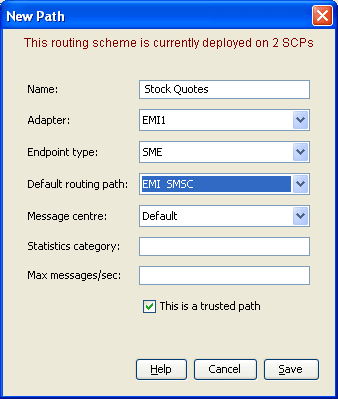
| 4 | In the Name field, type |
| 5 |
From the Adapter drop down list, select
Result: The Save button becomes available. |
| 6 | From the Endpoint type drop down list, select
SME.
|
| 7 |
From the Default routing path drop down list,
select Result: The screen should now look similar to this:
|
| 8 | Click Save to save the new Path to the configuration database. |
Create EMI ASP connection
Follow these steps to create and configure an EMI connection to the ASP:
| Step | Action |
|---|---|
| 1 | In the grid on the Paths tab, click on the
Stock Quotes path.
|
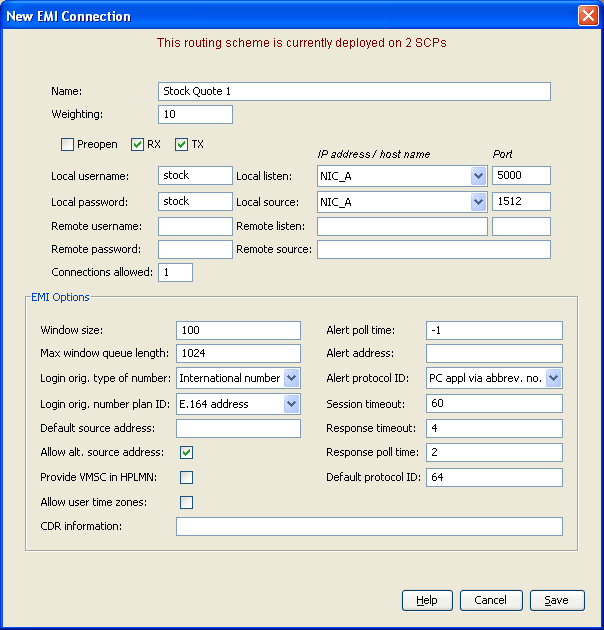
| 2 |
Click Add Connection to add a Connection to the selected path. Result: The New EMI Connection screen displays. |
| 3 |
In the Name field, type
Result: The Save button becomes available. |
| 4 | In the Weighting field, type
10.
|
| 5 | Select the RX and TX check boxes to allow the receiving and sending of transmissions. |
| 6 | In the Local username and Local
password fields, type stock.
|
| 7 |
In the Local listen port field, type
In the Local source port field, type
|
| 8 |
The EMI Options will have default values assigned. These can be changed as required. For instance, select Allow alt. source address and force a Session timeout of 60 seconds. Result: The screen should now look similar this: |
|
|
| 9 | Click Save to save the new Connection to the configuration database. |
Create address range
Identify the domains that will be used to route from the ASP (short code 123) to a mobile phone.
Follow these steps to add new domains:
| Step | Action |
|---|---|
| 1 | On the Schemes tab, select the
App2Mobile routing scheme.
|
| 2 | Click Open. |
| 3 | Select the Domains tab and click New.... |
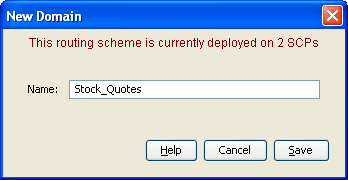
| 4 |
In the Name field, type
Result: The screen should now look similar to this:
|
| 5 |
Click Save. The Domain will be saved and be selected in the grid. |
| 6 | Click New.... |
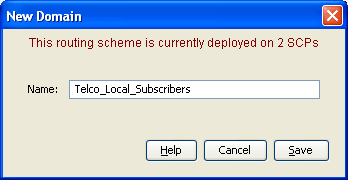
| 7 |
In the Name field, type
Result: The screen should now look similar to this:
|
| 8 |
Click Save. The Domain will be saved and be selected in the grid. |
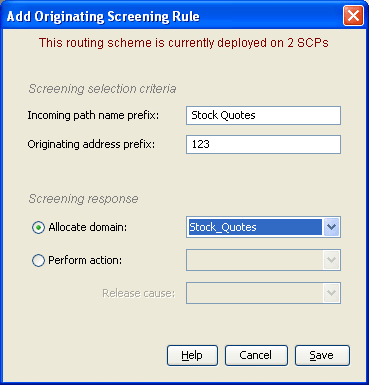
| 9 | Select the Screening tab and select the Originating Address Screening rule. |
| 10 | Click Add.... |
| 11 | In the Incoming path name prefix field, type
Stock Quotes
|
| 12 | In the Originating address prefix field, type
123.
|
| 13 |
Select Stock_Quotes from the Allocate domain drop-down list. Result: The screen should now look like this:
|
| 14 | Click Save. |
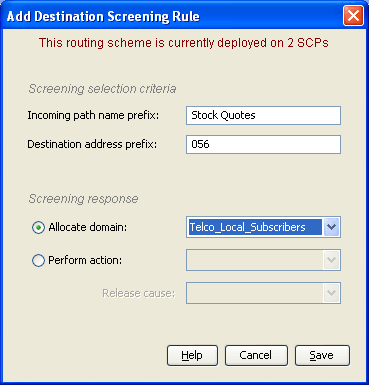
| 15 | Select the Destination Address Screening rule. |
| 16 | Click Add.... |
| 17 | In the Incoming path name prefix field, type
Stock Quotes.
|
| 18 | In the Destination address prefix field, type
056.
|
| 19 |
Select Result: The screen should now look like this:
|
| 20 | Click Save. |
| 21 | Steps 16 to 20 can be repeated to build up a list of address prefixes for the domain. |
Create Throttling Rule
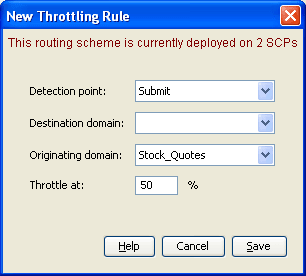
Follow these steps to set the throttling values for the path. Traffic from the ASP will only be accepted if the system is running below 50% capacity:
| Step | Action |
|---|---|
| 1 | Select the Throttling tab and click New. |
| 2 | In the Detection point field, select
Submit.
|
| 3 | In the Originating domain field select
Stock_Quotes.
|
| 4 |
In the Throttle field, type Result: The screen should look like this:
|
| 5 | Click Save. |
Configure Trigger Rule
Follow these steps to configure a trigger rule:
| Step | Action |
|---|---|
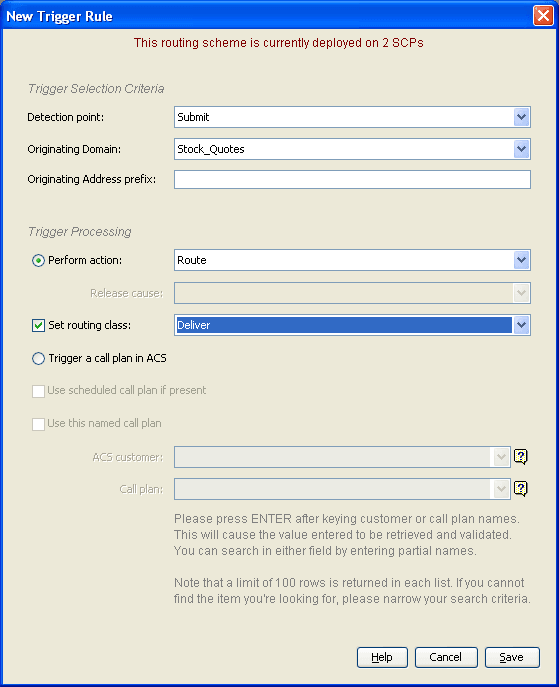
| 1 | On the Triggering tab, click New. |
| 2 | From the Detection point drop down list, select
Submit
|
| 3 | From the Originating Domain drop down list,
select Stock_Quotes.
|
| 4 | Select the Route action from the Perform action: drop down list. |
| 5 |
Select the Set routing class check box and from
drop down list, select Result: The screen should look like this: |
|
|
| 6 | Click Save. |
Configure routing rule
The Routing rules enable Messaging Manager to have a list of paths to attempt routing over. Messaging Manager will attempt routing using the first path, second and so on down the list.
Follow these steps to establish a list of paths:
| Step | Action |
|---|---|
| 1 | Create CDMA Adapter as in the Mobile to Application Messaging scenario if it doesn't already exist. |
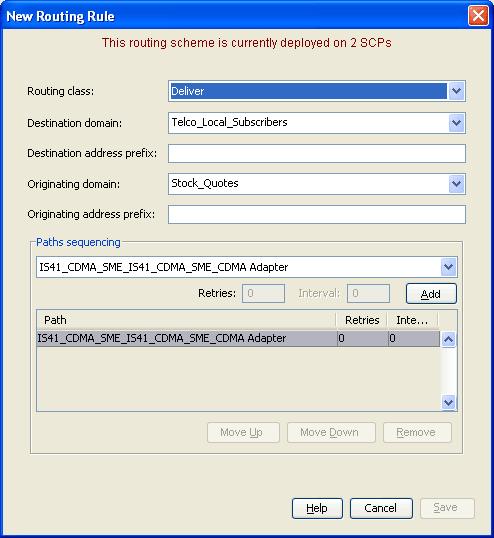
| 2 | On the Routing tab, from the Routing
class drop down list, select Deliver.
|
| 3 |
Click New....
Result: The New Routing Rule screen will open.
The Routing class field will be populated with
|
| 4 | From the Destination domain drop down list,
select Telco_Local_Subscribers.
|
| 5 | From the Originating domain drop down list,
select Stock_Quotes.
|
| 6 | From the Paths sequencing drop down list,
select IS41_CDMA_SME_CDMA Adapter.
|
| 7 |
Click Add. Results:
|
|
|
| 8 | Click Save. |
Configure Messaging Manager node
To enable loading of a routing scheme by Messaging Manager, the scheme is associated with the node listed in the eserv.config file.
Follow these steps to associate the scheme just configured with the SCP01 node:
| Step | Action |
|---|---|
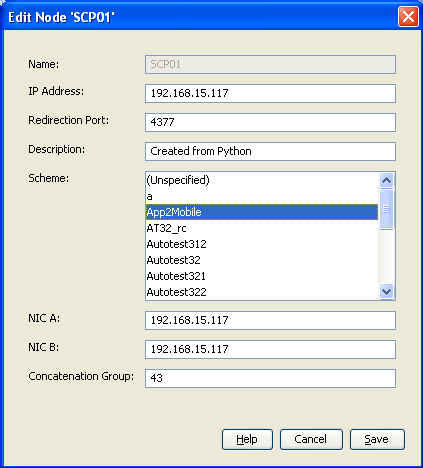
| 1 | From the table on the Nodes tab, select the
node, in this example, SCP01.
|
| 2 |
Click Edit. Result: The Edit Node screen opens. |
| 3 |
From the Scheme list, select
Result: The screen will look similar to this: |
|
|
| 4 | Click Save. |
| 5 |
Click Close. Result: This example configuration is now complete. |
Mobile to Application Messaging
Description
The mobile to application to service provides delivery of SMSs that originated on a mobile phone to an ASP.
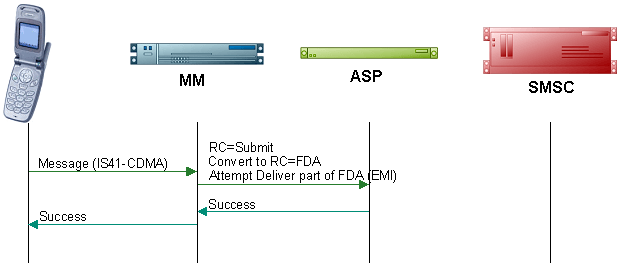
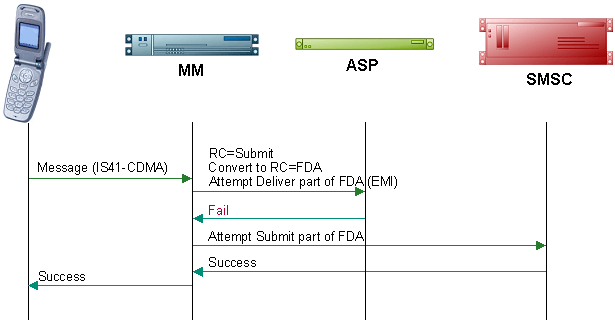
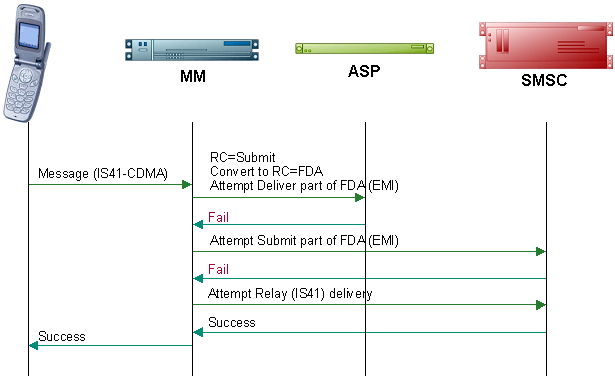
Messaging Manager will attempt to deliver the SMS directly to the ASP, falling back to an SMSC if the direct delivery (FDA) fails.
Setting the scene
This example covers the configuration required for the following flows:
FDA deliver attempt success
FDA submit attempt success
Default routing path attempt success
Mobile to Application diagram
Using the Messaging Manager Multigate and the Messaging Manager Director modules, MM can be configured to provide a Mobile to Application service. In this example we will receive mobile originating IS-41 messages and deliver them to ASPs over EMI using FDA. This diagram shows the modules required.
Process overview
This table lists the procedures that you need to follow to complete this scenario.
| Step | Action |
|---|---|
| 1 | Create a CDMA adapter |
| 2 | Create routing scheme |
| 3 | Create SMSC path |
| 4 | Configure SS7 SMSC path connection |
| 5 | Assign default routing path to inbound CDMA path |
| 6 | Create outbound path |
| 7 | Configure outbound path EMI connection |
| 8 | Create EMI SMSC path |
| 9 | Configure inbound path EMI connection |
| 10 | Create originating domain |
| 11 | Configure originating domain rule |
| 12 | Create destination domain |
| 13 | Configure destination domain rule |
| 14 | Create throttling rule |
| 15 | Configure trigger rule |
| 16 | Configure deliver routing rule |
| 17 | Configure submit routing rule |
| 18 | Configure Messaging Manager node Messaging Manager |
Create CDMA Adapter
The adapter name in the GUI must match exactly the
adapterName parameter in the
eserv.config for the IS41 CDMA protocol.
For this example we assume the eserv.config has the following:
# Adapter definitionsadapters = [# IS-41 CDMA Adapter{#
adapter identifier.#adapterName = "CDMA1"..}
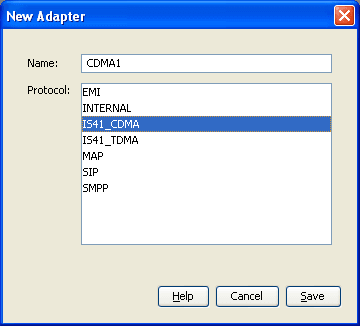
Follow these steps to configure a CDMA adapter, which will be used for receiving inbound SMSs:
| Step | Action |
|---|---|
| 1 | Configure the CDMA adapter in the Messaging Manager eserv.config file. For more information, see MM Technical Guide. |
| 2 |
On the Configuration screen, Adapters tab, click New.... Result: The New Adapter screen opens. |
| 3 | In the Name field, enter CDMA1
|
| 4 |
From Protocol list, select
Result: The screen should now look like this:
|
| 5 | Click Save to save the new adapter record in the configuration database. |
Create Routing Scheme
Follow these steps to create a new routing scheme.
| Step | Action |
|---|---|
| 1 |
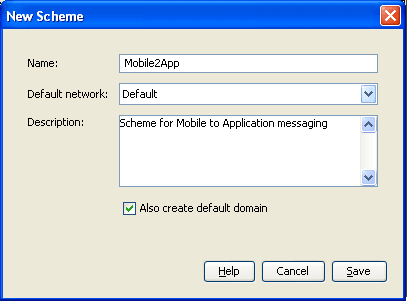
On the Configuration screen, Schemes tab, click New. Result: The New Scheme screen opens. |
| 2 |
In the Name field, type
Result: The Save button becomes available. |
| 3 | In the Description field, enter a description. |
| 4 |
Ensure the Also create default domain check box is selected. Result: The screen should now look similar to this:
|
| 5 | Click Save to save the new scheme record in the configuration database. |
Create SMSC path
Follow these steps to create a CDMA SMSC path.
| Step | Action |
|---|---|
| 1 | In the table on the Schemes tab, select the
Mobile2App scheme to add the default routing path
to.
|
| 2 | Click Open. |
| 3 |
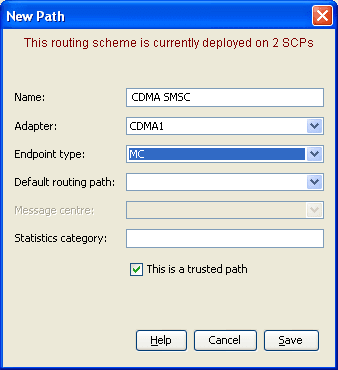
Select the Paths tab and click New.... Result: The New Path screen opens. |
| 4 |
In the Name field, enter
Note: The Name can be generic since this path can be used many times by other schemes/ paths as their relay path. |
| 5 | From the Adapter drop down list, select
CDMA1.
|
| 6 | From the Endpoint type drop down list, select
MC.
|
| 7 |
Select the This is a trusted path check box. Result: The screen should now look similar to this:
|
| 8 | Click Save to save the new path to the configuration database. |
Configure SS7 SMSC path connection
Follow these steps to add a SS7 connection to the SMSC path.
| Step | Action | |
|---|---|---|
| 1 | In the table on the Paths tab, select the
CDMA SMSC path.
|
|
| 2 |
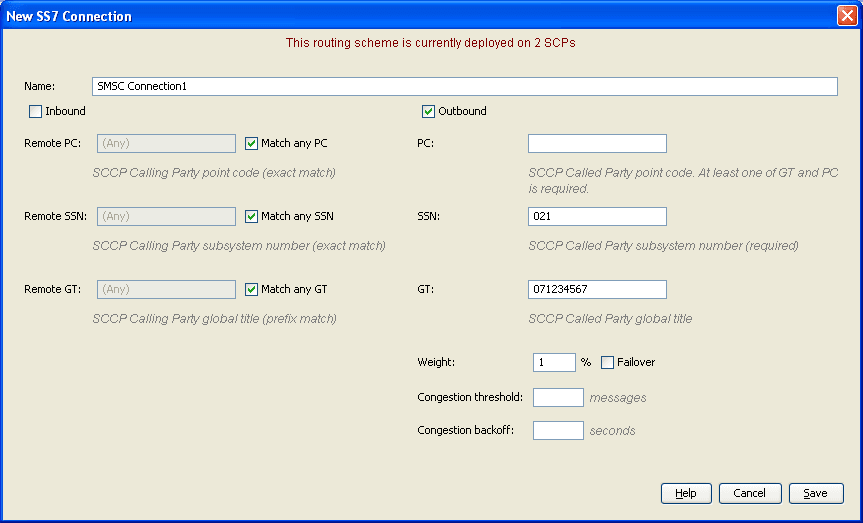
Click Add Connection. Result: The New SS7 Connection screen opens. |
|
| 3 | In the Name field, enter |
|
| 4 | Select the Outbound check box. | |
| 5 | In the SS7 field, enter 021
|
|
| 6 |
In the GT field, enter
Note: When adding a new connection the Save button becomes available after entering either PC or GT and SS7 fields. |
|
| 7 |
In the Weight field, type Note: With a single connection, any non-zero value equates to a maximum loading. Result: The screen should now look like this: |
|
|
||
| 8 | Click Save to save the new connection to the database. | |
Assign default routing path to inbound CDMA path
Follow these steps to assign a default routing path to the predefined CDMA SME path. This will be used for all inbound MO traffic that has no specific routing rule defined.
| Step | Action |
|---|---|
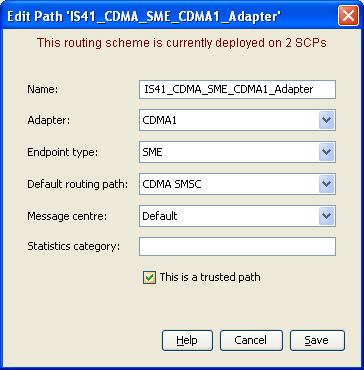
| 1 | In the table on the Paths tab, select the
inbound path IS41_CDMA_SME_CDMA1_Adapter.
|
| 2 |
Click Edit. Result: The Edit Path 'path_name' screen appears. |
| 3 |
From the Default routing path drop down list,
select Result: The screen will look similar to this:
|
| 4 | Click Save. |
Create outbound path
Follow these steps to create an outbound path to the EMI ASP.
| Step | Action |
|---|---|
| 1 |
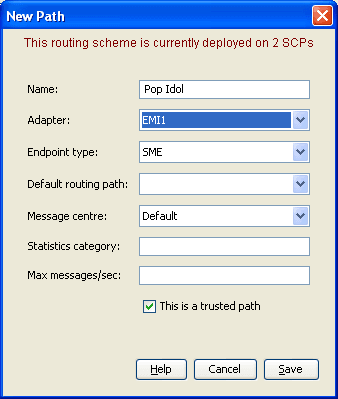
Select the Paths tab and click New. Result: The New Path screen opens. |
| 2 | In the Name field, enter |
| 3 | From the Adapter drop down list, select
EMI1
|
| 4 |
From the Endpoint type drop down list, select
Result: The screen should now look like this:
Note: Where the message is being sent using EMI to an SMSC, we select MC as the endpoint. Where the message is being sent to an ASP, we select SME as the endpoint. |
| 5 | Click Save to save the new path to the configuration database. |
Configure outbound path EMI connection
Follow these steps to create and configure an EMI ASP connection.
| Step | Action |
|---|---|
| 1 | In the table on the Paths tab, select the path
Pop Idol.
|
| 2 |
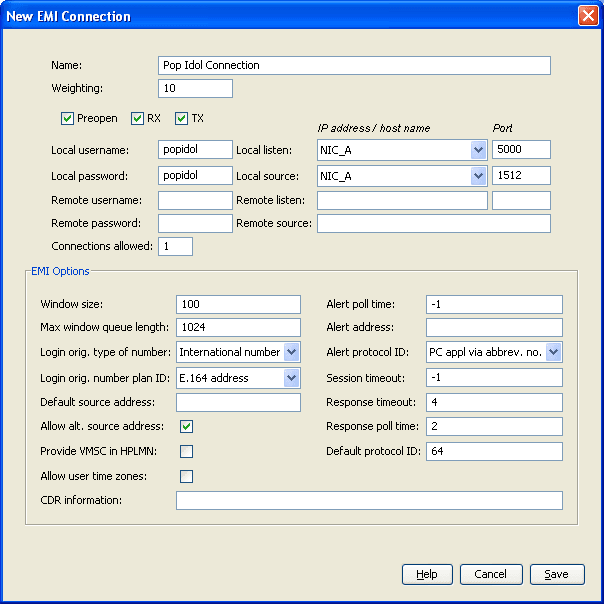
Click Add Connection. Result: The New EMI Connection screen opens. |
| 3 |
In the Name field, enter
Note: When adding a new connection the Save button becomes available on entering the Name field. |
| 4 | In the Weighting field, enter
10.
|
| 5 | Select the Preopen check box to allow the connection to open on Messaging Manager startup/ reload. |
| 6 | Select the RX and TX check boxes to allow the receiving and sending of transmissions. |
| 7 | In the Local username and Local
Password fields, enter popidol
|
| 8 |
In the Local listen Port field, enter
In the Local source Port field, enter
|
| 9 |
The EMI options will have default values assigned. These can be changed as required. Result: The screen should now look like this: |
|
|
| 10 | Click Save to save the new connection to the database. |
Create EMI SMSC path
Follow these steps to add an outbound path to the SMSC via EMI.
| Step | Action |
|---|---|
| 1 |
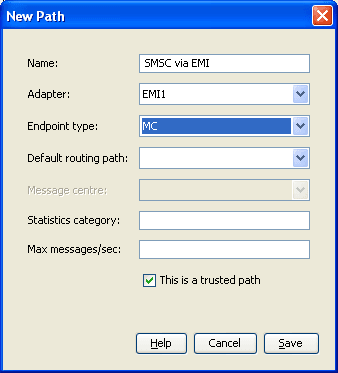
Select the Paths tab and click New. Result: The New Path screen opens. |
| 2 | In the Name field, enter |
| 3 | From the Adapter drop down list, select
EMI1.
|
| 4 |
From the Endpoint type drop down list, select
Result: The screen should now look like this:
|
| 5 | Click Save to save the new path to the configuration database. |
Configure inbound path EMI connection
Follow these steps to create and configure an EMI connection.
| Step | Action |
|---|---|
| 1 | In the table on the Paths tab, select the path
SMSC via
EMI
.
|
| 2 |
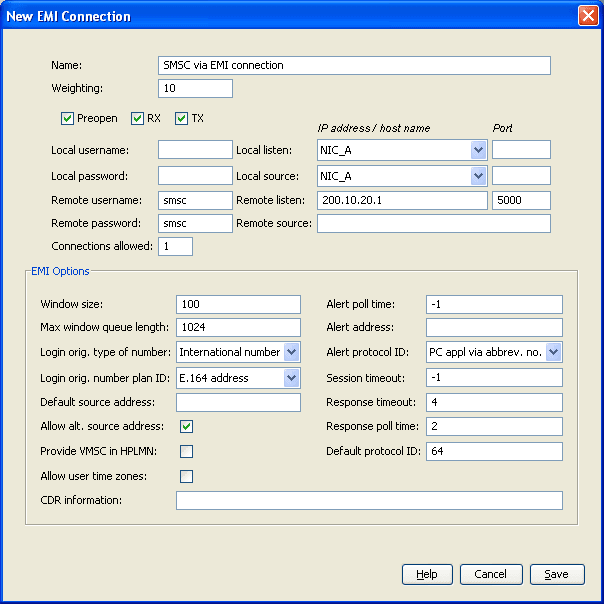
Click Add Connection. Result: The New EMI Connection screen opens. |
| 3 |
In the Name field, enter
Result: The Save button becomes available. |
| 4 | In the Weighting field, enter
10
|
| 5 | Select the Preopen check box to allow the connection to open on Messaging Manager startup/ reload. |
| 6 | Select the RX and TX check boxes to allow the receiving and sending of transmissions. |
| 7 | In the Remote username and Remote
password fields, enter smsc
|
| 8 | In the Remote listen field, enter
200.10.20.1
|
| 9 | In the Remote listen
Port
field, enter 5000
|
| 10 |
The EMI options will have default values assigned. These can be changed as required. Result: The screen should look similar this: |
|
|
| 11 | Click Save to save the new connection to the database. |
Create originating Domain
Follow these steps to add an originating message domain.
| Step | Action |
|---|---|
| 1 | In the table on the Schemes tab, select the
Mobile2App routing scheme.
|
| 2 | Click Open. |
| 3 |
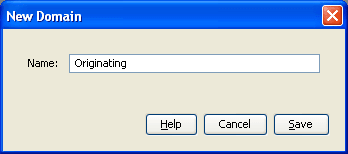
Select the Domains tab and click New. Result: The New Domain screen opens. |
| 4 |
In the Name field, enter
Result: The screen should look like this:
|
| 5 | Click Save. |
Configure originating Domain Rule
Follow these steps to add a rule to the selected address domain.
| Step | Action |
|---|---|
| 1 |
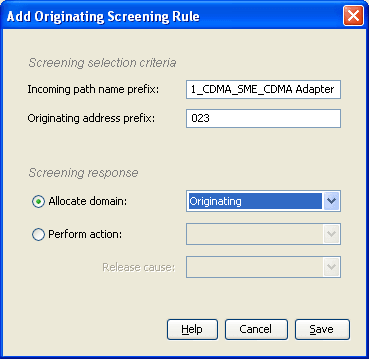
On the Screening tab, select the Originating Address Screening rule and click Add.... Result: The Add Originating Screening Rule screen opens. |
| 2 |
In the Incoming path name prefix field, enter
This applies the address rule to a single path - the default inbound CDMA path from a handset. Result: The Save button becomes available. |
| 3 | In the Originating address prefix field, type
023
|
| 4 |
From the Allocate domain drop-down list select
Result: The screen should now look like this:
|
| 5 | Click Save to save the new domain rule to the configuration database. |
Create destination Domain
Follow these steps to add a destination message domain.
| Step | Action |
|---|---|
| 1 |
Select the Domains tab of the Mobile2App Scheme screen, and click New. Result: The New Domain screen opens. |
| 2 |
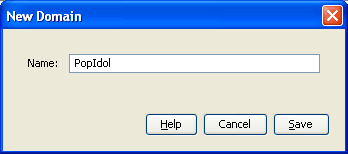
In the Name field, enter
Result: The screen should look like this:
|
| 3 | Click Save. |
Configure destination Domain Rule
Follow these steps to add a rule to the selected domain.
| Step | Action |
|---|---|
| 1 |
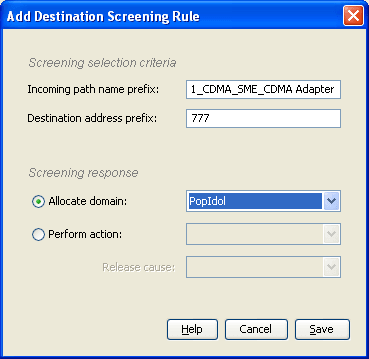
In the table on the Screening tab, select the Destination Address Screening rule and click Add.... Result: The Add Destination Screening Rule screen opens. |
| 2 |
In the Incoming path name prefix field, enter
This applies the address rule to a single path - the default inbound CDMA path from a handset. Result: The Save button becomes available. |
| 3 | In the Destination Address Prefix field, enter
777
|
| 4 |
Select Result: The screen should look like this:
|
| 5 | Click Save to save the new domain rule to the configuration database. |
Create Throttling Rule
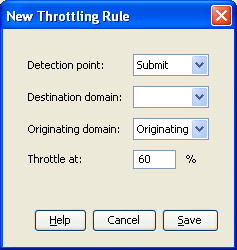
Follow these steps to set the throttling values for the path.
| Step | Action |
|---|---|
| 1 | Select the Throttling tab and click New. |
| 2 | In the Detection Point field, select
Submit.
|
| 3 | In the Originating domain field, select
Originating.
|
| 4 |
In the Throttle field, enter
Result: The screen should look like this:
|
| 5 | Click Save. |
Configure Trigger Rule
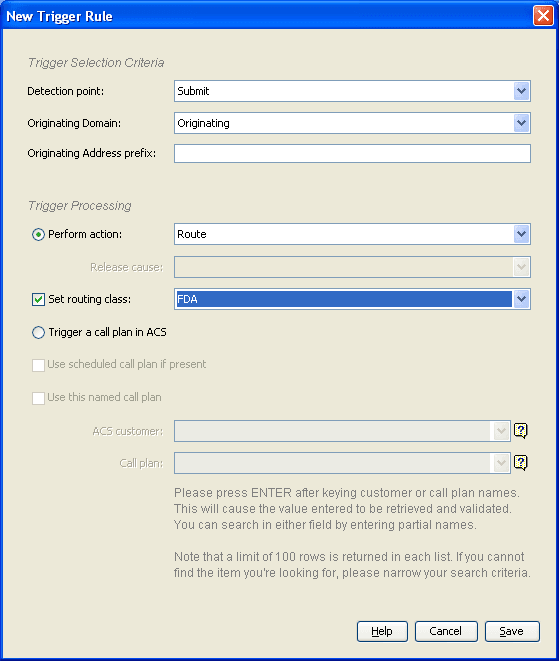
Follow these steps to configure a trigger rule.
| Step | Action |
|---|---|
| 1 | On the Triggering tab, from the
Detection point drop down list, select
Submit.
|
| 2 |
Click New....
Result: The New Trigger Rule screen will open.
The Detection point field will be populated with
|
| 3 | From the Originating Domain drop down list,
select Originating.
|
| 4 | Select the Route action from the Perform action: drop down list. |
| 5 |
Select the Set routing class check box and from
drop down list, select Result: The screen should look like this: |
|
|
| 6 | Click Save. |
Configure deliver Routing Rule
The Routing rules enable Messaging Manager to have a list of paths to attempt routing over. Messaging Manager will attempt delivery using the first path, second and so on down the list.
Because the FDA routing class was specified in the trigger rule above. Messaging Manager will firstly attempt routing using a Deliver routing rule, then using a Submit routing rule.
Follow these steps to establish a Deliver routing rule with a list of SME paths.
| Step | Action |
|---|---|
| 1 | On the Routing tab, from the Routing
class drop down list, select Deliver.
|
| 2 |
Click New....
Result: The New Routing Rule screen will open.
The Routing class field will be populated with
Note: This represents the first delivery attempt for the FDA. |
| 3 | From the Destination domain drop down list,
select PopIdol.
|
| 4 | From the Originating domain drop down list,
select Originating.
|
| 5 |
From the Paths sequencing drop down list,
select Result: The screen should look like this: |
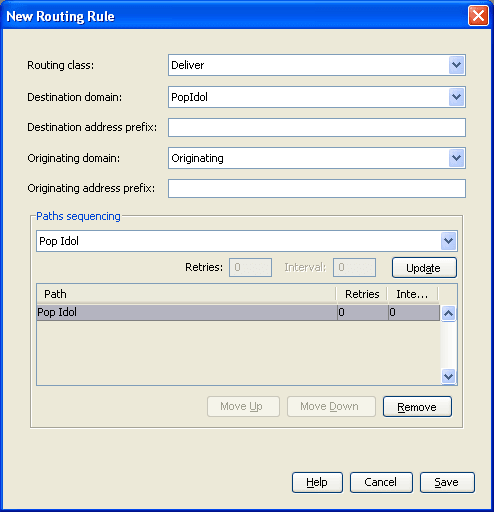
|
|
| 6 | Click Save. |
Configure submit Routing Rule
The routing rules enable Messaging Manager to have a list of paths to attempt routing over. Messaging Manager will use the paths in a Submit routing rule after the Deliver leg of FDA routing has failed.
Follow these steps to establish a Submit rule with a list of SMSC paths.
| Step | Action |
|---|---|
| 1 | On the Routing tab, from the Routing
class drop down list, select Submit.
|
| 2 |
Click New....
Result: The New Routing Rule screen will open.
The Routing class field will be populated with
Note: This represents the second delivery attempt for the FDA. |
| 3 | From the Message centre drop down list, select
Default.
|
| 4 | From the Originating domain drop down list,
select Originating.
|
| 5 |
From the Paths sequencing drop down list,
select Note: This represents the Submit attempt part of a failed FDA delivery. |
| 6 | Click Add. |
| 7 |
From the Paths sequencing drop down list,
select Note: This represents the Default routing path attempt after a failed FDA. |
| 8 | Click Add. |
| 9 | In the Retries field, enter 3.
|
| 10 |
In the Interval field, enter
Result: The screen should look like this: |
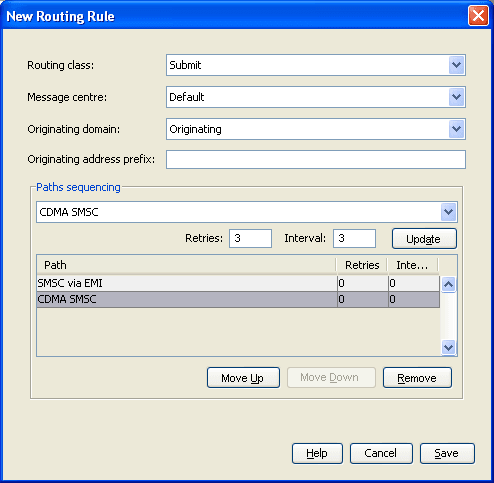
|
|
| 11 | Click Save. |
Configure Messaging Manager node
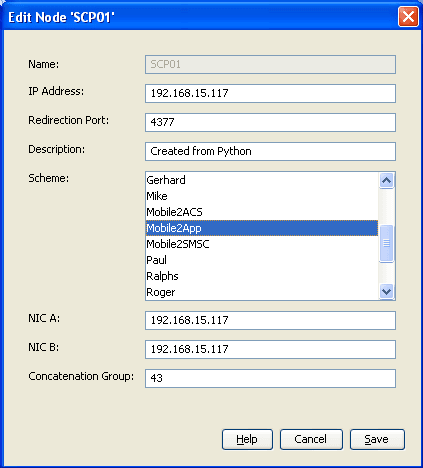
To enable loading of a routing scheme by Messaging Manager, the scheme is associated with the node listed in the eserv.config file.
Follow these steps to associate the scheme just configured with the SCP01 node:
| Step | Action |
|---|---|
| 1 | From the table on the Nodes tab, select the
node, in this example, SCP01.
|
| 2 |
Click Edit. Result: The Edit Node screen opens. |
| 3 |
From the Scheme list, select
Result: The screen will look similar to this:
|
| 4 | Click Save. |
| 5 |
Click Close. Result: This example configuration is now complete. |
Mobile to Mobile triggering to ACS
Description
The Mobile to Mobile messaging (MO SMS) service allows customers to send short messages from one mobile phone to another.
In this example messages will be triggered to an ACS control plan to route large messages to a specific SMSC.
Diagram
Using the Messaging Manager Multigate and the Messaging Manager Director modules, MM can be configured to provide a Mobile to Mobile service, triggering to ACS. In this example we will receive mobile originating MAP messages and deliver them to SMSCs over MAP having triggered them to ACS to offload all large messages to a separate SMSC. The following diagram shows the modules required:
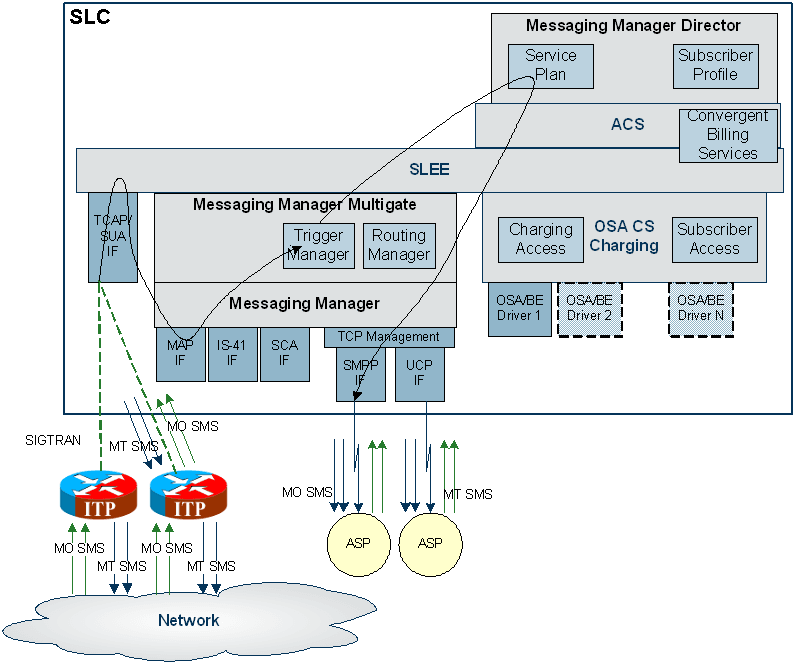
Process overview
This table lists the procedures that you need to follow to complete this scenario.
| Step | Action |
|---|---|
| 1 | Create MAP adapter |
| 2 | Create routing scheme |
| 3 | Create new message center |
| 4 | Create MC path |
| 5 | Create MC path SS7 connection |
| 6 | Create large MC path |
| 7 | Create large MC path connection |
| 8 | Create address range |
| 9 | Create control plan |
| 10 | Create trigger rule |
| 11 | Configure standard routing rule |
| 12 | Configure large message routing rule |
| 13 | Configure Messaging Manager node |
Create MAP adapter
The adapter name in the GUI must match exactly the
adapterName parameter in the
eserv.config for the MAP protocol.
For this example we assume the eserv.config has the following:
# Adapter definitionsadapters = [# First adapter (MAP){#
adapter identifier.#adapterName = "MAP1"..}
Follow these steps to configure a MAP adapter, which will be used for receiving inbound SMSs.
| Step | Action |
|---|---|
| 1 | Configure the MAP adapter in the MM eserv.config file. For more information, see MM Technical Guide. |
| 2 |
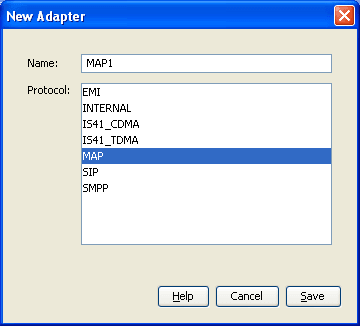
On the Configuration screen, Adapters tab, click New. Result: The New Adapter screen opens. |
| 3 | In the Name field, enter MAP1.
|
| 4 |
In the Protocol field, select
Result: The screen should look like this:
|
| 5 | Click Save to save the new adapter record in the configuration database. |
Create Routing Scheme
Follow these steps to create a new routing scheme:
| Step | Action |
|---|---|
| 1 |
On the Configuration screen, Schemes tab, click New.... Result: The New Scheme screen opens. |
| 2 |
In the Name field, enter
Result: The Save button becomes available. |
| 3 |
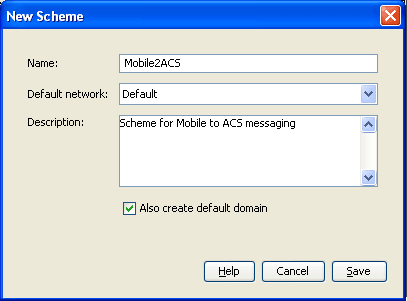
In the Description field, type a description for this scheme.
Example:
|
| 4 |
Ensure the Also create default domain check box is selected. Result: The screen should look like this:
|
| 5 |
Click Save to save the new scheme record in the configuration database. Result: All the required Messaging Manager inbound paths for the MAP protocol are automatically generated by Messaging Manager. |
Create new Message Center
Follow these steps to create a separate message center for large messages.
| Step | Action |
|---|---|
| 1 |
On the Message Centres tab, click New.... Result: The New Message Centre screen opens. |
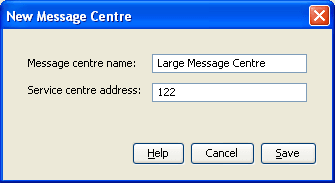
| 2 | In the Message centre name field, enter
Large Message Centre.
|
| 3 |
In the Service centre address field, enter
Result: The Save button will appear, and the screen should look like this:
|
| 4 | Click Save to save the new message center record to the database. |
Create MC path
Follow these steps to create a MAP path to the standard SMSC.
| Step | Action |
|---|---|
| 1 | In the table on the Schemes tab, select the
Mobile2ACS scheme to add the inbound path to.
|
| 2 | Click Open. |
| 3 |
Select the Paths tab and click New.... Result: The New Path screen opens. |
| 4 | In the Name field, enter |
| 5 |
From the Adapter drop down list, select
Result: The Save button becomes available. |
| 6 |
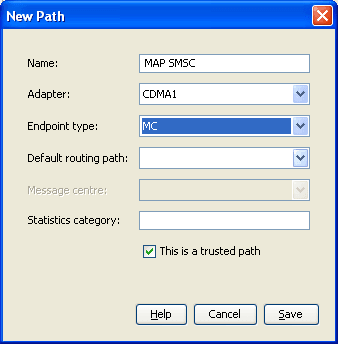
From the Endpoint type drop down list, select
Result: The screen should now look similar to this:
|
| 7 | Click Save to save the new path to the configuration database. |
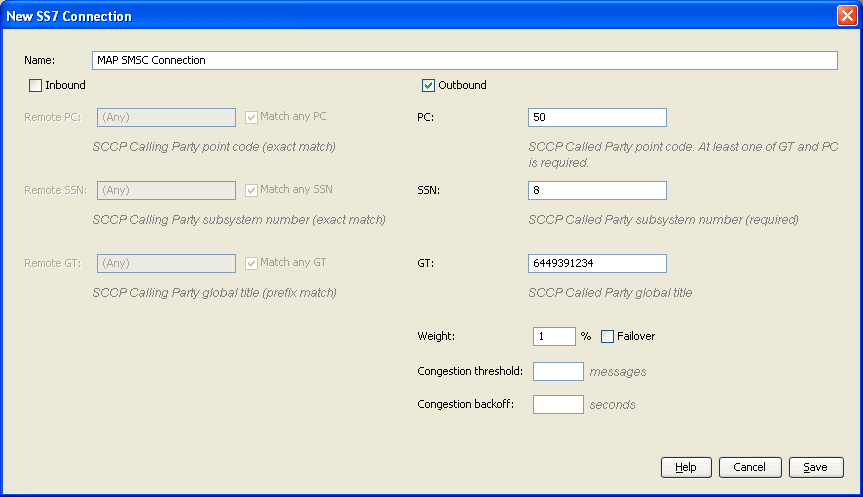
Create MC path SS7 connection
Follow these steps to add an SS7 connection to the standard SMSC path.
| Step | Action | |
|---|---|---|
| 1 | In the table on the Paths tab, select the
MAP SMSC path.
|
|
| 2 |
Click Add Connection. Result: The New SS7 Connection screen opens. |
|
| 3 |
In the Name field, enter
Result: The Save button becomes available. |
|
| 4 | Select the Outbound check box. | |
| 5 | In the PC field, enter 50
|
|
| 6 | In the SSN field, enter 8
|
|
| 7 | In the GT field, enter
6449393367
|
|
| 8 |
In the Weight field, enter Note: With a single connection, any non-zero value equates to a maximum loading. Result: The screen should look similar this: |
|
|
||
| 9 | Click Save to save the new connection to the database. | |
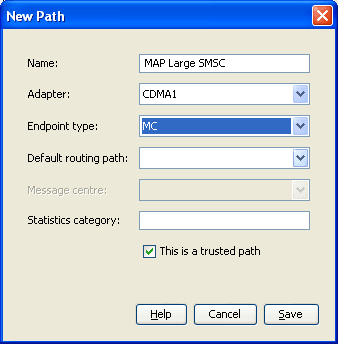
Create large MC path
Follow these steps to create a MAP path to the SMSC for large messages.
| Step | Action |
|---|---|
| 1 | In the table on the Schemes tab, select the
Mobile2ACS scheme to add the inbound path to.
|
| 2 | Click Open. |
| 3 |
Select the Paths tab and click New.... Result: The New Path screen opens. |
| 4 | In the Name field, enter |
| 5 |
From the Adapter drop down list, select
Result: The Save button becomes available. |
| 6 |
From the Endpoint type drop down list, select
Result: The screen should now look similar to this:
|
| 7 | Click Save to save the new path to the configuration database. |
Create large MC path connection
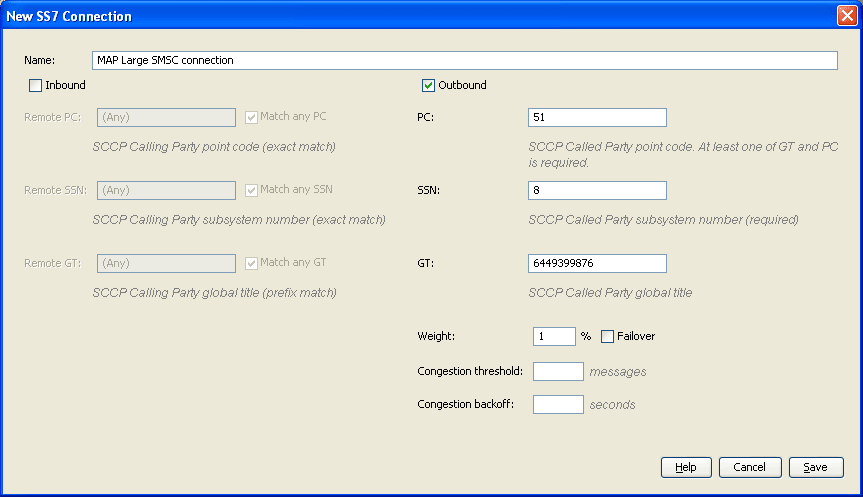
Follow these steps to add an SS7 connection to the large SMSC path.
| Step | Action |
|---|---|
| 1 | In the table on the Paths tab, select the
MAP Large SMSC path.
|
| 2 |
Click Add Connection. Result: The New SS7 Connection screen opens. |
| 3 |
In the Name field, enter
Result: The Save button becomes available. |
| 4 | Select the Outbound check box. |
| 5 | In the PC field, enter 51.
|
| 6 | In the SSN field, enter 8.
|
| 7 | In the GT field, enter
6449393368.
|
| 8 |
In the Weight field, enter Note: With a single connection, any non-zero value equates to a maximum loading. Result: The screen should look similar this: |
|
|
| 9 | Click Save to save the new connection to the database. |
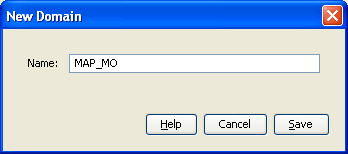
Create Domain
Create a domain to identify traffic that will trigger to Messaging Manager Director.
Follow these steps to add a new domain for all MAP inbound MO traffic:
| Step | Action |
|---|---|
| 1 | On the Schemes tab, select the
Mobile2ACS routing scheme.
|
| 2 | Click Open. |
| 3 | Select the Domains tab and click New.... |
| 4 |
In the Name field, enter
Result: The screen should look like this:
|
| 5 | Click Save. |
Create Control Plan
Follow these steps to create a Messaging Manager Director control plan.
| Step | Action |
|---|---|
| 1 | Open the ACS Control Plan Editor. See CPE User's Guide for details. |
| 2 | Select the required customer. |
| 3 |
Create a control plan using the following nodes:
Result: The control plan will look similar to this: |
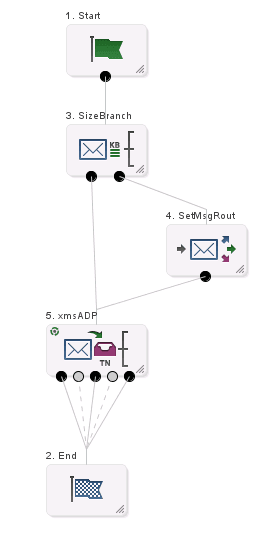
|
|
| 4 | Save the control plan. |
Create trigger rule
Follow these steps to configure a trigger rule.
| Step | Action |
|---|---|
| 1 | On the Triggering tab, from the
Detection point drop down list, select
Submit.
|
| 2 |
Click New....
Result: The New Trigger Rule screen will open.
The Detection point field will be populated with
|
| 3 | From the Originating Domain drop down list,
select SMSC Offload.
|
| 4 | Select the Trigger a call plan in ACS option. |
| 5 | Deselect the Use scheduled call plan if present check box. |
| 6 | Select the Use this named call plan check box. |
| 7 |
Select the ACS customer and control plan named, as created and saved in Create Control Plan . Result: The screen should now look like this: |
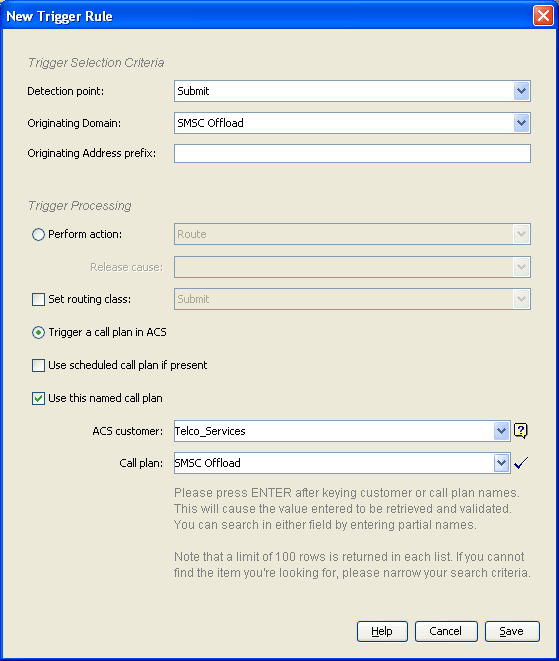
|
|
| 8 | Click Save. |
Configure standard routing rule
Routing rules enable Messaging Manager to have a list of paths to attempt routing over. Messaging Manager will attempt routing using the first path, second and so on down the list.
Follow these steps to establish a routing rule and list of paths.
| Step | Action |
|---|---|
| 1 | On the Routing tab, from the Routing
class drop down list, select Submit.
|
| 2 |
Click New....
Result: The New Routing Rule screen will open.
The Routing class field will be populated with
|
| 3 | From the Message centre drop down list, select
Default.
|
| 4 | From the Originating domain drop down list,
select MAP_MO.
|
| 5 | From the Paths sequencing drop down list,
select MAP SMSC and click Add.
|
| 6 | In the Retries field, enter 3.
|
| 7 |
In the Interval field, enter
Result: The screen should look like this: |
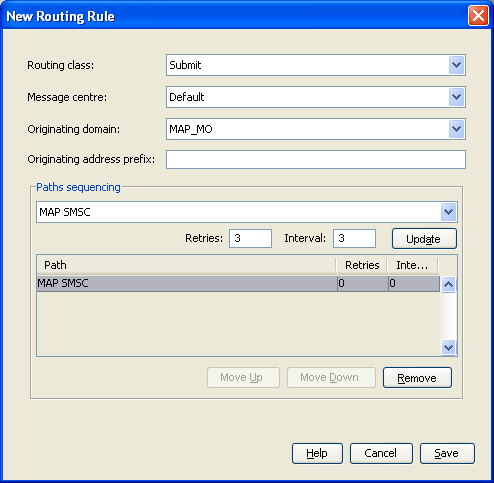
|
|
| 8 | Click Save. |
Configure routing rule
If the Control Plan determined that the message was a large one, it will have set a different message center, allowing a routing rule to select a special SMSC.
Follow these steps to establish a routing rule and list of paths.
| Step | Action |
|---|---|
| 1 | On the Routing tab, from the Routing
class drop down list, select Submit.
|
| 2 |
Click New....
Result: The New Routing Rule screen will open.
The Routing class field will be populated with
|
| 3 | In the Message centre drop down list, select
Large Message Centre.
|
| 4 | In the Originating domain drop down list,
select MAP_MO.
|
| 5 | From the Paths sequencing drop down list,
select MAP Large SMSC and click
Add.
|
| 6 | In the Retries field, enter 3.
|
| 7 |
In the Interval field, enter
Result: The screen should look like this: |
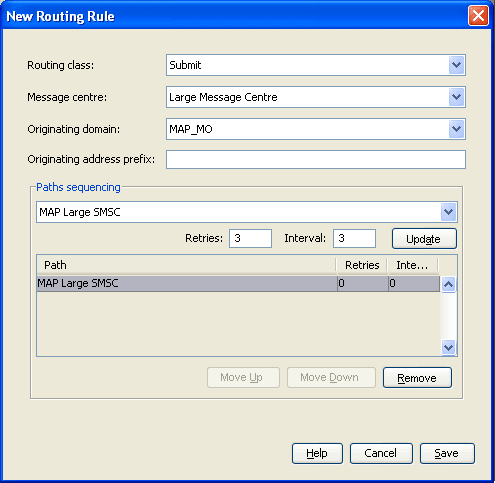
|
|
| 8 | Click Save. |
Configure Messaging Manager node
To enable loading of a routing scheme by Messaging Manager, the scheme is associated with the node listed in the eserv.config file.
Follow these steps to associate the scheme just configured with the SCP01 node:
| Step | Action |
|---|---|
| 1 | From the table on the Nodes tab, select the
node, in this example, SCP01. See Configure
Messaging Manager node
).
|
| 2 |
Click Edit.... Result: The Edit Node screen opens. |
| 3 |
From the drop down list, select Result: The screen will look similar to this: |
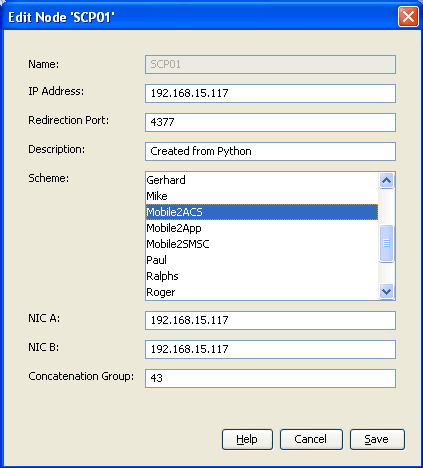
|
|
| 4 | Click Save. |
| 5 |
Click Close. Result: This example configuration is now complete. |
Instant Messaging
Process overview
The process required is similar to the Mobile to Mobile triggering to ACS process, but the details are yet to be finalized. However, two procedures which are required for this scenario are listed in this table.
| Step | Action |
|---|---|
| 1 | Create SCA Adapter |
| 2 | Create Control Plan for SIP |
SMS forwarded to SIP
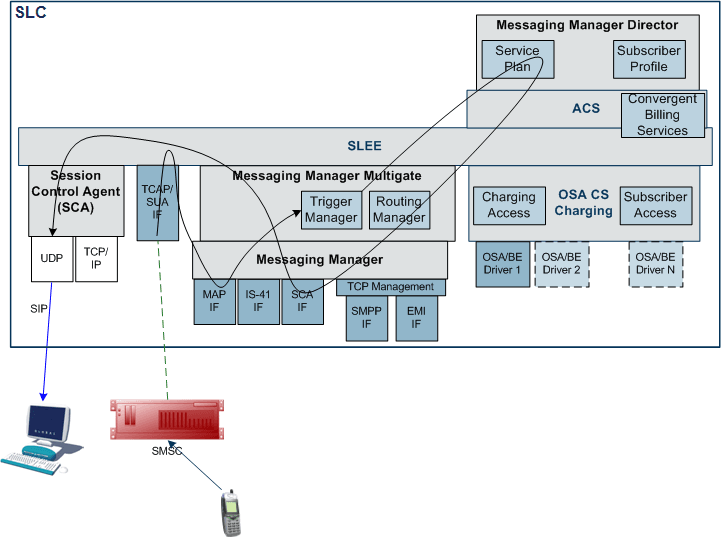
In this scenario, Tom sends a short message to Dick, who has enabled instant message forwarding using some mechanism not relevant to this design. This will forward a copy of the short messages to Dick’s SIP user agent.
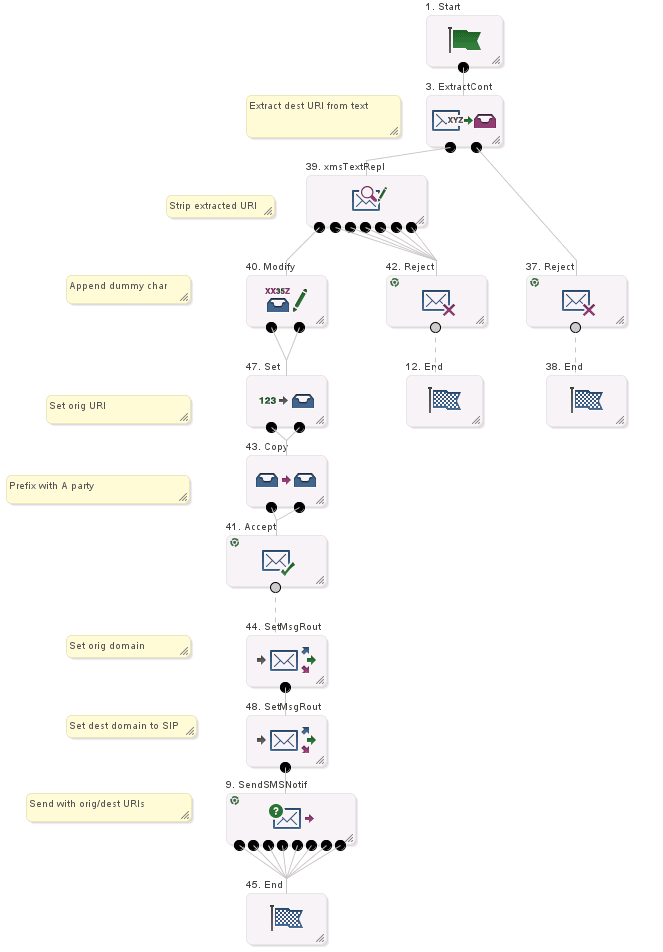
This is accomplished by processing a control plan that contains the Send Short Message Notification node (SSMN), which allows sending instant messages. The node specifies the destination address in URI format (for example, Dick@imdomain.com). The content and other information about the message is contained in a GenericSM event. This event is sent through the SLEE to the SCA Adapter. The SCA Adapter converts the GenericSM event to a SipSleeEvent and forwards this event to the SCA.
SMS to SIP
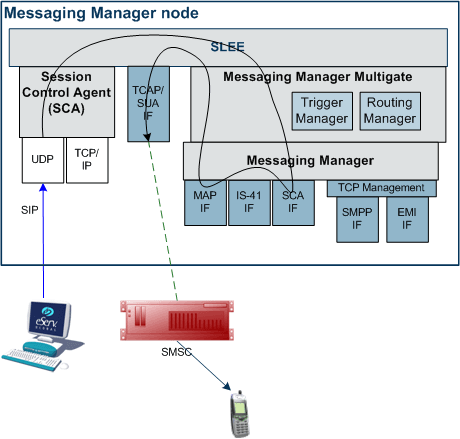
In this scenario, Tom sends a short message to a special short code (64121) that will forward the short message to Dick’s instant message user agent. This scenario is similar to the scenario described above, and the path is the same as shown in that diagram, except that the destination address is specified as part of the message content (for example, "Dick@imdomain.com Watson, come here." The SSMN (or other) node extracts the destination address from the content. The short message is swallowed by MM.
SIP to SMS
In this scenario Tom sends an instant message to Dick, addressed to a handset (the E.164 telephone number - for example, 64123402). The SCA converts this message to a SipSleeEvent and passes this to the SCA Adapter. The SCA Adapter creates a GenericSM event and MM routes this to the MAP adapter. The MAP adapter sends a MAP MO-ForwardSM to the SMSC.
In this scenario, Tom uses his E.164 alias (for example, 64123570) as the originating address. This allows a reply through SMS.
Create SCA Adapter
The adapter name in the GUI must match exactly the
adapterName parameter in the
eserv.config for the SCA protocol.
For this example we assume the eserv.config has the following:
# Adapter definitionsadapters = [# SCA (SIP) adapter{#
adapter identifier.#adapterName = "SCA1"..}
Follow these steps to configure an SCA adapter, which will be used for receiving inbound SMSs.
| Step | Action |
|---|---|
| 1 | Configure the SCA adapter in the MM eserv.config file. For more information, see MM Technical Guide. |
| 2 |
On the Configuration screen, Adapters tab, click New.... Result: The New Adapter screen opens. |
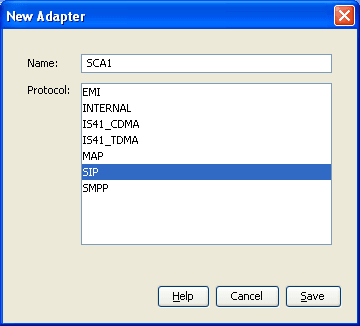
| 3 | In the Name field, enter SCA1.
|
| 4 |
In the Protocol field, select
Result: The screen should look like this:
|
| 5 | Click Save to save the new adapter record in the configuration database. |
Create Control Plan for SIP
Follow these steps to create a Messaging Manager Director control plan for SIP.
| Step | Action |
|---|---|
| 1 | Open the ACS Control Plan Editor. See CPE User's Guide for details. |
| 2 | Select the required customer. |
| 3 |
Create a control plan using the following nodes:
Result: The control plan will look similar to the Example Control Plan for SIP |
| 4 | Save the control plan. |
Example Control Plan for SIP
Here is an example control plan for SIP.