8 Messaging Manager Routing Scheme Edit Control
Routing Scheme Edit Control
Introduction
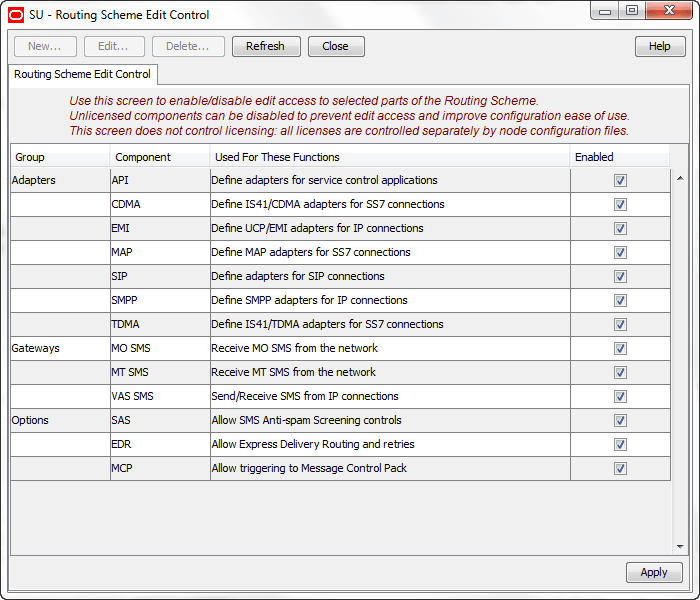
This tab controls which routing components can be configured using the Messaging Manager GUI.
Accessing Routing Scheme Edit Control
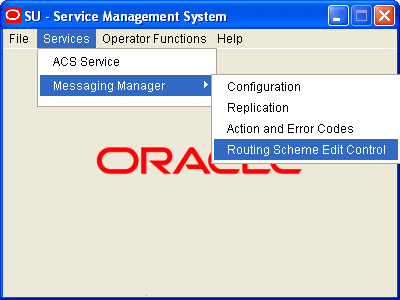
Follow these steps to open the Messaging Manager Routing Scheme Edit Control screen.
| Step | Action |
|---|---|
| 1 |
Select the Services menu from the SMS main screen.
|
| 2 | Select Messaging Manager. |
| 3 |
Select Routing Scheme Edit Control. Result: You see the Messaging Manager Routing Scheme Edit Control screen. |
For more information about:
- The screen's content and how to enter configuration information, see the other topics in this chapter.
- How all the information works together to create the Messaging Manager configuration, see Configuration Scenarios .
- Logging into the Service Management System screen, see SMS User's Guide.
Columns
This table describes the contents of each column of the Routing Scheme Edit Control tab.
| Column | Description |
|---|---|
| Group | Identifies which component group the other columns relate to. |
| Component | Identifies the component within the group. |
| Used for these Functions | Describes which functions use this component. |
| Enabled | Indicates if the component is available for configuration (selected check box). |
Editing scheme controls
Follow these steps to edit the scheme controls.
| Step | Action |
|---|---|
| 1 | Open the Messaging Manager Routing Scheme Edit Control screen. |
| 2 |
Go through the listed components and perform one of the following actions:
|
| 3 |
Click Apply to save the flag information to the database. Result: SMS will perform Messaging Manager configuration replication for all the selected nodes. |