7 Messaging Manager Action and Error Codes
Action and Error Codes
Introduction
The Action and Error Codes configuration allows error codes to be mapped to release causes, and vice versa, and to identify the default release cause for the Reject action (the Discard and Accept actions have permanent, fixed cause values).
Accessing Messaging Manager Action and Error Codes
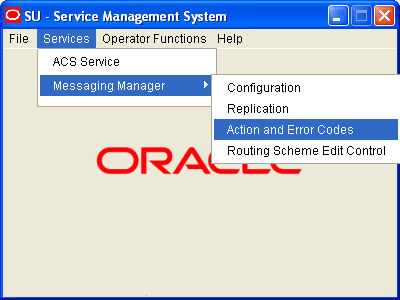
Follow these steps to open the Messaging Manager Action and Error Codes screen.
| Step | Action |
|---|---|
| 1 |
Select the Services menu from the SMS main screen.
|
| 2 | Select Messaging Manager. |
| 3 |
Select Action and Error Codes. Result: You see the Messaging Manager Action and Error Codes screen. |
For more information about:
- The screen's content and how to enter configuration information, see the other topics in this chapter.
- How all the information works together to create the Messaging Manager configuration, see Configuration Scenarios .
- Logging into the Service Management System screen, see SMS User's Guide.
Release Cause and Error Mappings panels
Each protocol-specific tab (that is, all the tabs except for the Global tab) have two panels:
- Release Cause Mappings panel at the top
- Error Mappings panel at the bottom
Each panel has its own set of New, Edit and Delete buttons in the top right of the panel. These buttons enable you to work with the records in the corresponding panel.
Global Action and Error Codes
Introduction
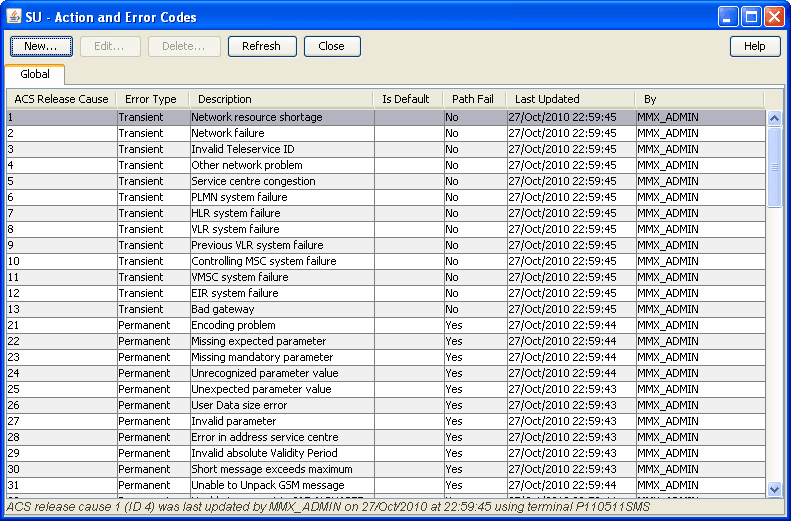
The Global tab displays the global list of action and error codes which define ACS Release Cause values and corresponding error types which may be mapped to protocol-specific error codes.
Global fields
This table describes the content of each editable column.
| Field | Description |
|---|---|
| ACS Release Cause |
The release cause value posted to Messaging Manager by ACS. Note: The maximum allowed value is 118. Higher values are internal system defaults that cannot be changed. |
| Error Type | The type of error this cause number represents. Values are Permanent, Transient, Abort. |
| Description | What the error cause number represents. |
| Is Default |
Indicates if the cause is the default for the Reject, Discard, or Accept actions. Note: You are able to modify only the default Reject action. The other actions are predefined. |
| Path Fail |
Whether or not the error code causes a bypass of retires on the current path. The default for:
|
Adding Global Release Cause
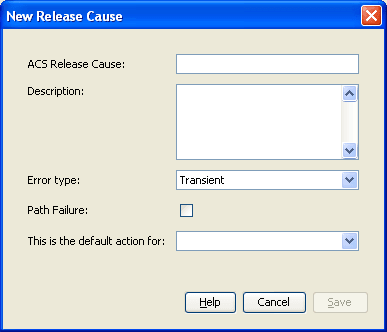
Follow these steps to add a Global Release Cause.
| Step | Action |
|---|---|
| 1 |
From the Global tab screen, click New. Result: The New Release Cause screen opens.
See Global fields for a description of each field. |
| 2 |
In the ACS Release Cause field, enter the release cause number. Note: Must be a unique number, less than 118. |
| 3 | Enter the description for the release cause in the Description field. |
| 4 | Select the type of error for this release cause from the Error Type drop down list. |
| 5 | Select the Path Failure check box if you wish this release cause to be a path failure. |
| 6 |
Select the default action for this release cause from the This is the default action for drop down list. Note: Select the Reject option if this release cause is to be used as the new global reject action cause. For everything else, select null option. |
| 7 | Click Save to save the new release cause record in the configuration database. |
Editing Global Release Cause
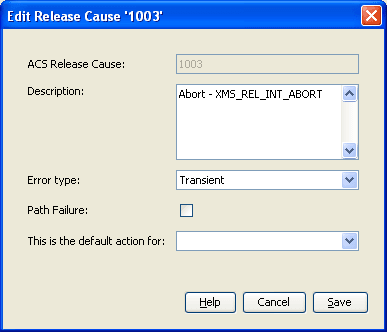
Follow these steps to edit a global error code.
| Step | Action |
|---|---|
| 1 | In the table on the Global tab, select the ACS release cause to edit. |
| 2 |
From the Global tab screen, click Edit. Result: The Edit Release Cause 'Code_Number' screen opens.
|
| 3 | Change the fields as required. See Global fields for a description of each field. |
| 4 | Click Save to save the release cause record in the configuration database. |
Deleting Global Release Cause
Follow these steps to delete a Global Release Cause.
| Step | Action |
|---|---|
| 1 | In the table on the Global tab, select the ACS release cause to delete. |
| 2 |
Click Delete. Result: The Delete Release Cause 'Cause_Number' screen opens. |
| 3 |
Click Delete to delete the record from the configuration database. Note: To delete this code, it must have already been removed from the protocols. |
SMPP
Introduction
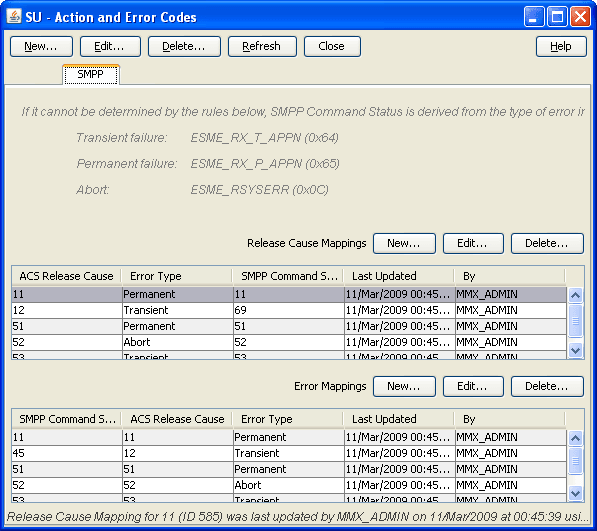
The SMPP tab defines, for this protocol, the:
- Error codes returned to the caller for each ACS release cause
- ACS release cause for each error code
SMPP fields
This table describes the content of each column.
| Field | Description |
|---|---|
| SMPP Command Status |
The status code to map against the ACS release cause. Note: Must be a unique release code for this protocol. |
| ACS Release Cause |
The release cause number used by Messaging Manager to pass back to ACS. Note: This is defined on the Global tab . |
| Error Type |
The type of error the ACS release cause number represents. Note: This is defined on the Global tab . |
EMI
Introduction
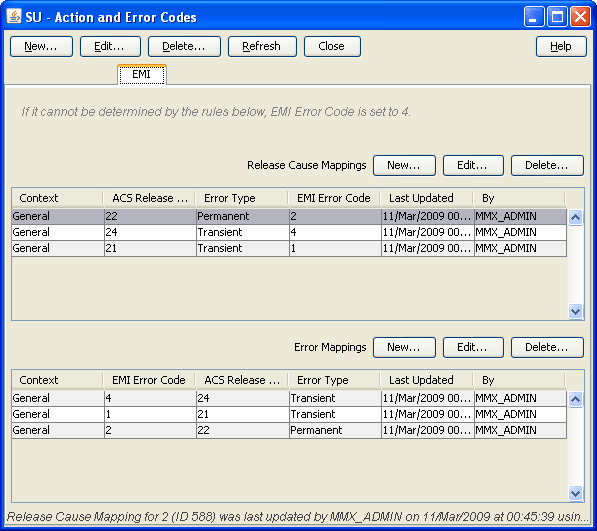
The EMI tab defines, for this protocol, the:
- Error codes returned to the caller for each ACS release cause
- ACS release cause for each error code
EMI fields
This table describes the content of each column.
| Field | Description |
|---|---|
| Context | The circumstances in which this mapping will be applied. |
| EMI Error Code |
The error code to map against the ACS release cause. Note: Must be a unique release code for this protocol. |
| ACS Release Cause |
The release cause number used by Messaging Manager to pass back to ACS. Note: This is defined on the Global tab . |
| Error Type |
The type of error the ACS release cause number represents. Note: This is defined on the Global tab . |
MAP
Introduction
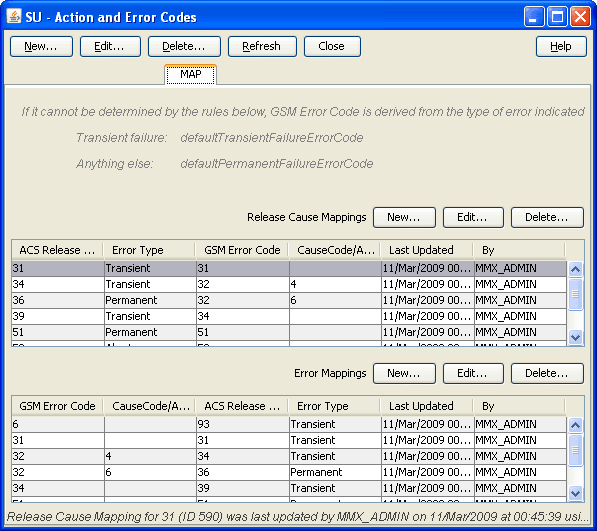
The MAP tab defines, for this protocol, the:
- Error codes returned to the caller for each ACS release cause
- ACS release cause for each error code
MAP fields
This table describes the content of each column.
| Field | Description |
|---|---|
| GSM Error Code |
The GSM MAP error code to map against the ACS release cause. Note: Must be a unique release code for this protocol. |
| CauseCode/Access Denied Reason | The cause value for an SM Delivery Failure. |
| ACS Release Cause |
The release cause number used by Messaging Manager to pass back to ACS. Note: This is defined on the Global tab . |
| Error Type |
The type of error the ACS release cause number represents. Note: This is defined on the Global tab . |
Actions available
From this tab, for a release cause mapping you can:
- Adding release cause mapping - MAP, IS-41
- Editing release cause mapping - MAP, IS-41
- Deleting release cause mapping
For an error mapping you can:
- Adding error mapping - MAP, IS-41
- Editing error mapping - MAP, IS-41
- Deleting error mapping
IS-41
Introduction
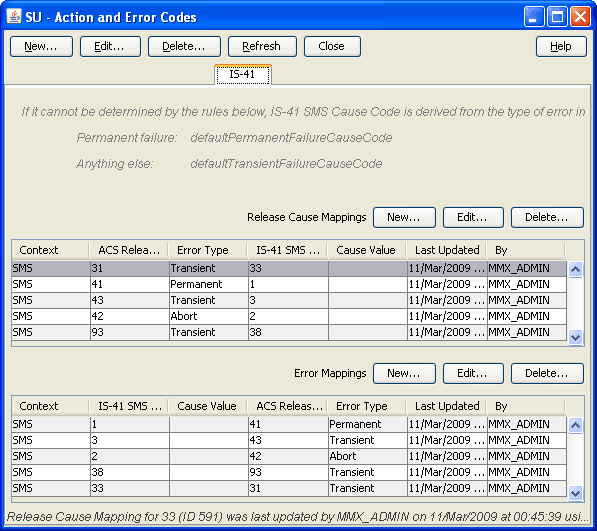
The IS-41 tab defines, for this protocol, the:
- Error codes returned to the caller for each ACS release cause
- ACS release cause for each error code
IS-41 fields
This table describes the content of each editable column.
| Field | Description |
|---|---|
| Context | The circumstances in which this mapping will be applied. |
| IS-41 SMS Cause Code |
The cause code for an IS-41 error (SMDPP, or SMS Request) to map against the ACS Release Cause. Note: Must be a unique release code for this protocol. |
| Cause Value | Not used for IS-41 |
| ACS Release Cause | The release cause number used by MM to pass back to ACS. |
| Error Type | The type of error this Release Cause number represents. |
Actions available
From this tab, for a release cause mapping you can:
- Adding release cause mapping - MAP, IS-41
- Editing release cause mapping - MAP, IS-41
- Deleting release cause mapping
For an error mapping you can:
- Adding error mapping - MAP, IS-41
- Editing error mapping - MAP, IS-41
- Deleting error mapping
SIP
Introduction
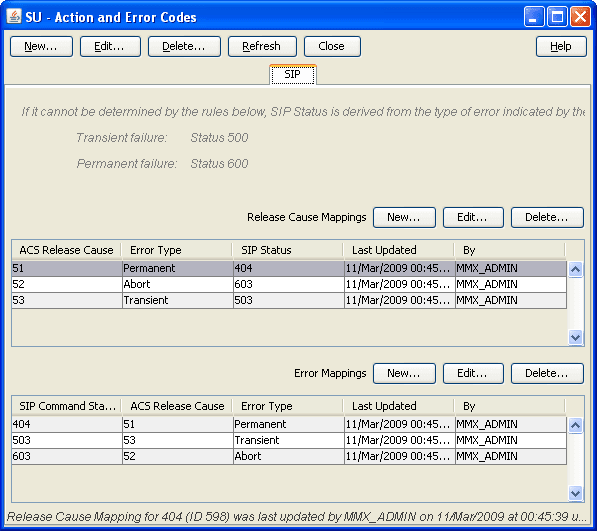
The SIP tab defines, for this protocol, the:
- Error codes returned to the caller for each ACS release cause
- ACS release cause for each error code
SIP fields
This table describes the content of each column.
| Field | Description |
|---|---|
| SIP Status |
The status code to map against the ACS release cause. Note: Must be a unique release code for this protocol. |
| SIP Command Status | The status code to map against the ACS release cause. |
| ACS Release Cause |
The release cause number used by Messaging Manager to pass back to ACS. Note: This is defined on the Global tab . |
| Error Type |
The type of error the ACS release cause number represents. Note: This is defined on the Global tab . |
Release Cause Mapping
Introduction
The names of the fields, except the release cause field, on the following screens, are different, depending on the protocol selected.
Adding release cause mapping - IP
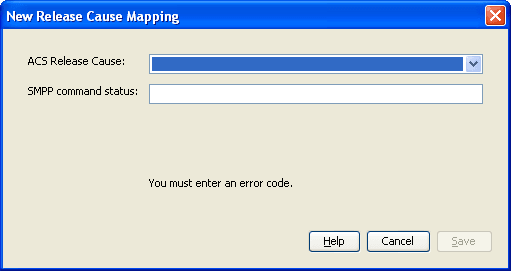
In this example the SMPP protocol has been used. Apart from the different error code names, the add procedure is identical for the following protocols:
- SMPP
- EMI
- SIP
Follow these steps to add a release mapping to a protocol.
| Step | Action | ||||||||||||
|---|---|---|---|---|---|---|---|---|---|---|---|---|---|
| 1 |
From the Action and Error Codes screen, click the required protocol tab to add the release mapping to. Result: The Protocol tab shows all the release cause and error mappings currently defined for the protocol. The top table on the tab displays the release cause mappings. |
||||||||||||
| 2 |
To the right of Release Cause Mappings label at the top of the release cause mappings panel, click New.... Result: The New Release Cause Mapping screen opens.
Note: The New Release Cause Mapping screen for the EMI protocol also has a Context field not shown in this screen shot. For more information, see EMI fields . |
||||||||||||
| 3 | If you are creating an EMI release cause mapping, enter a context into the Context field. | ||||||||||||
| 4 |
From the ACS Release Cause drop down list, select the global release cause number to map with. Result: The error type and description of the release cause are displayed below the fields. For more information about how to configure what text displays here, see Global fields .
|
||||||||||||
| 5 |
Enter the protocol error code to map to in the bottom field. The name of the field varies according to the protocol:
Note: Must be a unique release code for this protocol. |
||||||||||||
| 6 | Click Save to save the new release cause mapping record in the configuration database. |

Adding release cause mapping - MAP, IS-41
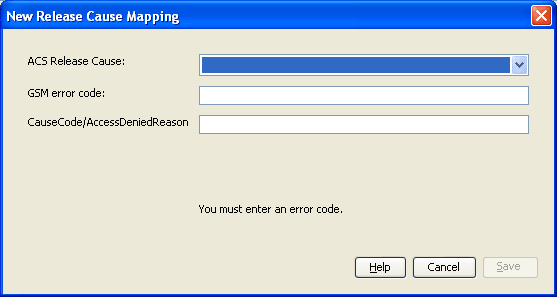
In this example the MAP protocol has been used. Apart from the different error code names, the add procedure is identical for the following protocols:
- MAP
- IS-41
Follow these steps to add a release mapping to a protocol.
| Step | Action | |
|---|---|---|
| 1 |
From the Action and Error Codes screen, click the required protocol tab to add the release mapping to. Result: The Protocol tab shows all the release cause and error mappings currently defined for the protocol. The top table on the tab displays the release cause mappings.  |
|
| 2 |
To the right of Release Cause Mappings, click New. Result: The New Release Cause Mapping screen opens.
|
|
| 3 |
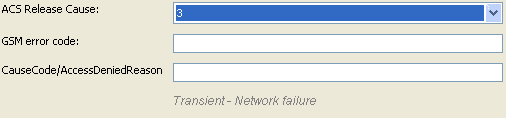
Select the global release cause number to map with from the ACS Release Cause drop down list. Result: The error type and description of the release cause are displayed below the fields. Refer to Global fields .
|
|
| 4 |
Enter the protocol error codes to map to in the bottom fields. The names of the fields vary according to the protocol:
Note: Must be a unique release code for this protocol. |
|
| 5 | Click Save to save the cause mapping record in the configuration database. | |
Editing release cause mapping - IP
In this example the EMI protocol has been used. Apart from the different error code names, the edit procedure is identical for the following protocols:
- SMPP
- EMI
- SIP
Follow these steps to edit a release mapping for a protocol.
| Step | Action |
|---|---|
| 1 |
From the Action and Error Codes screen, click the required protocol tab to edit the release mapping for. Result: The Protocol tab shows all the release cause and error mappings currently defined for the protocol. The top table on the tab displays the release cause mappings. |
| 2 | In the Release Cause Mappings table on the tab, select the record to edit. |
| 3 |
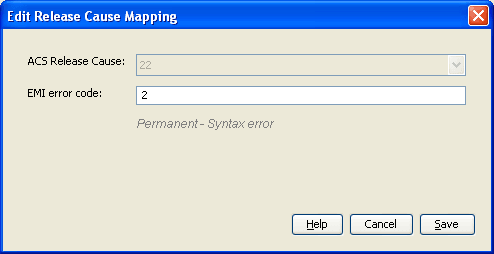
To the right of Release Cause Mappings label at the top of the release cause mappings panel, click Edit.... Result: The Edit Release Cause Mapping screen opens.
|
| 4 |
Change the text in the field, if required. The name of the field varies according to the protocol:
|
| 5 | Click Save to save the cause mapping record in the configuration database. |
Editing release cause mapping - MAP, IS-41
In this example the MAP protocol has been used. Apart from the different error code names, the edit procedure is identical for the following protocols:
- MAP
- IS-41
Follow these steps to edit a release mapping for a protocol.
| Step | Action | |
|---|---|---|
| 1 |
From the Action and Error Codes screen, click the required <protocol> tab to edit the release mapping for. Result: The Protocol tab shows all the release cause and error mappings currently defined for the protocol. The top table on the tab displays the release cause mappings.  |
|
| 2 | In the Release Cause Mappings table on the tab, select the record to edit. | |
| 3 |
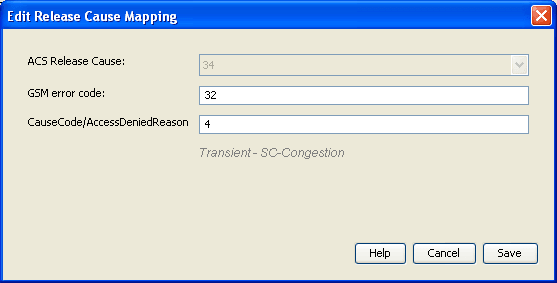
To the right of Release Cause Mappings, click Edit. Result: The Edit Release Cause Mapping screen opens.
|
|
| 4 |
Change the text in the fields, if required. The names of the fields vary according to the protocol:
|
|
| 5 | Click Save to save the cause mapping record in the configuration database. | |
Deleting release cause mapping
In this example the EMI protocol has been used. The delete release mapping procedure is identical for all protocols.
Follow these steps to delete a release mapping from a protocol.
| Step | Action | |
|---|---|---|
| 1 |
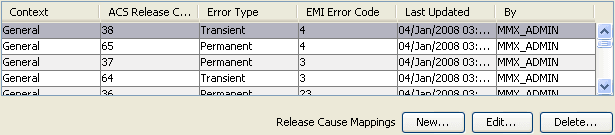
From the Action and Error Codes screen, click the required protocol tab to delete the release cause mapping from. Result: The Protocol tab shows all the release cause and error code mappings currently defined for the protocol. The top table on the tab displays the release cause mappings. |
|
|
||
| 2 | In the Release Cause Mappings table on the tab, select the record to delete. | |
| 3 |
To the right of Release Cause Mappings, click Delete. Result: The Delete Release Cause Mapping 'Cause_Number' screen opens. |
|
| 4 |
Click Delete to delete the record from the configuration database. Note: This does not delete the error code, just the release mapping. |
|
Error Mapping
Introduction
The names of the fields, except the release cause field, on the following screens, are different, depending on the protocol selected.
Adding error mapping - IP
In this example the EMI protocol has been used. Apart from the different error code names, the add procedure is identical for the following protocols:
- SMPP
- EMI
- SIP
Follow these steps to add an error mapping to a protocol.
| Step | Action | |||||||||||||
|---|---|---|---|---|---|---|---|---|---|---|---|---|---|---|
| 1 |
From the Action and Error Codes screen, click the required protocol tab to add the release mapping to. Result: The Protocol tab shows all the release cause and error mappings currently defined for the protocol. The bottom table on the tab displays the error mappings 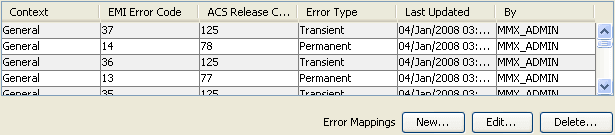 |
|||||||||||||
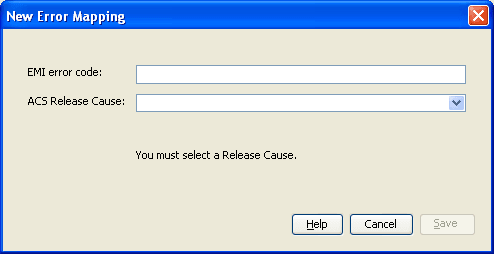
| 2 |
To the right of Error Mappings, click New. Result: The New Error Mapping screen opens.
|
|||||||||||||
| 3 |
Enter the protocol error code to map to in the top field. The name of the field varies according to the protocol:
Note: Must be a unique release code for this protocol. |
|||||||||||||
| 4 |
Select the global release cause to map with from the ACS Release Cause drop down list. Result: The error type and description of the release cause are displayed below the fields. Refer to Global fields .
|
|||||||||||||
| 5 | Click Save to save the new release mapping record in the configuration database. | |||||||||||||

Adding error mapping - MAP, IS-41
In this example the MAP protocol has been used. Apart from the different error code names, the add procedure is identical for the following protocols:
- MAP
- IS-41
Follow these steps to add an error mapping to a protocol.
| Step | Action | |
|---|---|---|
| 1 |
From the Action and Error Codes screen, click the required protocol tab to add the release mapping to. Result: The Protocol tab shows all the release cause and error mappings currently defined for the protocol. The bottom table on the tab displays the error mappings.  |
|
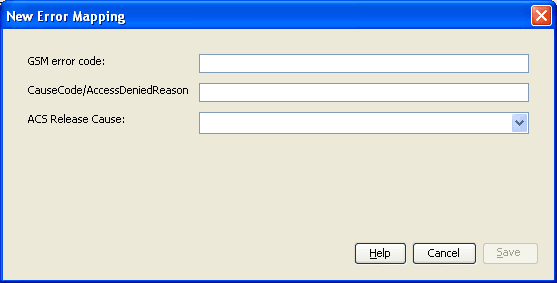
| 2 |
To the right of Error Mappings, click New. Result: The New Error Mapping screen opens.
|
|
| 3 |
Enter the protocol error codes to map to in the top two fields. The names of the fields vary according to the protocol:
Note: Must be a unique release code for this protocol. |
|
| 4 |
Select the global release cause to map to from the ACS Release Cause drop down list. Result: The error type and description of the release cause are displayed below the field. Refer to Global fields .
|
|
| 5 | Click Save to save the error mapping record in the configuration database. | |

Editing error mapping - IP
In this example the EMI protocol has been used. Apart from the different error code names, the edit procedure is identical for the following protocols:
- SMPP
- EMI
- SIP
Follow these steps to edit a release mapping for a protocol.
| Step | Action | |||||||||||||
|---|---|---|---|---|---|---|---|---|---|---|---|---|---|---|
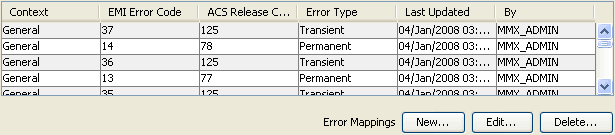
| 1 |
From the Action and Error Codes screen, click the required <protocol> tab to edit the release mapping for. Result: The Protocol tab shows all the release cause and error mappings currently defined for the protocol. The bottom table on the tab displays the error mappings |
|||||||||||||
|
||||||||||||||
| 2 | In the Error Mappings table on the tab, select the record to edit. | |||||||||||||
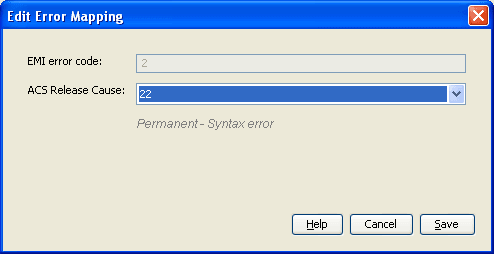
| 3 |
To the right of Error Mappings, click Edit. Result: The Edit Error Mapping screen opens.
Note: The name of the field varies according to the protocol:
|
|||||||||||||
| 4 | Change the ACS Release Cause, if required. | |||||||||||||
| 5 | Click Save to save the error mapping record in the configuration database. | |||||||||||||
Editing error mapping - MAP, IS-41
In this example the MAP protocol has been used. Apart from the different error code names, the edit procedure is identical for the following protocols:
- MAP
- IS-41
Follow these steps to edit a release mapping for a protocol.
| Step | Action | |
|---|---|---|
| 1 |
From the Action and Error Codes screen, click the required <protocol> tab to edit the release mapping for. Result: The Protocol tab shows all the release cause and error mappings currently defined for the protocol. The bottom table on the tab displays the error mappings |
|

|
||
| 2 | In the Error Mappings table on the tab, select the record to edit. | |
| 3 |
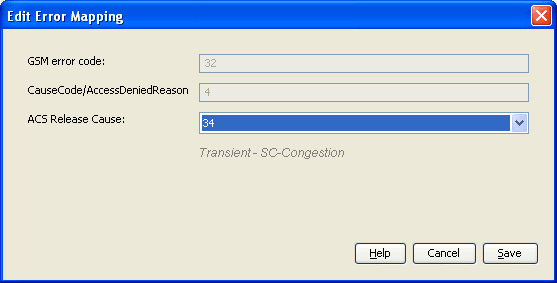
To the right of Error Mappings, click Edit. Result: The Edit Error Mapping screen opens.
Note: The names of the top two fields vary according to the protocol:
|
|
| 4 | Change the ACS Release Cause, if required. | |
| 5 | Click Save to save the error mapping record in the configuration database. | |
Deleting error mapping
In this example the EMI protocol has been used. The delete error mapping procedure is identical for all protocols.
Follow these steps to delete an error mapping from a protocol.
| Step | Action | |
|---|---|---|
| 1 |
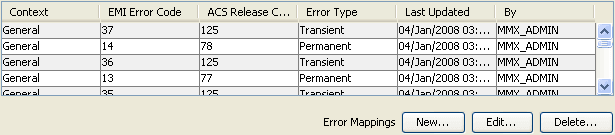
From the Action and Error Codes screen, click the required protocol tab to delete the release cause mapping from. Result: The Protocol tab shows all the release cause and error code mappings currently defined for the protocol. The bottom table on the tab displays the error mappings |
|
|
||
| 2 | In the Error Mappings table on the tab, select the record to delete. | |
| 3 |
To the right of Error Mappings, click Delete. Result: The Delete Error Mapping 'Cause_Number' screen opens.\ |
|
| 4 |
Click Delete to delete the record from the configuration database. Note: This does not delete the error code, just the error mapping. |
|