5 Home Routing
Home Routing Screen
Introduction
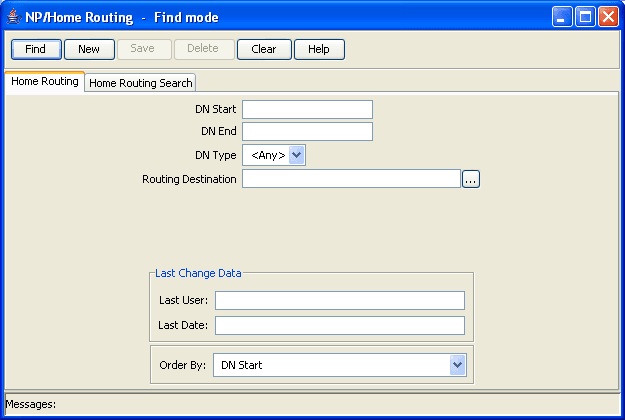
The NP/Home Routing screen allows you to define the range of called numbers and routing destinations for calls within the network. It also allows you to search for home routing. It contains the following tabs:
- Home Routing
- Home Routing Search
Accessing the Home Routing screen
Follow these steps to access the Home Routing screen.
| Step | Action |
|---|---|
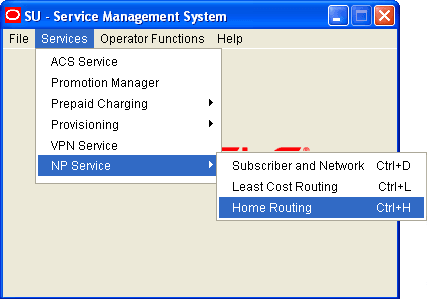
| 1 | Select Services from the SMS main screen. |
| 2 |
Select NP Service. Result: You see the list of NP Service menu options.
|
| 3 |
Select Home Routing. Result: You see the Home Routing tab on the NP/Home Routing screen in Find mode.
|
Home Routing
Introduction
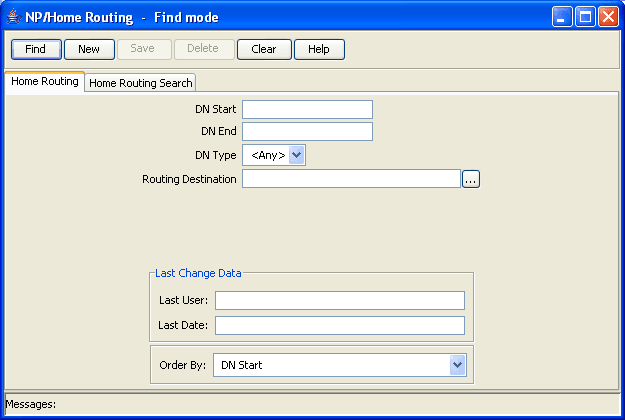
You use the Home Routing tab to define the range of called numbers and routing destinations for calls within your network.
Adding a home routing
Follow these steps to Add a new home routing definition.
Note: When specifying the DN Start and DN End fields, you must enter a range that does not overlap an existing DN range.
| Step | Action |
|---|---|
| 1 |
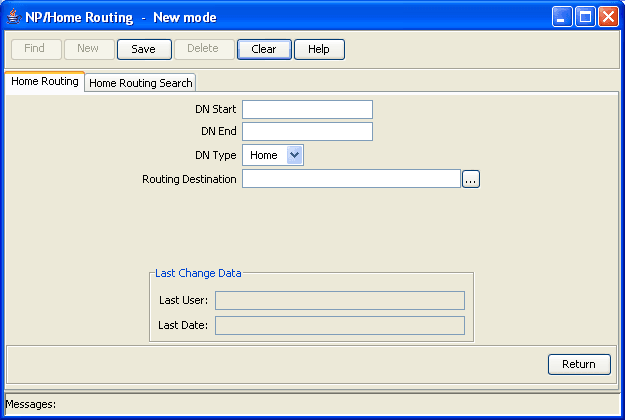
Select the Home Routing tab in the NP/Home Routing - Find mode screen, and click New. Result: You see the Home Routing tab in New mode.
|
| 2 | In the DN Start field enter the start number for the DN range. The DN Start number must be between four and 18 digits long, and is required. |
| 3 | In the DN End field enter the end number for the DN range. The DN End number must be greater than the DN Start number, and the same length. It is a required field. |
| 4 |
In the DN Type field, select one of the following:
|
| 5 |
In the Routing Destination field, enter the routing destination. It is a required field. Note: If you do not know the routing destination, click the button to the right of this field to search for it using the Routing Destination Search Dialog. See Using the Routing Destination Search Dialog for details. |
| 6 | Click Save. |
| 7 |
Repeat steps 2 through 6 for each home routing to add. Note: When you click Save, the saved values remain on the screen. You can create another new record by typing over these values and clicking Save again. |
| 8 | Click Return to go back to the previous screen. |
Editing a home routing
Follow these steps to edit a home routing definition.
| Step | Action |
|---|---|
| 1 |
In Find mode, on the Home Routing tab, find and select the record to edit. For more information on finding and selecting home routing records, see Finding a home routing record . Result: The selected record appears in Update mode on the Home Routing tab. |
| 2 | Edit the details as described in Adding a home routing . |
| 3 | Click Save, and then Return, to save your changes and return to the previous screen. |
Deleting a home routing
Follow these steps to delete a home routing.
| Step | Action |
|---|---|
| 1 | In Find mode, on the Home Routing tab, find and select the record to delete. For more information on finding and selecting home routing records, see Finding a home routing record . |
| 2 |
Click Delete. Result: The Confirm Delete Record screen appears. |
| 3 |
Click Yes to confirm. Result: The record is removed from the database. |
| 4 | Click Return to return to the previous screen. |
Finding a home routing record
Follow these steps to search the database for a specific home routing record.
| Step | Action |
|---|---|
| 1 | Ensure you are in Find mode on the Home Routing tab. |
| 2 |
Enter the selection criteria in one or more query fields and click Find. If a field is left empty, the search retrieves all instances of that field. |
|
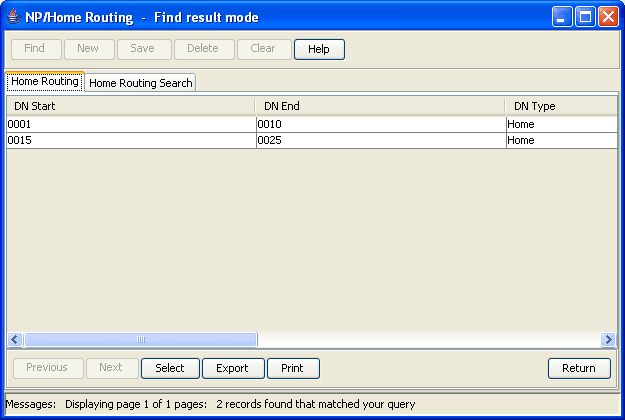
Result: This triggers an Oracle Like% query that returns the first 100 records that begin with the selection criteria. For example, if you enter 123 in a query field, the system returns records such as 123, 1234, 12345, ... The results appear in the table on Home Routing tab in Find result mode.
Note: The first 100 records entered in the database are displayed in no particular order. If you do not find the record you are searching for, conduct a more specific search. |
|
| 2 |
To view a record in Update mode, highlight the record line and click Select. Result: You see the record details on the tab for the selected record type, in Update mode. |
| 3 | To delete a record, highlight the record line and click Delete. |
Home Routing Search
Introduction
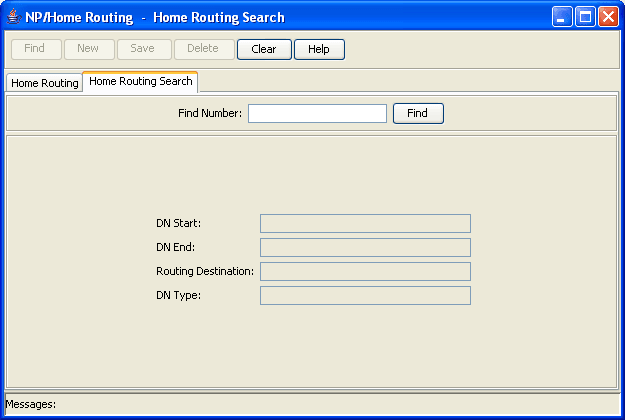
You use the Home Routing Search tab to find the home routing details for a specified number.
Finding home routing details
Follow these steps to find the home routing details for a specified number.
| Step | Action |
|---|---|
| 1 | Select the Home Routing Search tab in the NP/Home Routing screen. |
| 2 |
In the Find Number field, enter the number for which to find home routing details and click Find.
Result: If home routing has been defined for a
DN range that includes the specified find number, the details are
displayed in the screen. Otherwise, |