2 The NP Service Pack Application
Accessing the NP Service Pack Application
Introduction
The NP Service Pack screens, accessed through SMS, let you configure the database on the SMS. To begin configuring the database, the SMS screens must first be configured and running.
SMS main menu
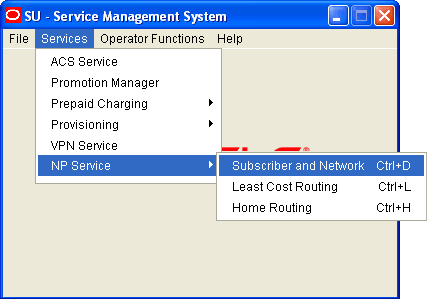
Here is an example of the Service Management System main menu showing the NP Service Pack menu options.
Accessing the screens
Follow these steps to access the NP Service Pack screens.
| Step | Action |
|---|---|
| 1 | Select the Services menu from the SMS main screen. |
| 2 |
Select NP Service. Result: You see the list of NP Service menu options. |
| 3 |
Choose the menu option you require. Result: You see the screen for the chosen option. |
NP Service Pack screens
The NP Service Pack screens let you configure the database. The available screens are:
- Subscriber and Network
- Least Cost Routing
- Home Routing
On-screen buttons
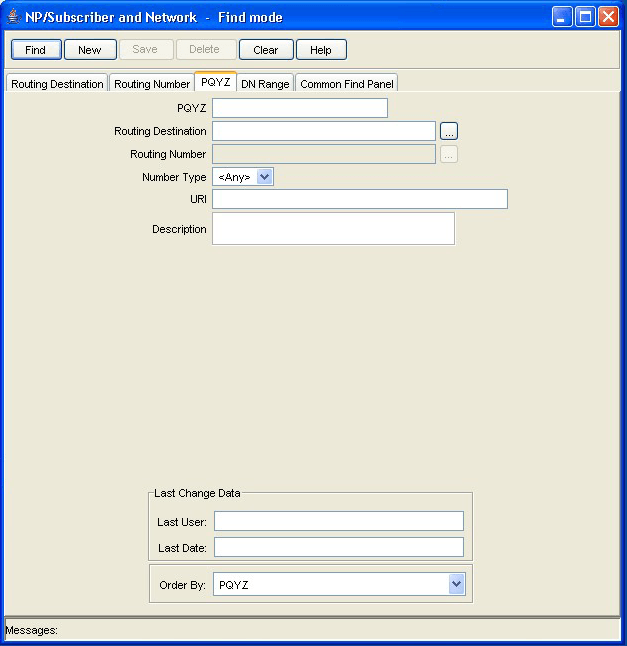
The application uses a set of buttons to start specific actions within each screen.
The table below describes the function of each button.
| Button | Function |
|---|---|

|
Opens the Find window, enabling you to find records that match the search criteria. When you click Find in the Find screen, an Oracle Like% query is triggered that returns the first 100 records that begin with the selection criteria. For example, if you enter 123 in the Query field, the system will return records such as 123, 1234, 12345, etc. |

|
Creates a new record template on the current screen. Click Save to save the new record details to the database. |

|
Saves any changes to the record on the current screen to the database. |

|
Removes the selected record from the database. |

|
Clears all entries from the screen, enabling you to clear the screen before adding a new record. |

|
Opens context-sensitive Help containing information about the functionality available in the current screen. |

|
Returns you to the previous screen in the screen hierarchy. Note: Any changes that have been made on-screen will not be saved (unless Save has been clicked previously). |


Using the Find Screens
Introduction
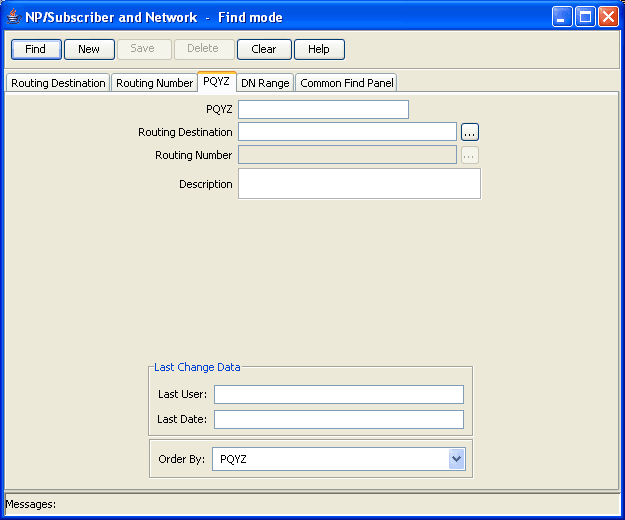
Find screens enable you to find records that match the selection criteria. All find screens contain the following:
- Buttons
- Query fields
Example NP find screen
Here is an example NP screen in Find mode. You see the available query fields in the screen, and the screen title indicates that you are in Find mode.
Searching the database
Follow these steps to search the database.
| Step | Action |
|---|---|
| 1 |
Enter selection criteria in one or more query fields and click Find. If a field is left empty, the search retrieves all instances of that field. |
|
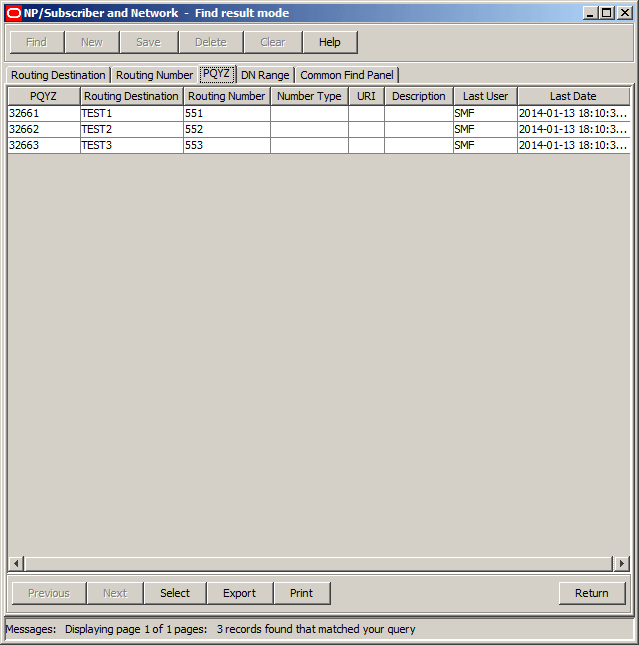
Result: This triggers an Oracle Like% query that returns the first 100 records that begin with the selection criteria. For example, if you enter 123 in a query field, the system returns records such as 123, 1234, 12345 ... The results appear in the table on the Find result mode screen.
Note: The first 100 records entered in the database are displayed in no particular order. If you do not find the record you are searching for, conduct a more specific search. |
|
| 2 |
To view a record in Update mode, highlight the record line and click Select. Result: You see the record details in Update mode. |
| 3 | To delete a record, highlight the record line and click Delete. |
Find result mode buttons
The table below describes the function of each button displayed at the bottom of the screens when in Find result mode.
| Button | Function |
|---|---|

|
Goes back to the previous set of records in the table, if you have used the Next button to display more records. |

|
Displays the next set of records, if all the Find results cannot be displayed in the table at one time. |

|
Selects the record highlighted in the table and displays it on the tab in Update mode. |

|
Exports the Find results to a file. |

|
Prints the Find results. |

|
Returns you to the Find mode screen for the tab. |