5 SMCB Service
CCS SMCB Service Screen
Introduction
The Short Message Charging Bundle service provides an SMS screen to allow you to configure billing rates and rules. This defines the charging mechanism and cost for sending a short message.
There are three rule types:
- Named Event
- Tariffed
- Free
Rating Rules
Introduction
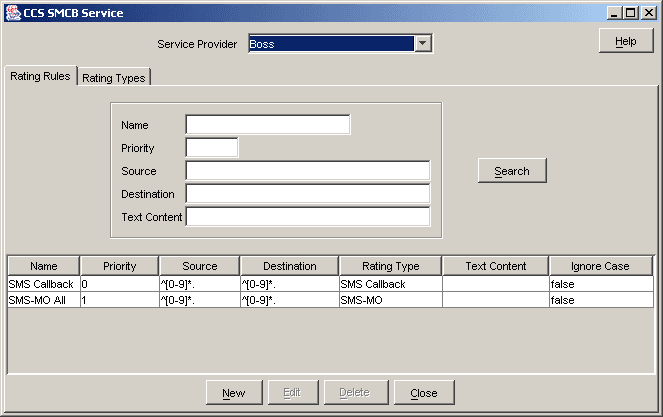
You create rating rules on the Rating Rules tab in the CCS SMCB Services screen. They can be prioritized to provide a given behavior, such as charging for short codes differently to PSTN numbers that start with the same digits.
Lower priority (0..1) entries are processed before higher priority entries (2+).
Rating Rules tab search fields
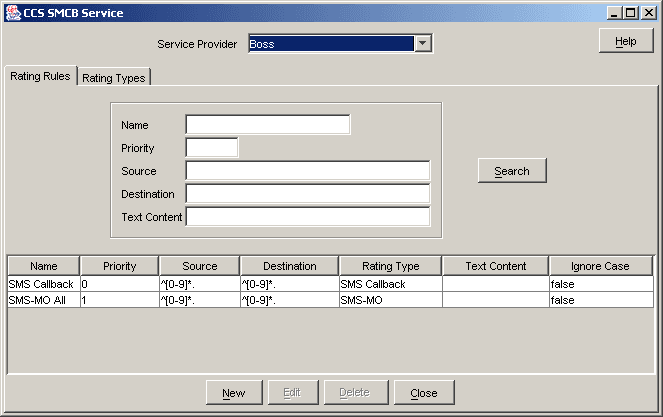
This table describes the fields on the Rating Rules tab available for searching records.
| Field | Description |
|---|---|
| Name | The name of the rating rule to search for. Restricted to 20 characters in length. |
| Priority | The priority given to this rule, from 0 (most preferred) to 99999 (least preferred). |
| Source | The source regular expression to search for. Restricted to 64 characters. |
| Destination | The destination regular expression to search for. Restricted to 64 characters. |
| Text Content | The text to search for. Restricted to 64 characters. |
For more information, see Searching for records .
A note about regular expressions
The following is an explanation of regular expressions and their use.
Regular expressions can contain anchors ('^' and '$'), groups ('[ ]'), wild cards ('*'), and lengths ('{ }'):
- '^' anchors the expression to the start of the string
- '$' anchors the expression to the end of the string
- '[ ]' groups characters into a class, for example [0-9] means any number
- '*' repeats the previous character class zero or more times, such as '[0-9]*'
- '{ }' need to be escaped with a "\" symbol
Examples
This table shows some example expressions.
| Expression | Description |
|---|---|
| ^1234$ | Will match the exact string 1234. |
| ^1234 | Will match any string beginning with 1234. |
| 1234$ | Will match any string that ends with 1234. |
| ^[0-9]*1234$ | Will match a string that begins with zero or more numbers (0-9) and ends with 1234. |
| 1234[0-9][0-9]* | Will match a string that contains the substring 1234 and then 1 or more numbers (0-9). |
| ^[0-9]\{10,10\}$ | Will match any 10 digit string. |
| ^[0-9]\{9,9\}0$ | Will match any 10 digit string that ends with 0. |
| ^1234\{4,6\}0$ | Will match a 10 digit string beginning with 1234 and ends with 0. |
Creating rating rules
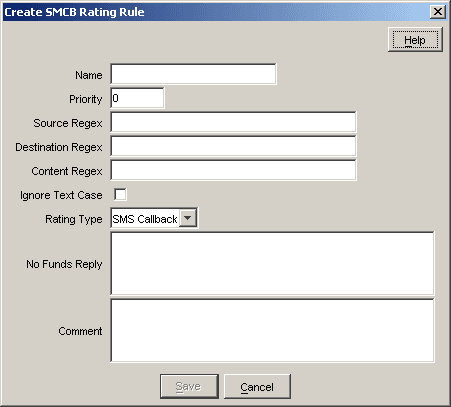
Follow these steps to set up an SMCB rating rule.
| Step | Action |
|---|---|
| 1 |
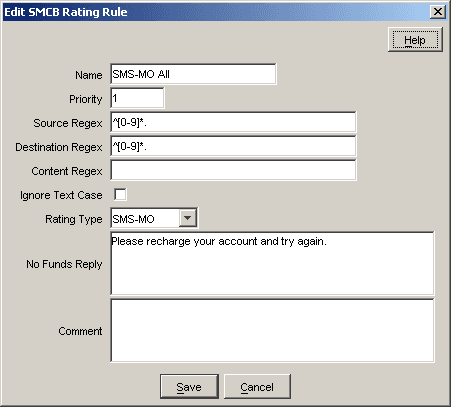
On the Rating Rules tab, click New. Result: You see the Create SMCB Rating Rule screen.
|
| 2 | Fill in the fields, as described in Rating rules fields . |
| 3 | Click Save. |
Rating rules fields
This table describes the function of each field.
| Field | Description |
|---|---|
| Name | The name given to this rating rule. Restricted to 20 characters. |
| Priority |
The priority given to this rule, from 0 (most preferred) to 99999 (least preferred). If the source, destination and (optionally) content regular expressions from two rules both match a given short message, the priority will be used to determine which rule is used. If the two rules have the same priority, the rules will be ordered alphabetically by rule name. |
| Source Regex |
The regular expression that is applied to the source number to determine if the rule matches. Restricted to 64 characters. This field will be verified when the Save button is selected, (see A note about regular expressions ). |
| Destination Regex |
The regular expression that is applied to the destination number to see if the rule matches. Restricted to 64 characters. This field will be verified when the Save button is selected, (see A note about regular expressions ). |
| Content Regex |
The text against which messages are matched. This rule is optional. It is applied after the other rules have been applied. Restricted to 200 characters. |
| Ignore Text Case | Defines whether or not to ignore the case of the message text when matching it against the text in the Content Regex field. |
| Rating Type | The type of the rating the will be applied to the call if the rule matches. Lists all the currently defined rating type names. This shows the name of the rating types on the Rating Types tab. |
| No Funds Reply |
The text that is returned to the user if there are insufficient funds to bill this call. Restricted to 160 characters. |
| Comment |
A free form text field allowing you to enter comments. This field is not used for any processing, but is present to allow you to save extra information if needed. Restricted to 100 characters. |
Rating Types
Introduction
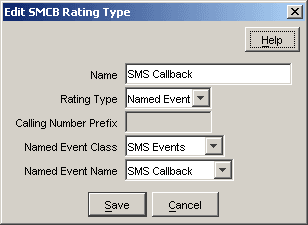
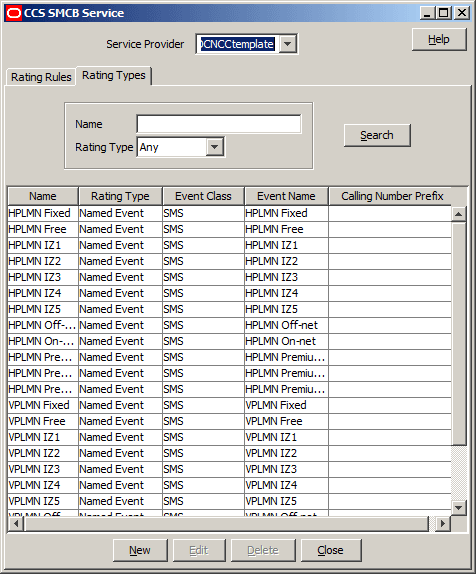
The Rating Types tab lists the SMCB rating types that have been defined for use in the rating rules. You can add new rating types to the list, edit, or delete existing ones.
Rating Types tab search fields
This table describes the fields on the Rating Types tab available for searching records.
| Field | Description |
|---|---|
| Name |
The name of the rating type to be found. Restricted to 20 characters. |
| Rating Type |
The type of the rating to be search for. The drop down list is set to:
|
For more information, see Searching for records .
Creating rating types
Follow these steps to create an SMCB rating type.
| Step | Action |
|---|---|
| 1 |
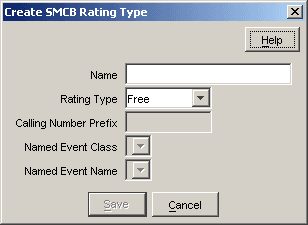
On the Rating Types tab, click New. Result: You see the Create SMCB Rating Type screen.
|
| 2 | Fill in the fields,as described in Rating types fields . |
| 3 | Click Save. |
Rating types fields
This table describes the function of each field.
| Field | Description |
|---|---|
| Name |
The name of this rating type. Restricted to 20 characters. |
| Rating Type |
The type of the rating type. The available types are:
|
| Calling Number Prefix |
The calling number prefix that is applied before sending the
information to the billing engine (only enabled with type is
Restricted to 10 hexadecimal digits (0-9,A-F). |
| Named Event Class |
The named event class that is billed (only enabled with type is
Restricted to currently defined event classes in the database. |
| Named Event Name |
The named event name that is billed (only enabled with type is
Restricted to currently defined event names in the database. |