7 Subscribers Screens
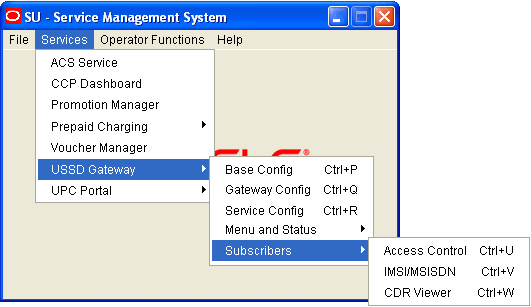
Access Control Screen
Introduction
The Access Control screen controls access to the services. Its use is dependent on whether barring is set up on each particular service trigger. Barring can be set to:
- Disabled, in which case this screen becomes irrelevant
- IMSI
- MSISDN
For a customer to have access to the service, if barring is set to:
- IMSI, it must be provided with sub_type of IMSI_allowed
- MSISDN, it must be provided with sub_type of MSISDN_allowed.
For these customers then to be barred they must again be provisioned in this screen with IMSI_barred or MSISDN_barred.
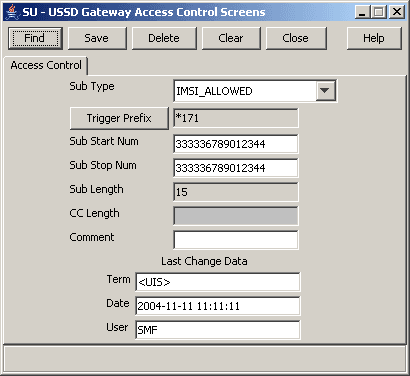
Fields
Here is a description of the fields.
| Field | Description |
|---|---|
| Sub Type |
This field is populated with all of the NAME values from the UIS_SUB_TYPE table. Note: These values are created at installation time. |
| Trigger Prefix | Displays the trigger prefix. You cannot edit this field directly. See Trigger Prefix button. |
| Sub Start Num |
Numeric field and is a mandatory field. The number of digits that must be entered in this field is dependent on the value selected in the Sub Type field.
|
| Sub Stop Num | Same format as for Sub Start Num and must contain the same number of digits. |
| Sub Length | This field is automatically populated by the screen during a save operation. The user cannot modify this value. The field will contain the number of digits in the Sub Start/Stop number field. |
| CC Length | Numeric field used to indicate how many digits are used to represent the country code in the Start and Stop number fields, and is a mandatory field. |
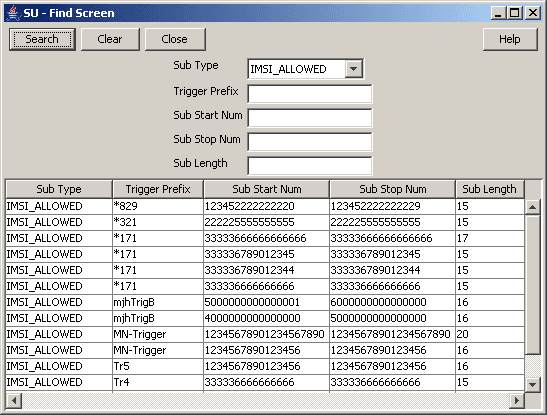
Note: For example text for each field, refer to the Find screen in this topic.
Buttons
Here is a description of the buttons.
| Button | Description |
|---|---|
| Trigger Prefix |
Clicking this button displays the Trigger Selector screen, allowing you to search for and then select a value to set a trigger prefix for the access control entry. To select, click on the entry in the list and click Close. Note: These are set up on the USSD Base Configuration Screen Trigger Prefix (on page 2) tab. |
Buttons and other fields
For information about the buttons and fields at the bottom of the screen, see Common Buttons and Fields .
Clicking Find displays the Find screen.
IMSI Tracing Screen
Introduction
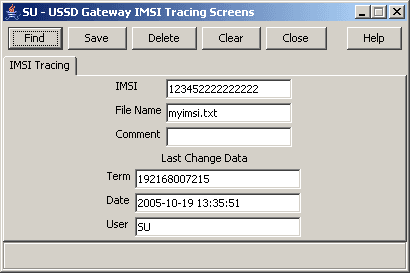
The IMSI Tracing configuration screen is used to set up technical tracing on individual IMSIs.
Fields
Here is a description of the fields.
| Field | Description |
|---|---|
| IMSI | The full IMSI number to be traced. Numeric field of between 15 and 20 digits, mandatory field. |
| File Name | Name and path of the logging file, may be up to 100 characters in length and is a required field. The file name must have a valid path name. |
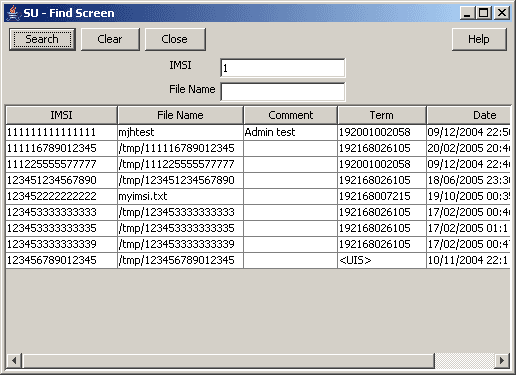
Note: For example text for each field, refer to the Find screen in this topic.
Buttons and other fields
For information about the buttons and fields at the bottom of the screen, see Common Buttons and Fields .
Clicking Find displays the Find screen.
CDR Viewer Screen
Introduction
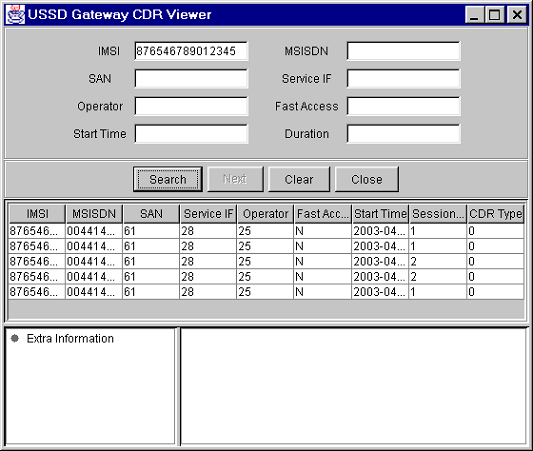
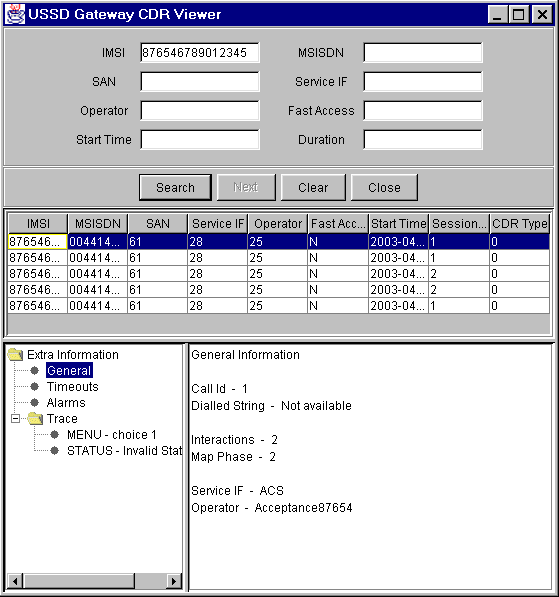
The CDR Viewer screen allows you to view EDRs.
Note: For the EDRs to be logged during calls, the CDR Flag check box must be ticked on the Gateway Configuration screen (on page 2). You must restart the SLEE after selecting this box.
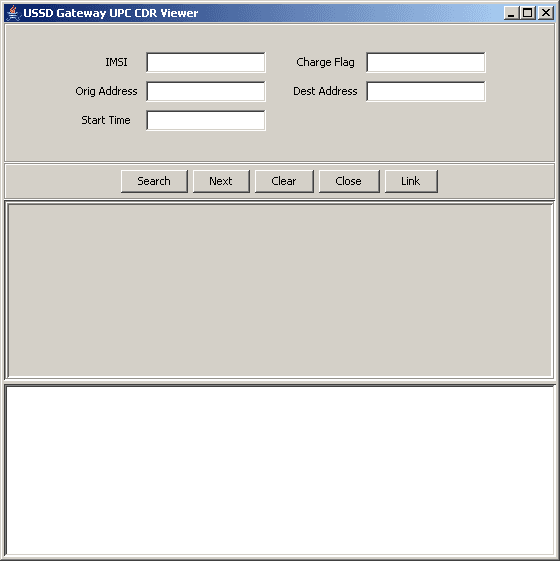
If cross-linking is enabled, this viewer will search for any Gateway EDRs generated during the same session as the selected item in the UPC CDR Viewer screen.
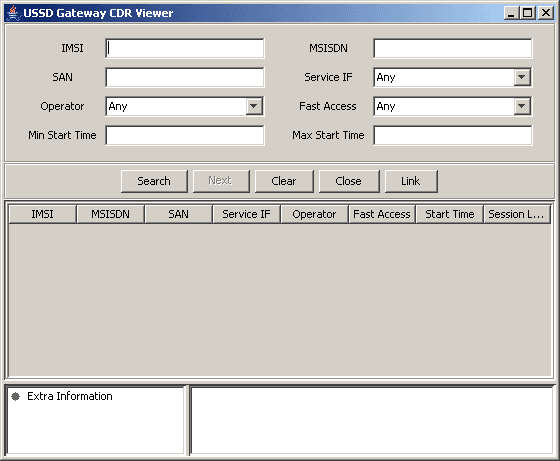
Fields
Here is a description of the fields that you can use to search on.
| Field | Description |
|---|---|
| IMSI | Numeric field of between 15 and 20 digits |
| MSISDN | Numerical field of between 10 and 15 characters |
| SAN | Service Activation Number Numerical field up to 10 digits |
| Service IF | Numerical field |
| Operator | Numerical field |
| Fast Access | Y or N |
| Start Time | In the format 2003-04-09 16:31:02.0 |
| Duration | Length of the call |
Note: For example text for each field, refer to the Find screen in this topic.
Buttons and other fields
This table describes the function of each field.
| Field | Description |
|---|---|
| Search | Displays all records that correspond to the search criteria entered. |
| Next | Displays the next CDR. |
| Link | Only available if the UPC CDR Viewer screen is available. |
For information about the buttons and fields at the bottom of the screen, see Common Buttons and Fields .
Find screen
Here is an example CDR Viewer screen where the IMSI has been used to search for entries.