8 UPC Portal Screens
USSD Platform User Selection Screens
Introduction
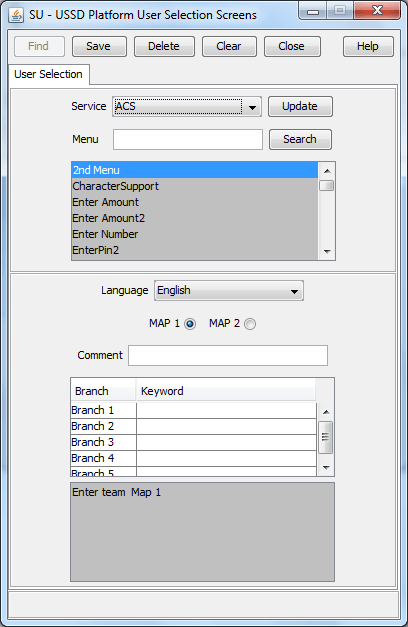
The User Selection configuration screen allows you to enter keyword specific text for a given menu exit branch. MAP 1 and MAP 2 keywords can be different. This screen is used with the User Selection node.
Fields
Here is a description of the fields.
| Field | Description |
|---|---|
| Service | This field is populated with all the NAMEs created by the USSD Gateway Base Configuration Screen Service Interface (on page 2) tab. By selecting a Service, all the menus associated with this Service populates the Menu field. |
| Menu | By selecting a Service, all the menus associated with this Service populate this field. |
| Language | This is populated with the language associated with the selected menu. |
| MAP 1 MAP 2 options | Selecting MAP 1 or MAP 2 shows which keyword corresponds to which MAP version. |
| Branch | After selecting the menu in the Menu field, this field is populated by the branch number. |
| Keyword | This field is populated by the keyword for that branch. You can edit this field and modify an existing entry or create a new one. |
Buttons
Here is a description of the buttons.
| Field | Description |
|---|---|
| Update | Has no function in this case. |
| Search | Entering a menu name in the menu field and clicking the Search button will display the menu for the selected service, if it exists in the database. |
Data entry
Follow these steps to update a menu.
-
Click Clear to clear the screen of previous data.
By selecting a Service, all the menus associated with this Service will populate the Menu listing box. After selecting the menu in the Menu field, you can enter keywords associated for each branch.
-
Enter new data and click Save.
Note: When editing keywords, you must Save before selecting the other MAP version to edit.
USSD Portal Message Class Screens
Fields
This table describes the function of each field.
| Field | Description |
|---|---|
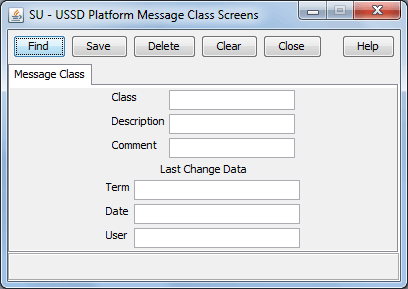
| Class |
Specifies the SMS message class type. This field is mandatory. The valid values are described below:
|
| Description | Describes the SMS message class. This field is mandatory. |
Creating a message class
Follow these steps to create a message class.
- On the Message Class tab, click Clear to clear the screen of previous data.
- In the Class field, enter a value of 0, 1, 2, or 3.
- In the Description field, enter a description for this message class.
- In the Comment field, optionally enter a comment for this message class.
-
Click Save.
Result: The new message class is saved.
Editing records
Follow the steps below to edit a record.
-
In the Find screen, select the row you want to edit.
Result: The associated screen is populated with this data, which you can edit.
- On the editing screen, make the changes to the data.
-
Click Save.
Result: The edited screen is saved.
Finding a message class
Follow these steps to find a message class.
-
On the Message Class tab, click Find.
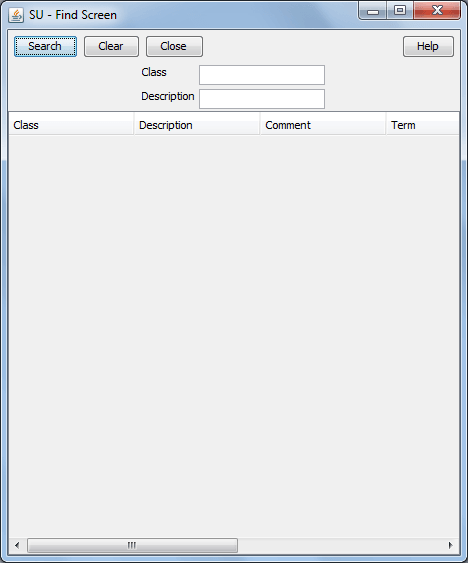
Result: The Find Screen (See example on page 2) is displayed.
-
Enter a search query string in the Class or Description field and click Search.
Result: The grid will display all records matching the query.
Note: Leaving both fields blank will return all records.
-
Select the record in the grid.
Result: The record is displayed on the Message Class tab.
- Click Close.