9 UPC Portal Nodes
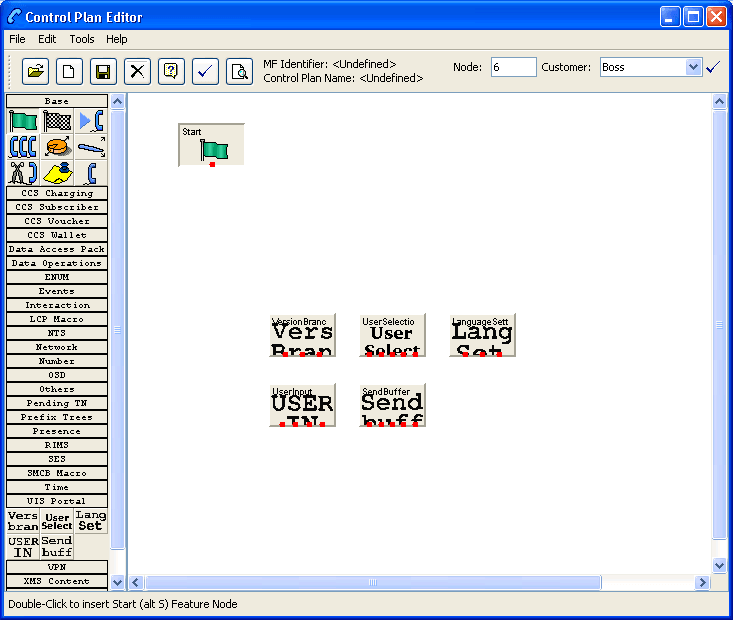
Control Plan Editor Screen
Making Nodes Available
Introduction
The portal nodes can be added to the Full Feature Node using the ACS Configuration option. Once selected these macro nodes become available to use in the CPE for the configured user.
Procedure
Follow these steps to make the macro nodes available.
-
From the Procedure, select Configuration.
Result: You see the ACS Configuration screen.
-
Select the Feature Sets tab and click Edit Set.
Result: You see the Edit Feature Node Set screen.
- Select the UIS Portal tab.
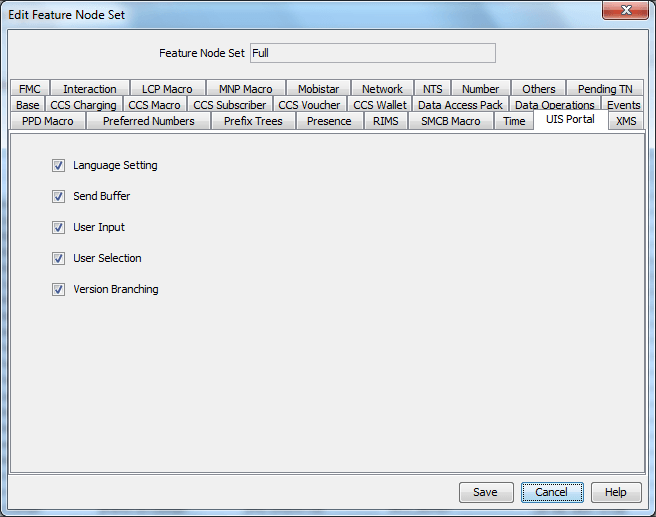
- Tick the nodes to be available and click Save.
Available Feature Nodes
Introduction
This topic lists all the feature nodes that may be available within the CPE. In some cases, additional nodes may have been created and installed to fit a specific customer need. These custom (and ACS) nodes do not appear in this list.
Node list
This table lists all the available USSD Gateway feature nodes.
| Node name | Node icon | Node description | Reference |
|---|---|---|---|
| Language Setting |

|
Enables the caller to select the language they want to use for this service. | Language Setting |
| Send Buffer |

|
Sends data to the SMSC. | Send Buffer |
| User Input |

|
Collects input from the calling party. | User Input |
| User Selection |

|
Enables user selection from a menu. | User Selection |
| Version Branching |

|
Branches on the Version of MAP used. | Version Branching |
Language Setting
Node description
The Language Setting node enables the subscriber to select one of a set of configured languages.
This node plays an announcement to the user, prompting them to select a language to use for the USSD call. This user’s temporary profile is updated with the selected language.
Note: The selection only lasts for the duration of the call.

Node exits
This node has one entry and three exits. The number of exits cannot be changed.
| Exit | Cause | Description |
|---|---|---|
| 1 | Error |
Node encountered an error during execution. The Error or Timeout announcement will be played. |
| 2 | Improper User Input | User entered a digit which does not map to a language. |
| 3 | Success | Temporary profile updated with selected language. |
Configuring the node
Follow these steps to edit the node configuration.
-
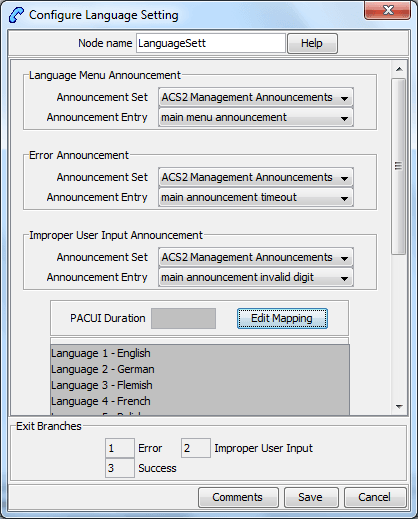
In the Language Menu Announcement area, select the Announcement Set which contains the language menu announcement you want to play to the caller.
Result: The Announcement Entry field is populated with the entries for the selected set.
- From the Announcement Entry drop-down list, select the announcement you want to play to the caller.
- In the Error Announcement area, select the Announcement Set and Announcement Entry you wish to play for an error.
- In the Improper User Input Announcement area, select the Announcement Set and Announcement Entry you wish to play if the user has input incorrectly.
- In the PACUI Duration field type the number of seconds' duration to play announcement and collect user information.
-
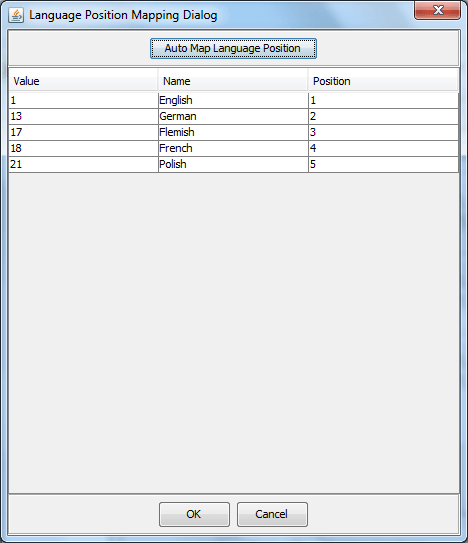
Click Edit Mapping.
Result: You see the Language Position Mapping Dialog.
-
Use the Language Position Mapping Dialog screen to construct a list of ordered languages. This screen displays a grid populated with all of the available languages. The grid has three columns:
- Value - This column contains the language id / value that is sent to the gateway interface. This value will a number between 0 and 19. Any changes you make to this column will be ignored.
- Name - The language name, for example English, French, or German. Any changes you make to this column will be ignored.
- Position - The position column is used to determine which languages will be included in the list and in what order.
A valid list will contain:
- At least one language (starting at position 1)
- The positions numbered consecutively, for example. 1, 2 and 3
- No more than one language for any given position. If more than one language is mapped to the same position then an error will be generated when OK is clicked
You can map the positions of the languages in one of the following ways:
- Manually
- Automatically
-
To manually map the languages:
- Click on the Position cell in the row for the language.
- Type the number in the cell
- Repeat for each language.
To automatically map the language positions:
- Click Auto Map Language Position.
Result: A list will be generated which contains all of the available languages, positioned in the order that they are stored in the system database. You can subsequently manually edit this configuration if required.
-
Click OK.
Result: Validation checks are carried out to determine whether or not the criteria detailed above has been met. If not, you will be informed via an error dialog. If the validation checks are successful, then the dialog box will close, and the language list on the Configure Language Setting screen will be updated.
Send Buffer
Node description
The Send Buffer node sends the final selection buffer that has been built through the various Menu Selection and User Entry macro nodes to an SMSC through the UCP Interface.
Once the final selection buffer has been sent, the Send Buffer node writes an EDR to record the transaction.

Node exits
This node has one entry and five exits. The number of exits cannot be changed.
| Exit | Cause | Description |
|---|---|---|
| 1 | Success | Both the final selection buffer, and the CDR have been successfully sent. |
| 2 | Error | Node encountered an error receiving or sending data. |
| 3 | Empty Buffer |
Final selection buffer retrieved from the configured ProfileTag has been allocated but is empty. This situation will occur if the previous node in the call plan was a menu selection node that was set to clear the buffer. |
| 4 | No Buffer | Final selection buffer does not exist. Suggests a configuration error in the CPE. |
| 5 | Length Exceeded | Received buffer length exceeded 255 characters. |
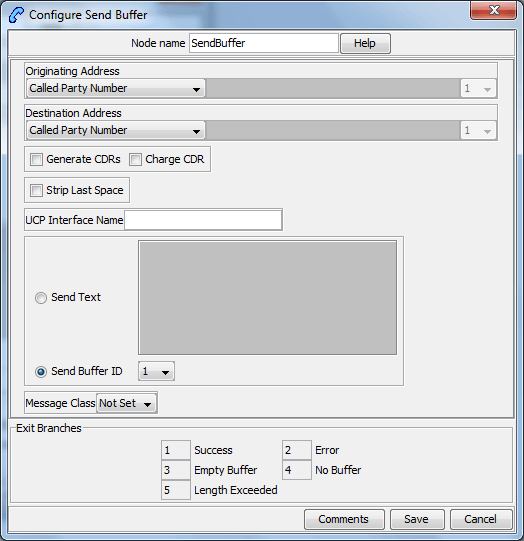
Configuring the node
Follow these steps to edit the node configuration.
-
In the Originating Address field, select an address from the list:
- Called Party Number
- Calling Party Number
- Normalised Called Party Number
- Normalised Calling Party Number
- Pending TN Buffer
- Application Buffer
- Manually Inserted
For details on normalization, refer to either the USSD Gateway, or the ACS Technical Guide.
-
If you selected:
- Application Buffer, select the buffer value from the drop down list to the far right of the field.
- Manually Inserted, type the originating address in the text field to the right of the field. Maximum of 31 characters.
-
In the Destination Address field, select an address from the list. This will normally contain the MSISDN of the subscriber using the service.
The available options are the same as for the originating address.
-
Select the Generate CDRs check box if you wish to generate CDRs.
Note: You can view these CDRs on the UPC CDR Viewer Screen.
- Select the Charge CDR check box if you wish to charge CDRs.
- Select the Strip Last Space check box if you wish to strip the last space from the buffer.
-
Type the name of the UCP interface to be used.
This alphanumeric field can be populated with up to 19 characters.
- The Send Text option allows you to enter hard coded text, in the text field, which is sent to the UCP interface at run time.
- The Send Buffer ID option allows you to select the buffer, in the drop down box, in which data is collected.
-
The Message Class drop-down menu selects "Not Set".
Note: This feature is for future enhancements.
- Click Save.
User Input
Node description
This node plays an announcement to the subscriber which prompts them for input. It then collects the input and appends it to the configured selection buffer.

Node exits
This node has one entry and four exits. The number of exits cannot be changed.
| Exit | Cause | Description |
|---|---|---|
| 1 | Error | Node encountered an error during execution. |
| 2 | Improper User Input | There was a problem with the user's input. |
| 3 | Success | Node processed correctly. |
| 4 | VA type non-digit | Problem using the Variable Part Announcements configuration. |
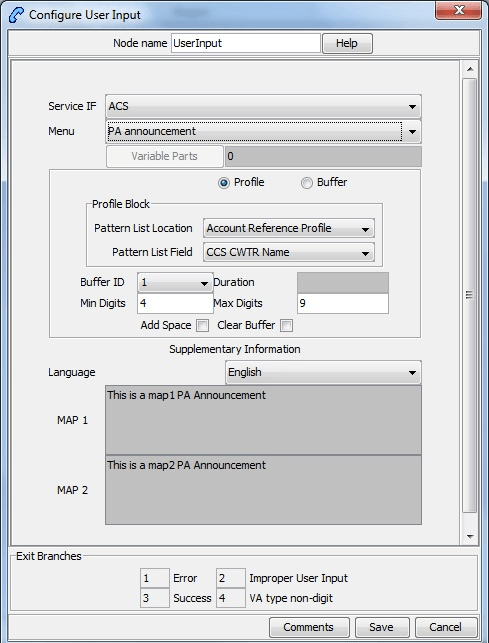
Configuring the node
Follow these steps to edit the node configuration.
-
In the Service IF field, select the service from the drop down list.
Note: The list is populated with all the Service Interface names created by the USSD Gateway Base Configuration screen, Service Interface tab.
-
In the Menu field, select the menu from the drop down list.
The list is populated with all the Menu names created by the USSD Gateway Menu Configuration screen, Menu Info tab which was created for a particular Service Interface.
Note: If the menu has been set up containing variable parts, but a different number of variables have been set up in the text for MAP 1 and MAP 2, you will see an error, for example:
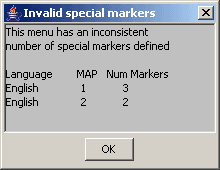
In this example, the MAP 1 menu has 3 variables, but the MAP 2 has only 2.
You must correct this using the Menu Language tab before you can select the menu.
-
The field to the right of the Variable Parts button displays the number of variable parts contained within the selected menu.
If the value displayed in the field is not 0, then the menu item contains variable parts. These are displayed in the MAP 1 and MAP 2 text display boxes, as pairs of percentage symbols (%%). See Menu Language for details.
You must click Variable Parts to open the Variable Part Announcement screen and insert substitutions for each variable part in the message. See Setting Variable Part Announcements .
-
Select the option of where to store the user input:
- Profile - This allows you to select Profile Blocks and Primary Tags
- Buffer - This allows you to enter information into a buffer.
-
If you selected:
- Profile option, select the:
- Pattern List Profile Block and
- Pattern List Primary Tag.
For the USSD Gateway service, the following profiles are writable to the database:
- Customer
- Call Plan
- CLI Subscriber
- Service Number
In addition the following is specified as a temporary profile, stored in memory:
- Application Specific 7
For more information on Profile Blocks and tags, refer to the CPE User's Guide.
- Buffer option - fill in the following field:
Buffer ID - This drop-down menu allows you to select which buffer to use to store the user input.
Note: The USSD Gateway Portal run-time system uses ten data buffers to store data.
-
In the Duration field, set the length of time, in seconds that the user has to enter their selection.
If the duration in the node is set to 0, and the Menu used in the node as described above in step 2 is also configured with duration as 0, node will just play an announcement to the user and will not prompt for any input. Node will take 'improper user input' exit in this case.
Note: Optional
- In the Min Digits and Max Digits fields, set the minimum and maximum number of digits the user is required to input.
- Ticking the Add Space check box will add a space at the end of the string entered into the buffer.
- Ticking the Clear Buffer check box will clear any value entered into the buffer before any selection has been entered.
-
In the Language field, select the language to use.
This is populated with the language names created by the USSD Gateway Base Configuration screen, Language tab.
The MAP 1 and MAP 2 fields will display the text information presented to the user using a MAP1 or MAP2 version device, in the selected language.
- Click Save.
Setting Variable Part Announcements
If the menu contains one or more variable announcement parts, use the Variable Part Announcement screen to define each variable part.
Here is an example Variable Part Announcement Dialog.
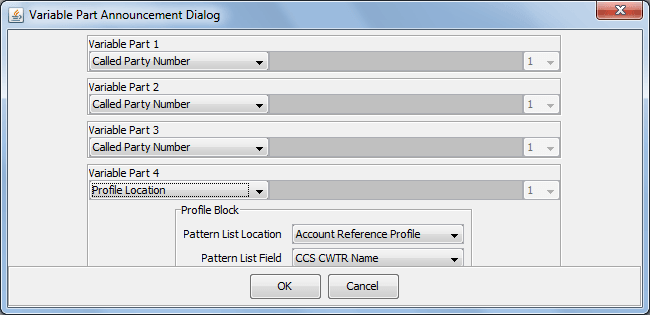
This example contains four variable parts, each illustrating a different option from the list of buffers.
Buffers
Here are the buffers available in the Variable Part Announcements Dialog and the action to perform when the buffer is selected.
| Buffer | Action |
|---|---|
|
Called Party Number Calling Party Number Normalised Called Party Number Normalised Calling Party Number Pending TN Buffer |
No further action required |
| Application Buffer | Select the buffer used to store the user input in the drop down list |
| Manually inserted | Type a value in the text field. |
| Profile Location. |
Select the:
For more information on Profile Blocks and tags, refer to CPE User's Guide. |
For a description of the buffers, refer to CPE User's Guide.
User Selection
Node description
The User Selection node displays a menu and collects the user's choice. The node matches the choice to a keyword in the UPC menu string. If a keyword matches, it is appended to the final selection buffer.

Node exits
The User Selection node has one entry and may have 5 through 25 exits. Each exit is mapped to a day of week range, and must be connected to an appropriate node. You can configure the number of exits using the Editing the number of exit branches (on page 2).
| Exit | Cause | Description |
|---|---|---|
| 1 | Error | Node encountered an error during execution. |
| 2 | Improper User Input | User Selection doesn't match keyword choice. |
| 3 | VA type non-digit | Problem using the Variable Part Announcements configuration. |
| 4 | 0 | User selected 0. |
| 5 | * | User selected *. |
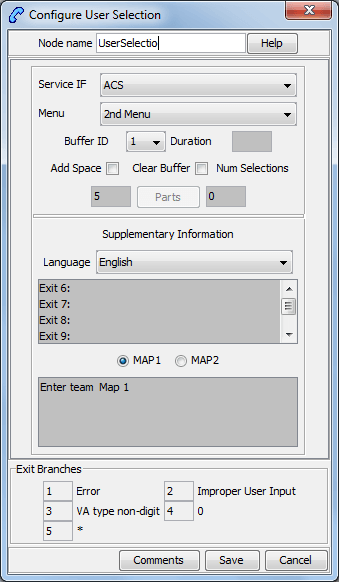
Configuring the node
Follow these steps to edit the node configuration.
-
In the Service IF field, select the service from the drop down list.
Note: The list is populated with all the Service Interface names created by the USSD Gateway Base Configuration screen, Service Interface tab.
-
In the Menu field, select the menu from the drop down list.
The list is populated with all the Menu names created by the USSD Gateway Menu Display screen, Menu Language tab which was created for a particular Service Interface.
Note: If the menu has been set up containing variable parts, but a different number of variables have been set up in the text for MAP 1 and MAP 2, you will see an error, for example:
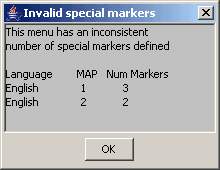
In this example, the MAP 1 menu has 3 variables, but the MAP 2 has only 2.
You must correct this using the Menu Language tab before you can select the menu.
-
Fill in the Buffer ID field. This drop-down menu allows you to select which buffer that the user input has been stored in.
Note: The USSD Gateway Portal run-time system uses ten data buffers to store data.
-
In the Duration field, set the length of time, in seconds that the user has to enter their selection.
Note: Optional
- Ticking the Add Space check box will add a space at the end of the string entered into the buffer.
- Ticking the Clear Buffer check box will clear any value entered into the buffer before any selection has been entered.
-
The field to the left of the Parts button displays the number of exits listed in the field below the Language field, which displays the Exit-Keyword mapping set up in the User Selection tab.
Note: To make these exits available, you must add the required number of exits to the node. See Editing the number of exit branches .
-
The field to the right of the Parts button (Num Selections) displays the number of variable parts contained within the selected menu.
If the value displayed in the field is not 0, then the menu item contains variable parts. These are displayed in the MAP 1 and MAP 2 text display boxes, as pairs of percentage symbols (%%). See Menu Language for details.
You must click Parts to open the Variable Part Announcement screen and insert substitutions for each variable part in the message. See Setting Variable Part Announcements .
-
In the Language field, select the language to use.
This is populated with the language names created by the USSD Gateway Base Configuration screen, Language tab.
- Selecting the MAP 1 and MAP 2 options will display, in the field below, the text information presented to the user using a MAP1 or MAP2 version device, in the selected language.
- Click Save.
Editing the number of exit branches
Follow these steps to edit the number of exit branches of a node.
- Ensure Call Plan Editor is in Graphical mode.
-
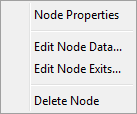
Right-click on node you want to change the number exits for.
Result: You see a shortcut menu.
-
Click Edit Node Exits.
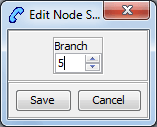
Result: You see the Edit Node Structure screen.
-
Use the arrows to change the number displayed. The up arrow will increase the displayed number and the down arrow will decrease the displayed number.
The number of exits on the node will now reflect the number that was entered into the Edit Node Structure screen.
-
Click Save.
Result: The Edit Node Structure screen will close.
Setting Variable Part Announcements
If the menu contains one or more variable announcement parts, use the Variable Part Announcement screen to define each variable part.
Here is an example Variable Part Announcement Dialog.
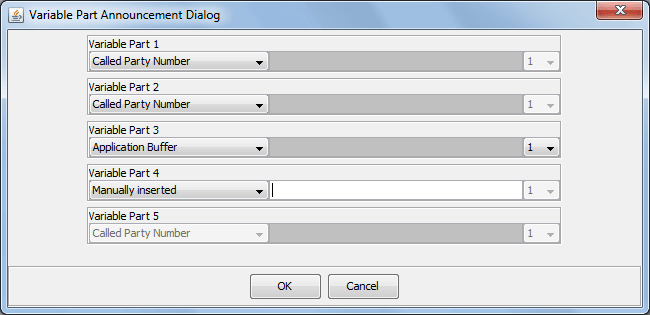
This example contains four variable parts, each illustrating a different option from the list of buffers.
Buffers
Here are the buffers available in the Variable Part Announcements Dialog and the action to perform when the buffer is selected.
| Buffer | Action |
|
Called Party Number Calling Party Number Normalised Called Party Number Normalised Calling Party Number Pending TN Buffer |
No further action required |
| Application Buffer | Select the buffer used to store the user input in the drop down list |
| Manually inserted | Type a value in the text field. |
For a description of the buffers, refer to CPE User's Guide.
Version Branching
Node description
The Version Branching node attempts to determine which version of MAP is being used for the call. It branches on MAP version or takes a default exit if a version cannot be determined.
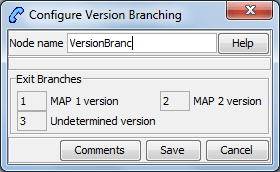
The node determines the subscriber’s MAP version by querying the Additional Calling Party Number using the IDP Query action.