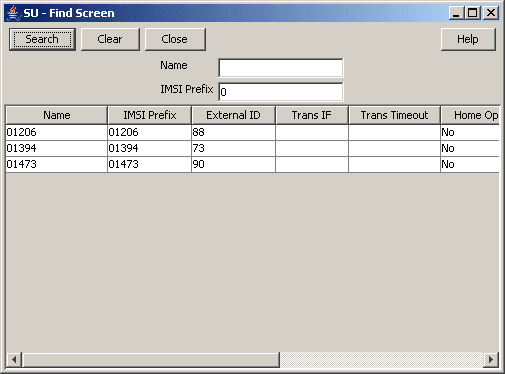
3 USSD Gateway Base Configuration Screens
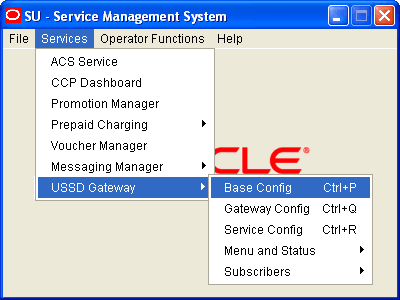
Trigger Prefix
Introduction
The Trigger Prefix configuration tab allows you to name Trigger Prefixes and set up the length of the SAN digit.
As part of the installation of USSD GW, a Trigger Prefix is created that represents “all triggers”. It is used for the barring function. This entry has a trigger prefix of “##########”.
Fields
Here is a description of the fields.
| Field | Description |
|---|---|
| Name |
Unique name of this Trigger Prefix. Required. Allowed values:
|
| Prefix |
The Prefix that prefixes the IMSI that can trigger a particular service interface. This prefix is used in the Service Configuration screen. Required. Allowed values:
|
| SAN Digits |
The number of digits that should be sent to the Service Interface as the Service Access Number for this session. Optional. Allowed values:
|
| Cdr Flag |
Selecting this check box will enable EDR generation for this Trigger Prefix. Note: The global CDR Flag on the Gateway Configuration tab must also be checked before the USSD GW application on the SLC can begin to generate EDRs. |
| Performance Report Period |
The interval (in seconds) after which the USSD GW application on the SLC will generate performance reports. Allowed values:
Note: A value of zero means that no performance reports will be generated. |
| Comment | This field is used to add any comments required for this Trigger Prefix. |
| Last Change Data |
Shows the following details of when this record was last modified:
|
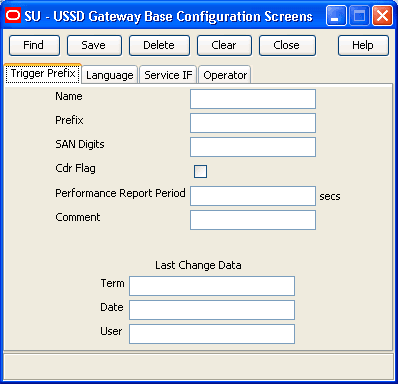
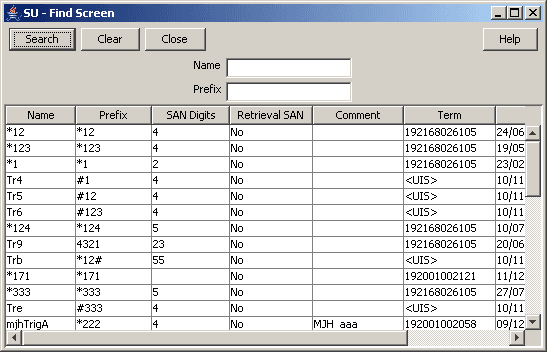
Note: For example text for each field, refer to the Find screen in this topic.
Data entry - trigger prefix
Follow the steps below to enter a new Trigger Prefix configuration.
- Click Clear to clear the screen of previous data.
- Enter new data and click Save.
Language
Introduction
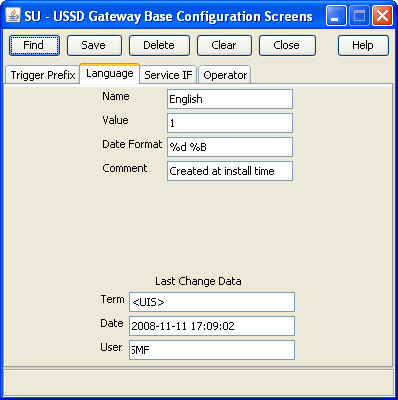
The Language configuration tab allows you to set up languages and give them specific values. The language value needs to correspond to the language values in the portal.
Fields
Here is a description of the fields.
| Field | Description |
| Name | The language, such as English or French. Alphanumeric field up to 20 characters in length. This field is mandatory. |
| Value | A unique value that is viewed externally and sent to the gateway interface. Numeric field, valid values 0 – 19. This field is mandatory. |
| Date Format |
The format for date variables when put into a message. This field is mandatory. Valid format tokens are shown below. You can separate tokens with spaces, commas, dashes, slashes, or backslashes.
For example, to specify a date format like 04 September 2015, set Date Format to %d %B %Y, or to specify a date format like 04-09-15, set Date Format to %d-%m-%y. |
Notes:
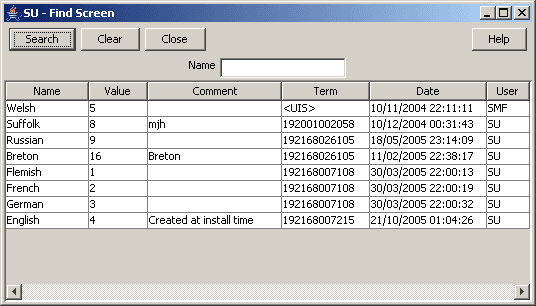
- For example text for each field, refer to the Find screen in this topic.
- If ACS is being used as a service interface, the language ID fields must match the SRF ID in the ACS configuration. This means that if the SRF ID of 1 corresponds to English in the ACS configuration, the language entry on this tab must match.
For example:
ACS configuration
English, MSG=2, SRF=1
USSD configuration
Name: English  Value: 1 Date Format=%d %B %Y
Data entry
Follow these steps to enter a new Language configuration.
- Click Clear to clear the screen of previous data.
- Enter new data and click Save.
Service Interface
Introduction
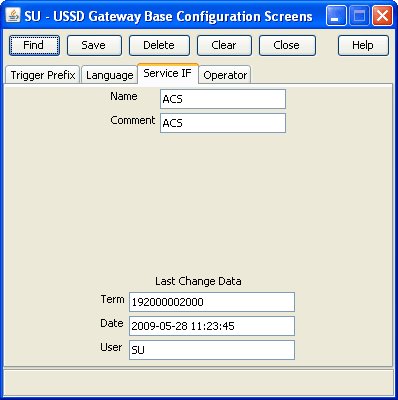
The Service IF tab allows you to name the different service interfaces.
Service interfaces can define their own set of menus and status displays using the same menu ids or status cause values as other service interfaces. For example: menu id 1 could result in the display “enter birthday” when sent by service interface 1 and could result in the display “password?” when sent by service interface 2.
You can partition your menus to a finer resolution (for example: “ACS-mini-News”, “ACS-Weather” and so on). These are entered in the Service Interface tab. You must also configure an associated trigger prefix to uniquely identify the service (not just a service group) and both these entries must be referenced in the Service Triggers.
Two Service Interfaces are configured when USSD GW is installed:
- Gateway - used by the gateway to retrieve displays for error or/and service ending conditions that are generated within the gateway itself and not a service interface
- All interfaces - enables service interfaces to share their menus
Fields
Here is a description of the fields.
| Field | Description |
| Name |
Unique name for this Service Interface. Required. Allowed values:
|
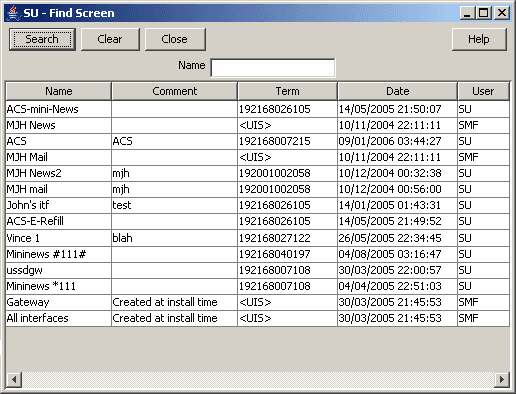
Note: For example text for each field, refer to the Find screen in this topic.
Data entry
Follow these steps to enter a new Service Interface configuration.
- Click Clear to clear the screen of previous data.
- Enter new data and click Save.
Operator
Introduction
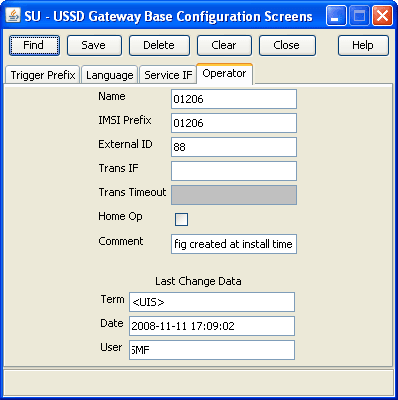
The Operator tab allows you to set up different operators against different IMSI prefixes and using different IMSI to MSISDN mapping interfaces.
Fields
Here is a description of the fields.
| Field | Description |
|---|---|
| Name |
Unique name of the operator. Required. Allowed values:
|
| IMSI Prefix |
Unique IMSI Prefix. Must be 5 digits.
|
| External ID |
Unique External ID. Required. If a service is located on an external system this ID is used when internal TCAP messages are sent to the external system. |
| Trans IF |
The SLEE ID of the interface which does the IMSI-MSISDN translation. Optional. For information about SLEE IDs, see SLEE Technical Guide. |
| Trans Timeout |
Milliseconds ussdgw process will wait for a response to the IMSI to MSISDN translation request. Required if a Trans IF value is provided. Allowed values:
|
| Home Op | If ticked, this operator is the home operator. |
Note: For example text for each field, refer to the Find screen in this topic.
Data entry
Follow these steps to enter a new Operator configuration.
- Click Clear to clear the screen of previous data.
- Enter new data and click Save.