2 Getting Started
Accessing USSD Gateway
Procedure
Follow these steps to access the USSD Gateway screens.
-
From the Service Management System screen, select the Services menu.
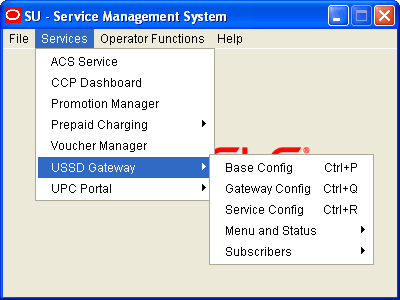
- Select USSD Gateway.
- Select the screen you want to use.
USSD Gateway menu options
This table describes the menu options accessible from the USSD Gateway menu option.
| Menu | Description |
| Base Config | Provides access to the creation and maintenance screens for base USSD Gateway configuration. |
| Gateway Config | Provides access to the creation and maintenance screens for global USSD Gateway configuration. |
| Service Config | Provides access to the creation and maintenance screens for USSD Gateway services. |
| Menu and Status | Provides access to the creation and maintenance screens for menus and statuses of USSD Gateway. |
| Subscribers | Provides access to the creation and maintenance screens for subscribers. |
Base Config screen
The USSD Gateway Base Configuration Screen contains four tabs:
- Trigger Prefix
- Language
- Service Interface
- Operator
Service Config screen
The USSD Gateway Service Configuration screen contains one tab:
- Service Trigger
Menu and Status screens
The Menu and Status option contains three sub menus:
- Wizard - This option contains two screens:
- Menu Wizard
- Status Wizard
- Config - The USSD Gateway Menu Configuration Screens contains two
tabs:
- Menu Info
- Status Info Configuration
- Display - The USSD Gateway Menu Display Screens contains two tabs:
- Menu Language
- Status Language
Accessing UPC Portal
Procedure
Follow these steps to open the UPC Portal screens.
-
From the Service Management System screen, select Services.
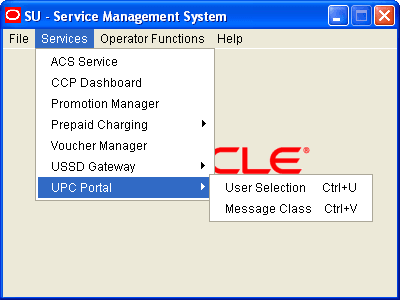
- Select UPC Portal.
- Select the entry for the screen you want to use.
UPC Portal menu options
This table describes the menu options accessible from the UPC Portal menu option.
| Menu | Description |
| User Selection | Provides access to the creation and maintenance screens for User Selection. |
| Message Class | Provides access to the creation and maintenance screens for Message Classes. |
Refer to the chapter, UPC Portal Screens , for details about using these screens.
Common Buttons and Fields
On-screen buttons
This application uses a set of buttons to start specific actions within each screen.
The table below describes the function of each button.
| Button | Function |
| Find | Opens the Find window, enabling you to find records that match the search criteria. |
| Save | Saves any changes to the record on the current screen to the database. |
| Clear | Clears all entries from the screen, enabling you to clear the screen before adding a new record. |
| Close |
Closes the current screen and returns you to the previous screen in the screen hierarchy. Note: Any changes that have been made on-screen will not be saved (unless Save has been clicked previously). |
| Search |
Appears on Find screens and allows you to search the database. This will trigger an Oracle Like% query that returns the first 100 records that begin with the selection criteria. For example, if you enter 123 in the Query field, the system will return records such as 123, 1234, 12345, etc. |
| Delete | Removes the selected record from the database. |
| Help | Opens context-sensitive Help containing information about the functionality available in the current screen. |
Using the Find Screens
Introduction
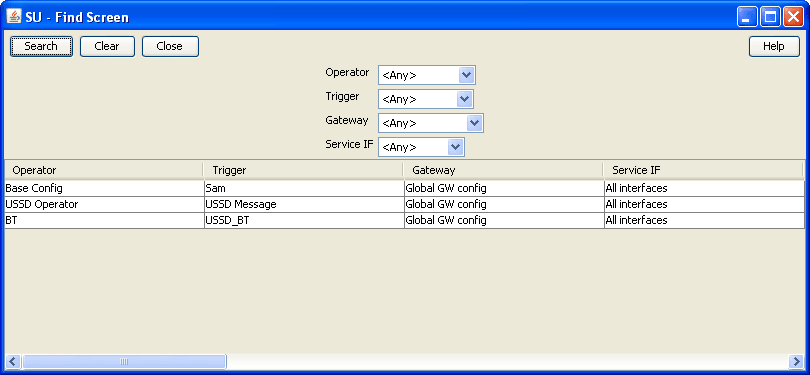
The find screen enables you to find records that match the selection criteria. All find screens in the system contain the following areas:
- Buttons
- Query fields
- Display grid
Accessing a find screen
To access the context sensitive find screen for a screen or tab, click Find.
Example find screen
Here is an example Find Screen.
Note: Each Find Screen has entry boxes for that particular find, with differing grid column headings.
Editing records
Follow the steps below to edit a record.
-
In the Find screen, select the row you want to edit.
Result: The associated screen is populated with this data, which you can edit.
- On the editing screen, make the changes to the data.
-
Click Save.
Result: The edited screen is saved.
Searching the database
Follow these steps to search the database.
-
Enter selection criteria in one or more query fields at the top of the screen and click Search.
If a field is left empty, the search retrieves all instances of that field.
Result: This triggers an Oracle Like% query that returns the first 100 records that begin with the selection criteria. These are displayed in the display table at the bottom of the screen.
Example: If you enter 123 in a query field, the system returns records such as 123, 1234, and 12345.
Note: These are the first 100 records entered in the database, and they display in no particular order. If you do not find the record you are searching for, you need to conduct a more specific search.
- To display the record in the main screen, select the record line and click Close.