7 Using the Order to Cash Reference Library
This chapter provides information about some sample order to cash features that are pre-configured in the Digital Business Experience Reference Solution (the reference solution) and will be available in your Digital Business Experience environment after installing the reference solution. These sample features help you get familiarized with the Digital Business Experience applications and business processes.
The following are some order to cash features that are pre-configured in the reference solution:
-
First-Time Purchase (New Subscriber, New Order)
-
Change Order
-
Modify Order
-
Suspend Services
-
Resume Services
-
Disconnect Services
Before you begin:
-
Learn about the reference solution. See About the Reference Solution in Oracle Communications Digital Business Experience Concepts for more details.
-
Learn about the reference product models and seed data available in the reference solution. See Reference Product Models and Seed Data in Oracle Communications Digital Business Experience Concept to Market Guide for more details.
-
Download and deploy the reference solution. See Deploying the Reference Solution Package in Oracle Communications Digital Business Experience Solution Deployment Guide for more details.
The following sections provide more details about how to use each sample pre-configured order to cash feature, and how to create those orders.
Creating a First-Time Purchase Order
Amy Watkins is a new subscriber who wants to subscribe to a voice service from Supremo Telecom Ltd. She calls the service center to speak to a CSR to request the subscription. The CSR verifies Amy Watkins is not an existing subscriber and creates a new account for Amy Watkins based on the information provided. The CSR captures details such as:
-
Name
-
Address
-
Phone numbers (if any)
-
Email address
-
Billing details
After creating the new account, the CSR creates a new order and adds the Supremo 5G Unlimited promotion to which Amy Watkins wants to subscribe to the order, and submits the order. The order flows through the Digital Business Experience stack to completion. After order completion, bills are generated in BRM. The CSR will access the Account view in Siebel CRM to view the installed assets and bill details.
To create a first-time purchase order for a prospect, there are various tasks that need to be performed as follows.
Creating an Account in Siebel CRM
To create an account in Siebel CRM, sign in to Siebel CRM and create an account. See Creating an Account in Siebel CRM Administration Guide for instructions on creating an account.
- On the Accounts List page, provide the values for the following
fields:
- Account Name
- Account Type
- Address
- Account Class
- Currency
- Price List
- From the Account Summary drop-down menu, select Contacts, and
provide the values for the following fields to create a contact:
- First Name
- Last Name
- Mr/Ms
- On the Account Summary page, Billing Profile section, provide the
values for the following fields to create a billing profile:
- Billing Name.
- Payment Method: Based on the Payment Method, provide the details, such as Bill Type, Frequency, Bill Media, Credit Card Number, Expiration Month, and Expiration Year.
- Select the Primary check box.
Creating an Order in Siebel CRM
This procedure assumes that you have created an account in Siebel CRM and are currently on the Account Summary page for the created account.
To create an order in Siebel CRM, sign in to Siebel CRM, and create an order. See Creating an Order in Siebel CRM Order Management Guide for instructions on creating an order.
- On the Accounts Summary page, Orders section, click the Order
Number link and provide the values for the following fields:
- Due Date (select the Due Date as Order Date to complete the order instantly).
- In the Line Items section, from the Products menu, select the required Promotion.
- Check the Eligibility and Compatibility rules.
- Add Service IDs for each commercial bundle, service bundle, and simple
service bundle.
Note:
- Orders can be placed using different types of products, such as Commercial Bundles, Simple Service Bundles, or Promotions. In the following steps, you add a promotion to the product lines to create and place an order. For more information on these terms, refer to Oracle Communications Digital Business Experience Concept to Market Implementation Guide.
- Ensure that all product data used in the examples in this document exist in your environment after installing the reference solution.
- If the Eligibility Status column displays Y, you can create the order. Otherwise, cancel the order and create a new order with a different promotion eligible for subscriber’s address.
- In the Line Items section, verify the Compatibility rules, discounts, or time-based offerings applied to the promotion.
- Click Submit.
After you submit the order, the order transitions through various statuses as it proceeds through the process.
To verify the order instances:
- Sign to the AIA EM Console, soa-infra page.
- Verify if the Flow State column for all the respective instances is Completed.
To verify the Order status in Siebel CRM:
- Navigate back to the Account Summary page, Order section.
- In the Line Items section, verify if the Status column for all line items is Complete.
- Verify if the Status field in the Order header displays Complete.
To verify the Order status in OSM:
- Sign in to OSM.
- In the Order Number field, provide the order number, and click Search.
- Verify if the Order Status column for COM and SOM displays Complete.
Verifying a Completed Order in BRM
To verify a completed order in BRM:
- Sign in to the BRM Billing Care application by entering the provided user Id and password.
- Click Search and search for the account.
- On the Results page, select the account and click Open.
- On the Home tab, click Assets to view all the installed assets of the promotion.
- On the Home tab, click Offers to view all offers, discounts, and promotions.
- On the Bills tab, verify the Account Charges and Service Charges sections.
- On the Home tab, select Account History.
- Verify the order details.
- Click Bill Now to generate the bill for the account.
The bill details appear.
Verifying the Services and Assets in Siebel CRM
To verify the services and assets in the completed order:
- Sign in to the Siebel CRM customer portal.
- Navigate to the Accounts Summary page, Installed Assets section.
- Verify all the installed services and assets of the order.
Creating a Change Package (Upgrade/Downgrade)
Upgrade request: Amy Watkins is an existing subscriber who subscribed to Supremo Triple Play Unlimited promotion. She liked the services and wants to upgrade to the Supremo Connect Platinum promotion. She calls the service center to speak to a CSR to request this change. The CSR creates a new order and customizes it to reflect Amy’s request, and submits the order.
To create a change package order for an existing subscriber, there are various tasks that need to be performed as follows.
Creating a Change Package Order in Siebel CRM
This procedure assumes that the order for the account was previously placed, submitted, and completed; therefore, you can scroll down to the Installed Assets section in Siebel CRM and view the products the account has subscribed to.
To create a change package order and verify the completion of change package order in Siebel, sign in to Siebel CRM and query the order details. See Querying an Order in Siebel CRM Order Management Guide for instructions on querying an order:
- To upgrade a promotion, from the Install Assets section, select the Promotion.
- Click the Settings icon for the selected promotion, and
select Upgrade.
The Promotion Upgrades window appears.
- Select the required promotion.
Note:
If you select to downgrade your promotion, there will be penalty charges. For upgrade promotion, there are no penalty charges. - Click OK.
For Residential account type, the Quotes page is bypassed and you are taken directly to the Sales Order page, where a new order is auto-generated.
- Enter the following data:
- Order# is pre-populated, but you can edit it per business requirements.
- For demo purposes, set the Due date to the order creation date. The date also needs to be updated for all Line Items under the Due column.
- In Price List, search for and select the appropriate price list. The change order is now created.
- Click Submit.
After you submit the order, the order transitions through various statuses as it proceeds through the process.
To verify the order instances, see Verifying the Order Instances.
To verify the order status in Siebel CRM, see Verifying the Order Status in Siebel CRM.
To verify the order status in OSM, see Verifying the Order Status in OSM.
Verifying a Completed Order in BRM
To verify the change package order results in BRM:
- Log in to BRM Billing Care.
- Click the Assets tab.
If you are already in BRM, click Refresh to update the page with the latest changes.
- Verifythe following:
- The new services or assets are added to the list and the status is Active.
- The existing services or assets are still on the list and the status is Active.
Verifying the Services and Assets in Siebel CRM
- Sign in to the Siebel CRM customer portal.
- Navigate to the Accounts Summary page, Installed Assets section.
- Verify the services and assets of the changed package order.
Creating a Modify Order
Amy Watkins is an existing subscriber who subscribed to a Supremo 5G Unlimited promotion. She wants to modify her existing services to add optional services that were not ordered earlier. She calls the service center to speak to a CSR to request this modification. The CSR creates a new order and modifies it to reflect Amy’s request, and submits the order.
To create a modify order for an existing subscriber, there are various tasks that need to be performed as follows.
Creating a Modify Order in Siebel CRM
This procedure assumes that the order for the account was previously placed, submitted, and completed; therefore, you can scroll down to the Installed Assets section in Siebel CRM and view the products the account has subscribed to.
To create a modify order, customize the modify order, and verify the completion of modify order in Siebel CRM, sign in to Siebel CRM, and query the order details. See Querying an Order in Siebel CRM Order Management Guide for instructions on querying an order:
- To modify any of the installed assets listed in the Install Assets section, select the Promotion, and click Modify.
- Click Continue without making any changes.
- Click Done.
For Residential account type, the Quotes page is bypassed and you are taken directly to the Sales Order page, where a new order is auto-generated.
- Enter the following data:
- Order# is pre-populated, but you can edit it per business requirements.
- For demo purposes, set the Due date to the order creation date. The date also needs to be updated for all Line Items under the Due column.
- In Price List, search for and select the appropriate price list. The change order is now created.
- Customize the bundle and click Done.
- Verify the updates in the Line Items section.
Note:
There is no need to enter the Service IDs here. The ServiceIDs added as part of the new order are retained. However, you can change the Service IDs if needed, and the change is treated as an update.
- Click Submit.
After you submit the order, the order transitions through various statuses as it proceeds through the process.
To verify the order instances, see Verifying the Order Instances.
To verify the order status in Siebel CRM, see Verifying the Order Status in Siebel CRM.
To verify the order status in OSM, see Verifying the Order Status in OSM.
Verifying a Completed Order in BRM
To verify the modified order results in BRM:
- Log in to BRM Billing Care.
- Click the Assets tab.
If you are already in BRM, click Refresh to update the page with the latest changes.
- Verifythe following:
- The new service or asset has been added to the list and the status is Active.
- The old service or asset is still on the list and the status is Canceled.
- The Promotion reference is carried forward to the newly added product.
Verifying the Services and Assets in Siebel CRM
- Sign in to the Siebel CRM customer portal.
- Navigate to the Accounts Summary page, Installed Assets section.
- Verify the modified services and assets of the order.
Suspending Services
Amy Watkins is an existing subscriber who subscribed to a Supremo 5G Unlimited promotion. She is planning to go for a vacation and wants to suspend a few services which are not required during her vacation. She calls the CSR and requests for suspending a few services from her promotion. The CSR places a suspend services order on Amy’s account, which suspends the requested services.
To create a suspend services order for an existing subscriber, there are various tasks that need to be performed as follows.
Creating a Suspend Services Order in Siebel CRM
This procedure assumes that the order for the account was previously placed, submitted, and completed; therefore, you can scroll down to the Installed Assets section in Siebel CRM and view the products the account has subscribed to.
To create a suspend services order and verify the completion of the order in Siebel CRM, sign in to Siebel CRM, and query the order details. See Querying an Order in Siebel CRM Order Management Guide for instructions on querying an order:
- In the Installed Assets section, select the services you want to suspend from the promotion.
- Click the Settings icon, and select Suspend.
The Change Order Due Date window appears.
- Set the Due Date to Order date, to cause the action to happen immediately after order submission.
- Click Continue.
- Click Done.
For Residential account type, the Quotes page is bypassed and you are taken directly to the Sales Order page, where a new order is auto-generated.
- Enter the following data:
- Order# is pre-populated, but you can edit it per business requirements.
- In the Line Items section, verify the following:
- The Action column displays Suspend for all the existing line items.
- Click Submit.
After you submit the order, the order transitions through various statuses as it proceeds through the process.
To verify the order instances, see Verifying the Order Instances.
To verify the order status in Siebel CRM, see Verifying the Order Status in Siebel CRM.
To verify the order status in OSM, see Verifying the Order Status in OSM.
Verifying a Completed Order in BRM
To verify the suspended services order results in BRM:
- Log in to BRM Billing Care.
- Click the Assets tab.
If you are already in BRM, click Refresh to update the page with the latest changes.
- Verifythe following:
- The status for the services that are suspended is Inactive.
- Any services that were in the Canceled status remain in the same status.
- Any services that were in the Not Set status remain in the same status.
Verifying the Services and Assets in Siebel CRM
To verify the services and assets in the completed order:
- Sign in to the Siebel CRM customer portal.
- Navigate to the Accounts Summary page, Installed Assets section.
- Verify if the respective services and assets are suspended.
Resuming Services
Amy Watkins is an existing subscriber whose services were previously suspended based on her request to suspend them. She calls the CSR to request for resuming the suspended services as she is back from her vacation. The CSR places an order to resume the services on Amy’s account.
To create a resume services order for an existing subscriber, there are various tasks that need to be performed as follows.
Creating a Resume Services Order in Siebel CRM
This procedure assumes that the order for the account was previously placed, submitted, and completed; therefore, you can scroll down to the Installed Assets section in Siebel CRM and view the products the account has subscribed to.
- In the Installed Assets section, select the services you want to resume from the promotion.
- Click the Settings icon, and select Suspend.
The Change Order Due Date window appears.
- Set the Due Date to Order date, to cause the action to happen immediately after order submission.
- Click Continue.
- Click Done.
For Residential account type, the Quotes page is bypassed and you are taken directly to the Sales Order page, where a new order is auto-generated.
- Enter the following data:
- Order# is pre-populated, but you can edit it per business requirements.
- In PriceList, search for and select the appropriate price list.
- In the Line Items section, verify the following:
- The Action column displays Resume for all the existing line items.
- Click Submit.
After you submit the order, the order transitions through various statuses as it proceeds through the process.
To verify the order instances, see Verifying the Order Instances.
To verify the order status in Siebel CRM, see Verifying the Order Status in Siebel CRM.
To verify the order status in OSM, see Verifying the Order Status in OSM.
Verifying a Completed Order in BRM
To verify the suspended services order results in BRM:
- Log in to BRM Billing Care.
- Click the Assets tab.
If you are already in BRM, click Refresh to update the page with the latest changes.
- Verifythe following:
- The status for the services that are resumed is Active.
- Any services that were in the Canceled status remain in the same status.
- Any services that were in the Not Set status remain in the same status.
Verifying the Services and Assets in Siebel CRM
- Sign in to the Siebel CRM customer portal.
- Navigate to the Accounts Summary page, Installed Assets section.
- Verify if the respective services and assets are resumed.
Disconnecting Services
Amy Watkins is an existing subscriber who wants to disconnect all of her services related to Supremo 5G Unlimited promotion and use a different Service Provider. She calls the service center to speak to a CSR to request to disconnect her services. The CSR places an order to disconnect all the services.
To create a disconnect services order for an existing subscriber, there are various tasks that need to be performed as follows.
Creating a Disconnect Services Order in Siebel CRM
This procedure assumes that the order for the account was previously placed, submitted, and completed; therefore, you can scroll down to the Installed Assets section in Siebel CRM and view the products the account has subscribed to.
To create a disconnect services order and verify the completion of the order in Siebel CRM, sign in to Siebel CRM, and query the order details. See Querying an Order in Siebel CRM Order Management Guide for instructions on querying an order:
Note:
To disconnect a service, you must disconnect the commercial bundle, OTTs, mobile devices, and then the promotion.
- In the Installed Assets section, first select the commercial bundle you want to disconnect from the promotion.
- Click Disconnect.
The Change Order Due Date window appears.
- Set the Due Date to Order date, to cause the action to happen immediately after order submission.
- Click Continue without making any changes.
- Click Done.
For Residential account type, the Quotes page is bypassed and you are taken directly to the Sales Order page, where a new order is auto-generated.
- Enter the following data:
- Order# is pre-populated, but you can edit it per business requirements.
- In the Line Items section, verify the following:
- The Action column displays Delete for all line items for the commercial bundle.
- Click Submit.
Note:
- Repeat Steps 1 to 8 for disconnecting OTTs, mobile devices, and then the promotion.
- When creating a Disconnect Services order for disconnecting the promotion, a Penalty charge line item gets added.
After you submit the order, the order transitions through various statuses as it proceeds through the process.
To verify the order instances, see Verifying the Order Instances.
To verify the order status in Siebel CRM, see Verifying the Order Status in Siebel CRM.
To verify the order status in OSM, see Verifying the Order Status in OSM.
Verifying a Completed Order in BRM
To verify the disconnect services order results in BRM:
- Log in to BRM Billing Care.
- Click the Assets tab.
If you are already in BRM, click Refresh to update the page with the latest changes.
- Verifythe following:
- All services that were in the Active status are now in the Canceled status.
- Any services that were in the Canceled status remain in the same status.
- Any services that were in the Not Set status remain in the same status.
Verifying the Services and Assets in Siebel CRM
To verify the services and assets in the completed order:
- Sign in to the Siebel CRM customer portal.
- Navigate to the Accounts Summary page, Installed Assets section.
- Verify if all the services and assets are disconnected.
About MACD Framework
The MACD Framework provides the foundational extensions required to support multiple Move, Add, Change, and Disconnect (MACD) transaction scenarios within the Oracle Communications Digital Business Experience reference solution. While this framework does not constitute a business use case on its own, it enables sales teams, product managers, engineers, and end users to efficiently manage a wide range of customer service changes throughout the service lifecycle.
The framework assumes assets are present in the reference solution, and each product includes a resource type update, now available both in the product and the associated asset records.
Note:
Currently, only orders are supported for all MACD transactions.To support multiple MACD scenarios, the Siebel UI has been enhanced as follows:
- MACD actions can be enabled or disabled based on whether the service is either a Mobile Service or Fixed Service.
- Ensure all Digital Business Experience definable products at the service bundle level include any one of the following values:
- Define Transaction Charge to the PRODUCT_TYPE LOV.
- Define the following DBE_MACD_EVENT LOV values for transaction types supported by the framework:
- New (for new orders only)
- Modify service
- Modify promotion
- Upgrade/downgrade
- Change service number
- Change SIM
- Change ownership
- Change address
- Barring
- Contract renewal
- Suspend
- Resume
- Disconnect
- MACD Event Configuration:
Note:
The fields mentioned below are maintained by Administrators from a dedicated list view under Administration – Order Management.- Event name (from DBE_MACD_EVENT LOV)
- Ordering entity (Order)
- Charge product name and ID (filter for products where type = “MACD Charge”)
- Approval required flag
- The following actions are available under the Installed Assets applet in the Customer Summary view and the Installed Assets view:
- New: If the Transaction Type is set to New, no need to select a value from the MACD action list.
- Modify: It is mandatory to select a value from the MACD action list. Based on the value selected the transaction type will be set.
- Disconnect: If the Transaction Type is set to Disconnect, no need to select a value from the MACD action list.
- Suspend: If the Transaction Type is set to Suspend, no need to select a value from the MACD action list. It is mandatory to select a suspension reason.
- Resume: If the Transaction Type is set to Resume, no need to select a value from the MACD action list. It is mandatory to select a suspension reason to resume the service.
- Menu options are dynamically enabled based on the current asset record’s attributes, such as asset status, product type, service type, and resource type.
- The following table lists events or actions and their enablement conditions before initiating a modification:
Table 7-1 MACD Conditions
Action/s Enable Conditions Modify service Barring
Asset status = Active Root asset Id = asset id (or is null)
Product type is not “Promotion”
Modify promotion Upgrade/downgrade
Renewal
Change ownership
Asset status = Active Product type is “Promotion”
Change service number (change MSISDN/ landline) Asset status = Active Root asset Id = asset id (or is null)
Resource type is "MSISDN" or "Landline"
Change address Asset status = Active Root asset Id = asset id (or is null)
Service type is “Fixed Service”
Suspend Should follow the “Suspend” control on SIS OM Products & Services Root List Applet (Service) AND The Suspend action is enabled if the asset status is either Active or Suspend
Resume Should follow the “Resume” control on SIS OM Products & Services Root List Applet (Service) Disconnect Should follow the “Disconnect” control on SIS OM Products & Services Root List Applet (Service) Change SIM Asset status = Active Root asset Id = asset id (or is null)
Service type is “Mobile Service”
Note:
- You can select the above-mentioned action or event using a drop-down menu, available next to the Modify action.
- Suspend or Resume action will be initiated as a separate action or as a modification event.
Note:
- When any MACD action is triggered, it will always create a new order.
- If there are any chargeable products in the order, you need proper approvals to perform MACD actions.
About Modifying Services
This feature enables Enterprise Sales Representative (ESR) to initiate changes to components or attribute values of subscriber-owned services in response to subscriber requests. This process streamlines the handling of service modifications by providing a controlled workflow for managing service adjustments through either a quote or an order, depending on the configuration.
The process begins when an ESR receives a request to modify a subscriber's service. The ESR navigates to the Customer view, identifies the specific service, and initiates a modification transaction (either a Quote or an Order). The process concludes when the ESR completes the required modifications and is ready to submit the order or generate one from the modification quote.
Note:
For all MACD scenarios, the term Document refers to both Quote and Order, as both types may be created based on the configuration.To support this feature, the Siebel UI has been enhanced as follows:
- When processing a document with the transaction type Modify Service, the following controls and restrictions apply:
- To prevent unintended order composition changes:
- The Catalog view is disabled; ESRs cannot add new line items to the document.
- The document header is read-only; ESRs cannot update header information.
- Adding or removing line items from the document is not permitted.
- Changing line item details (such as address, paying customer, or billing profile) is disabled.
- Price adjustment options remain available for added components, following the standard price adjustment process.
- Resource or inventory reservation is available only for added components (line items where Action = ADD).
- Feasibility checks are required only for line items with the action ADD or MODIFY.
- To prevent unintended order composition changes:
- The following service configurations are mandatory:
- Use the CfgEval UI property as described in the Siebel Product Administration Guide to dynamically show or hide configurator controls.
- Hide “Barring” products and the “MSISDN Validity number” product for Modify Service transactions.
- Only display barring-related products in the configuration session when the transaction type is Barring.
- If the Approval Required flag is set to Yes, the approval process must be triggered according to the approval workflow. Else, no approval is required.
Note:
Existing Siebel capabilities, such as future-dated orders and projected asset cache, remain available and are unaffected by the MACD Modify Service process.About Barring Services (Manual)
This feature allows Enterprise Sales Representatives (ESRs) to partially or fully disable specific service features on a subscriber’s active account (for example, Bar Roaming, Bar Data, Bar Outgoing Calls, Full Bar, and so on). Barring differs from service suspension in that the service remains active, charges continue to apply, and the service commitment period is not affected by the bar’s activation or removal. This process supports both subscriber-initiated and policy-driven bars, enabling ESRs to efficiently handle various business scenarios involving usage restrictions.
Types of Barring
- Customer Bars:
- Applied or removed by the subscriber (service owner) or any ESR.
- May be requested freely and through self-service or agent channels (subject to transaction fees, if applicable).
- Policy Bars:
- Applied by the provider in response to policy events, such as fraud or collections.
- Managed through automated processes or authorized ESR intervention.
- Removal by the service owner requires support from an authorized ESR or resolution of the policy event.
The process begins when an ESR receives a request to bar a subscriber’s service. The ESR navigates to the Customer view to locate the installed service (asset) to be barred; if the asset does not satisfy the MACD Framework enablement rules for Barring, the Barring action is unavailable and no further processing occurs.
If the asset is eligible, the ESR selects it from the Installed Assets applet (Customer Summary) and initiates Barring, where a transaction charge is automatically added, and the order header is populated with Transaction Type = Barring and Approval Required as defined in the matrix. The ESR is then taken into the service configuration session to choose the required barring options, and upon completing configuration is returned to the Order view to validate, obtain approval if applicable, and submit the order.
Note:
Barring services are initiated and processed exclusively through orders; quotes are not used for this feature.To support this feature, the Siebel UI has been enhanced as follows:
- When the transaction type is set to Bar Service:
- All document actions are disabled except for configuration, validation, approval, and submission.
- The document header is read-only.
- Adding or removing line items, except through the configuration session is disabled.
- Editing line item details (address, billing profile, paying customer, and so on) is not permitted.
- The Catalog view is disabled.
- The following fields in the Order header should be read-only:
- Account Details: Customer, Billing and Service account, First and Last name, Billing profile
- Pricing Details: Price list, Manual discounting options, Currency
- The following fields in the Document line item should be read-only:
- Account Details: Customer, Billing and Service account, First and Last name, Billing profile
- Addresses fields
- Product, Service ID, Service Point, Service Address
- Any price and discount-related fields
- Pricing Details: Price list, Manual discounting options, Currency
- Barring products (for example, for Roaming, Data, Outgoing Calls) are defined and included as separate product relationships:
- One group for subscriber-initiated bars.
- One group for policy bars.
- All other product relationships are hidden or view-only when the transaction type is Bar Service, using the CfgEval property as described in the Siebel Product Administration Guide.
- Before submission, the system verifies that all required configurations are complete and valid (mandatory selections, constraints met).
- If the Approval Required flag is set to Yes, the order follows the approval workflow; otherwise, approval is not triggered.
- All other standard order submission validations are skipped for barring transactions.
Note:
User roles and responsibilities must be configured to allow or restrict ESR access to apply or manage policy bars, as defined in catalog settings.About the Reference Solution Test Catalog
This chapter provides information about the reference solution test catalog, which consists of a list of automated test cases (created using product models, seed data, and sample orders) that are packaged and delivered to you within the reference solution package. This test catalog helps you to validate whether the contents of the reference solution are deployed correctly. This test catalog can be deployed and executed using Oracle Communications Solution Test Automation Platform (STAP).
Introduction to STAP
STAP is a powerful automation platform that allows you to automate your end-to-end business use cases without writing a single line of code. By providing a no-code automation solution, STAP enables you to automate your workflows easily with an inbuilt Behavior Driven Development (BDD) language without any technical expertise. This makes it an ideal automation platform for improving efficiency and productivity.
The following are the benefits of using STAP for deploying the reference solution package:
-
STAP helps to improve the reference solution quality by automating the test cases and identifying potential issues. It provides accurate results that help to ensure that the reference solution is functioning as expected.
-
STAP automates testing, saving time and effort for testing teams. It enables teams to focus on other critical tasks, such as improving the reference solution use cases.
-
STAP handles high traffic and growing demands, making it an ideal automation solution for diverse testing requirements.
For more information about STAP:
-
See Installing STAP in Oracle Communications Solution Test Automation Platform Deployment Guide.
-
See Oracle Communications Solution Test Automation Platform User Operations Guide for information about using STAP.
-
See Troubleshooting STAP Deployment in Oracle Communications Solution Test Automation Platform Deployment Guide.
Reference Solution Automation Test Cases
This section provides a list of reference solution test cases that are automated using STAP.
The test cases are categorized into design time and run time categories as follows:
-
Design-time test cases include the following:
-
Postpaid Mobile
-
Broadband
-
Digital TV
-
Home Phone
-
Dual Play
-
Triple Play
-
Quad Play
-
-
Run-time test cases include the following:
-
First-Time Purchase
-
Modify
-
Disconnect Services
-
Upgrade or Downgrade
-
Payment
-
Adjustment
-
Update Contact and Address
-
The Table 7-2 table provides details of total number of automation test cases available in the reference solution package.
Table 7-2 Automation Test Case Coverage
| Product Models | Creation of Product Models | First-Time Purchase | Modify | Disconnect Services | Downgrade or Upgrade | Payment | Adjustment | Update Contact and Address | Total Test cases for each Model |
|---|---|---|---|---|---|---|---|---|---|
| Postpaid Mobile | 3 | 8 | 1 | 1 | 1 | NIL | NIL | NIL | 14 |
| Broadband | 4 | 6 | 3 | NIL | 1 | NIL | NIL | NIL | 14 |
| Digital TV | 2 | 2 | NIL | NIL | NIL | 1 | 1 | 2 | 8 |
| Home Phone | 2 | 2 | NIL | 1 | NIL | NIL | NIL | NIL | 5 |
| Dual Play | 8 | 8 | NIL | NIL | NIL | NIL | NIL | NIL | 16 |
| Triple Play | 3 | 3 | NIL | 1 | NIL | NIL | NIL | NIL | 7 |
| Quad Play | 3 | 3 | NIL | NIL | NIL | NIL | NIL | NIL | 6 |
| Total Count | 25 | 32 | 4 | 3 | 2 | 1 | 1 | 2 | 70 |
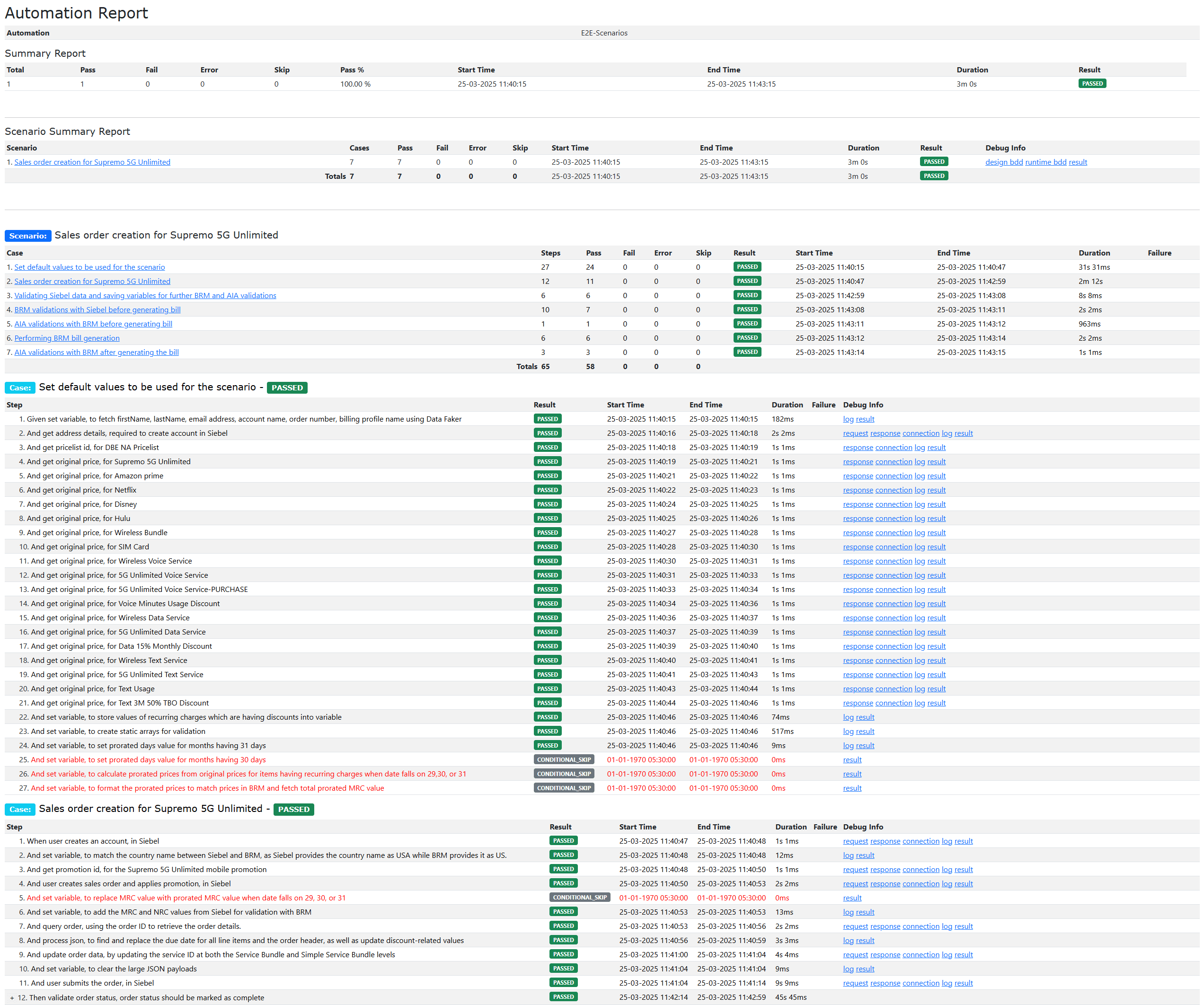
After executing the above automation test cases, all the design-time product models will be created in Launch, Siebel, and PDC, accounts will be created for each run-time feature, and a test report is generated, which is published using STAP.
The following figure displays a sample test report of a sample automation test case.
For information about troubleshooting, see Troubleshooting STAP in Oracle Communications Solution Test Automation Platform Deployment Guide.