Log In to Oracle ILOM Using a Remote Ethernet Connection
-
To launch and log in to Oracle ILOM, use either the Oracle ILOM web
interface or command-line interface.
-
To launch and log in to the Oracle ILOM web interface:
-
Open a web browser window.
-
Ensure that the web browser is supported by Oracle ILOM. For more information, refer to the Oracle ILOM User's Guide for System Monitoring and Diagnostics, Firmware Release 5.0 at Systems Management Documentation.
-
Type the IP address or host name of the server in the browser address bar, for example 192.0.2.23.
-
In the Oracle ILOM Login dialog box, type your user name and password, and click Log In.
If this is the first time you are accessing Oracle ILOM, use
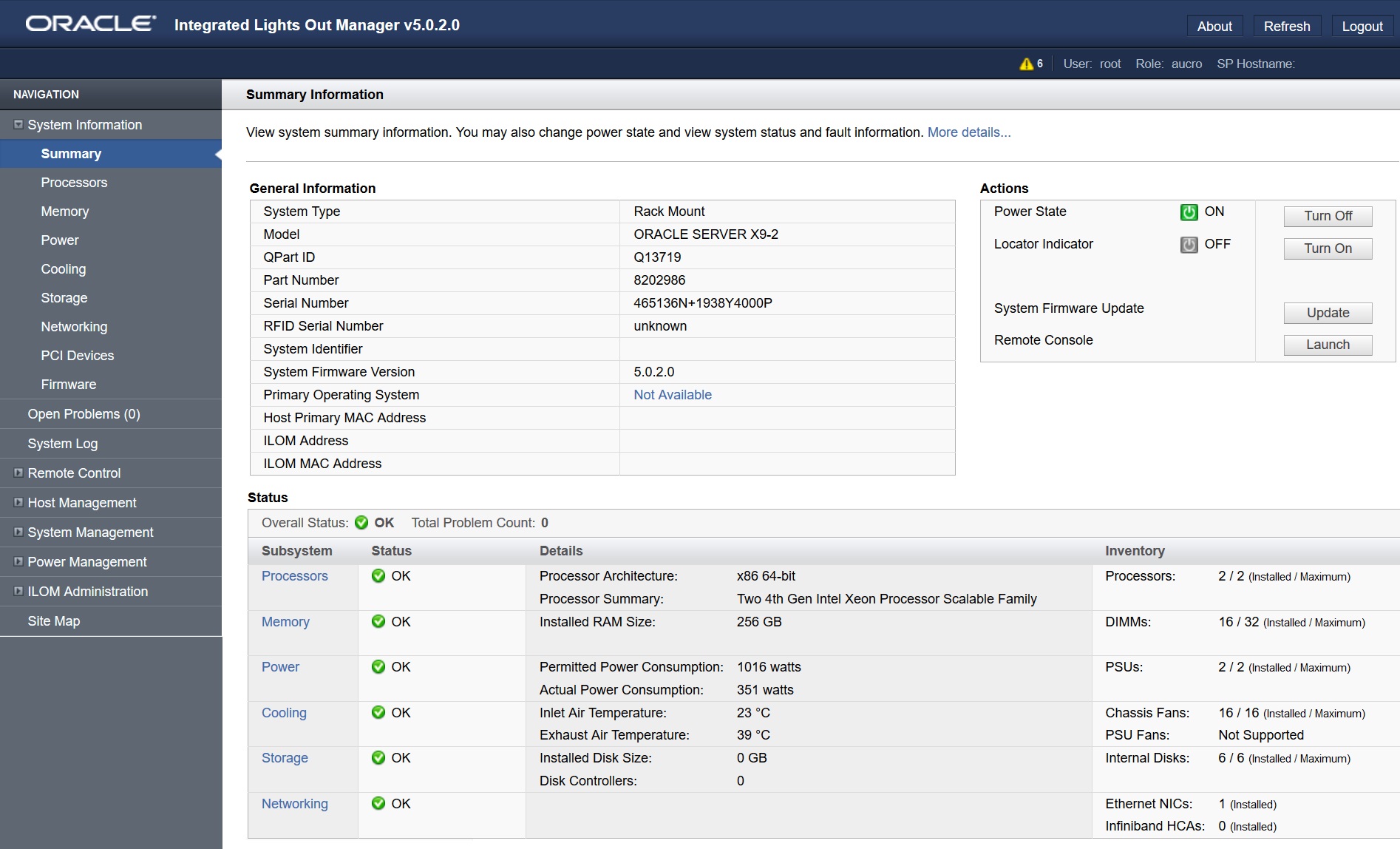
rootfor the user name andchangemefor the password.The Oracle ILOM Summary Information page appears.
Figure 2-1 Oracle ILOM Summary Information Page
-
-
To launch and log in to Oracle ILOM from the command-line interface, perform the following steps:
-
Open a terminal window.
-
Type your Oracle ILOM user name and the IP address or host name of the server SP using the following syntax:
-
ssh -l username host
or
-
ssh username @ host
Where host is either the IP address or the host name of the server SP.
For example: ssh root@192.0.2.23
If this is the first time you are accessing Oracle ILOM, use
rootfor the user name andchangemefor the password.
-
-
At the Oracle ILOM password prompt, type your password, and press Enter.
Oracle ILOM displays a default command prompt (->), indicating that you successfully logged in.
-
-