12 Replace the Motherboard Assembly
This section describes how to service the motherboard assembly.
The motherboard assembly is a replaceable component that requires you to power off the server before servicing. The motherboard includes a Power Distribution Board (PDB) in the assembly. For more information about replaceable components, see Illustrated Parts Breakdown and Replaceable Components.
Remove
- Prepare the server for service.
- Power off the server. See Power Down the Server.
- Disconnect the power cords from the power supplies. See Disconnect Cables From the Server.
- Remove rear panel cables. See Back Panel Components.
- Extend the server into the maintenance position. See Extend the Server to the Maintenance Position.
- Attach an antistatic wrist strap to your wrist, and then to a metal area of the chassis. See Take Antistatic Measures.
- Remove the server top cover. Use a Torx T15 screwdriver to unlock. See Remove the Server Top Cover.
- Remove the following reusable components:
-
Air baffle Remove the air baffle (sitting over the two processors) by lifting the baffle up and out of the server. Lift up the air baffle in the rear at a 50 degree angle, and slide slightly rearward to clear the air baffle tabs that prevent the front of the baffle from lifting up. Set aside the air baffle. See Remove the Air Baffle.
-
Fan modules See Remove a Fan Module.
-
Fan tray See Remove the Fan Tray.
-
PCIe cards See Remove a Half Height PCIe Card. See Remove a Full Height PCIe Card.
-
SAS storage drive cables (if present) See Remove SAS Storage Drive Cables.
-
Power supplies See Remove a Power Supply.
-
Disconnect the following cables from the motherboard: Label any unlabeled cables to ease reconnecting them after the replacement motherboard is installed.
-
Front LED indicator module (FIM) ribbon cable .See Replace the Front LED Indicator Module.
-
Disk backplane auxiliary signal (DBP SIG) cable. See Replace the Disk Backplane.
-
Disk backplane power (DBP PWR) cable Disconnect the power cable from the motherboard and the disk backplane connections. Remove the cable guide holding the cables. See Replace the Disk Backplane. The NVMe four-disk backplane uses a single power cable; the SAS twelve-disk backplane uses two power cables.
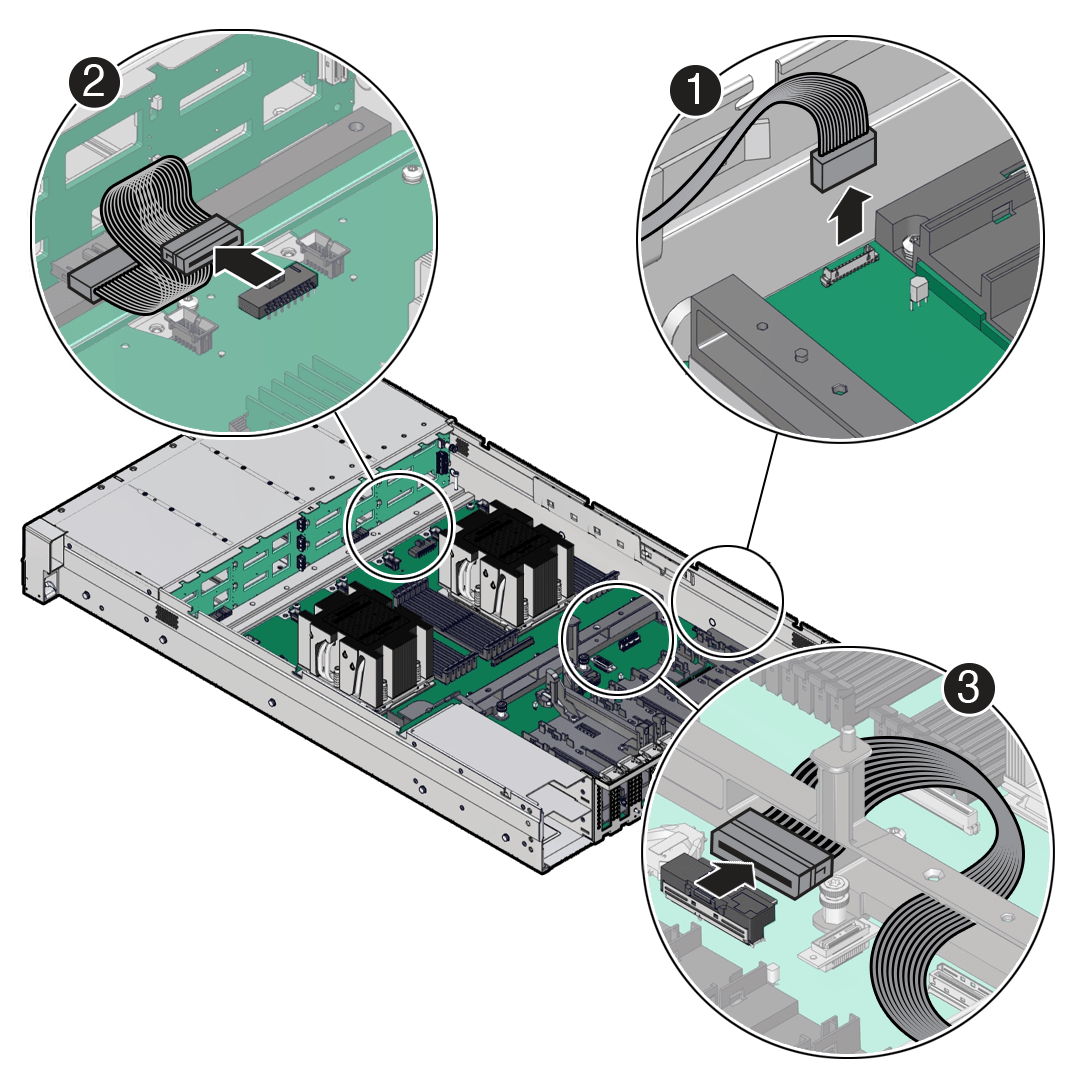
Callout Description 1 Front LED indicator module (FIM) ribbon cable 2 Disk backplane auxiliary signal (DBP SIG) cable 3 Disk backplane power (DBP PWR) cable -
Using a Torx T25 screwdriver, fully loosen the two captive screws that secure the motherboard mid-wall to the chassis. If you are not able to remove the motherboard, loosen the third screw in the midwall motherboard handle. After removing the motherboard, tighten the same screw.
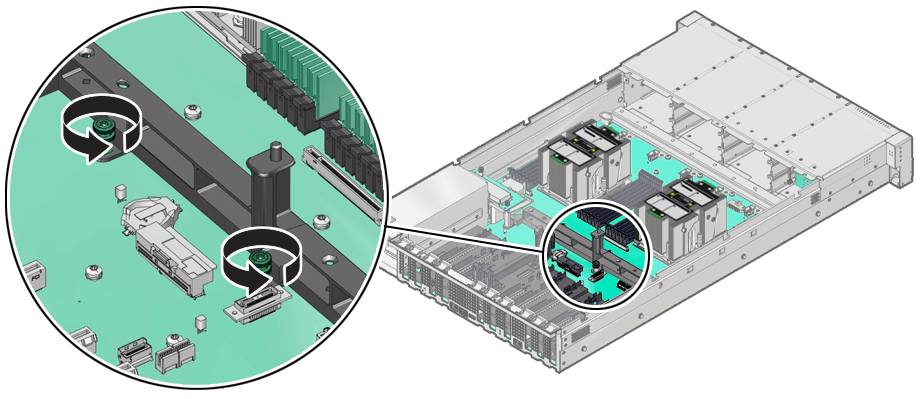
-
With the server in the extended maintenance position, remove the motherboard from the server with all reusable components that populate the motherboard in place. Move all cables out of the way so they do not interfere with the procedure. Be careful not to damage or break off the rear Locate light pipe LED indicator.
-
Grasp the midwall motherboard handle labeled MB Handle. Hold the motherboard with the midwall motherboard handle and the small plastic motherboard handle.
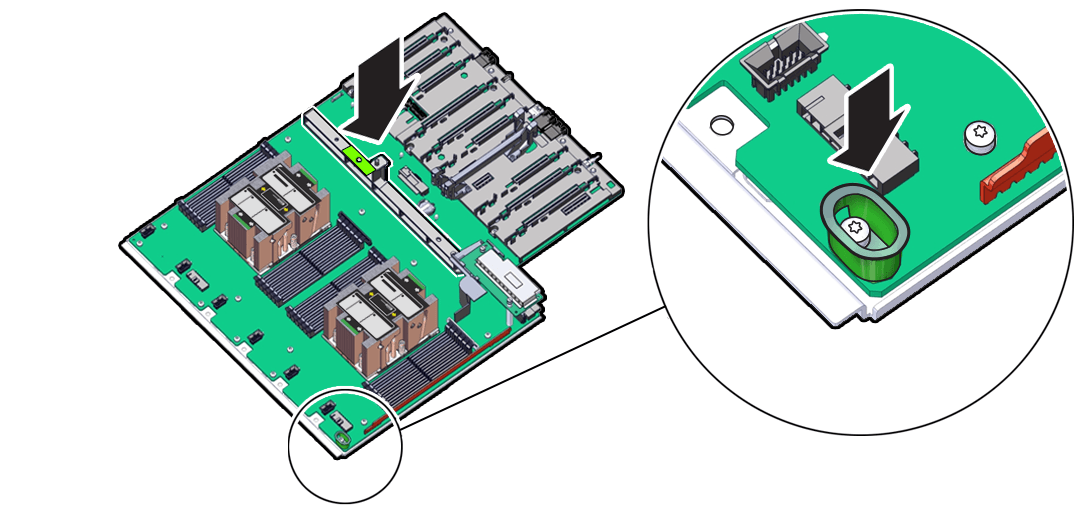
-
Carefully slide the motherboard forward, and while holding the motherboard mid-wall handle and small plastic motherboard handle, lift it out of the chassis.
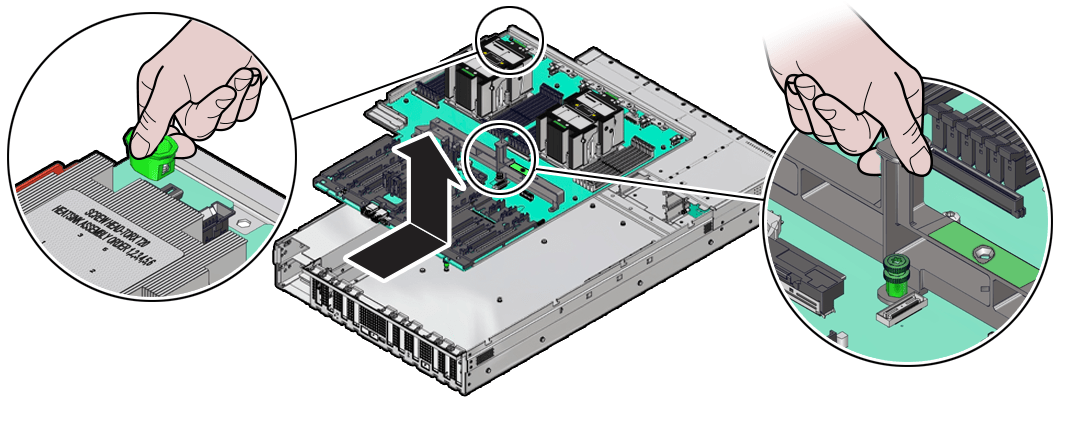
-
Place the motherboard assembly on an antistatic mat, and next to the replacement motherboard.
-
Remove the following reusable components from the old motherboard and install them onto the replacement motherboard.
-
DIMMs See Identify and Remove a DIMM and Install a DIMM. Install the DIMMs only in the slots (connectors) that correspond to the slots from which they were removed. Performing a one-to-one replacement of the DIMMs significantly reduces the possibility that the DIMMs will be installed in the wrong slots. If you do not reinstall the DIMMs in the same slots, server performance might suffer and some DIMMs might not be used by the server.
-
M.2 flash riser SSDs See Remove a Flash Riser Board and Install a Flash Riser Board.
-
Processor/heatsink assemblies Remove all processor/heatsink assemblies from the failed motherboard. See Identify and Remove a Processor.
-
Motherboard (Flyover) PCIe cable See Use the PCIe Flyover Cable to Configure PCIe Electrical Interfaces.
-
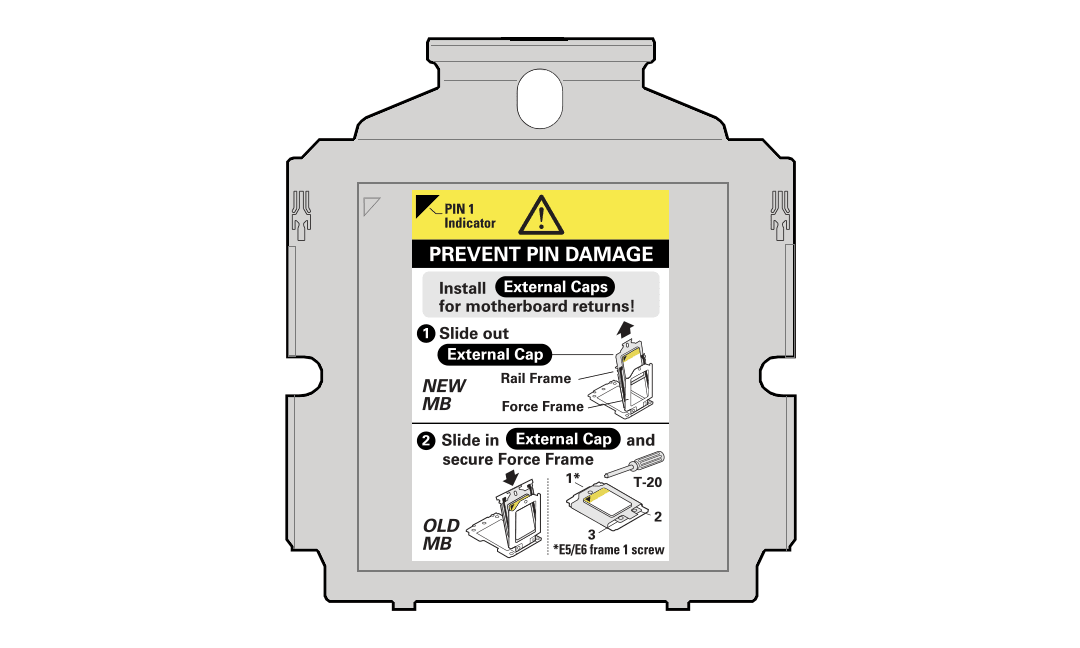
Remove the External Cap from the new replacement motherboard and install the processors. The external cap is used to protect the socket pins if the processor is not installed. The following figure shows the External Cap.
Note the orientation and correct handling of the External Cap.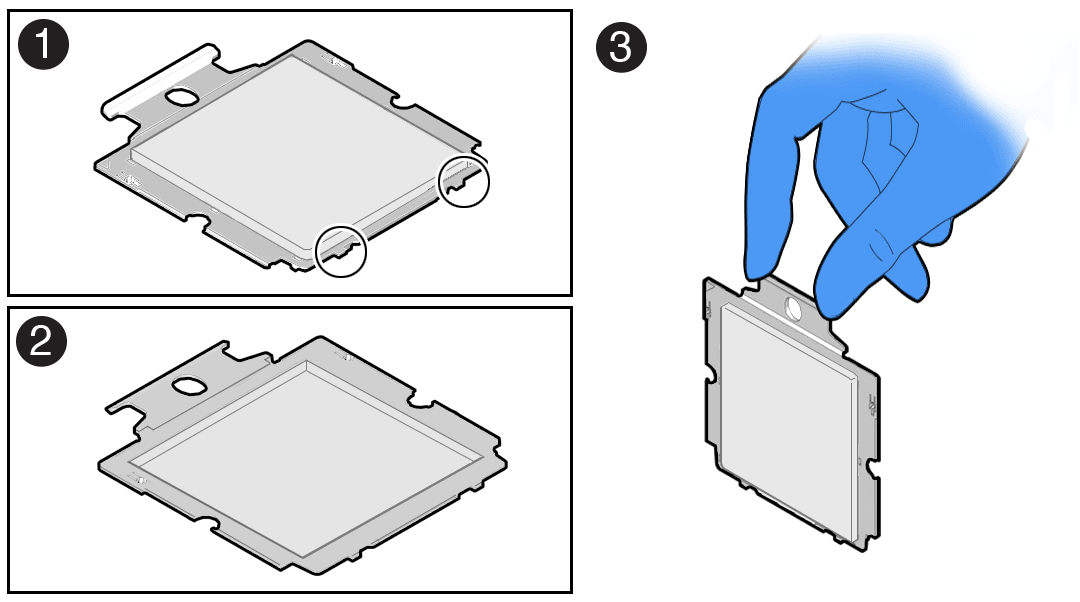 See Processor Overview for processor frame and socket information.
Callout Description 1 Top of External Cap (insertion tabs are circled) 2 Bottom of External Cap (contacts the socket) 3 Use of the External Cap handle On the new replacement motherboard:
-
Unscrew the socket Force Frame. Using a Torx T20 screwdriver, fully loosen the captive Force Frame Retention Screw that secures the Force Frame to the socket. Apply counter-pressure to the force frame when opening.
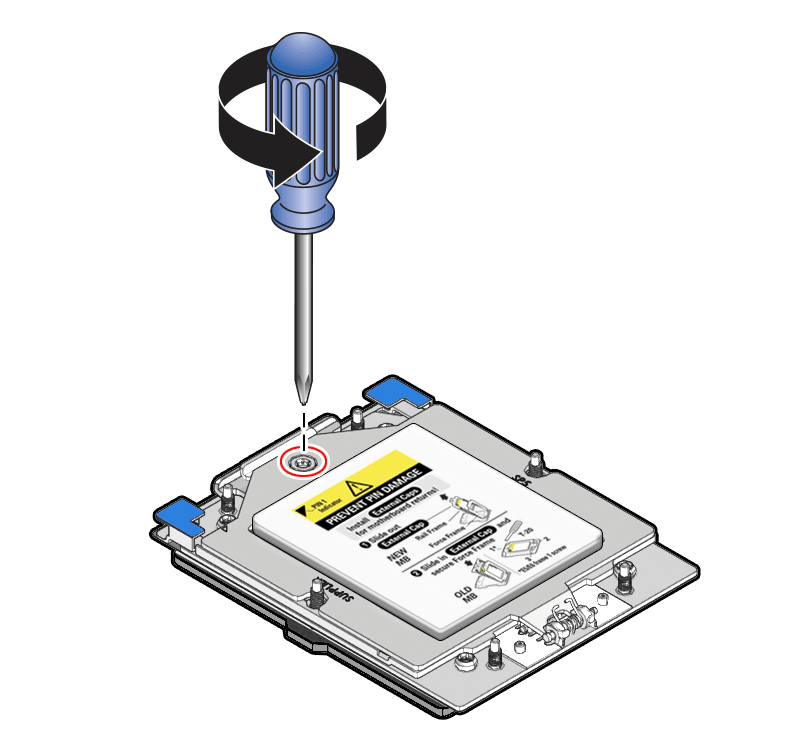
-
Lift the force frame to the open position.
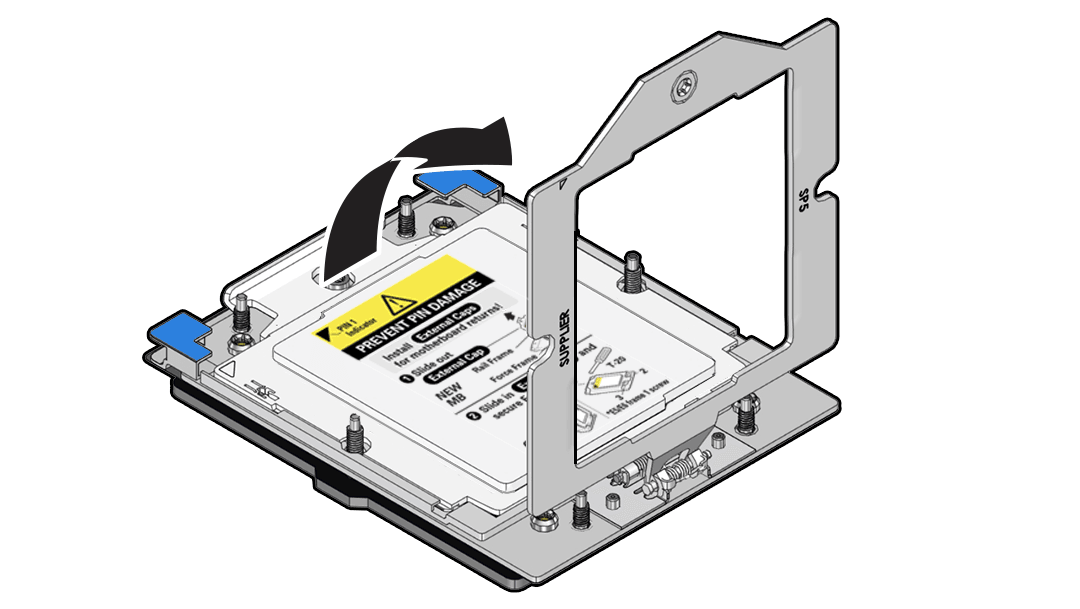
-
On the socket, open the Rail Frame. Squeeze the blue tabs to release the rail frame.
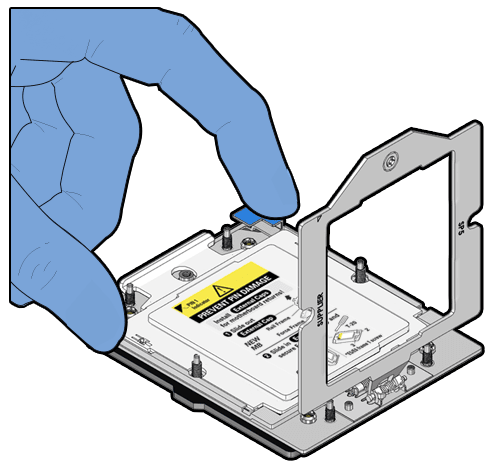
Lift the processor rail frame by holding its lift tabs and rotating the rail frame to its near vertical position. The rail frame is spring-loaded. Hold on to the rail frame as it releases from the socket frame, when rotating it to the vertical position.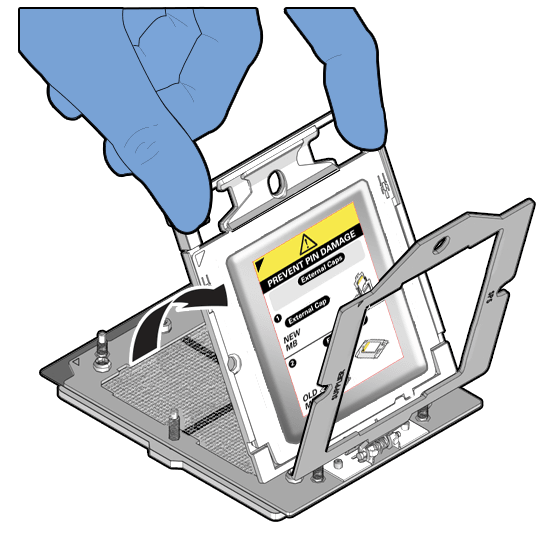
-
Remove the External Cap by its handle. Do not re-install the socket External Cap. Holding the socket cover external cap by its handle, slide the External Cap up and out of the Rail Frame.
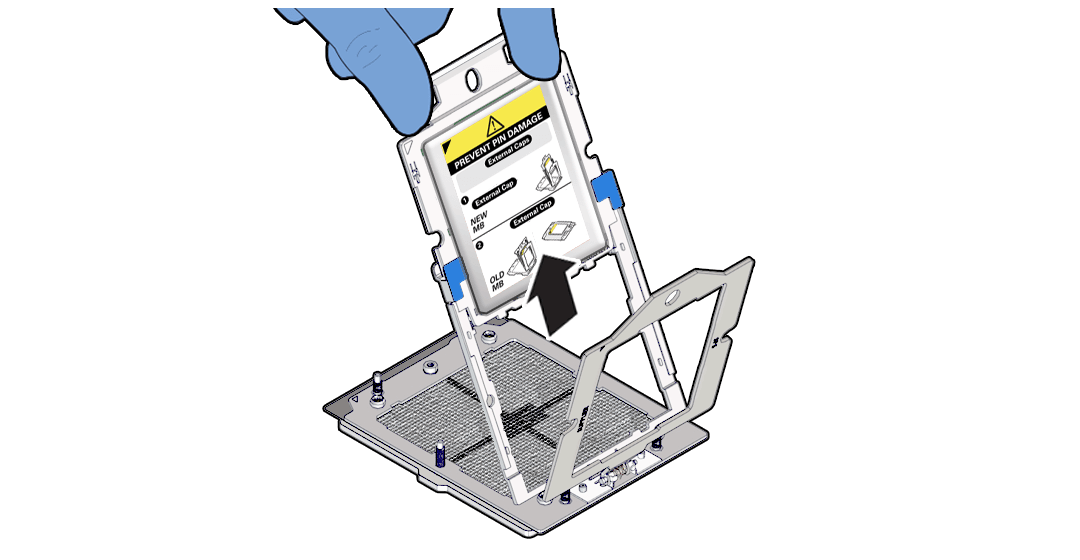
Retain the external cap to be placed on the processor socket (in the Rail Frame) of the motherboard being replaced. This will prevent damage during shipping back to the Service Center for motherboard failure analysis. -
Install an External Cap on a Processor 0 or Processor 1 socket for motherboard returns. Install the protective lid by sliding it in the rail frame and pressing down. Holding the External Cap you removed from the new motherboard by its handle, slide it into the processor rail frame on the old motherboard.
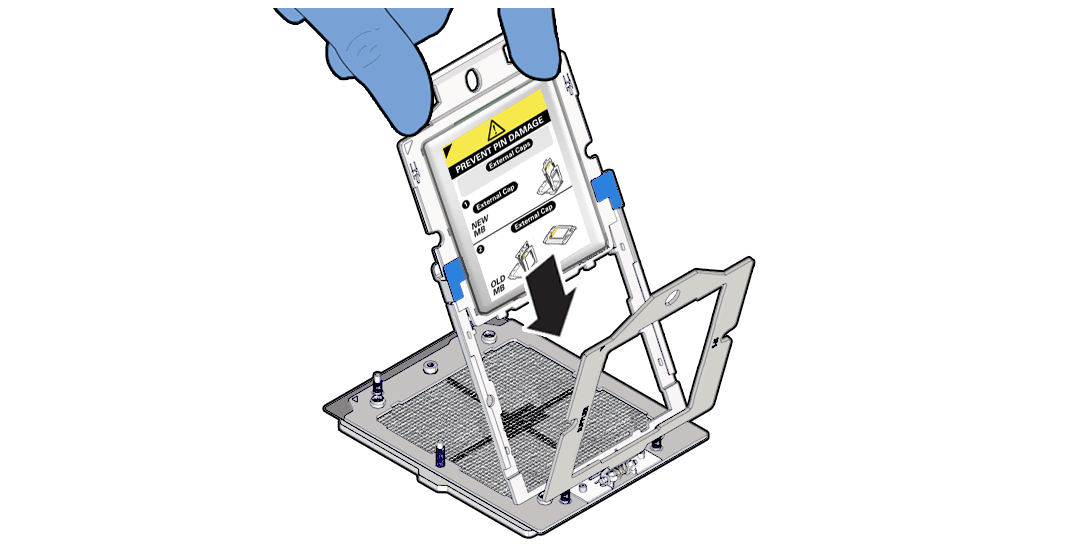
Slide the External Cap until the two insertion tabs at the bottom of the External Cap are inserted into the slots in the rail frame.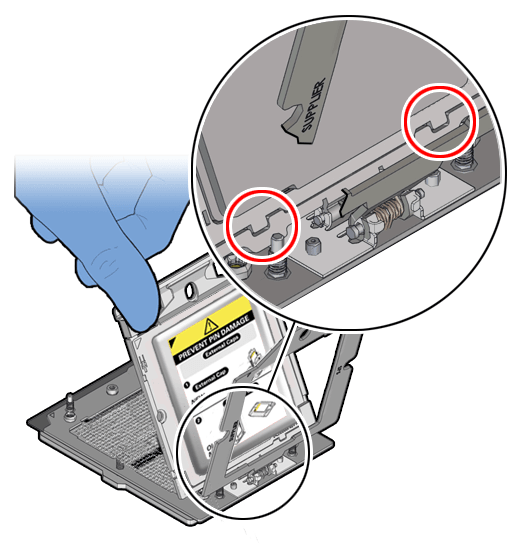
-
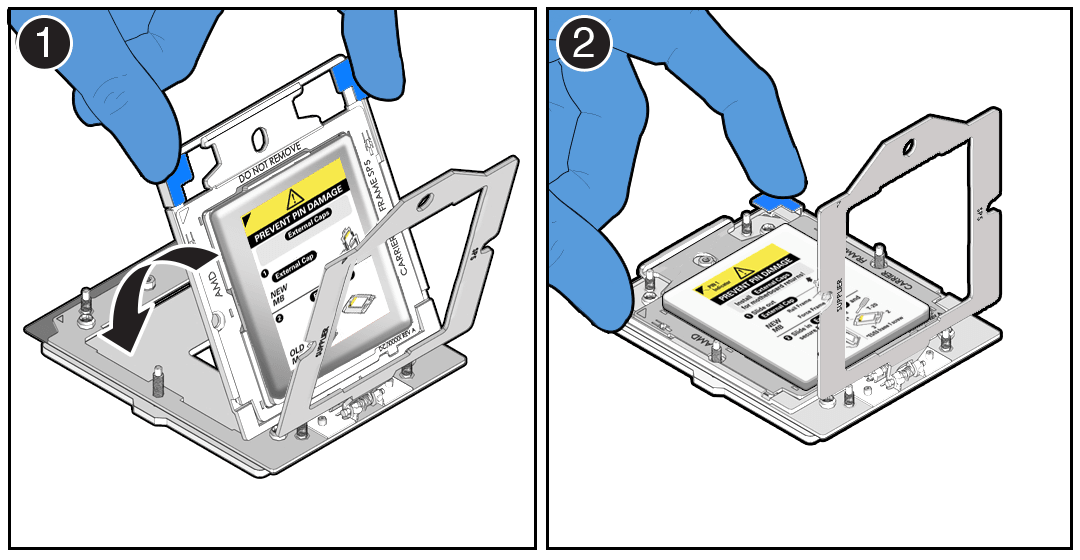
Grasping the rail frame edge [1], rotate the rail frame to the closed position [2].
-
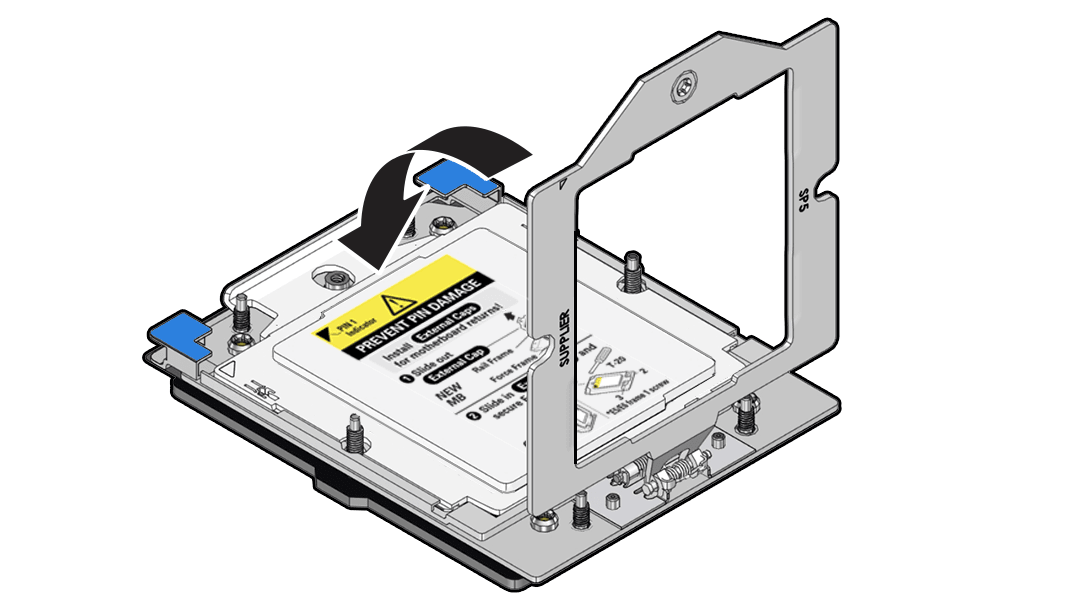
Rotate the force frame to its closed position on the socket stiffener frame.
-
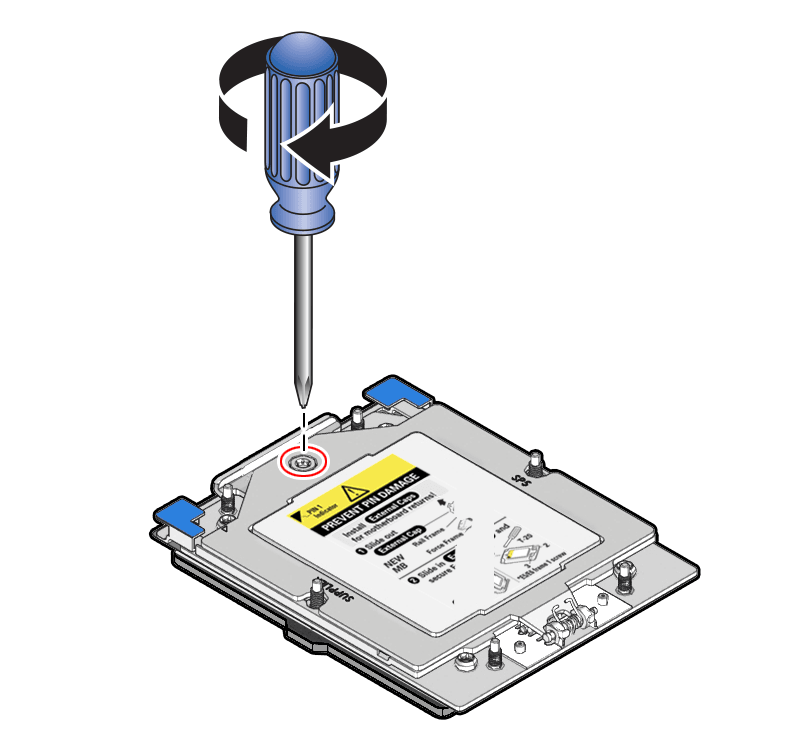
Using a 12 in-lb (inch-pound) (1.35 Nm/13.5 kg-cm) driver with a Torx T20 bit, fully tighten the captive screw that secures the force frame to the socket stiffener frame. Use one hand to hold down the spring-loaded force frame until the screw is tightened.
-
Install a processor into the socket on the replacement motherboard.Install a processor into the socket Processor 0 or Processor 1 from which you removed the processor External Cap. See Install a Processor.
-
Repeat steps 7 and 8 to remove the second processor External Cap from the replacement motherboard and install the second processor.
-
Check to see if the replacement motherboard has a locate light pipe installed.
-
If it does, no action is necessary.
-
If it does not, perform the following steps.
-
Check to see if the replacement motherboard came with a light pipe. A replacement light pipe would be in a separate plastic bag.
-
If you find a replacement light pipe, skip to Step 10.b.
-
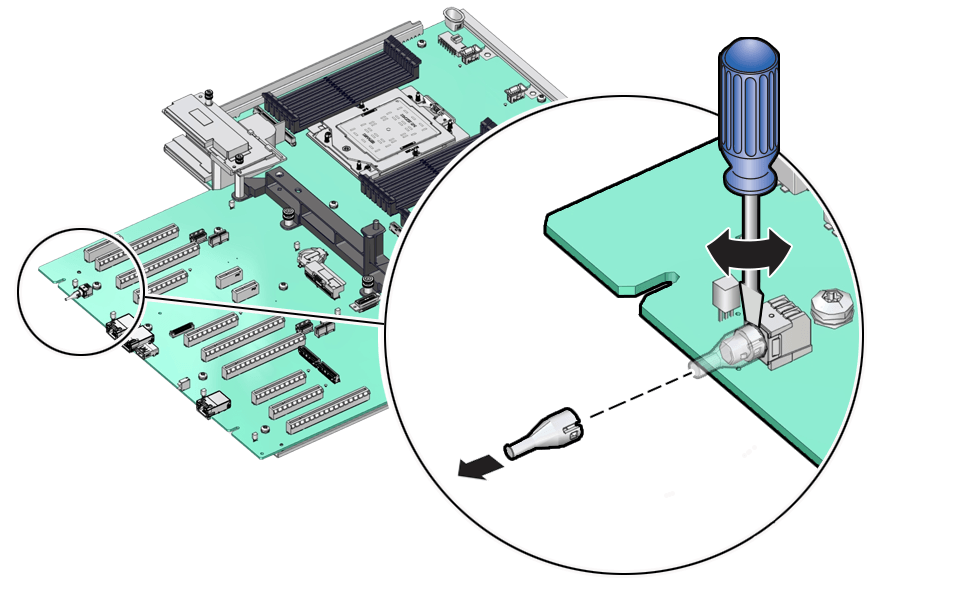
If you do not find a replacement light pipe, perform the following steps to remove the light pipe from the faulty motherboard.
-
Insert a flat tool such as a screwdriver or penknife blade between the light pipe housing and the light pipe.
-
Twist the tool back and forth to release the light pipe from the housing.
-
Pull the light pipe away from the housing.
-
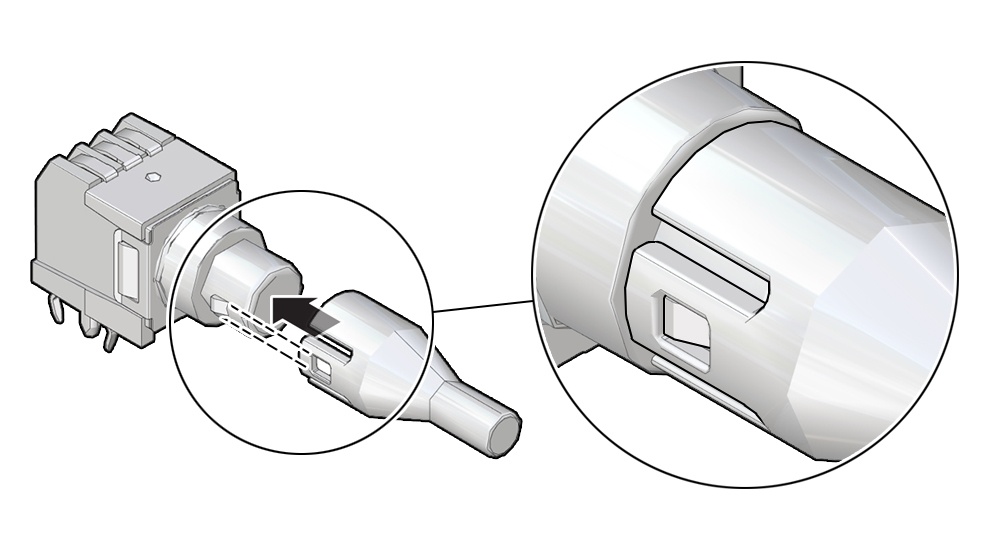
Install the light pipe on the replacement motherboard.
-
Match the rectangular holes on the outside of the light pipe with the retaining clips on the housing.
-
Push the light pipe onto the housing until the clips latch in the holes.
Install
-
Attach an antistatic wrist strap to your wrist, and then to a metal area on the chassis. See Take Antistatic Measures.
-
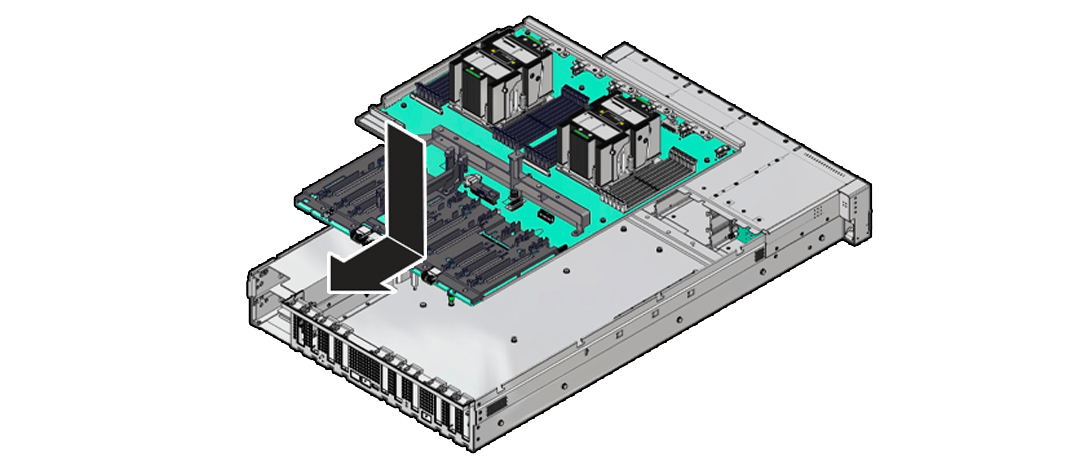
Carefully lift and place the motherboard assembly into the chassis. Use the motherboard handle two holding points to grasp the motherboard. While holding the motherboard mid-wall handle and small plastic motherboard handle, tilt the motherboard to the right side to fit it under the power supply assembly, and level the motherboard and place it into the server chassis. Slide the motherboard to the back of the server to engage the raised standoffs.
-
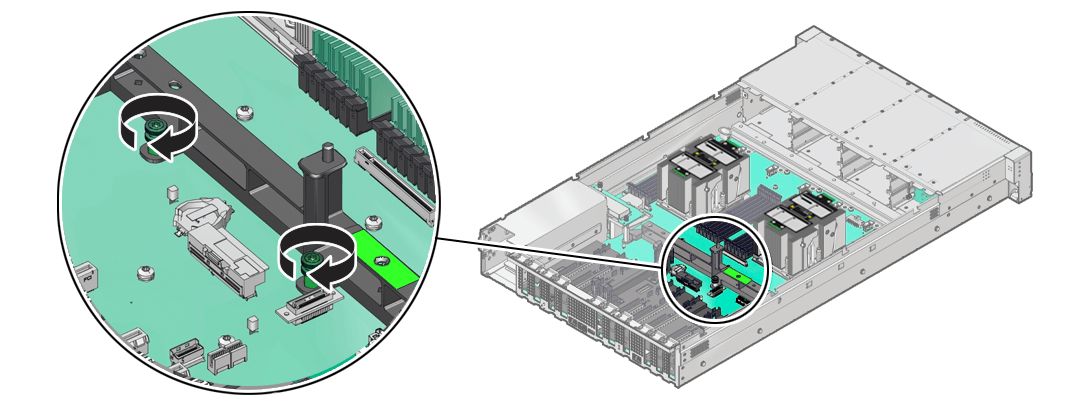
Using a Torx T25 screwdriver, tighten the two captive screws to secure the motherboard mid-wall to the chassis.
-
Reconnect the following cables to the motherboard:
- Disk backplane power (DBP PWR) cable Reconnect the power cable to the motherboard and the disk backplane. Reinstall the cable guide holding the cables NVMe four-disk backplanes use single power cables. SAS twelve-disk backplanes use two power cables. See Replace the Disk Backplane.
- Disk backplane auxiliary signal (DBP SIG) cable. See Replace the Disk Backplane.
- Front LED indicator module (FIM) ribbon cable. See Replace the Front LED Indicator
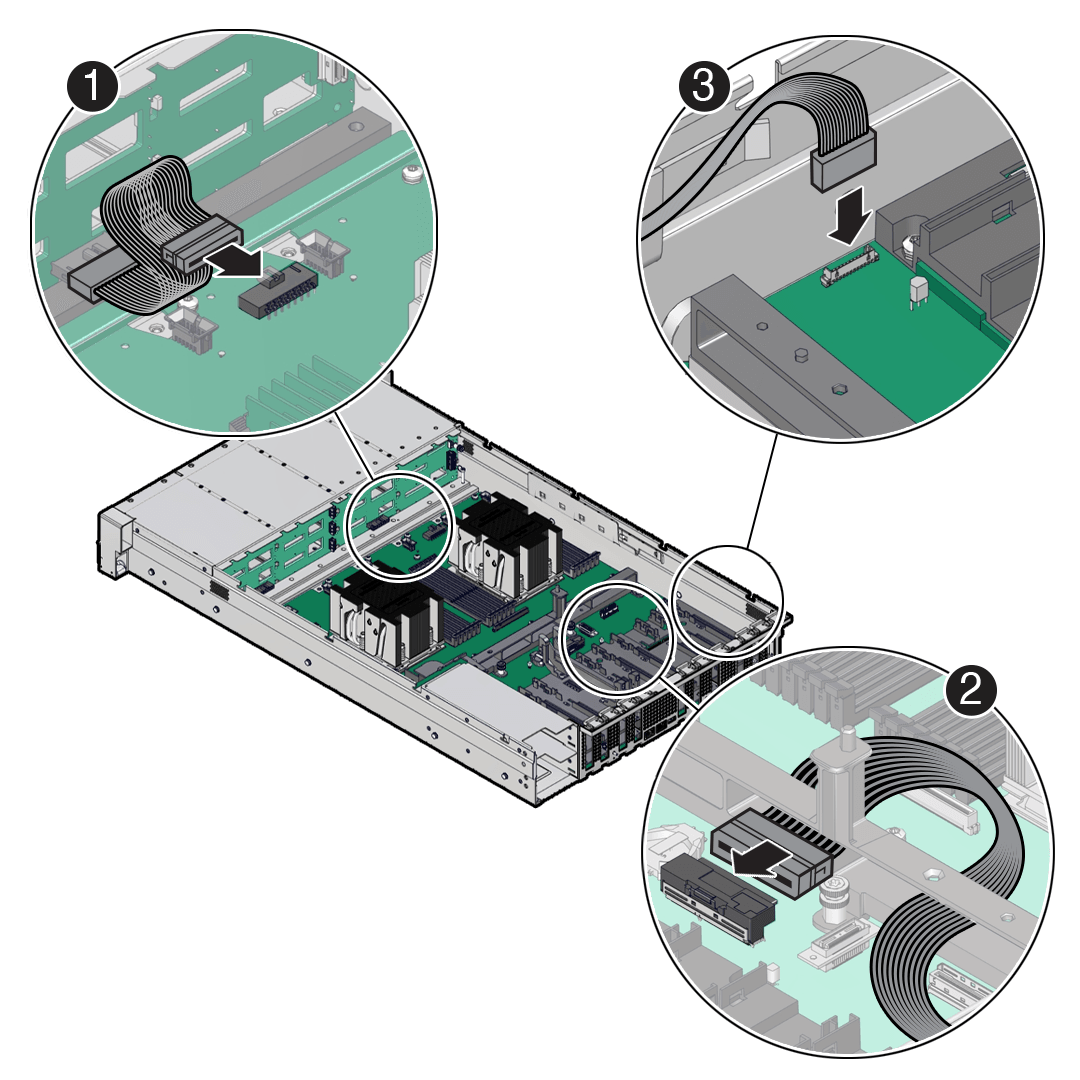
Callout Description 1 Disk backplane power (DBP PWR) cable 2 Disk backplane auxiliary signal (DBP SIG) cable 3 Front LED indicator module (FIM) ribbon -
Reinstall the following components:
-
Power supplies. See Install a Power Supply.
-
PCIe cards and motherboard PCIe cable. See Use the PCIe Flyover Cable to Configure PCIe Electrical Interfaces. See Install a Half Height PCIe Card. See Install a Full Height PCIe Card.
-
SAS storage drive cables (if present). See Install SAS Storage Drive Cables.
-
Fan tray. See Install the Fan Tray.
-
Fan modules. See Install a Fan Module.
-
Air baffle To install the air baffle, the baffle must fit around the processor heatsinks, then lifted up about 50 degrees. Locate the tabs on the air baffle so that one tab on each side is under the lip of the fan tray, and the others are on top of the fan tray. See Install the Air Baffle.
-
- Return the server to operation.
- Install the server top cover. See Install the Server Top Cover.
- Return the server to the normal rack position. See Return the Server to the Normal Rack Position.
- Reconnect the power cords to the power supplies, and power on the server. See Reconnect Power and Data Cables and Power On the Server.
- Verify that the power supply AC OK LED is lit.