13 Replace Processors
This section describes how to service processors.
Processors are replaceable components that require you to power off the server before servicing. For more information about replaceable components, see Illustrated Parts Breakdown and Replaceable Components.
On single-processor systems, processor socket 1 (P1) is shipped without a heatsink and with an External Cap. To protect the delicate processor socket pins, do not remove the External Cap that was installed on the motherboard.
Processor Overview
Socket components in the processor assembly have a pin 1 indicator to aid in assembly.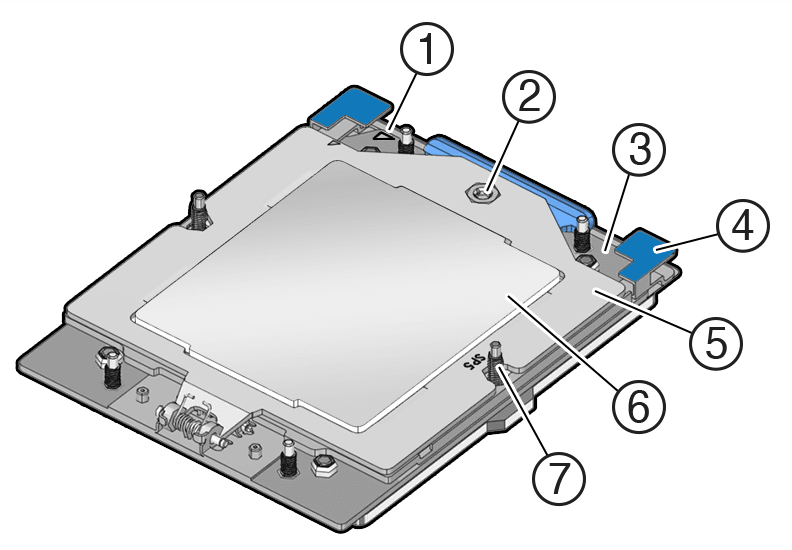
| Callout | Description |
|---|---|
| 1 | Pin 1 orientation |
| 2 | Force Frame Retention Screw (captive) |
| 3 | Rail Frame (socket stiffener frame) |
| 4 | Release Tabs (2x) |
| 5 | Force Frame (retention frame) |
| 6 | Processor Package (carrier frame holding preinstalled processor) |
| 7 | Heatsink Attachment Studs (6x) |
External Cap
The external cap is used to protect the socket pins if the processor is not installed. The following figure shows the External Cap. 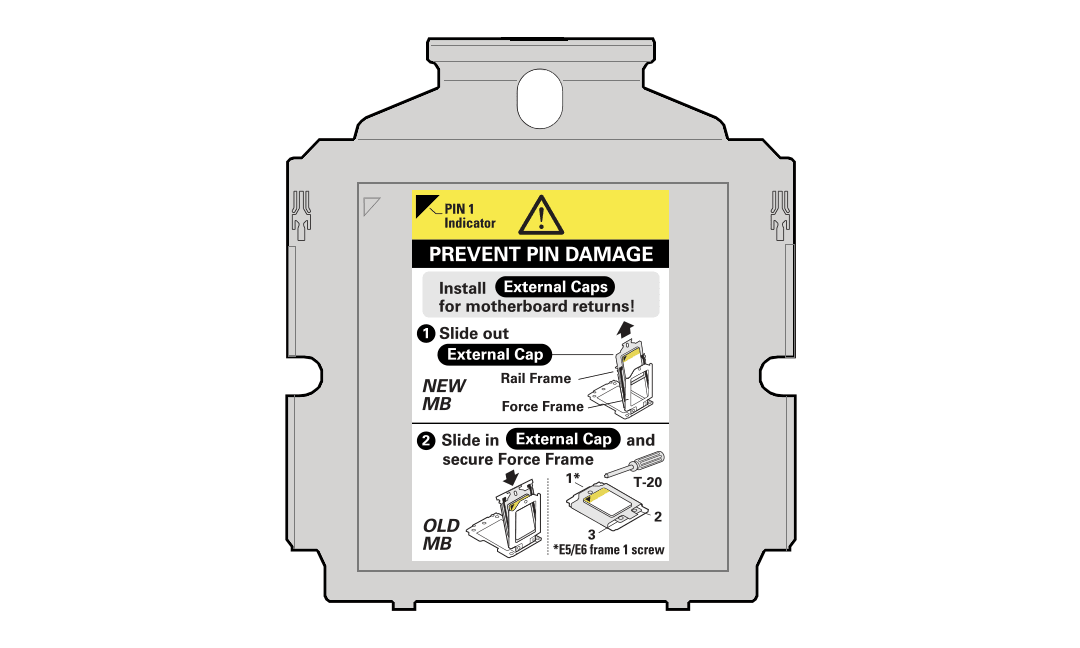
Two processor sockets are located on the server motherboard.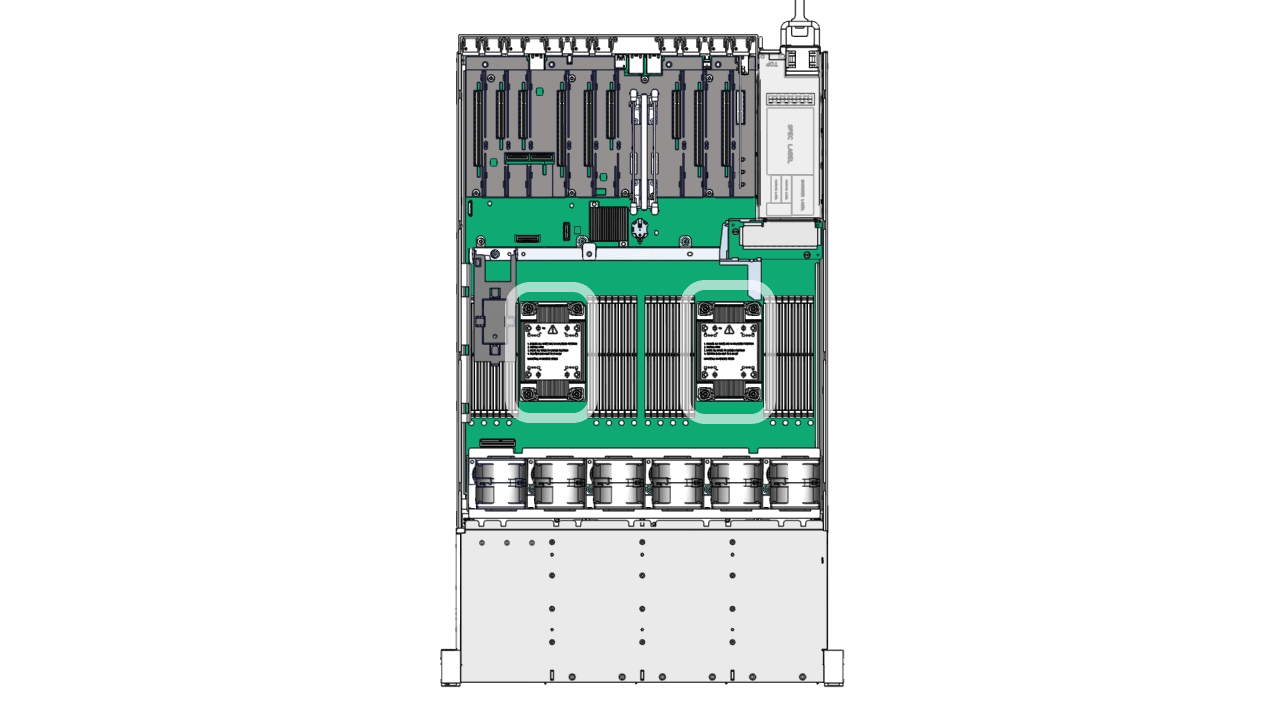
Identify and Remove
-
Use ESD gloves (not latex or vinyl), if possible, when handling the processor.
-
Obtain a torque driver set to 12 in-lb (inch-pound) (1.35 Nm/13.5 kg-cm) force with T20 Torx bit for processor and heatsink removal.
-
Be careful not to touch the processor socket pins.
-
Obtain the materials required to remove the old thermal interface material (TIM).
-
Isopropyl alcohol wipes (included with FRU kit)
-
Techwipes or similar low-lint and low-abrasion wipe
-
Isopropyl alcohol (90% or above recommended)
-
-
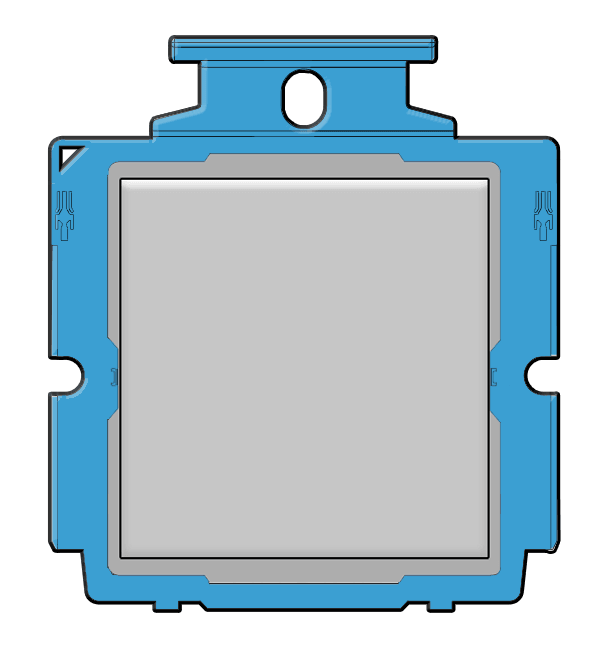
Never remove the processor from the carrier. Replacement processors come preinstalled in a carrier package as shown in the following illustration.
-
Prepare the server for service.
-
Power off the server. See Power Down the Server.
-
Disconnect the power cords from the power supplies. See Disconnect Cables From the Server.
-
Extend the server to the maintenance position. See Extend the Server to the Maintenance Position.
-
Attach an antistatic wrist strap to your wrist, and then to a metal area on the chassis. See Take Antistatic Measures.
-
Remove the server top cover. Use a Torx T15 screwdriver to unlock the release button latch. See Remove the Server Top Cover.
-
Remove the air baffle. Remove the air baffle (sitting over the two processors) by lifting the baffle up and out of the server. Lift up the air baffle in the rear at a 50 degree angle, and slide slightly rearward to clear the air baffle tabs that prevent the front of the baffle from lifting up. Set aside the air baffle. See Remove the Air Baffle.
-
Identify the location of the failed processor by pressing the Fault Remind button on the motherboard. When you press the Fault Remind button, an LED located next to the Fault Remind button illuminates green, indicating that there is sufficient voltage in the fault remind circuit to illuminate any fault LEDs that were illuminated due to a failure. If this LED fails to illuminate when you press the Fault Remind button, it is likely that the capacitor powering the fault remind circuit lost its charge. This can happen if you press the Fault Remind button for a long time with fault LEDs illuminated, or if power was removed from the server for more than 15 minutes. The processor fault LED for the failed processor illuminates. The processor fault LEDs are located next to the processors. See Motherboard Status Indicators.
-
If the processor fault LED is off, the processor is operating properly.
-
If the processor fault LED is illuminated (amber), the processor failed and you must replace it.
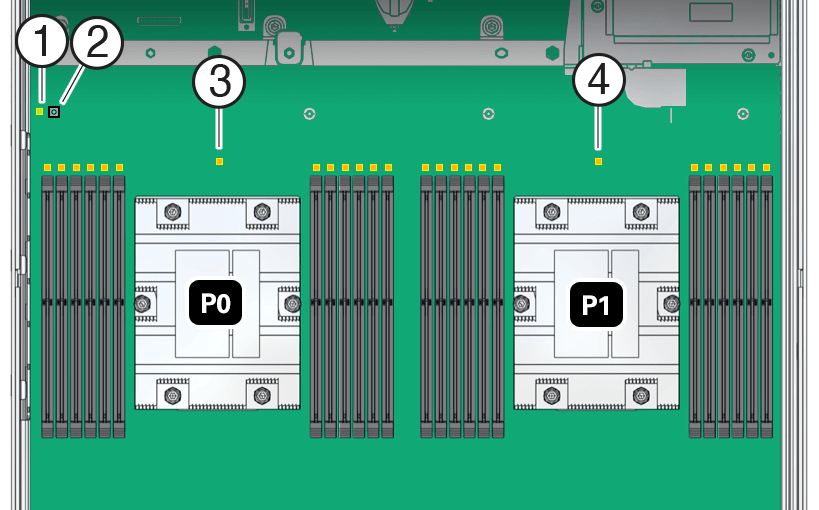
Callout Description 1 Fault Remind circuit power LED - green 2 Fault Remind button 3 Processor 0 fault LED - amber 4 Processor 1 fault LED - amber 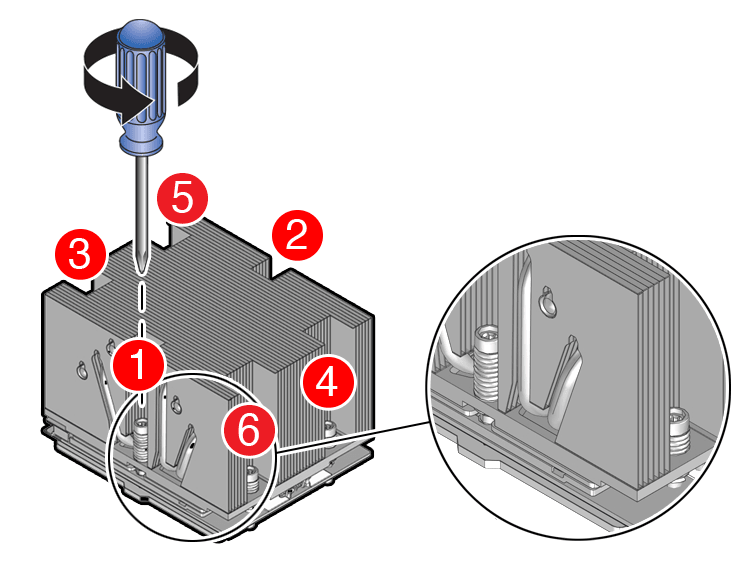
-
Using a Torx T20 screwdriver, loosen the six captive screws that secure the heatsink to the socket. Loosen in reverse order 6-1, then go back and disengage completely.
-
Loosen captive screws 6,5,4,3,2,1 in the order shown in the illustration.
-
Disengage captive screws 6,5,4,3,2,1 in the order shown in the illustration.
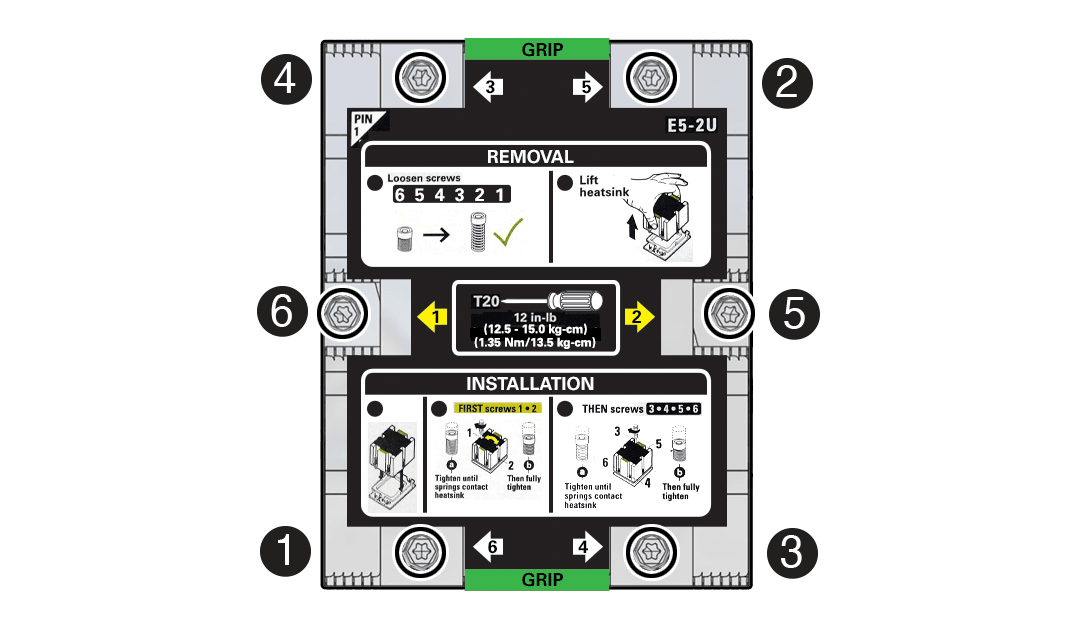
Use a torque driver set to 12 in-lb (inch-pound) (1.35 Nm/13.5 kg-cm) force with T20 Torx bit. -
Lift the heatsink from the socket. Always grip the heatsink along the axis of the fins to prevent damage.
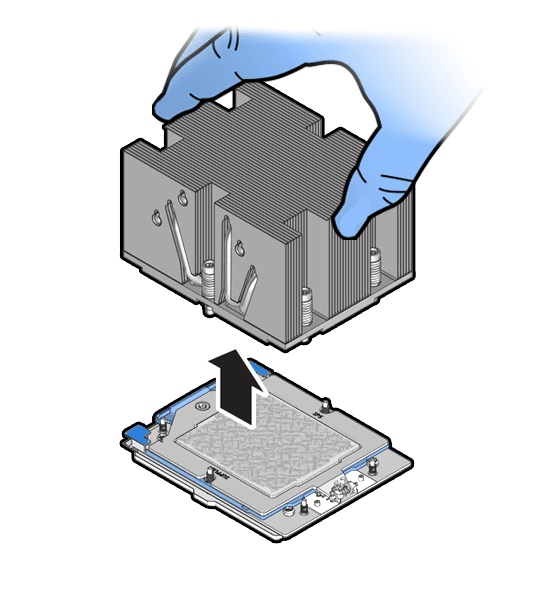
-
Place the heatsink, facing up, on a work surface.
-
Remove Thermal Grease. Clean off the thermal interface material (TIM) using the supplied alcohol wipes. If reusing a processor, do not remove it from the processor carrier. Follow these steps if you plan on reusing either the heatsink or processor.
-
Gather Thermal Grease Removal Materials required.
-
1. Techwipes or similar low-lint and low-abrasion wipe
-
2. Isopropyl alcohol (90% or above recommended)
-
3. Torx T20 screwdriver
-
4. SP5 socket protective lid Some thermal greases may be classified as hazardous waste and should be disposed of in proper hazardous waste collection bins.
-
Wipe the heatsink with a dry wipe to remove most of the thermal grease. Then add a small amount of isopropyl alcohol to a wipe and rub until there is no grease remaining.
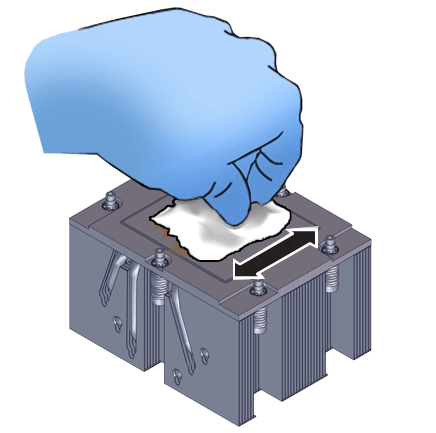
-
Wipe the processor lid with a dry wipe to remove most of the thermal grease.Processor 1 fault LED - amber
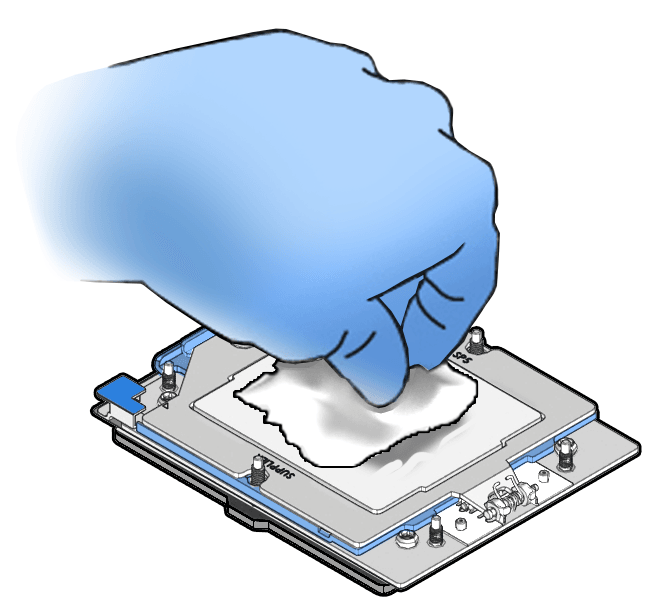
-
Using a Torx T20 screwdriver, loosen the captive Force Frame Retention Screw that secures the Force Frame to the socket. The Force Frame is spring loaded, apply counter-pressure to prevent the Force Frame from flying open unrestricted.
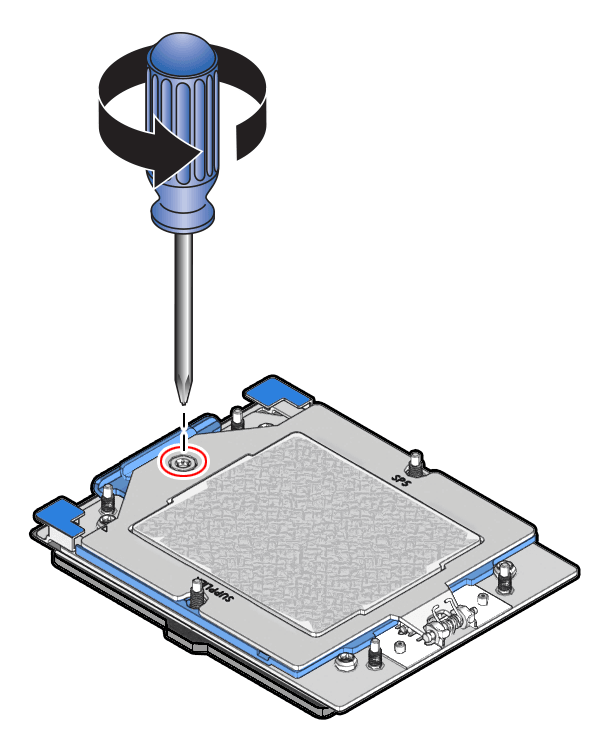
-
Lift the Force Frame to the open position.
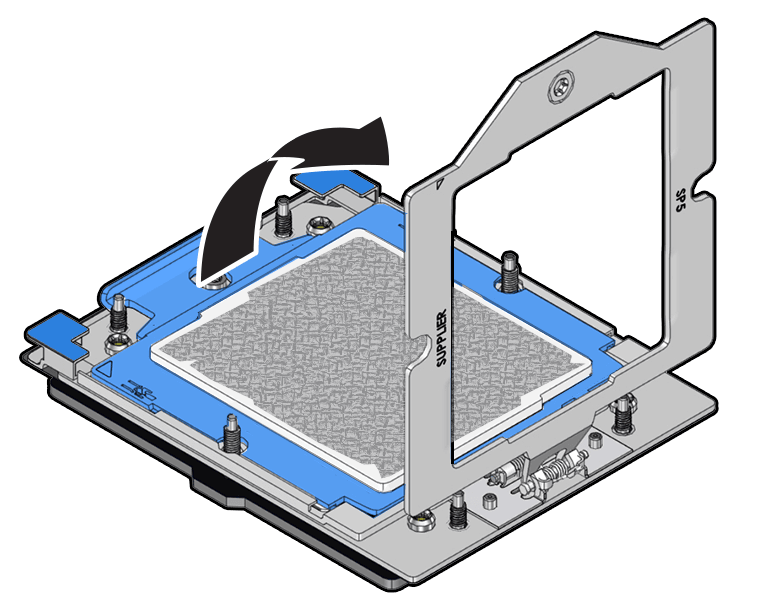
-
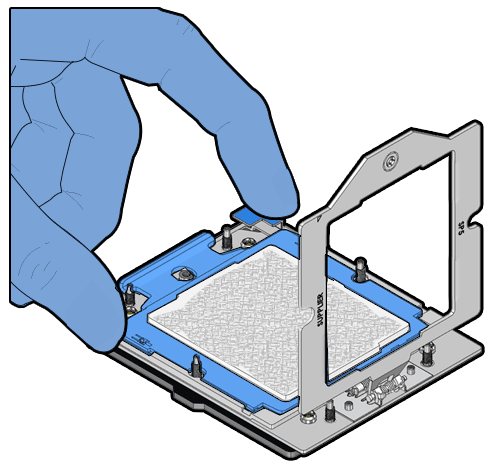
Open the Rail Frame.Squeeze the blue tabs to release the Rail Frame.
-
Lift the Rail Frame and slide out the carrier frame package. Lift the Rail Frame by holding its lift tabs and rotating the Rail Frame to its near vertical position.
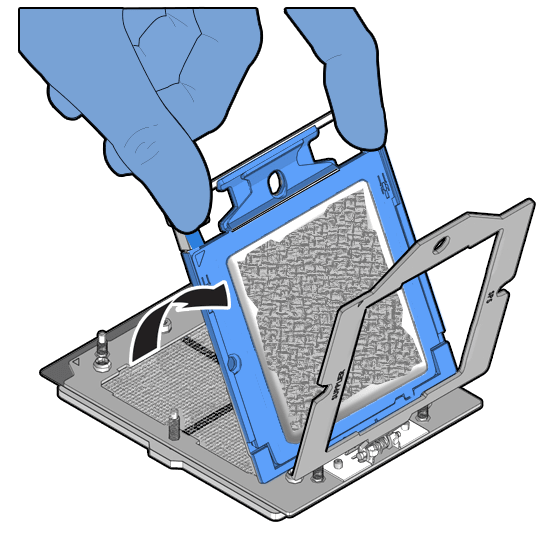
The Rail Frame is spring-loaded. Hold on to the Rail Frame as it releases from the socket frame, when rotating it to the vertical position. -
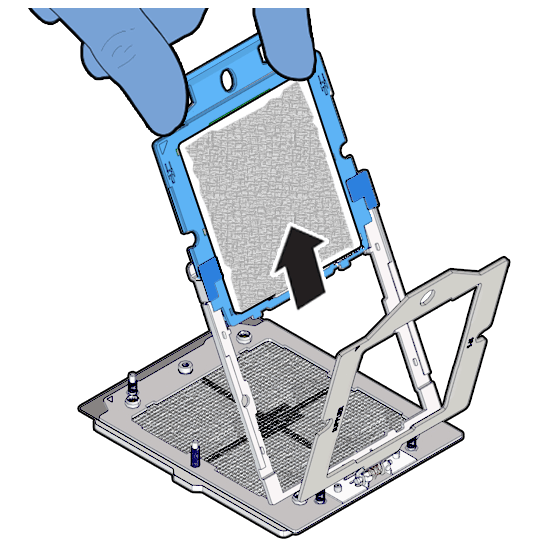
Holding the processor carrier by its handle, slide the carrier out of the Rail Frame.
-
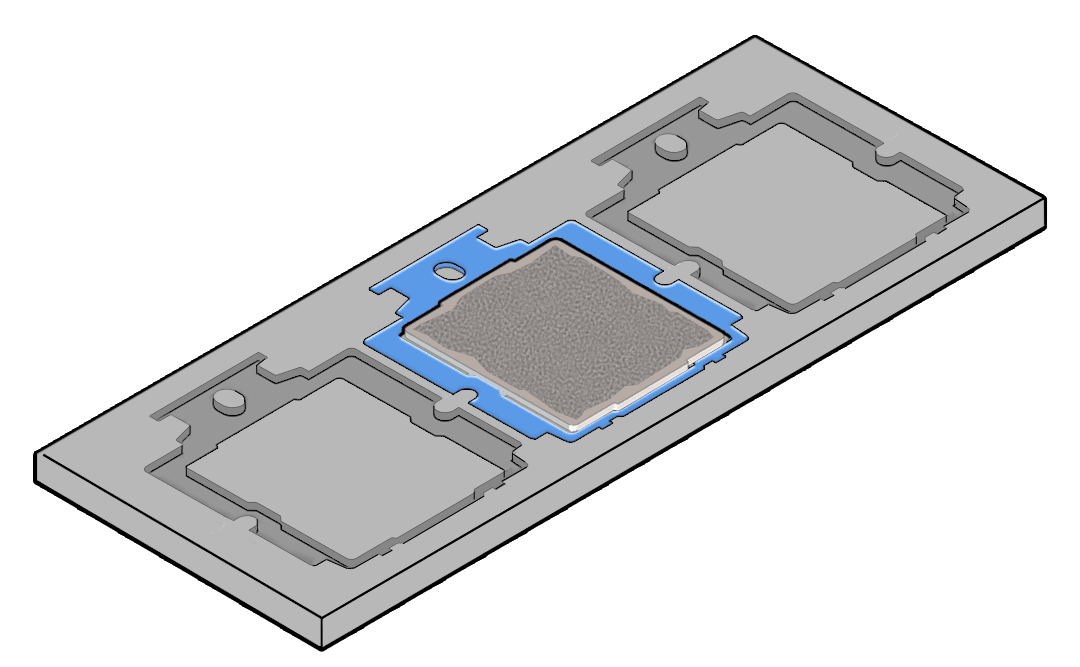
Place the carrier frame package in an appropriate tray.
-
Wipe the Force Frame (retention frame) with a dry wipe followed by a wipe with a small amount of isopropyl alcohol. Clean off the thermal interface material (TIM) as needed, wipe the outside and inside of the Force Frame with a dry wipe followed by a wipe with a small amount of isopropyl alcohol.
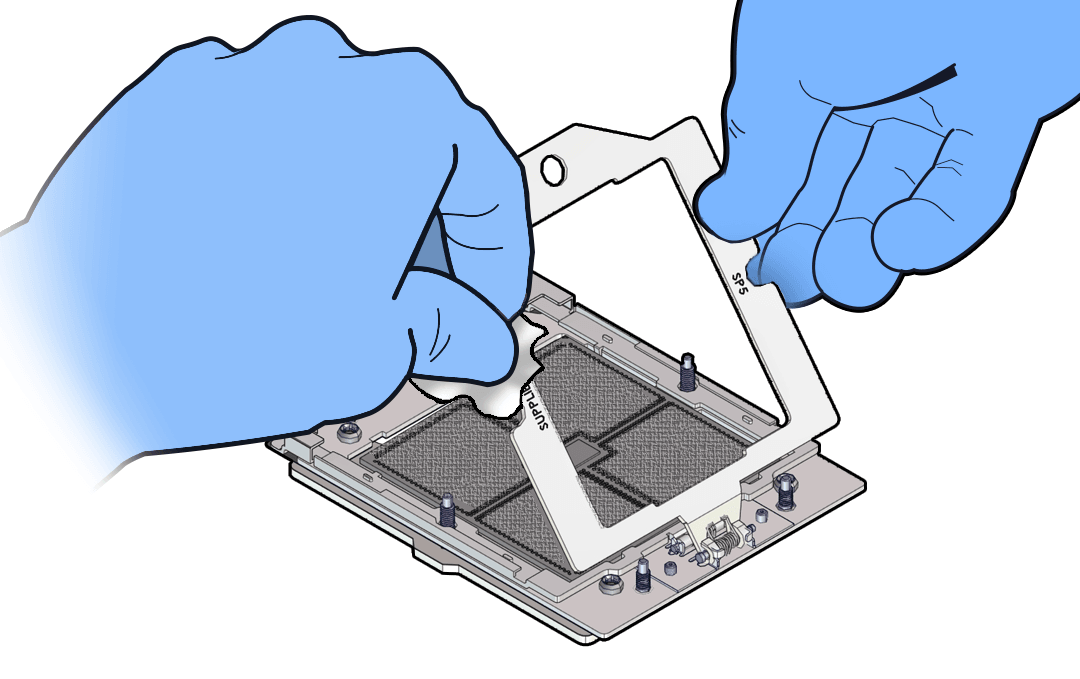
-
Wipe the processor lid and carrier frame with a dry wipe followed by a wipe with a small amount of isopropyl alcohol. Clean off the thermal interface material (TIM) from the processor using the supplied alcohol wipes.
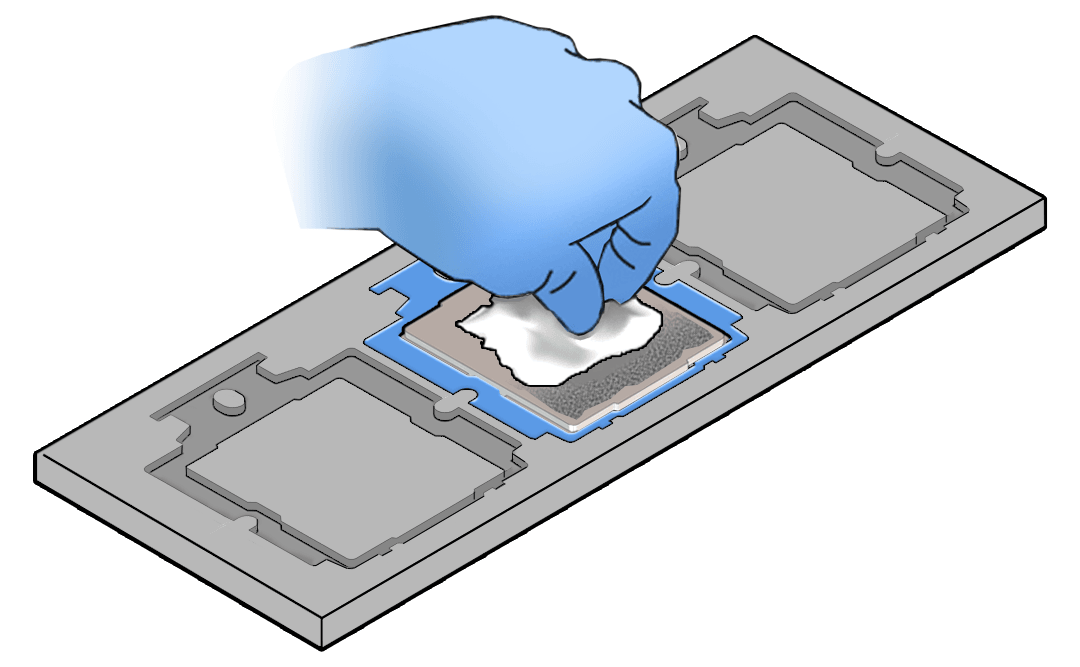
Install
-
Use ESD gloves (not latex or vinyl), if possible, when handling the processor.
-
Obtain a torque driver set to 12 in-lb (inch-pound) (1.35 Nm/13.5 kg-cm) force with T20 Torx bit for processor and heatsink installation.
-
Be careful not to touch the processor socket pins.
-
If you are replacing a processor, ensure that the replacement processor is identical to the processor that was removed. For a list of supported processors, see Product Description.
-
Attach an antistatic wrist strap to your wrist, and then to a metal area on the chassis. See Take Antistatic Measures.
-
Open the new processor package. Ensure that the replacement processor is identical to the processor that was removed. The processor is preinstalled on the processor carrier.
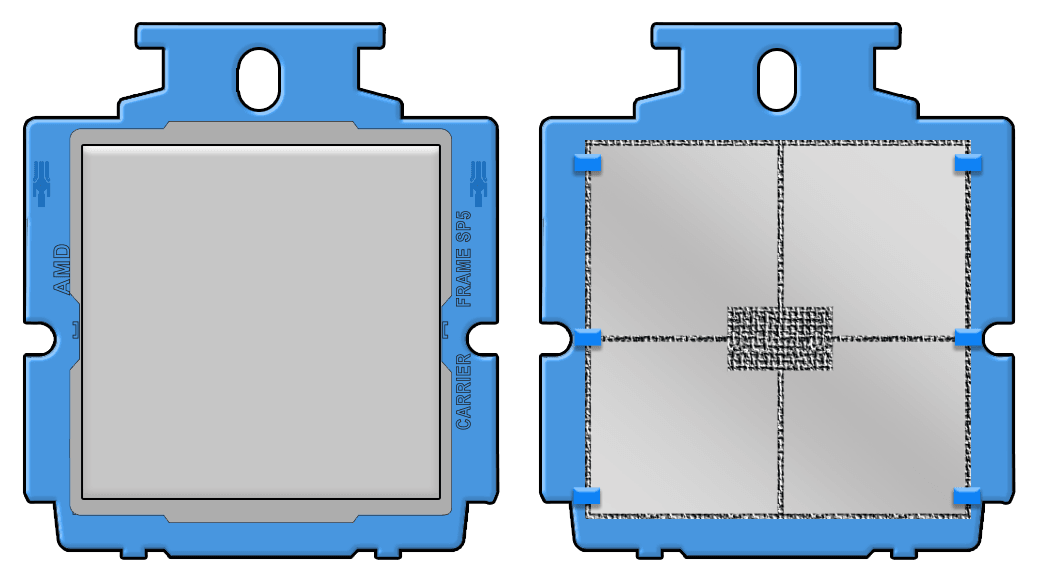
Note the orientation and correct handling of the processor package.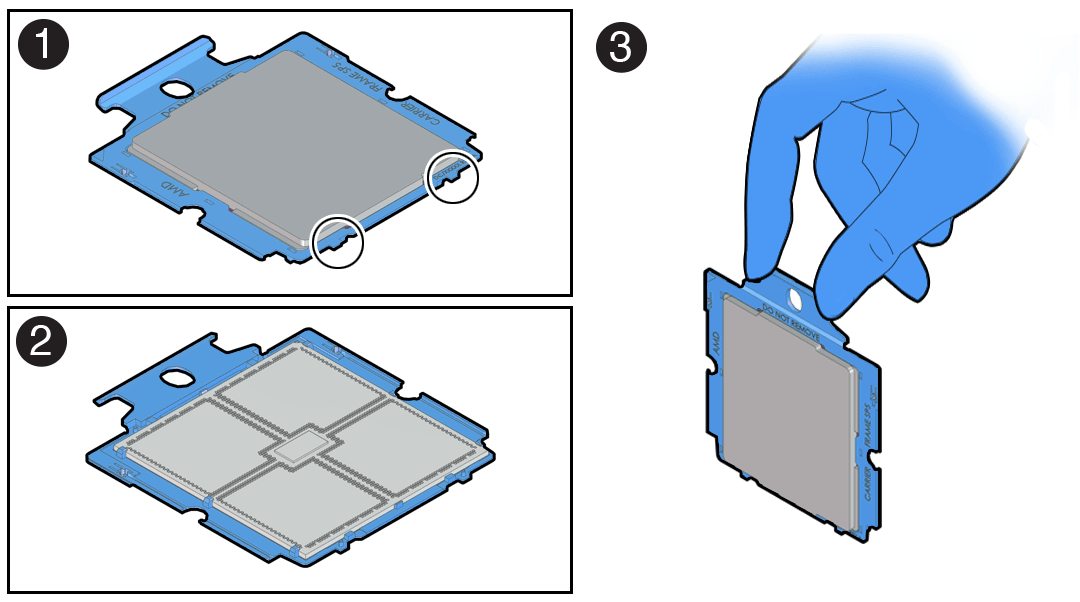
Callout Description 1 Top of processor carrier (insertion tabs are circled) 2 Bottom of processor carrier (contacts the socket) 3 Use of the processor carrier handle -
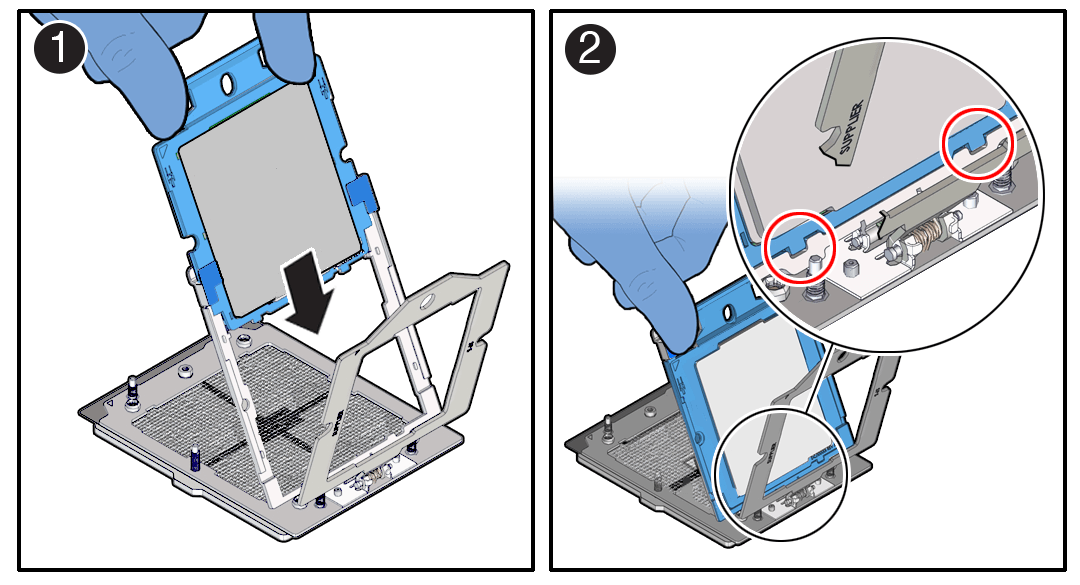
Holding the processor carrier by its handle [1], slide it into the Rail Frame. Ensure the two insertion tabs at the bottom of the processor carrier are inserted into the slots in the Rail Frame [2].
-
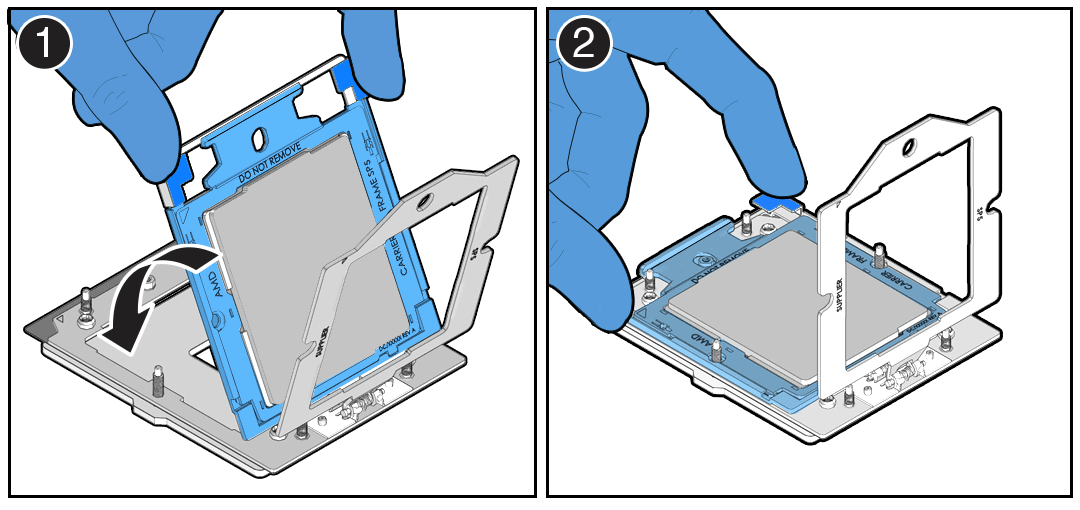
Grasping the Rail Frame edge [1], rotate the Rail Frame to the closed position [2].
-
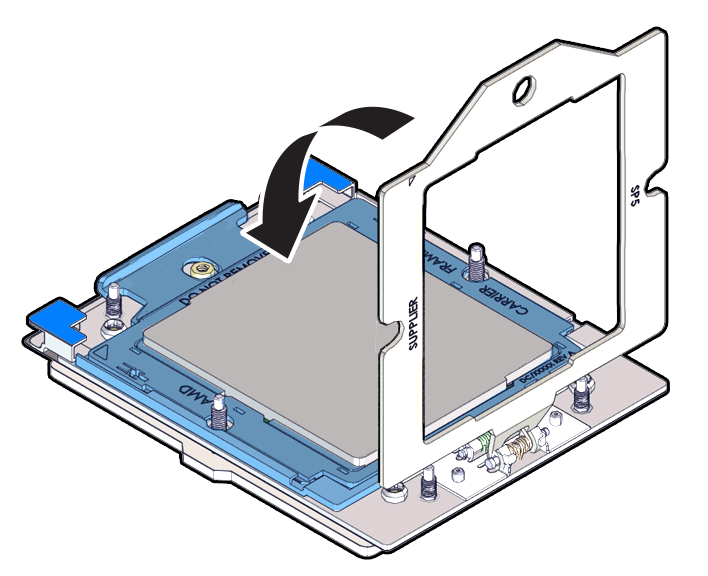
Rotate the Force Frame to its closed position on the socket stiffener frame.
-
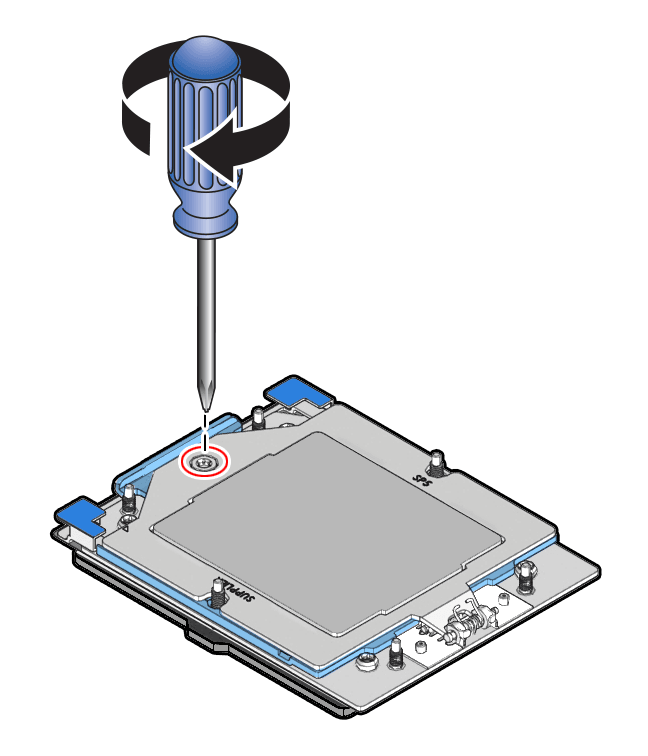
Using a 12 in-lb (inch-pound) (1.35 Nm/13.5 kg-cm) driver with a Torx T20 bit, fully tighten the captive screw that secures the Force Frame to the socket stiffener frame. Use one hand to hold down the spring-loaded Force Frame until the screw is tightened.
-
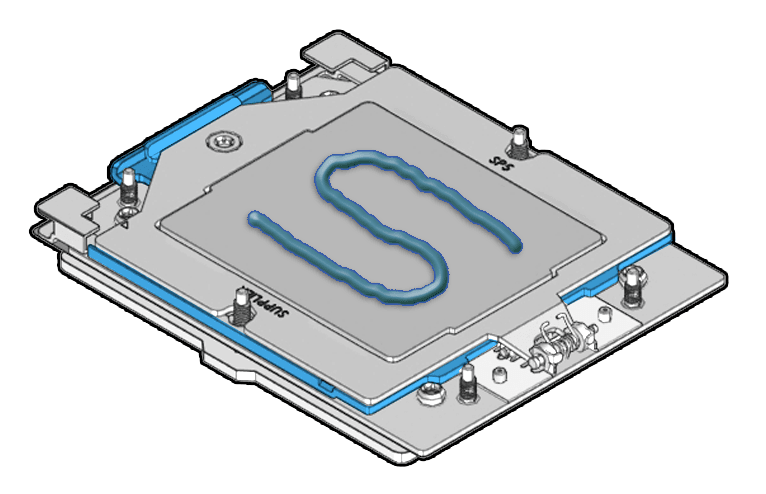
Apply Thermal Grease. Using the supplied syringe, evenly apply all of thermal interface material (TIM) in an "S" pattern centered on the top of the processor. Keep the "S" pattern inside a half inch of the processor edge so the grease doesn't overflow and contaminate other parts of the processor housing. Do not distribute the TIM. The pressure of the heatsink will do so for you when you install the heatsink.
-
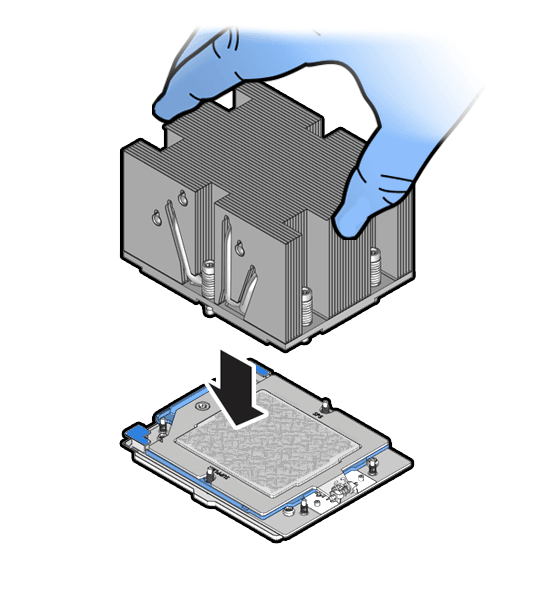
Lower the heatsink (see the following note) on to the six socket heatsink attachment studs. Screws 1 and 2 are slightly longer than screws 3, 4, 5, and 6. Carefully lower the module. The heatsink is keyed to go on only one way. The captive screws that attach to the pin 1 end of the socket stiffener frame are closer together than the captive screws that attach at the opposite end of the stiffener frame.
-
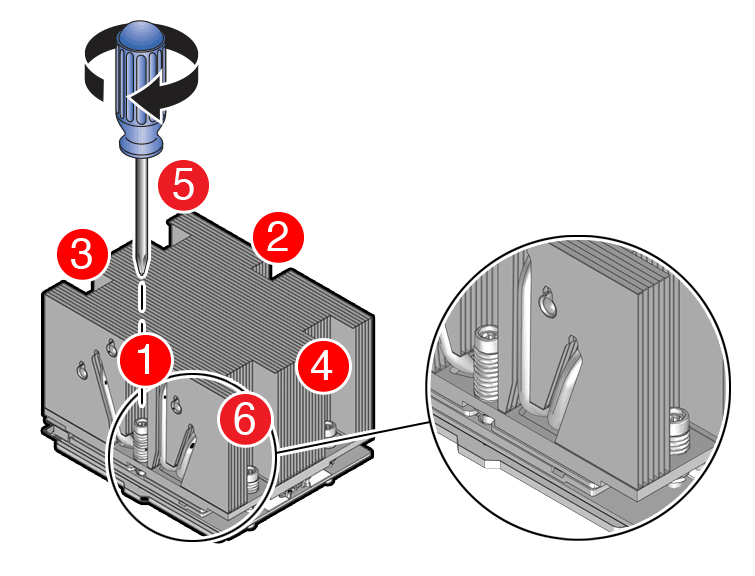
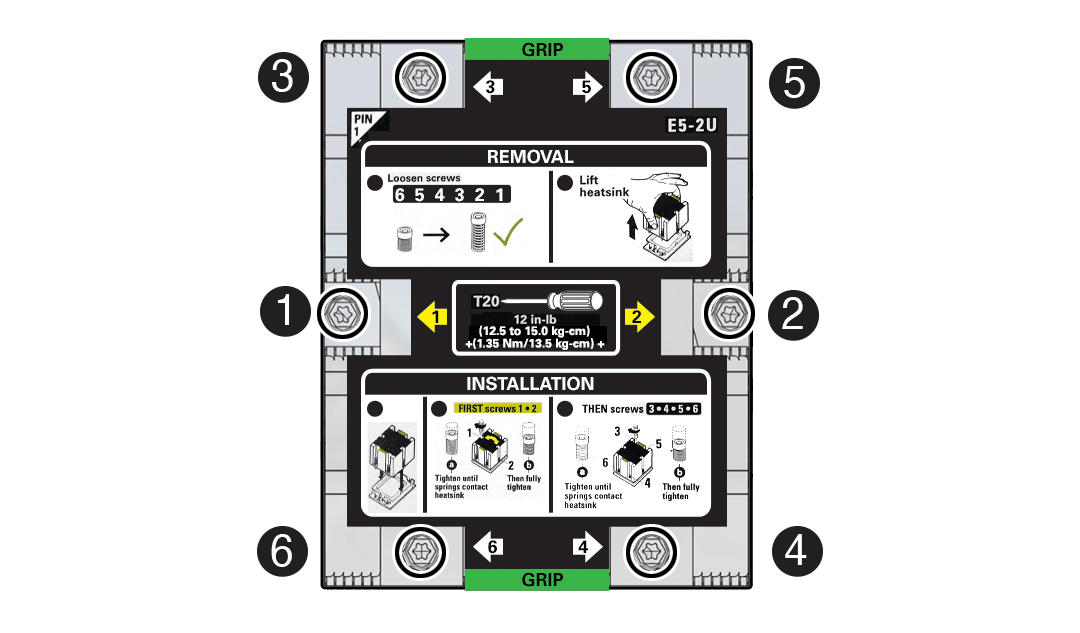
Tighten captive screws 1, 2, 3, 4, 5 and 6 in the order shown.Using a 12 in-lbf (1.35 Nm/13.5 kg-cm) torque driver with a Torx T20 bit, tighten the heatsink module to the socket, as shown in the following illustration.
-
Engage captive screws 1, 2, 3, 4, 5 and 6 in the order shown in the illustration.
-
Tighten captive screws 1, 2, 3, 4, 5 and 6 in the order shown in the illustration from 12 in-lbf (13.5 kg-cm) to 13.02 in-lbf (15.0 kg-cm).
-
Return the server to operation.
-
Install the air baffle. See Install the Air Baffle.
-
Install the server top cover. See Install the Server Top Cover.
-
Return the server to the normal rack position. See Return the Server to the Normal Rack Position.
-
Reconnect the power cords to the power supplies, and power on the server. See Reconnect Power and Data Cables and Power On the Server.
-
Verify that the power supply AC OK LED is lit.
-
Use Oracle ILOM to clear server processor faults.
-
To show server faults: log in to the server as root using the Oracle ILOM CLI, and type the following command to list all known faults on the server: -> show /SP/faultmgmt The server lists all known faults, for example: Copy -> show /SP/faultmgmt Targets: shell 0 (/SYS/MB/P0) Properties: Commands: cd show Alternatively, log in to the Oracle ILOM service processor from the Oracle ILOM Fault Management Shell and issue the
fmadm faultycommand. For more information about how to use the Oracle ILOM Fault Management Shell and supported commands, see the Oracle ILOM User's Guide for System Monitoring and Diagnostics at Oracle ILOM Documentation. -
To clear the fault identified in previous step, type the following command: set command -> set /SYS/MB/P0 clear_fault_action=true For example: Copy -> set /SYS/MB/P0 clear_fault_action=true Are you sure you want to clear /SYS/MB/P0 (y/n)? y Set ‘clear_fault_action’ to ‘true’ Alternatively, to clear all known faults in the server, log in to the Oracle ILOM service processor from the Oracle ILOM Fault Management Shell and issue the
fmadm repaircommand.