16 Replace SAS Cables
This section describes how to service SAS cables.
SAS interface cables are replaceable components that require you to power off the server before servicing. or more information about replaceable components, see Illustrated Parts Breakdown and Replaceable Components.
Caution:
The system supplies power to the cables even when the server is powered off. To avoid personal injury or damage to the server, you must disconnect power cords before servicing the cables.Caution:
These procedures require that you handle components that are sensitive to electrostatic discharge. This sensitivity can cause the component to fail. To avoid damage, ensure that you follow electrostatic discharge safety measures and antistatic practices. See Electrostatic Discharge Safety.Remove
- Prepare the server for service.
- Power off the server. See Power Down the Server.
- Disconnect the power cords from the power supplies. See Disconnect Cables From the Server.
- Extend the server to the maintenance position. See Extend the Server to the Maintenance Position.
- Attach an antistatic wrist strap to your wrist, and then to a metal area on the chassis. See Take Antistatic Measures.
- Remove the server top cover. See Remove the Server Top Cover.
- Remove the air baffle. See Remove the Air Baffle.
- Remove fan modules. See Remove a Fan Module.
- Remove the fan tray from the server. See Remove the Fan Tray.
- Disconnect the SAS cables from the disk backplane [1].Press and hold the button on the connector to disengage the locking mechanism, then gently pull the connector from the disk backplane.
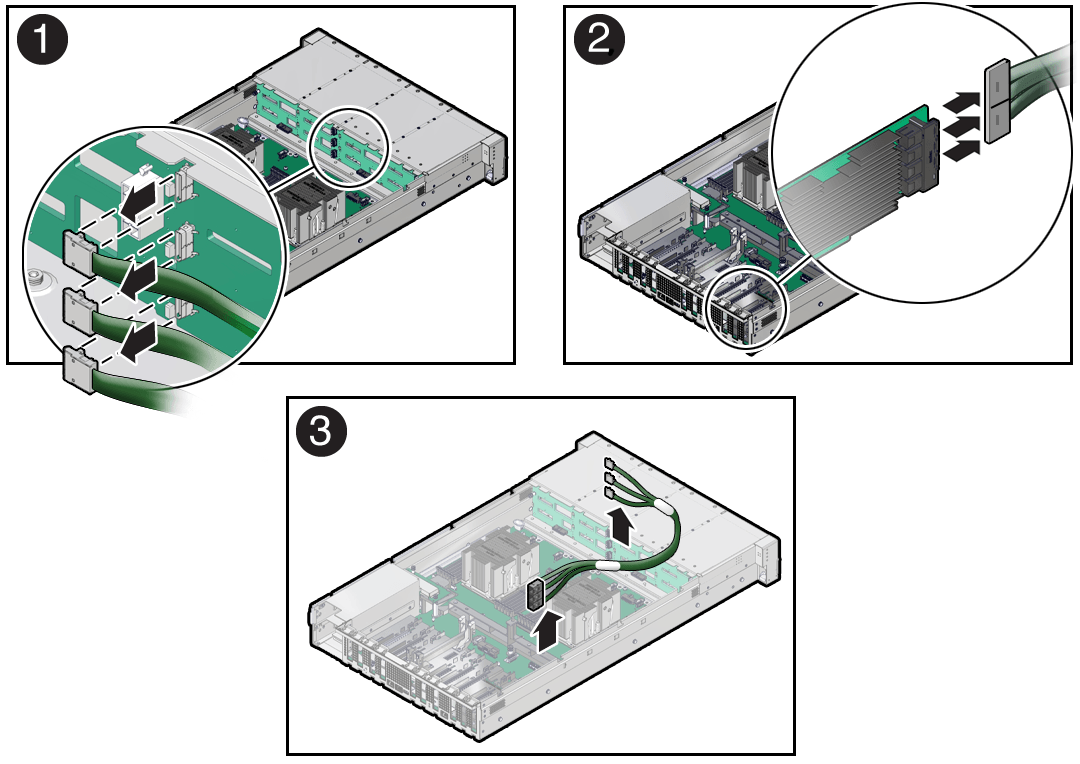
- Disconnect the SAS cables from the Broadcom 9500-16i, 12GB SAS PCIe, 16 Port, Internal card in PCIe slot 9 [2].Press each latch, and then pull out to disengage the cable from each connector.
- Remove the SAS cables from the server [3].Carefully remove the SAS cable bundles from the server. Be careful not to snag the cables on the server components.
Install
- Install the SAS cables between the disk backplane and the rear PCIe slots [1].Route the SAS cable bundle through the left-side cable trough.
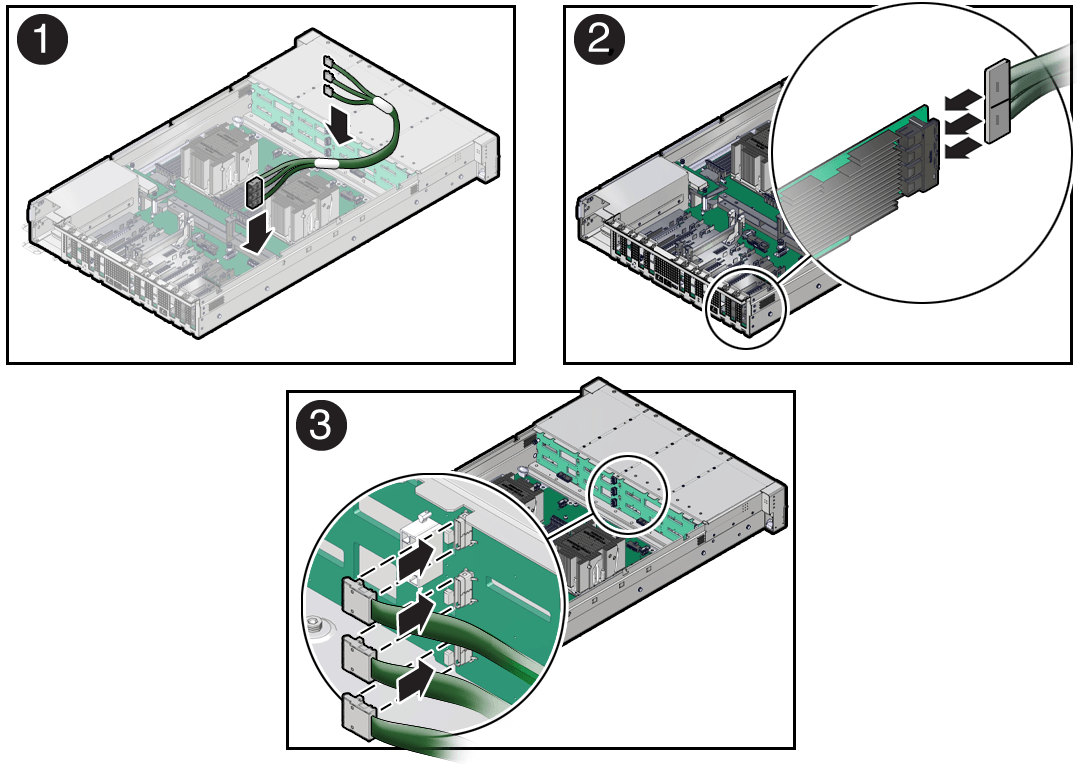
- Reconnect the SAS cables to the Broadcom 9500-16i, 12GB SAS PCIe, 16 Port, Internal card in PCIe slot 9 [2].Plug each cable into its SAS connector until you hear an audible click. To ensure proper SAS cable connections, see the SAS cable connections table in Step 3.
SAS cable assembly, part number 8211223 [F] is required to connect the HBA card to the disk backplane.
- Reconnect the SAS cables to the disk backplane [3].Plug each cable into its SAS connector until you hear an audible click.
When attaching SAS cables, ensure that you match the numbers on the SAS cables with the SAS connectors on the disk backplane and on the HBA card. Use the following table to ensure proper SAS connections between the disk backplane and the HBA card. Use PCIe slot 9.
| HBA Connector | Disk Backplane Connector | SAS Storage Drives |
|---|---|---|
| C0 - 1 | 1 | 0, 1, 2, 3 |
| C0 - 2 | 2 | 4, 5, 6, 7 |
| C1 - 3 | 3 | 8, 9, 10, 11 |
- Return the server to operation.
- Install the fan tray. See Install the Fan Tray.
- Install the fan modules. See Install a Fan Module.
- Install the air baffle. See Install the Air Baffle.
- Install the server top cover. See Install the Server Top Cover.
- Return the server to the normal rack position. See Return the Server to the Normal Rack Position.
- Reconnect the power cords to the power supplies, and power on the server. See Reconnect Power and Data Cables and Power On the Server.
- Verify that the power supply AC OK LED is lit.