4 Replace Storage Drives
This chapter describes how to service storage drives.
Storage drives are replaceable components that do not require you to power off the server before servicing. For more information about replaceable components, see Illustrated Parts Breakdown and Replaceable Components.
The procedures and illustrations in this chapter apply to both NVMe and SAS storage drives, except where noted.
The following sections describe how to remove and replace hard-disk drives (HDDs) and NVMe solid-state drives (SSD) storage drives.
Storage Drive Hot-Plug Conditions
The SAS hard-disk drives (HDDs) or NVMe solid-state drives (SSDs) that are installed in the server are in most cases hot-pluggable. The hot-plug capability depends on how the drives are configured and whether the drive is an NVMe device. To hot-plug a drive you must take the drive offline before you can remove it. When you take the drive offline, you prevent any application from accessing the drive and remove the logical software links to the drive. For an NVMe storage drive, you must not only take the drive offline, but also power down the drive slot.
The following conditions inhibit the ability to perform hot-plugging of a drive:
- The drive provides the operating system, and the operating system is not mirrored on another drive.
- The drive cannot be logically isolated from the online operations of the server.
- The operating system does not support hot plug for the drive.
If any of these disk drive conditions are true, then you must shut down the system before you replace the drive. See Power Down the Server.
Replacing a drive does not require extending or removing the server from a rack.
Storage Drive Failure and RAID
A single storage drive failure does not cause a data failure if you configured the storage drives as a mirrored RAID 1 volume (optional). The storage drive can be removed, and when a new storage drive is inserted, the contents are automatically rebuilt from the rest of the array with no need to reconfigure the RAID parameters. If you configured the replaced storage drive as a hot-spare, the new HDD is automatically configured as a new hot-spare.
See Configure NVMe RAID Using BRU for server instructions.
Remove
- Prepare the system for the drive removal. Refer to Take Antistatic Measures.
- Identify the location of the drive that you want to remove. For storage drive locations, see either NVMe Storage Drive Configuration or SAS Storage Drive Configuration.
If NVMe storage drives are installed in the server front panel, they are labeled NVMe0 through NVMe3. Server operating systems may assign these storage drives different names.
The following table shows sample corresponding names assigned by the operating systems. Example drive names provided in the table assume that the NVMe cabling between the motherboard and the NVMe disk backplane is correct.
| Storage Drive Labels | Example Names Assigned by Server Operating Systems |
|---|---|
| NVMe0 | PCIe Slot 100 |
| NVMe1 | PCIe Slot 101 |
| NVMe2 | PCIe Slot 102 |
| NVMe3 | PCIe Slot 103 |
- Remove the storage drive.
- If you are removing an HDD or SSD storage drive, type the required operating system commands to stop the server from using the drive; otherwise, proceed to the next step.
The exact commands required depend on the configuration of your drives. Unmount file systems or issue RAID commands, as needed.
- The blue OK to Remove status indicator LED on the drive might not light, as support for this varies depending on the operating system in use. For information on storage drive status indicators (LEDs), see Storage Drive Status Indicators.
- If you are removing an NVMe storage drive, see the procedures for your operating system.
NVMe storage drives are supported only on servers that are running Oracle Linux and Oracle Solaris.
- Remove and Replace an NVMe Storage Drive Using Oracle Solaris
- Remove and Replace an NVMe Storage Drive Using Oracle Linux
- Push the latch release button to open the drive latch [1, 2].
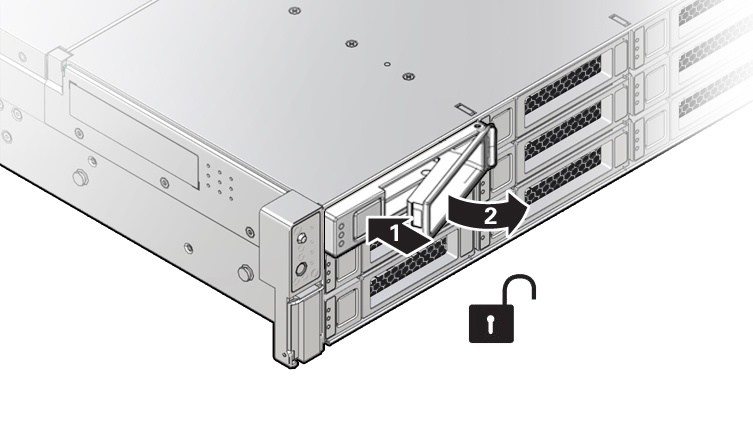
| Callout | Description |
|---|---|
| 1 | Pressing the latch release button. |
| 2 | Opening the latch. |
Caution:
The latch is not an ejector. Do not open the latch too far to the right. Doing so can damage the latch.- Grasp the latch and pull the drive out of the drive slot.
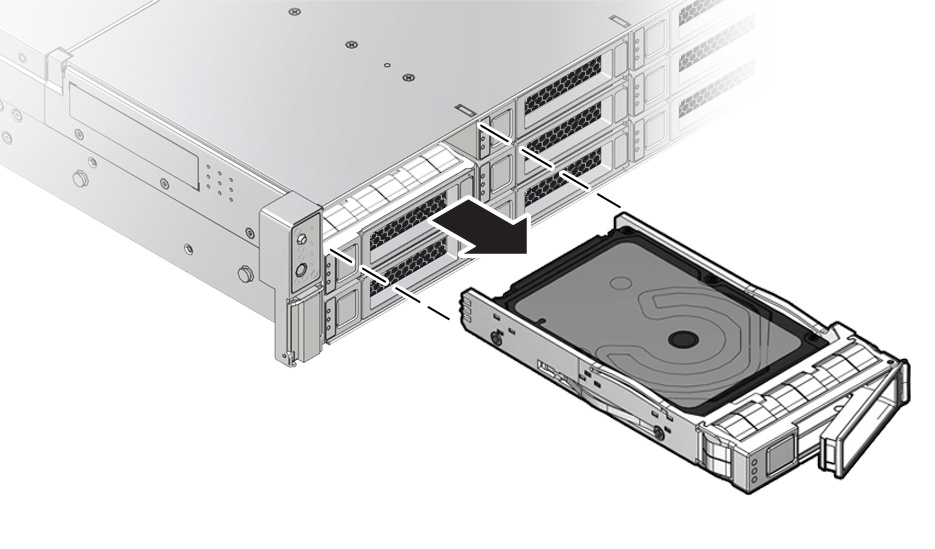
- Consider your next steps:
- If you are replacing the drive, continue to Install a Storage Drive.
- If you are not replacing the drive, install a filler in the empty drive slot to maintain proper airflow and perform administrative tasks to configure the server to operate without the drive. See Remove and Install Filler Panels.
- Locate the vacant storage drive module slot in the server, and then ensure that the release lever on the filler panel is fully opened.
- Slide the filler panel into the vacant slot by pressing the middle of the filler panel faceplate with your thumb or finger.
The release lever will close as it makes contact with the chassis. Do not slide the filler panel in all the way. Leave the filler panel out approximately 0.25 to 0.50 inch (6 to 12 mm) from the opening.
- Using your thumb or finger, press on the middle of the filler panel faceplate until the release lever engages with the chassis.
- Close the release lever until it clicks into place and is flush with the front of the server
Install
- Remove the replacement drive from its packaging, and place the drive on an antistatic mat.
- If necessary, remove the drive filler panel.
- Locate the storage drive filler panel to be removed from the server.
- To unlatch the storage drive filler panel, pull the release lever, and tilt the lever out into a fully opened position.
- To remove the filler panel from the slot, hold the opened release lever, and gently slide the filler panel toward you. See Remove and Install Filler Panels.
- Align the replacement drive with the drive slot. The drive is physically addressed according to the slot in which it is installed. It is important to install a replacement drive in the same slot as the drive that you removed.
- Slide the drive into the slot until the drive is fully seated.
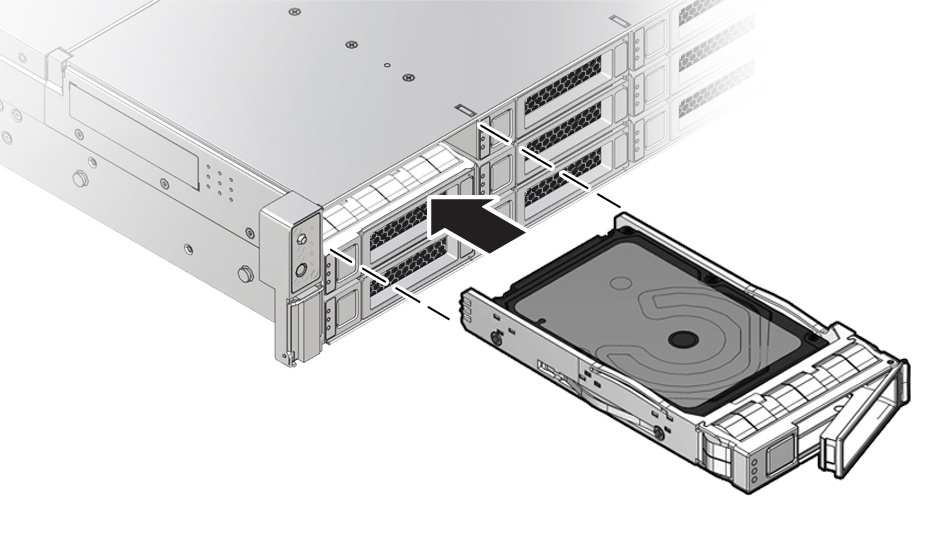
- Close the drive latch to lock the drive in place.
- Perform administrative procedures to reconfigure the drive. The procedures that you perform at this point depend on how your data is configured. You might need to partition the drive, create file systems, load data from backups, or have the drive updated from a RAID configuration.
Remove and Replace Storage Drives Using an OS
The following sections describe how to remove and replace an HDD or SSD storage drive using supported Operating Systems.
Remove and Replace an NVMe Storage Drive Using Oracle Linux
The following sections describe how to remove and replace an NVMe storage drive on a server that is running the Oracle Linux operating system.
Unmount an NVMe Storage Drive
- Log in to Oracle Linux that is running on the server.
- Remove the NVMe storage device path.
- To find the PCIe addresses (Bus Device Function), type:
# find /sys/devices |egrep 'nvme\*'This command returns output similar to the following example, with the PCIe addresses in bold text:
/sys/devices/pci0000:d7/0000:d7:02.0/0000:e3:00.0/0000:e4:07.0/0000:e8:00.0/nvme/nvme10 /sys/devices/pci0000:d7/0000:d7:02.0/0000:e3:00.0/0000:e4:07.0/0000:e8:00.0/nvme/nvme10/uevent /sys/devices/pci0000:d7/0000:d7:02.0/0000:e3:00.0/0000:e4:07.0/0000:e8:00.0/nvme/nvme10/cntlid - To obtain the slot number (APIC ID) for the bus address, type the following command to list the PCIe slot numbers with corresponding bus addresses:
# egrep -H '.*' /sys/bus/pci/slots/\*/addressThis commands returns output similar to the following example, with the bus addresses for the corresponding NVMe instances in bold text.
- In the following output, notice that the instance names for the NVMe drives do not correspond to the NVMe drive labels on the front of the server. That is, pci/slots/12/address: 0000:b2:00 corresponds to instance nvme0; however, on the front of the server, this drive is labeled NVMe2. For a table that shows the relationship between the pci/slot# and the NVMe storage drive label on the front of the server, see Server Operating System Names for NVMe Storage Drives.
/sys/bus/pci/slots/10/address:0000:b8:00 /sys/bus/pci/slots/11/address:0000:b6:00 /sys/bus/pci/slots/12/address:0000:b2:00 (instance nvme0, pcie slot 12, drive label nvme2) /sys/bus/pci/slots/13/address:0000:b4:00 (instance nvme1, pcie slot 13, drive label nvme3) - Disconnect all users from the NVMe drive and back up the NVMe drive data, as needed.
- Use the umount command to unmount any file systems that are mounted on the device.
- Remove the device from any multiple device (md) and Logical Volume Manager (LVM) volume using the device.
- If the device uses multipathing, run multipath -l and note all the paths to the device. Then, remove the multipathed device using the multipath -f device command.
- Run the blockdev --flushbufs device command to flush any outstanding I/O to all paths to the device.
- To find the PCIe addresses (Bus Device Function), type:
- To prepare the NVMe drive for removal, that is, to detach the NVMe device driver and power off the NVMe drive slot, type:
# echo 0 > /sys/bus/pci/slots/$slot/power
Where $slot is the slot number obtained in Step 2.b above.
Note: If there are any NVMe devices working in x4x4 mode, all devices need to be powered off.
- Verify that the OK to Remove indicator (LED) on the NVMe drive is lit.
Remove an NVMe Storage Drive
Perform this procedure to physically remove an NVMe storage drive from the server.
- Identify the location of the NVMe drive that you want to remove. For storage drive locations, see NVMe Storage Drive Configuration.
- Verify that the OK to Remove indicator (LED) on the NVMe drive is lit.
- On the NVMe drive you plan to remove, push the latch release button to open the drive latch. See Remove a Storage Drive.
- Grasp the latch and pull the drive out of the drive slot.
- Consider your next steps:
- If you are replacing the drive, continue to Verify Removal of an NVMe Storage Drive, and then Install an NVMe Storage Drive.
- If you are not replacing the drive, install a filler panel in the empty drive slot to maintain proper airflow and perform administrative tasks to configure the server to operate without the drive.
For information on how to install a storage drive filler panel, see Remove and Install Filler Panels.
Verify Removal of an NVMe Storage Drive
- To check the NVMe drive enumeration to verify that NVMe drive has been removed, type:
# lspci -nnd :0a54 - View the command output and verify that the entry for the slot number that was disabled no longer appears.This command returns output similar to the following:
86:00.0 Non-Volatile memory controller [0108]: Intel Corporation Device [8086:0a54]
8d:00.0 Non-Volatile memory controller [0108]: Intel Corporation Device [8086:0a54]
d9:00.0 Non-Volatile memory controller [0108]: Intel Corporation Device [8086:0a54]
e0:00.0 Non-Volatile memory controller [0108]: Intel Corporation Device [8086:0a54]
Install an NVMe Storage Drive
Perform this procedure to physically install an NVMe storage drive into the server.
After you physically remove an NVMe storage drive from the server, wait at least 10 seconds before installing a replacement drive.
- Remove the replacement drive from its packaging and place the drive on an antistatic mat.
- If necessary, remove the drive filler panel.
- Align the replacement drive with the drive slot. The drive is physically addressed according to the slot in which it is installed. It is important to install a replacement drive in the same slot as the drive that you removed.
- Slide the drive into the slot until the drive is fully seated. See Install a Storage Drive.
- Close the drive latch to lock the drive in place.
Power On an NVMe Storage Drive and Attach a Device Driver
- To power on the slot and attach the device driver, type:
# echo 1 > /sys/bus/pci/slots/$slot/power
Where $slot is the slot number for the NVMe storage drive.
Verify Operation of an NVMe Storage Drive
- To verify that an NVMe drive is operating properly, do one of the following:
- Check the
/var/log/messageslog file. - Type: ls -l /dev/nvme\*
- Check the
Remove and Replace an NVMe Storage Drive Using Oracle Solaris
The following sections describe how to remove and replace an NVMe storage drive on a server that is running the Oracle Solaris operating system.
Unmount an NVMe Storage Drive
- Log in to Oracle Solaris that is running on the server.
- To find the NVMe drive slot number, type:
# hotplug list -lc
This command produces output similar to the following for each of the NVMe drives installed in the server:
#
# hotplug list -lc
Connection           State           Description  Path
________________________________________________________________________________

/SYS/DBP/HDD0/NVME   ENABLED         PCIe-Native  /pci@0,0/pci1022,14ab@1,1
/SYS/DBP/HDD1/NVME   EMPTY           PCIe-Native  /pci@0,0/pci1022,14ab@1,2
/SYS/DBP/HDD2/NVME   EMPTY           PCIe-Native  /pci@0,0/pci1022,14ab@1,3
/SYS/DBP/HDD3/NVME   EMPTY           PCIe-Native  /pci@0,0/pci1022,14ab@1,4
/SYS/MB/SSDR0/SSD0   EMPTY           PCIe-Native  /pci@0,0/pci1022,14aa@5,1
/SYS/MB/SSDR1/SSD0   EMPTY           PCIe-Native  /pci@0,0/pci1022,14aa@5,2
Slot0 EMPTY PCIe-Native /pci@0,0/pci1022,14aa@5,3- To prepare the NVMe drive for removal, that is, to detach the device driver and power off the drive slot, type the following commands:
# hotplug poweroff /SYS/DBP/HDD0/NVME

# hotplug list -lc
The following output appears for the NVMe drive that has been unmounted:
#
# hotplug list -lc
Connection           State           Description  Path
________________________________________________________________________________

/SYS/DBP/HDD0/NVME   PRESENT         PCIe-Native  /pci@0,0/pci1022,14ab@1,1
/SYS/DBP/HDD1/NVME   EMPTY           PCIe-Native  /pci@0,0/pci1022,14ab@1,2
/SYS/DBP/HDD2/NVME   EMPTY           PCIe-Native  /pci@0,0/pci1022,14ab@1,3
/SYS/DBP/HDD3/NVME   EMPTY           PCIe-Native  /pci@0,0/pci1022,14ab@1,4
/SYS/MB/SSDR0/SSD0   EMPTY           PCIe-Native  /pci@0,0/pci1022,14aa@5,1
/SYS/MB/SSDR1/SSD0   EMPTY           PCIe-Native  /pci@0,0/pci1022,14aa@5,2
Slot0 EMPTY PCIe-Native /pci@0,0/pci1022,14aa@5,3- Verify that the OK to Remove indicator (LED) on the NVMe storage drive is lit.
Remove an NVMe Storage Drive
Perform this procedure to physically remove an NVMe storage drive from the server.
- Identify the physical location of the NVMe drive that you want to remove. For storage drive locations, see NVMe Storage Drive Configuration.
- Verify that the OK to Remove indicator (LED) on the NVMe storage drive is lit.
- On the drive that you plan to remove, push the latch release button to open the drive latch. See Remove a Storage Drive.
- Grasp the latch and pull the drive out of the drive slot.
- Consider your next steps:
- If you are replacing the drive, continue to Verify Removal of an NVMe Storage Drive, and then Install an NVMe Storage Drive.
- If you are not replacing the drive, install a filler panel in the empty drive slot to maintain proper airflow and perform administrative tasks to configure the server to operate without the drive.
For information on how to install a storage drive filler panel, see Remove and Install Filler Panels.
Verify Removal of an NVMe Storage Drive
- To verify that the NVMe drive has been removed, type:
# hotplug list -lc
The following output appears for the NVMe drive that you removed:
#
# hotplug list -lc
Connection           State           Description  Path
________________________________________________________________________________

/SYS/DBP/HDD0/NVME   EMPTY           PCIe-Native  /pci@0,0/pci1022,14ab@1,1
/SYS/DBP/HDD1/NVME   EMPTY           PCIe-Native  /pci@0,0/pci1022,14ab@1,2
/SYS/DBP/HDD2/NVME   EMPTY           PCIe-Native  /pci@0,0/pci1022,14ab@1,3
/SYS/DBP/HDD3/NVME   EMPTY           PCIe-Native  /pci@0,0/pci1022,14ab@1,4
/SYS/MB/SSDR0/SSD0   EMPTY           PCIe-Native  /pci@0,0/pci1022,14aa@5,1
/SYS/MB/SSDR1/SSD0   EMPTY           PCIe-Native  /pci@0,0/pci1022,14aa@5,2
Slot0                EMPTY           PCIe-Native  /pci@0,0/pci1022,14aa@5,3
Install an NVMe Storage Drive
Perform this procedure to physically install an NVMe storage drive into the server.
After you physically remove an NVMe drive from the server, wait at least 10 seconds before installing a replacement drive.
- Remove the replacement drive from its packaging and place the drive on an antistatic mat.
- If necessary, remove the drive filler panel.
- Align the replacement drive with the drive slot. The drive is physically addressed according to the slot in which it is installed. It is important to install a replacement drive in the same slot as the drive that was removed.
- Slide the drive into the slot until the drive is fully seated. See Install a Storage Drive.
- Close the drive latch to lock the drive in place.
Power On an NVMe Storage Drive and Attach a Device Driver
- Type:
# hotplug enable /SYS/DBP/HDD0/NVME - Type:
# hotplug list -lcThe following status is displayed for the NVMe storage drive.
# hotplug enable /SYS/DBP/HDD0/NVME # hotplug list -lc Connection State Description Path ________________________________________________________________________________ /SYS/DBP/HDD0/NVME ENABLED PCIe-Native /pci@0,0/pci1022,14ab@1,1 /SYS/DBP/HDD1/NVME EMPTY PCIe-Native /pci@0,0/pci1022,14ab@1,2 /SYS/DBP/HDD2/NVME EMPTY PCIe-Native /pci@0,0/pci1022,14ab@1,3 /SYS/DBP/HDD3/NVME EMPTY PCIe-Native /pci@0,0/pci1022,14ab@1,4 /SYS/MB/SSDR0/SSD0 EMPTY PCIe-Native /pci@0,0/pci1022,14aa@5,1 /SYS/MB/SSDR1/SSD0 EMPTY PCIe-Native /pci@0,0/pci1022,14aa@5,2 Slot0 EMPTY PCIe-Native /pci@0,0/pci1022,14aa@5,3 - To check the NVMe drive health, firmware level, temperature, get error log, SMART data, security erase, low level format, and other data, type:
# nvmeadm --help