4 Installation and Setup
This chapter covers the process of taking your Oracle Cloud Connector from unboxed components to a powered-on device, ready for manual onboarding or further configuration. A successful installation and setup is essential for optimal performance of your Oracle Cloud Connector.
Installation involves selecting the right location and positioning the device to meet requirements for ventilation, signal strength, and cabling access.
Setup then includes attaching the Wi-Fi and cellular antennas, connecting necessary network or satellite cables, and connecting the power supply.
- Choose the right location — Place theOracle Cloud Connector in an environment that meets requirements for ventilation, signal access, and cable reach.
- Attach Wi-Fi Antennas — Secure the included Wi-Fi antennas to their designated connectors.
- Attach Cellular Antennas — Install the cellular antennas to support mobile connectivity.
- Connect Ethernet cables — Plug in the appropriate cables for your LAN, WAN, or satellite connections.
- Power on the device — Connect the device to its power supply and check indicator LEDs.
Each section that follows provides detailed instructions to help ensure a successful installation.
Select a Location
Selecting the right location for your Oracle Cloud Connector is essential for ensuring long-term performance, safety, and ease of maintenance. Careful placement can also prevent common installation issues and help protect your investment.
- Clean and Dust-Free Environment—Install the device in a clean, dust-free area whenever possible. Excessive dust, grease, or debris can impede ventilation, degrade device performance, and increase the need for maintenance.
- Adequate Ventilation—Place the Cloud Connector where there is sufficient airflow on all sides. Avoid areas with restricted space, near heat sources, or in direct sunlight, as overheating can affect device reliability.
- Signal and Network Accessibility—For Wi-Fi and cellular operation, select a spot free from obstructions that could block or weaken wireless signals. Concrete walls, heavy machinery, and metal structures can interfere with connectivity. Ensure the location allows convenient access to Ethernet ports and a reliable power source. If your deployment includes a satellite terminal, confirm the Cloud Connector can be easily connected to the Starlink terminal with no strain on cables, and that the dish will have a clear view of the sky.
- Stay Dry—Never install the Oracle Cloud Connector where it may be exposed to water, spills, or excessive humidity—such as near sinks, kitchens, drink stations, or windows prone to condensation. Moisture can lead to electrical shorts, hardware corrosion, and device failure. Keep all components dry.
Note:
For installations in humid or partially outdoor areas, consider using protective enclosures and consult with a site engineer or qualified supervisor. - Electrostatic Discharge (ESD) Safety—Static electricity can damage sensitive electronics. Before handling antennas, SIM cards, or cables, discharge static by touching a grounded metal object. This step is especially important in carpeted spaces or dry environments.
- Ease of Maintenance and Access—Choose a spot that remains accessible for cable management, monitoring, or troubleshooting in the future. Avoid installing the device in hard-to-reach locations or behind fixed equipment.
- Onsite Collaboration—In specialized or regulated environments (such as oil rigs, restaurants, or managed office spaces), coordinate with a site engineer, facility manager, or other qualified personnel. Their expertise can assist with safe placement, cable routing, and compliance with local guidelines.
Review your organization’s installation policies and any site-specific requirements before starting. Taking the time to select an optimal location helps ensure trouble-free operation of your Oracle Cloud Connector and minimizes unexpected issues during setup and over the device’s lifecycle.
Connect the Cellular and Wi-Fi Antennas
Attaching the four cellular antennas and two Wi-Fi antennas during setup is essential for safe device operation, even if you do not plan to use cellular connectivity right away.
Prerequisites
- Ensure you have located all six supplied antennas, distinguishing between the Cellular and Wi-Fi Types.
- Make sure the rear panel SMA connectors are accessible.
- The Cloud Connector should be positioned in its selected location.
- Ensure there’s open space around the antennas so they can send and receive signals in all directions. Avoid squeezing them into tight spaces or corners, as this can limit their ability to communicate effectively.
Diagram of the Cloud Connector
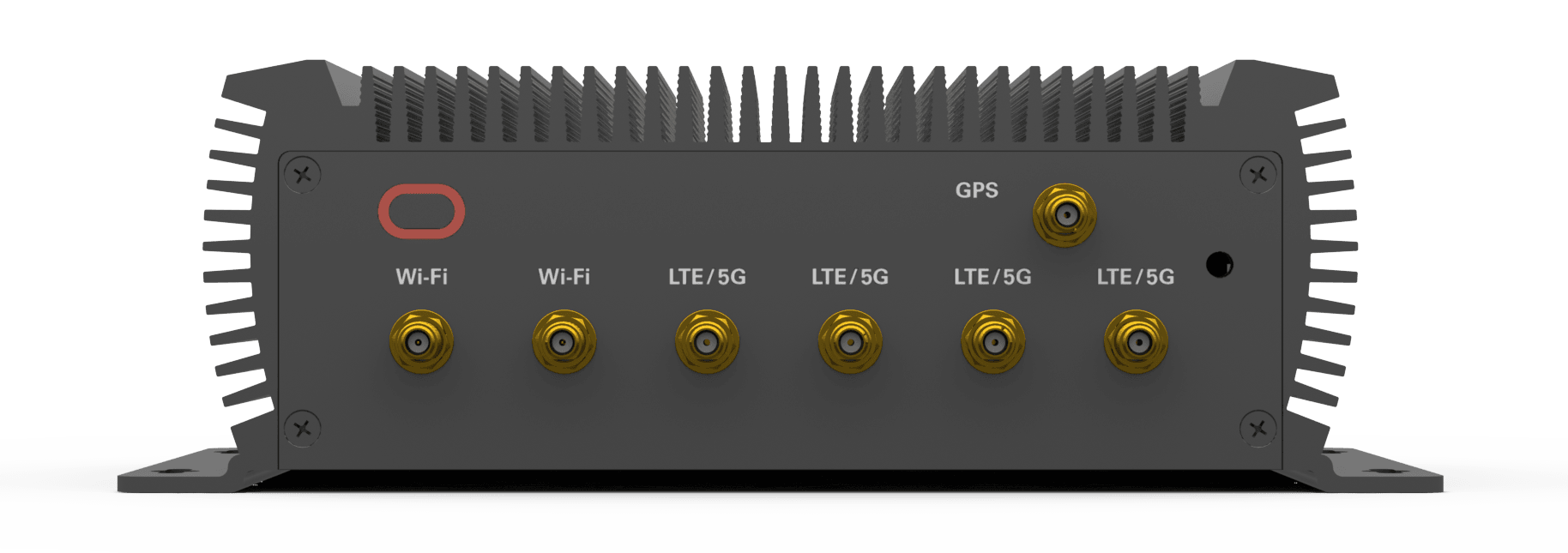
Refer to the following diagram of the Cloud Connector as you perform the following procedure.
Figure 4-1 Rear Panel of Oracle Cloud Connector Showing Antenna Connectors
Procedure
- Identify the four LTE/5G antenna connectors on the rear panel of the Oracle Cloud Connector.
- Check the chassis labels to verify which connectors correspond to each LTE/5G antenna.
- Align each cellular antenna with its labeled SMA connector and screw it on by turning clockwise until finger-tight. Do not use tools or overtighten.
- Adjust the non-connector end of each LTE/5G antenna so it points upward, or according to the installation environment.
- Align the two Wi-Fi antennas with their labeled SMA connectors and screw them on by turning clockwise until finger-tight. Do not use tools or overtighten.
- Adjust the non-connector end of each Wi-Fi antenna so it points upward, or as best suited for the environment.
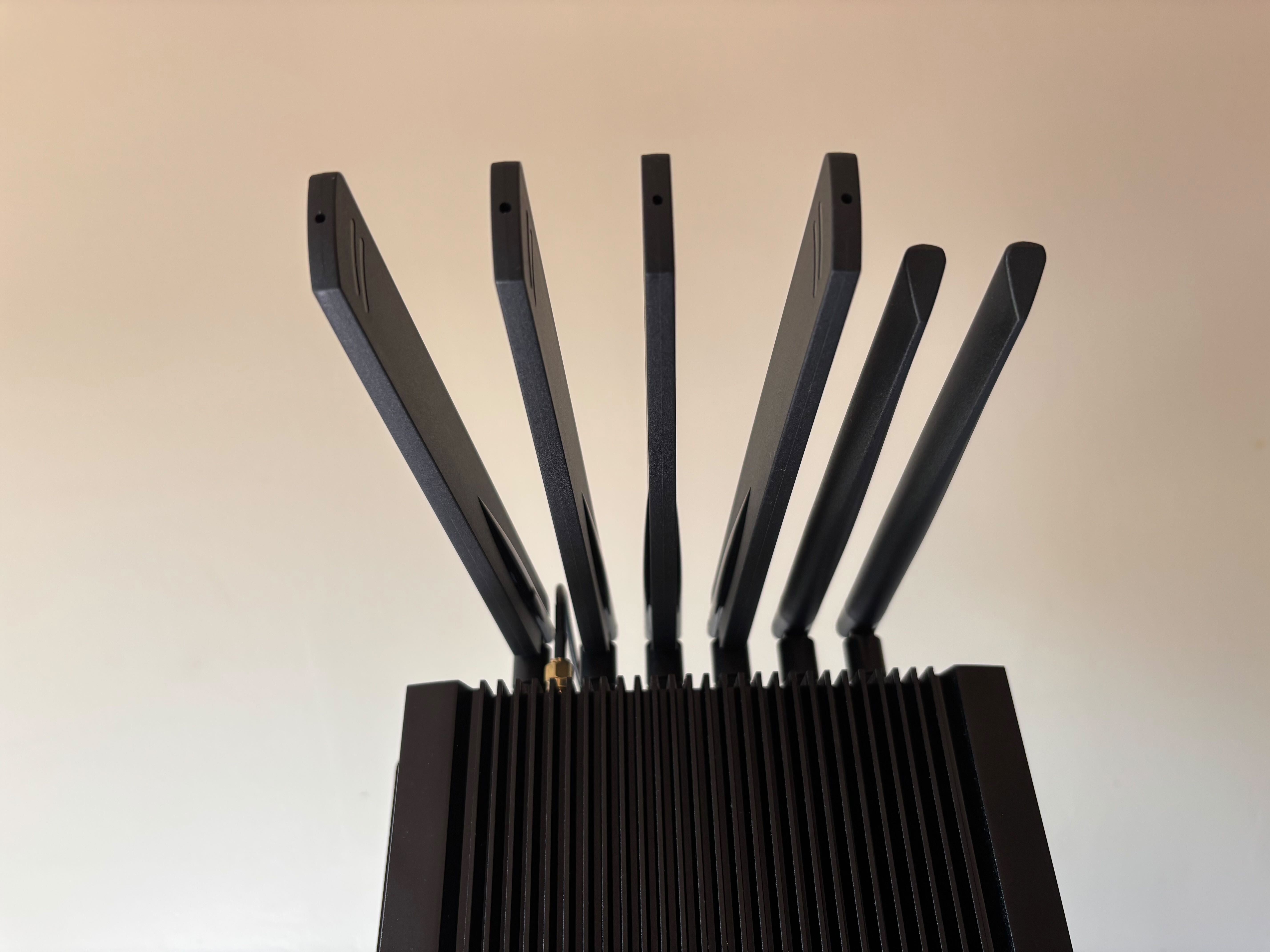
- Confirm that all antennas are firmly attached, spaced so they are not touching, and are positioned in a similar direction. Ask Explain
Note:
Always connect all supplied cellular antennas, even if you do not plan to use cellular connectivity immediately. Leaving antennas disconnected can create a risk of damaging the device if cellular radios are later enabled.Figure 4-2 Side View of Antennas Connected
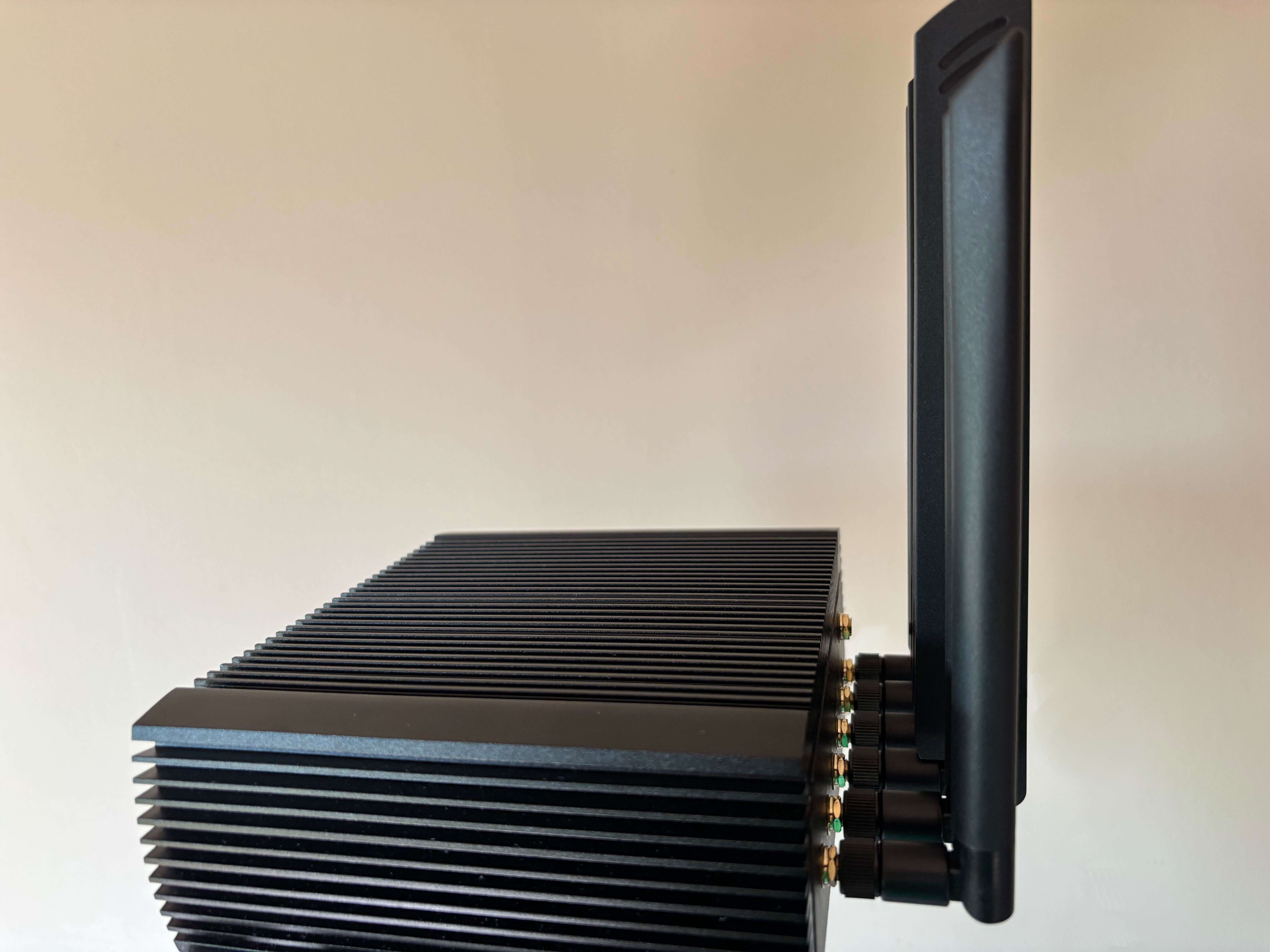
Figure 4-3 Top View of Antennas Connected
Connect the Ethernet Cables
Connecting Ethernet cables is required for LAN (Local Area Network) and broadband (WAN) connectivity. If your deployment includes a satellite connection, follow the satellite procedure in the next section.
| Port | Description |
|---|---|
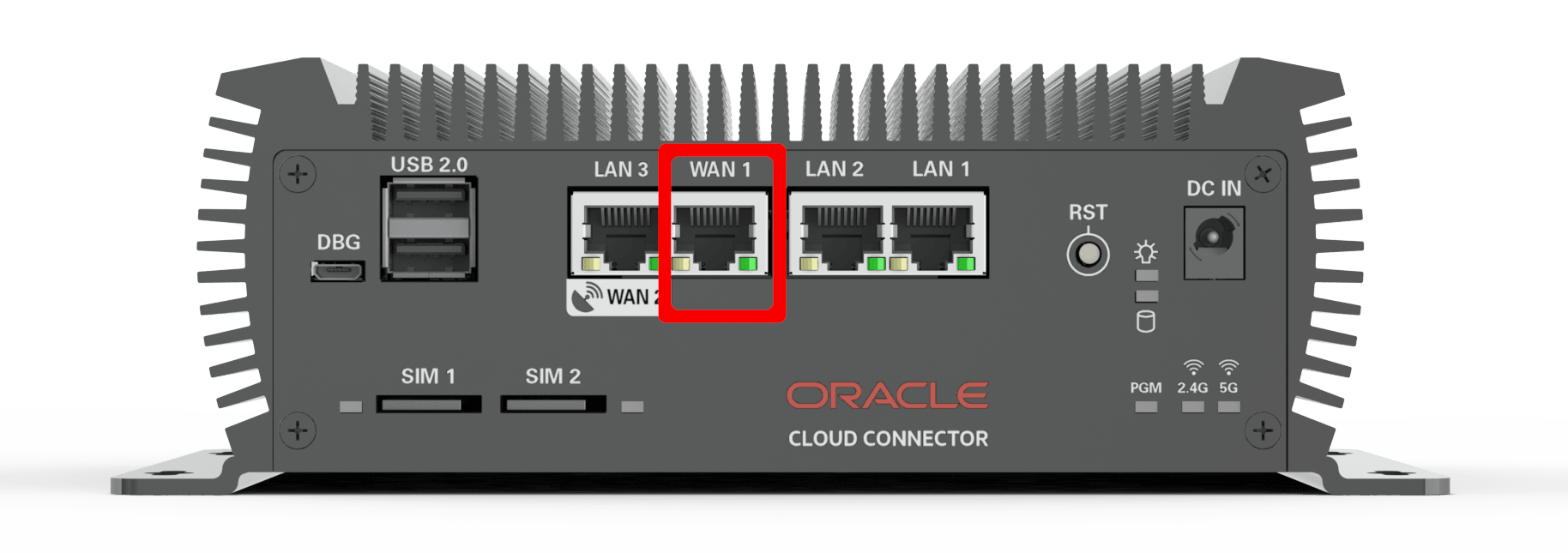
| WAN1 | Connection to the WAN |
| LAN2 | Connection to a local network |
| LAN1 | Connection to a local network |
| LAN3 / WAN2 | Connection to a satellite terminal |
Depending on your connectivity plan, you may do some or all of these steps:
- Connect an Ethernet cable from the WAN1 port to the router or modem that will provide an internet connection for the Oracle Cloud Connector.
- If you have a local network connection, connect an Ethernet cable from your local network to the LAN1 port. If you have a second local network connection, connect an Ethernet cable from your local network to the LAN2 port.
Prerequisites
- Ensure the Cloud Connector is installed in its selected location.
- Verify you have the necessary Ethernet cables for your LAN, broadband (WAN), or both.
- Confirm access to the devices or network infrastructure (such as switch, router, or modem) that you will connect to the Cloud Connector.
- Identify the Ethernet ports (LAN1, LAN2, WAN1) on the front panel.
Procedure
- Plug one end of an Ethernet cable into the WAN1 port on the Cloud Connector. Connect the other end to your broadband router or modem to provide internet access to the device.
- For local network connections
- Plug an Ethernet cable into the LAN1 port to connect to your primary LAN.
- If you need a secondary LAN connection, plug another cable into the LAN2 port.
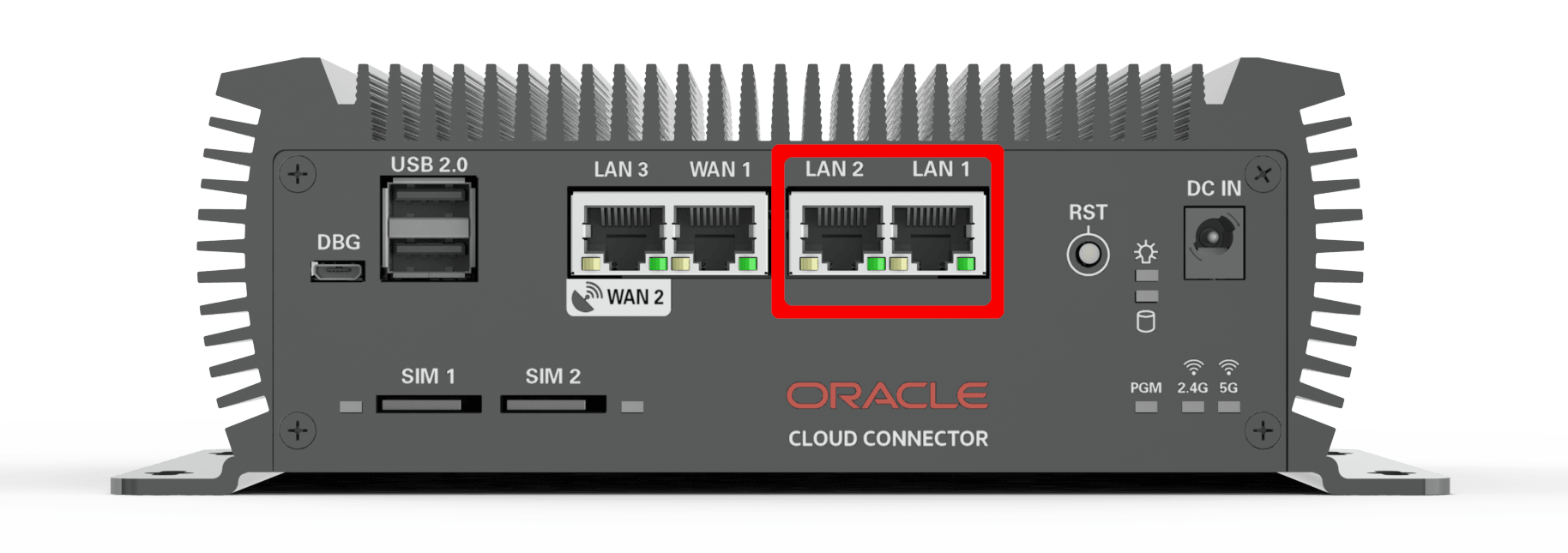
- Ensure each cable is firmly and fully inserted into its port.
- Once your Cloud Connector is powered on, check that the corresponding LEDs near each Ethernet port illuminate, indicating a live connection.
Note:
The port labeled LAN3/WAN2 is reserved for satellite connectivity and should only be used as described in the following Satellite section.Properly connecting all required Ethernet cables ensures reliable communication to your local and external networks. Proceed to the next section for instructions on connecting a satellite terminal.
Check Cellular SIM Cards
Your Oracle Cloud Connector is equipped for cellular connectivity using SIM cards. Verifying the presence of your SIM card(s) ensures that mobile network access is available whenever required.
- The Cloud Connector should be in its installation location, with access to the SIM card slots.
- This task is optional.
- Locate the SIM card slots on the front panel of the Cloud Connector.
- Confirm that the SIM1 slot contains the SIM card shipped with your device.
- If you ordered a second SIM card, check that the SIM2 slot contains the additional SIM card.
- If a SIM card appears to be missing or not properly inserted, contact Oracle Support for assistance before proceeding. If your Cloud Connector is equipped with an eSIM, it cannot be physically inspected. You can verify eSIM activation and status in the device management interface.
Connect Starlink Gen 3 Satellite Terminal
If your Oracle Cloud Connector deployment includes Starlink Gen 3 satellite connectivity, connect the Starlink Gen 3 terminal to establish the satellite WAN connection.
When ready, follow the diagrams in the 1-page Starlink Quick Start Guide to set up your equipment and connect to the satellite network. Complete documentation is listed in the Supporting Documentation section. Complete all steps in that guide before proceeding here.
Once your Starlink terminal is set up and powered on, connect it to the Oracle Cloud Connector using the following steps:
- Wedge Mount Accessory Kit:
- https://starlink.com/public-files/installation_guide_performance_wedge_mount.pdf
- Performance Kit Installation Guide:
- https://starlink.com/public-files/installation_guide_performance_kit.pdf
- Northern Hemisphere: Point North (or slightly Northwest/Northeast)
- Southern Hemisphere: Point South
To fine-tune alignment using the Starlink App, first complete system Activation, then connect your mobile device to the Oracle Cloud Connector's LAN. Once your device is on that network, the Starlink App can communicate with the Starlink terminal and guide you to the best antenna position.
- The Starlink terminal is fully assembled, positioned with a clear view of the sky, and powered on (as described in the Starlink guidance).
- You have the Ethernet cable provided with your Starlink kit.
- The Oracle Cloud Connector is placed in its selected location with power ready but not necessarily turned on.
- Double-check that both ends of the Ethernet cable are securely connected.
Figure 4-4 Starlink WAN Ethernet Port

Note:
Initial startup of the Starlink terminal may require extra time due to automatic updates before use. After any update, the Cloud Connector will automatically manage communication with the Starlink terminal.Connect a Starlink Mini Satellite Terminal
If your Oracle Cloud Connector deployment includes Starlink Mini satellite connectivity, connect the Starlink Mini terminal to establish the satellite WAN connection.
When ready, follow the diagrams in the 1-page Starlink Quick Start Guide to set up your equipment and connect to the satellite network. Complete documentation is listed in the Supporting Documentation section. Complete all steps in that guide before proceeding here.
Once your Starlink terminal is set up and powered on, connect it to the Oracle Cloud Connector using the following steps:
- Mini Installation Guide:
- https://starlink.com/public-files/installation_guide_mini_kit.pdf
- Northern Hemisphere: Point North (or slightly Northwest/Northeast)
- Southern Hemisphere: Point South
To fine-tune alignment using the Starlink App, first complete system Activation, then connect your mobile device to the Oracle Cloud Connector's LAN. Once your device is on that network, the Starlink App can communicate with the Starlink terminal and guide you to the best antenna position.
- The Starlink terminal is fully assembled, positioned with a clear view of the sky, and powered on (as described in the Starlink guidance).
- You have the Ethernet cable provided with your Starlink kit.
- The Oracle Cloud Connector is placed in its selected location with power ready but not necessarily turned on.
- Double-check that both ends of the Ethernet cable are securely connected.
Figure 4-5 Starlink WAN Ethernet Port
Note:
Do not power up your Starlink Mini until you are ready to complete cloud connector onboarding in the same session.Note:
Initial startup of the Starlink terminal may require extra time due to automatic updates before use. After any update, the Cloud Connector will automatically manage communication with the Starlink terminal.Power On the Cloud Connector
Powering on your Oracle Cloud Connector safely is important to protect both the device and the installer. Follow these steps to connect the power supply correctly.
- Ensure all antennas and cables are properly connected to the Cloud Connector.
- Position the power supply so it will not be exposed to moisture or high-traffic areas.
- Identify the DC IN power input port on the rear panel of the Oracle Cloud Connector.
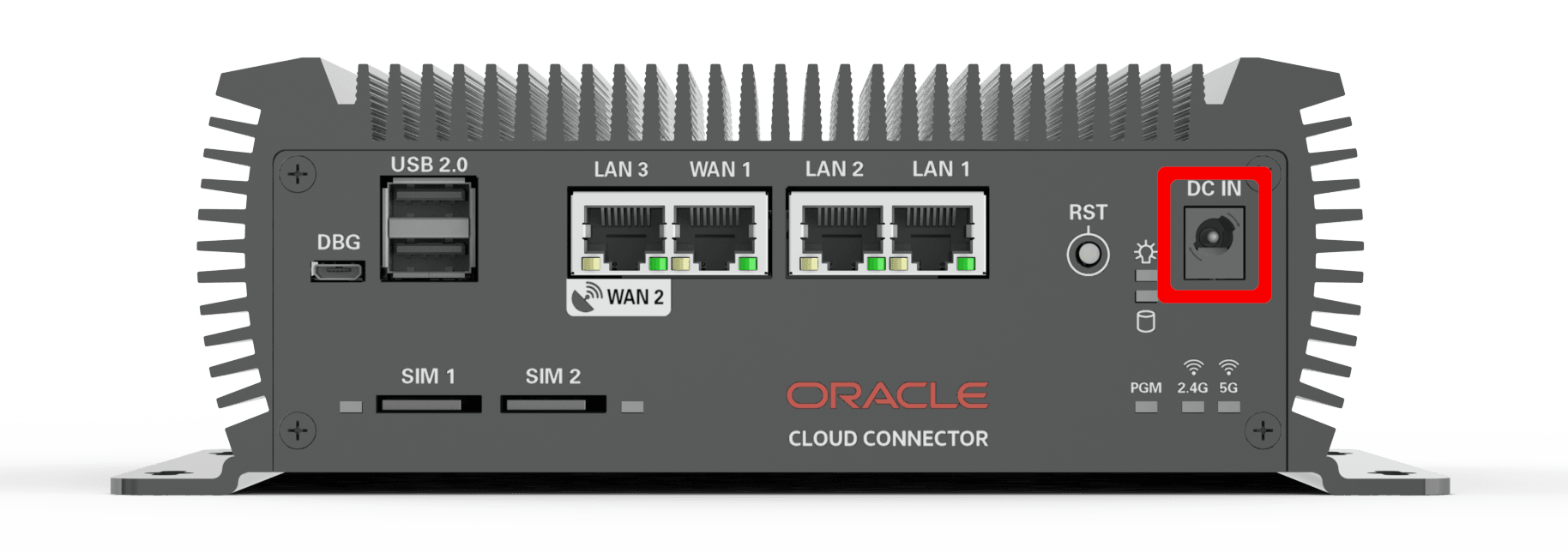
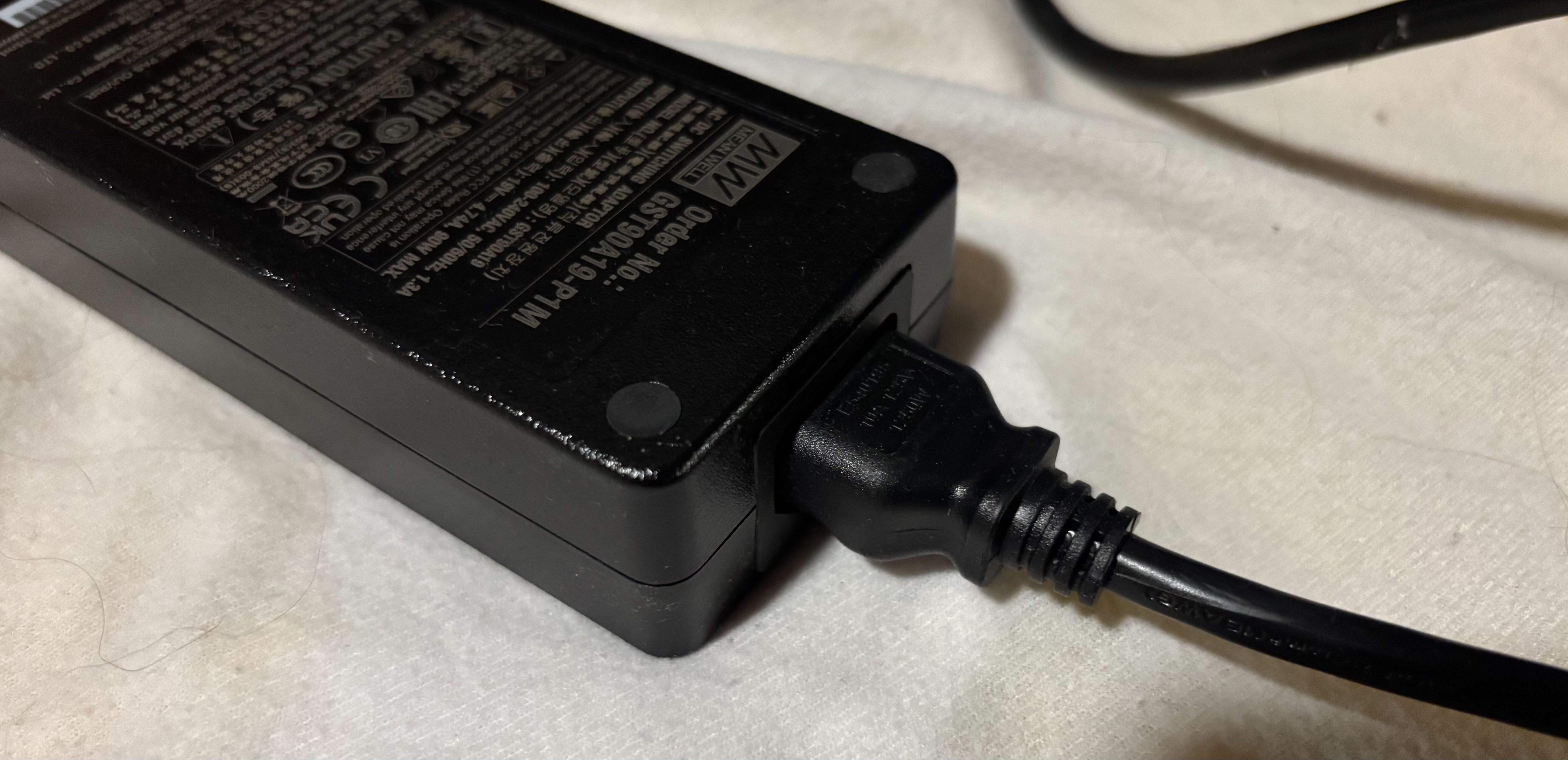
- Attach the AC power cord to the AC adapter.
Figure 4-6 Power Cord to AC Adapter
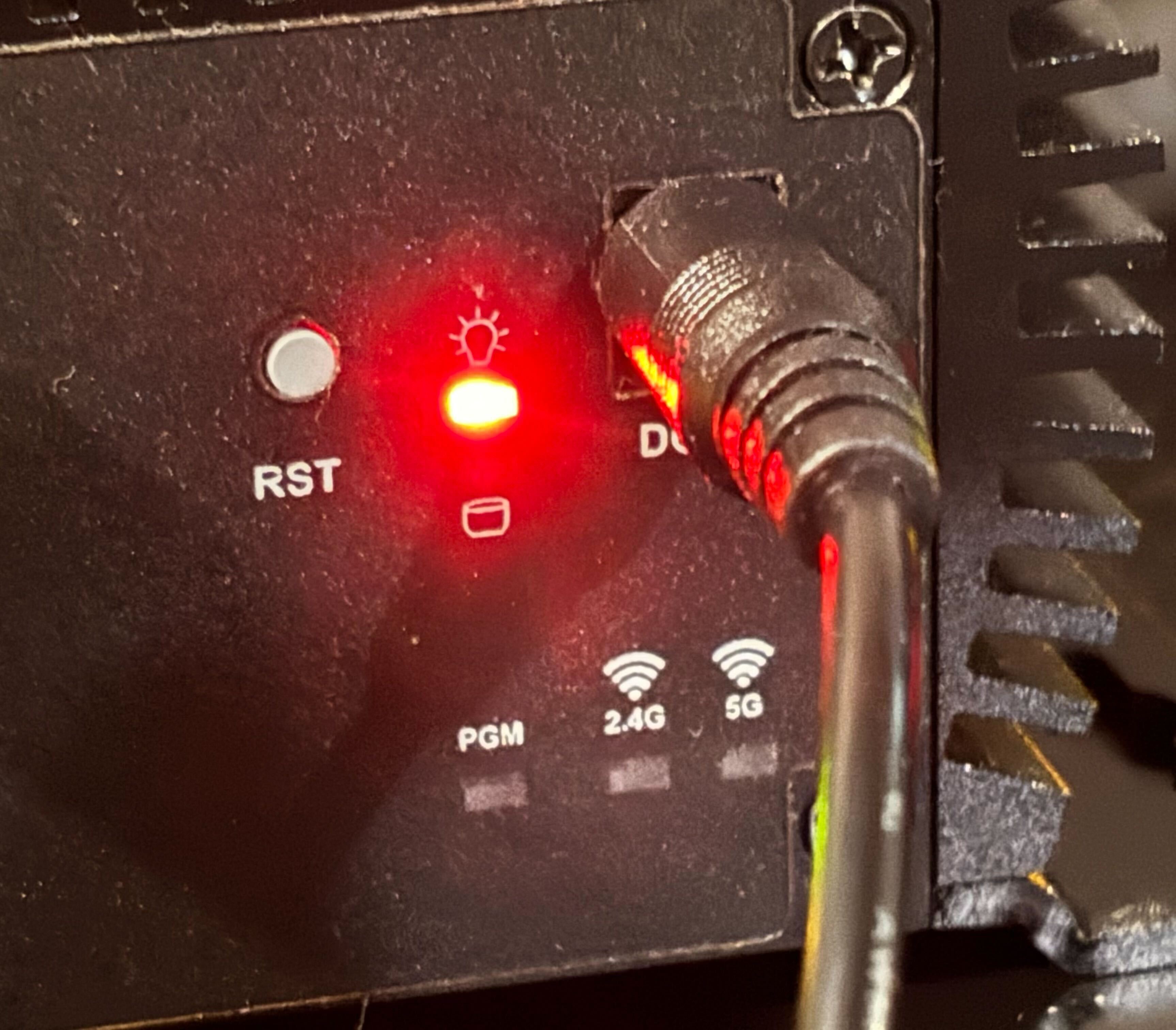
Note:
Always connect the DC barrel connector to the device before plugging the AC adapter into the wall outlet, to reduce the risk of electrical arcing or accidental device damage.Post-Installation Setup
This topic provides an overview of the next steps after hardware installation and setup, guiding you to review the “Set up a Cloud Connector” appendix in the User Guide.
Now that you’ve completed the hardware installation and setup of your Oracle Cloud Connector, you’re ready to move on to the next stage: preparing for onboarding. Before you can register the Cloud Connector in ECP, there are requirements to connect your computer to the Cloud Connector—either via Ethernet or Wi-Fi—so you can access its local interface and complete logical configuration.
You can do this by using an Ethernet cable to connect your computer directly to one of the Cloud Connector’s Ethernet ports (such as LAN1 or LAN2), or by connecting your computer or mobile device directly to the Cloud Connector’s built-in Wi-Fi network. Either method allows you to access the local setup page.
Once connected, you’ll be able to access the Cloud Connector’s local user interface to continue the setup and onboarding process. For step-by-step instructions, refer to the “Set up a Cloud Connector” appendix in the User Guide. Make sure to review all prerequisites in that appendix before proceeding with registration in ECP.