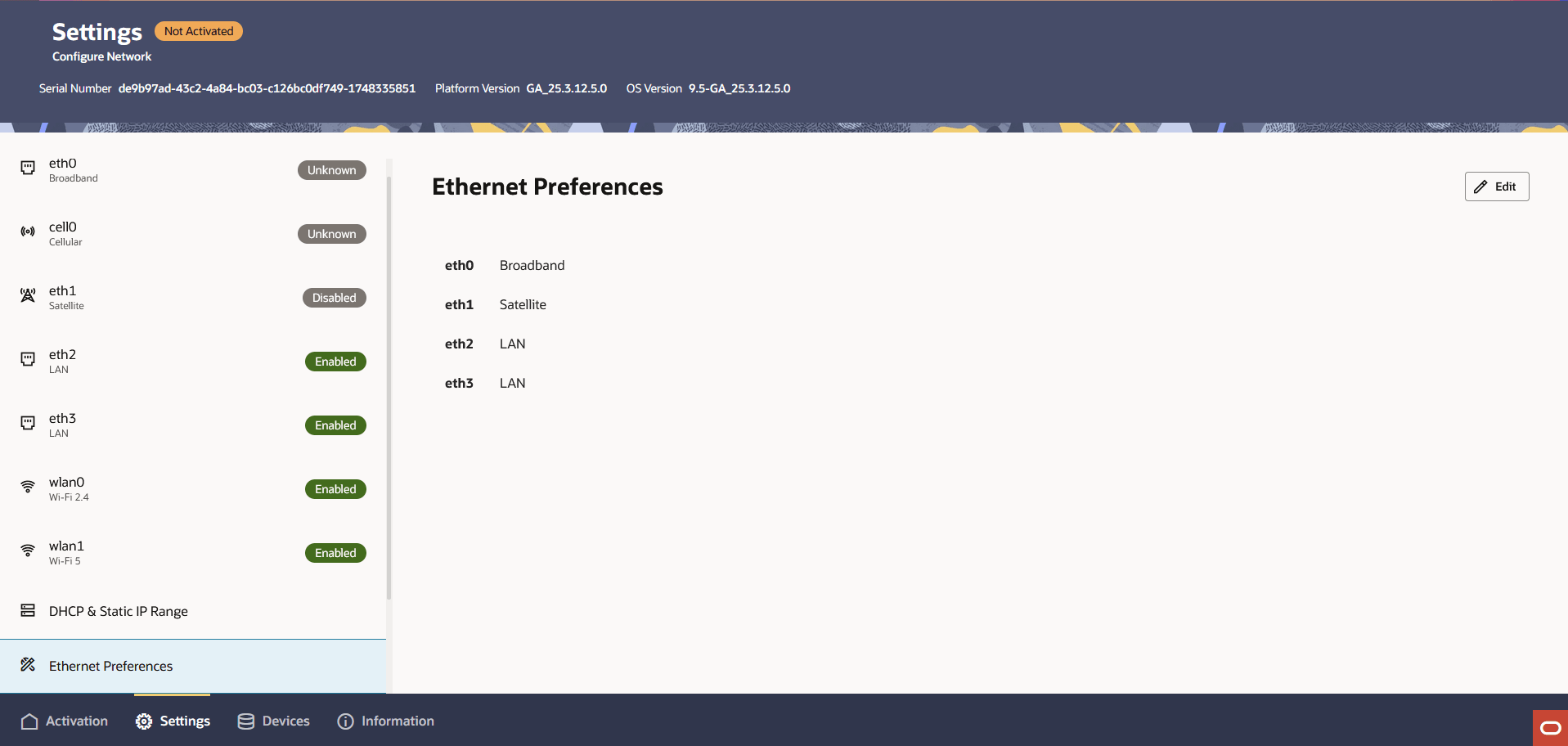
Assign Ethernet Ports on the Local UI
You can set the Cloud Connector's Ethernet port assignments as they are used for WAN or LAN connectivity in your deployment. Cross reference the rear-panel image in this guide to help you.
- eth0 - Broadband (WAN)
- eth1 - Satellite terminal (WAN)
- eth2 - LAN interface1
- eth3 - LAN inteface 2
Note:
The Ethernet Preferences assignment only updates the internal mapping of the Cloud Connector's labels to the physical ports. It does not automatically reconfigure the physical connections. Ensure that the devices plugged into the Cloud Connector's ports match the corresponding labels configured in the software.Depending on your Cloud Connector model, you have 4 or more Ethernet ports available. The Ethernet Preferences screen shows the physical interface names in the first column and the default Connection Type in the second column. Identify the connection type you want to reassign, hold its "==" icon, and move it up or down to be next to the interface it should use.
- From the Settings tab, click Ethernet
Preferences. The Ethernet Preferences
screen appears.