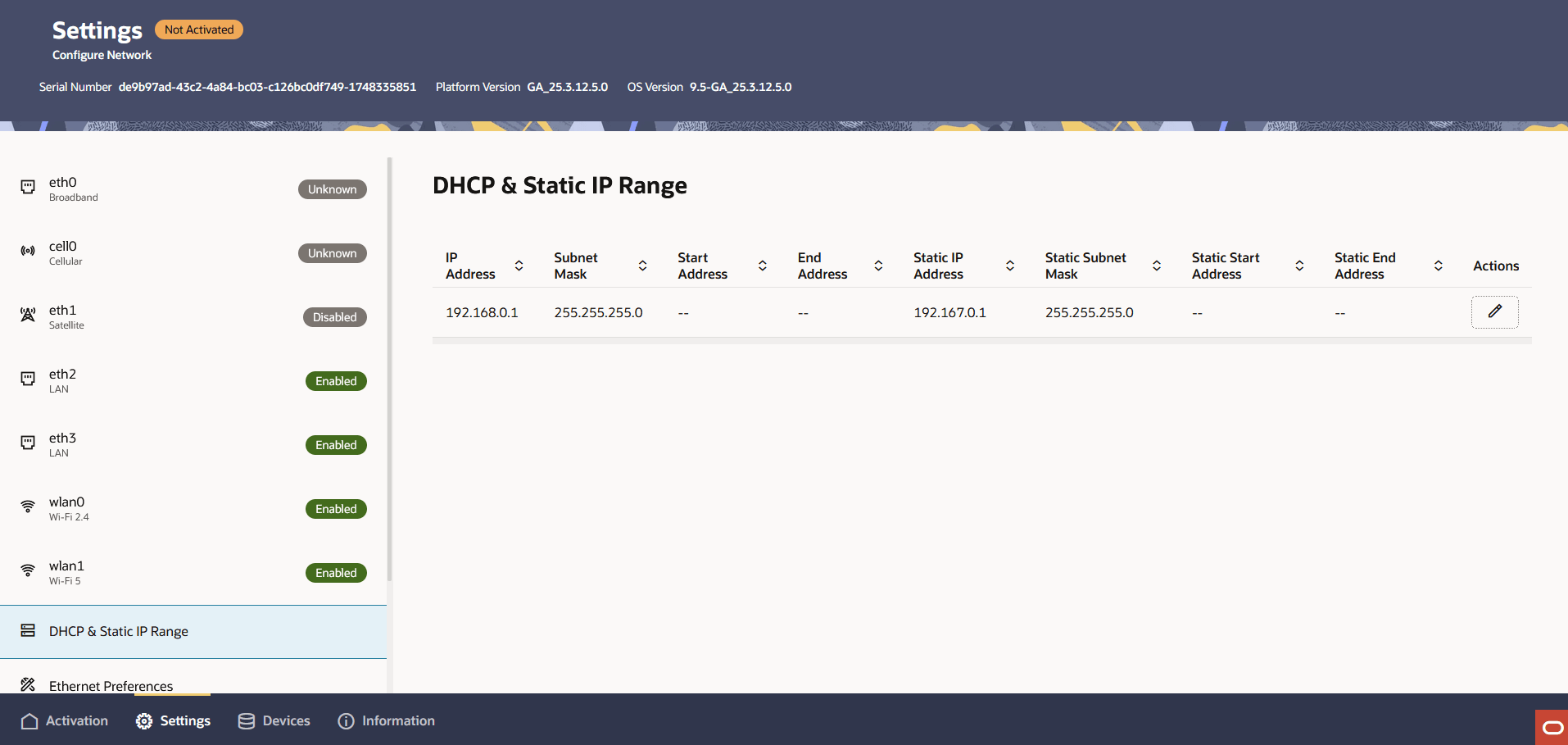
Set the Static IP range for LAN Devices
You can check and update the static IP address range used for the Devices that access the LAN networks which include managed wireless and wired local devices. If you are not providing connectivity for any devices, you can ignore this screen. Devices that connect to the Cloud Connector can only connect back to the OCI network, and not to the public internet.
The DHCP & Static IP Range screen show both DHCP and Static IP
settings.
Consider the local LAN needs in your deployment.
- From the Settings tab, click DHCP & Static IP
Settings in the left panel. The DHCP & Static IP Settings
screen appears.