Dashboard Display and Operations
As you populate your Oracle Enterprise Communications Platform (Oracle ECP) inventory of devices and Cloud Connectors, Oracle ECP collects and transmits data about them to a centralized system. The system uses the data for visualizations on the Dashboard. The tabs and visualizations and you see depend on your administrative role.
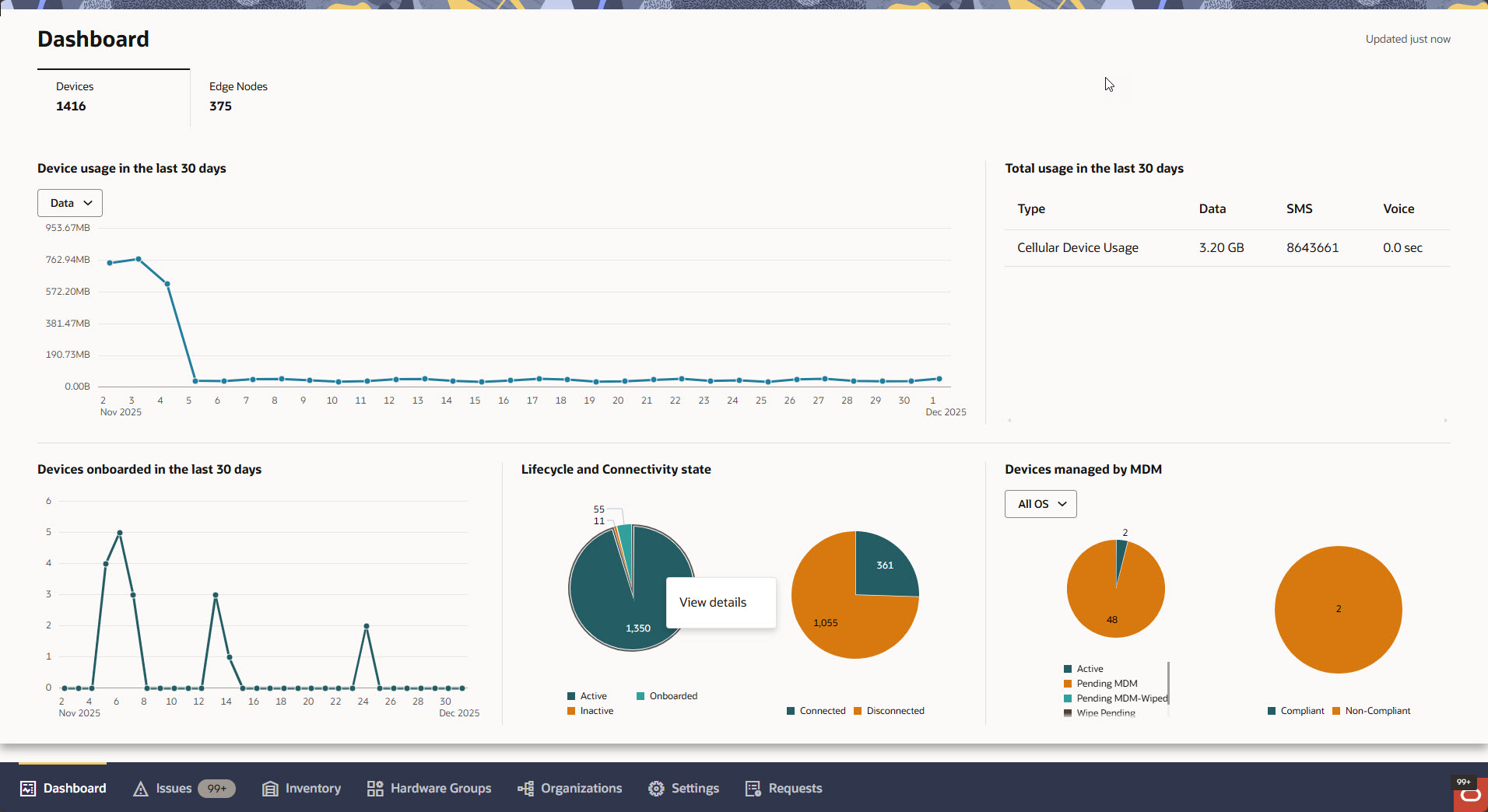
The Dashboard groups the visualizations, called cards, to provide a focused view of information about your inventory and related activity. Administrators can view the data on the Dashboard tabs to observe how the volume of inventory is growing from onboarding activity, see how many devices are in specific connectivity and life cycle states, and check the usage of connectivity services by devices and Cloud Connectors. The Dashboard displays the following cards per tab.
Note:
Some visualizations on the Dashboard include the label UTC time series chart to indicate that the information is based on time stamps provided in the Universal Time Coordinated (UTC) standard used for world-wide regulation of clocks. Plotted data shows a series of data points indexed in UTC time instead of local time.Devices
| Dashboard Representation of Data | Description |
|---|---|
| Device Usage (last 30 days) | Displays device cellular data usage by category (SMS, Data, or Voice) day-by-day for the last thirty days on a line graph. Hover or click points on the graph to display the usage for a particular date. |
|
Total Usage (last 30 days) |
Displays total cellular usage by category (SMS, Data, or Voice) for each customer over the last thirty days. Device type includes all cellular devices. |
| Devices Onboarded (last 30 days) |
Displays an interactive line graph of the number of devices onboarded each day in the last thirty days. Hover over a point on the graph, which represents a day, to see the number of devices onboarded that day. The day-to-day count (past or present) will change when you decommission Devices. The count on the graph will always match the inventory. For example, suppose you onboard five Devices on December 17th and five more on December 18th. The graph will show five Devices for each of those dates. Suppose you decommission two Devices on December 18th. The graph will update to show only three Devices for the 18th. |
| Lifecycle State | Displays a pie chart with the count of devices in each life cycle state. To view only life cycle states that interest you, click the color-coded box for each state you want to remove in the legend below the pie chart. Click the box for a state a second time to return the data for that state to the pie chart. |
| Connectivity State | Displays a pie chart that represents the count of devices in each connectivity state. For a single customer, you can right-click the pie chart to see more data about that customer's inventory. To display the count for a single connectivity state that interests you, click the color-coded box for the other state in the legend below the pie chart. The first click removes the color from the legend box and removes the associated count data for that state from the pie chart. Click the box in the legend a second time to return the associated state data to the pie chart. Also displays a list of devices in the selected connectivity state for the category. |
| Devices managed by MDM | For Customers onboarded to ECP as MDM tenants, when MDM data is available this card displays charts for visualizing Mobile Device Management-enabled device state information. The first pie chart includes a data segment (slice) with a count of the MDM-enabled devices in each Life Cycle State. The second pie chart includes a data segment with the count of the Compliant MDM-enabled devices and a data segment with the count of the Non-Compliant MDM-enabled devices. Note: A GBU Administrator assigned as MDM Administrator must access the external MDM to help resolve non-compliance with GBU policies (such as password length or required applications). |
Edge Nodes Tab
| Dashboard Representation of Data | Description |
|---|---|
| Edge Node Usage (last 30 days) | Displays a line graph of Data and SMS usage day-by-day for the last thirty days. Hover or click points on the graph to display the usage for a particular date. |
| Total Usage (last 30 days) | Displays a line graph of the total cellular Data and SMS usage for the last thirty days. Hover or click points on the graph to display the usage for a particular date. |
| Edge Nodes Onboarded (last 30 days) |
Displays an interactive line graph of the number of Cloud Connectors onboarded each day in the last thirty days. Hover over a point on the graph, which represents a day, to see the number of Cloud Connectors onboarded that day. The day-to-day count (past or present) will change when you decommission Cloud Connectors. The count on the graph will always match the inventory. For example, suppose you onboard five Cloud Connectors on December 17th and five more on December 18th. The graph will show five Cloud Connectors for each of those dates. Suppose you decommission two Cloud Connectors on December 18th. The graph will update to show only three Cloud Connectors for the 18th. |
| Lifecycle State | Displays a pie chart with the count of Cloud Connectors in each life cycle state. To view only life cycle states that interest you, click the color-coded box for each state you want to remove in the legend below the pie chart. Click the box for a state a second time to add the data for that state to the chart again. |
| Connectivity State | Displays a pie chart that represents the count of Cloud Connectors in each connectivity state. Right-click the pie chart to see more data about the inventory. To display the count for a single connectivity state that interests you, click the color-coded box for the other state in the legend below the pie chart. The first click removes the color from the legend box and removes the associated count data for that state from the pie chart. Click the box in the legend a second time to return the associated state data to the pie chart. |
Dashboard Drill-Down Functionality
The Dashboard Drill-down functionality in Oracle Enterprise Communications Platform (Oracle ECP) allows users to navigate from aggregated data shown in pie charts and bar graphs on the Dashboard page directly to the corresponding detailed records in the Inventory. For example, you might see a chart segment that represents all of your disconnected or connected devices across all customers. By using the drill-down feature, you can quickly view a complete list of these devices, or even narrow down to see the items belonging to a specific customer. This makes it easy to move from a high-level overview to actionable details with just a few clicks.
Note:
Dashboard Drill-down is only supported for pie charts and bar graphs in the Dashboard. Line graphs and tables do not support Drill-down behavior.How To Use Dashboard Drill-Down
Based on selected segment, you must perform the following steps to use the Drill-down functionality.
- Drill-down is available only on charts with drill-down support in the Devices and Edge Nodes tabs.
- Some charts provide a context chooser dropdown for refining device or asset type before Drill-down.
- The Drill-down process and drawer layout depend on your admin role.
- The Drill-down either displays a detail panel or directly navigates to the Inventory, with all relevant filters populated automatically.
- Find the pie chart or bar graph for the metric you want to investigate. Choose the right context chooser from the dropdown above the chart to refine by device or asset type, if available. Hover over the chart segment to view its state and item count.
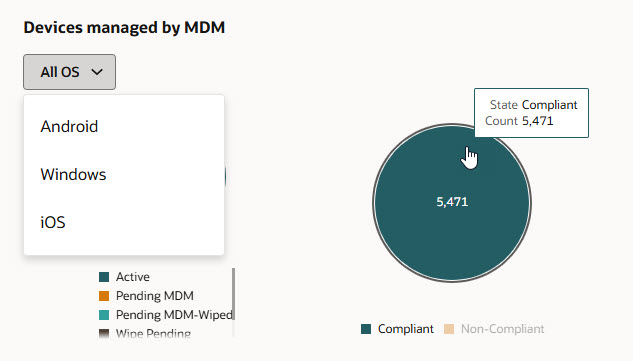 A tooltip appears, displaying the state (for example, “Active” or “Connected”) and the count of items in that segment.
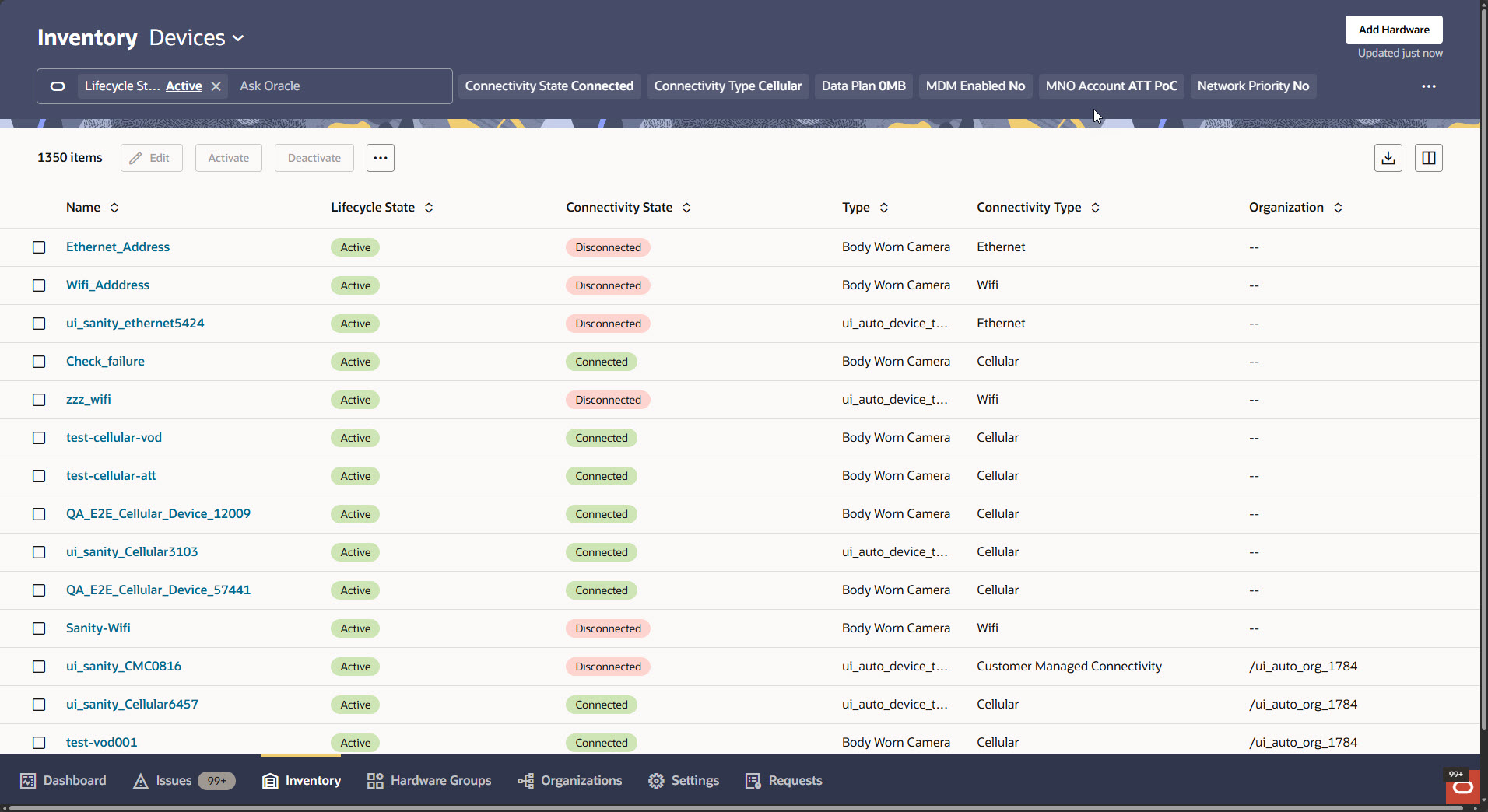
 - Right-click on the chart segment and select View details from the context menu. You are taken directly to the Inventory page.
- The Inventory page related to your dashboard selection opens up with filter chips automatically populated to match the segment you chose.