2 Enable the Web GUI for Access
You must enable access to the Web GUI from the Web server before you can log on and the steps vary depending on whether you want to enable a new Oracle® Enterprise Session Router (ESR) or an existing one. To provide secure access, you can enable HTTPS.
Access the Web GUI with HTTPS
To provide secure access to the Web GUI from the Web server, you can enable HTTPS by creating a Transport Layer Security (TLS) profile. The Oracle® Enterprise Session Router (ESR) does not require either the hardware Security Service Module (SSM) or the software TLS license when configuring certificate record, tls-profile, and tls-global for an HTTPS connection to the Web GUI from the Web server.
Note that the ESR requires the TLS license when you configure SIP for TLS.
Note:
Virtual machines require the software TLS license.Enable the Web GUI for Access
To enable the Web GUI on a new Oracle® Enterprise Session Router installation, use the run setup command from the ACLI command line. After you save and activate the configuration, you can sign on to the Web GUI.
- Install the hardware and connect to the Oracle® Enterprise Session Router. See "Getting Started" in the ACLI Configuration Guide"
For new installations, use the following procedure to run the Installation Wizard to configure the primary Oracle® Enterprise Session Router and enable the Web GUI. To set up another Oracle® Enterprise Session Router as the secondary peer in a High Availability pair, see Set Up High Availability.
Set Up High Availability
To minimize downtime and service interruptions, you can pair Oracle® Enterprise Session Routers for redundancy to provide High Availability (HA).
Set the Log On Banner Message
When you want to get messaging to your Oracle® Enterprise Session Router (ESR) users, you can put your message into the optional log on banner. The log on banner is a text box that displays before the system asks users for their log on credentials.
- Access the Systems tab, System Operations, Set Login Banner.
- Enter the text you want into the Set login banner field.
- Click Complete.
Simultaneous Logons
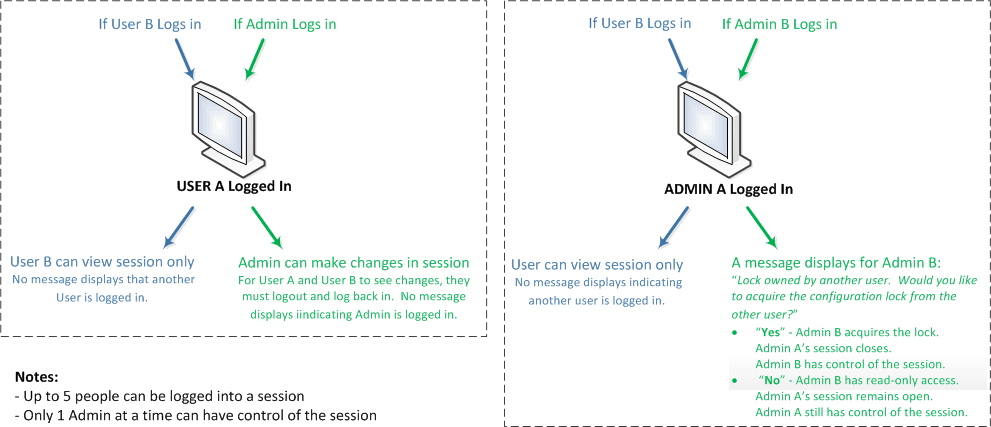
The Web GUI allows the User and Administrator to log on simultaneously. Session availability to the User and Admin depends on which type of user is logged on to the session. The following illustrations depict and explain the system behavior when a User and an Administrator log on to a Web GUI session.
Note:
In the illustration where Admin A logged in first, the behavior is as described. If Admin B logs in first, then the system shows the lock message to Admin A. The first Admin to log in acquires the lock.Up to five users can log onto the same session at the same IP address at the same time. Only one Administrator at a time can have full control of a simultaneous session.
Log on to the Web GUI
You can log on to the ESR as a User or an as Administrator, depending on your permissions.
You need your User name, Password, and optionally your passcode to log on. The system requires your passcode when two factor authentication is enabled. If your system Administrator configured the optional log on page message, the system displays the message after you enter your log on credentials. After reading the message, click Close, and the system displays the GUI. The first time you log on, the GUI displays the Configuration Assistant.
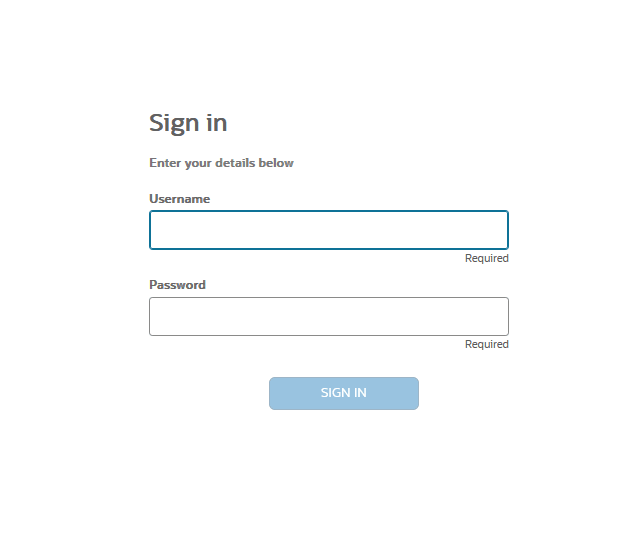
- In the Sign in dialog, enter
your ESR credentials,
and click Sign in. The Login banner is displayed. For
more information on the Sign in Banner, see Login Banner.
Figure 2-1 Sign in
Change the Sign In Password
Use the Oracle® Enterprise Session Router ACLI to change a User or Administrator sign in password.
Log Off from the Web GUI
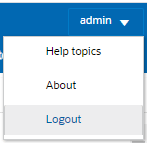
- On the User menu located in the
upper right corner of the Web GUI, click Log Out.
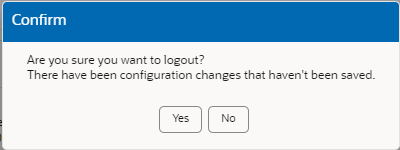
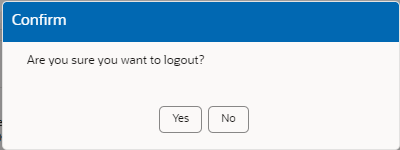
 The Web GUI displays a confirmation message that depends on whether or not unsaved changes exist.
 - In the Confirm dialog,
take the appropriate action.
Click Yes when no unsaved changes exist.
Click the action you want when unsaved changes exist.