8 Product Offers
Learn how to create and manage product offers and how to use the Product Offer Guided Flow in the Launch application.
Overview
Launch supports the creation of simple product offers and bundle product offers to model commercial propositions that can be sold across multiple channels. A simple offer represents an atomic offering such as a service, device, or accessory, while a bundle offer represents a logical grouping of multiple simple offers that are sold together as a package, service bundle, or commercial bundle.
Simple offers typically define a single product or service with its own pricing, terms, attributes, and rules. Bundle offers allow you to aggregate or group simple offers, apply pricing or rules at the bundle level, and model complex commercial constructs such as packages with commitment terms, option groups, and shared pricing strategies.
Figure 8-1 illustrates an example of a simple offer, while Figure 8-2 illustrates a bundle offer composed of multiple simple offers.
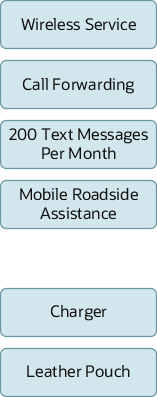
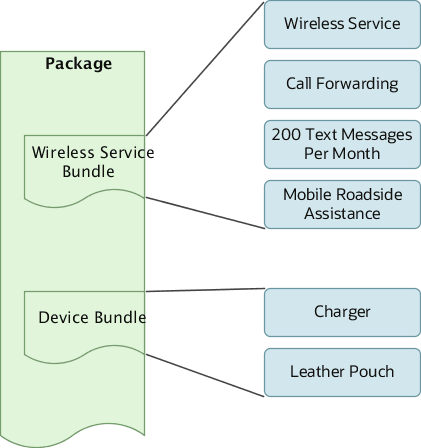
When you create a service bundle offer, you must associate a product specification that includes a primary or auxiliary service specification to enable service instantiation at runtime. Simple non-service offers, such as devices or accessories, can also be associated with a service specification. Nested service bundles are supported, with each service bundle having a primary association to a service specification. Commercial bundles cannot be associated with product specifications.
Table 8-1 lists example of a service bundle.
Table 8-1 Example of Service Bundle
| Offer ID | Offer Type | Name | Associated Product Specification | Associated Service Specification | Relationship |
|---|---|---|---|---|---|
|
S1 |
Simple service |
640KBPS Business Broadband Connect |
Business Broadband Feature Product Specification |
Business Broadband Features Service Specification |
Auxiliary |
|
S2 |
Simple service |
|
Business Broadband E-mail Product Specification |
Business Broadband E-mail Service Specification |
Primary |
|
D1 |
Simple service |
Router |
Business Broadband Router Product Specification |
Business Broadband Router Service Specification |
Primary |
|
SB1 |
Service bundle |
Business Broadband Connect Service |
Business Broadband Feature Product Specification |
Business Broadband Features Service Specification |
Primary |
Keep in mind that you cannot change the base price of simple product offers from within the bundle offer, as bundle product offers are simply a collection of simple product offers.
Creating Product Offer Using a Guided Flow
This section provides the steps to create a simple offer, a bundle offer and information about Product Offer Guided Flow windows.
Create a Simple Offer
Here's a guided flow to create a simple offer:
-
On the Launch Application dashboard, click Offering Management.
-
On the Offers page, select Create Simple Offer.
The guided UI flow appears.
-
In the Basic Information section, enter the name and description of the product offer. See General Information for more information.
-
Specify the details as applicable and click Continue to Collateral Information.
-
On the Collateral Information page, click Add Images or Add Collaterals. See Collateral Information for more information.
-
Select the items and click Select.
Your digital content is added to your offer and appears in your Images or Collaterals section.
-
If you want to upload marketing information for your offer, click Continue to Marketing Information. See Marketing Information for more details.
-
Optionally, specify the marketing information, such as, storefront banner and offer marketing feature. To add a storefront banner, click Add Storefront Banner on the Marketing information page.
-
Specify the details and click Add.
- To add a marketing feature, click Add Offer Marketing Feature on the Marketing information page.
-
Provide the details and click Add.
-
To move to the next page, click Continue to Attributes.
For more information on creating attributes, see Create a Product Specification.
-
To move to the next page, click Continue to Pricing.
-
On the Pricing page, select your pricing plan which can be one of the following:
-
One-Time Fee
-
Recurring Fee
-
Usage Fee
-
Rollover
-
Existing Price Plans
For more information about configuring pricing, see Product Offer Pricing and its related sections.
-
-
To move to the next page, click Continue to Terms.
-
On the Terms page, you can set up your payment terms. Enter the term name and the payment type.
-
Click Save.
-
To move to the next page, click Continue to Rules.
On the Rules page, you can set up the various types of rules namely eligibility, compatibility, recommendation, and migration rules. See Rules Overview and its related sections for more information about rules.
-
Finally, click Create to save your offer. You have created your simple offer.
Create a Bundle Offer
You can create bundle offers using simple product offers. A bundle refers to a logical grouping of items that can be sold.
To create a bundle offer, use the product offer guided flow where you specify the offer type as a service bundle, package, or commercial bundle.
When you create a bundle offer of type service, you must associate a product specification that has either a primary or an auxiliary service specification linked to it. This helps you instantiate the service associated with the bundle offer at run-time.
For any simple offer of non-service type such as a device or an accessory, you can associate a service specification. You can have multiple service bundles inside a nested service bundle, where each service bundle has a primary association to a service specification. You can't associate a commercial bundle to a product specification.
Keep in mind that you cannot change the base price of simple product offers from within the bundle offer, as bundle product offers are simply a collection of simple product offers.
Create an Offer Aggregation
To create an offer aggregation:
-
On the Components page, click Create Aggregation.
-
Provide a name and description.
-
From User Option Selection, select either Product Lines or Product Specifications.
-
Click Create.
After you have created an aggregation, you can also edit and remove the aggregation that you just created.
Note:
Offer aggregation is supported only on new package offering and not on Commercial and Service bundles.Create Product Option Groups
To create an option group:
-
On the Components page, click Add Offerings.
-
On the Select Available Offers page, search for the offers that you want to add and click Add. The Selected Offers appear in the Clubbed Offers page. You must select a minimum of 2 product offers to create a product option group.
-
On selecting the offers, the Create Option Group option appears.
-
Click Create Option Group.
-
On the New Option Group page, provide a name for the option group.
-
Provide a description.
-
From the User Option Selection, either select Select One or Select One or None.
-
From the Default drop-down list, select a default value for the option group.
-
Click Create.
Product Offer Guided Flow Windows
The Product Offer Guided Flow allows you to define your Product Offer using the following windows:
General Information
Use general information to provide details about the product offer that you are creating, which includes the following:
-
You can enter basic information about the offer, such as name, description, and specify the product offer effective period. You can tag an offer with keywords that suggest an offer's type, specialty, domain, and other attributes that make the offer easily searchable. For example, you can tag a package with keywords such as a 4G, 5G, or prepaid to postpaid migration.
You can also create a new offer type called Others to model an offer without attributing a type. To do this, you add the Others attribution in the lookup ORA_ATC_PRDUT_TYPE. For example, communications service providers who have Siebel CRM define the installation charges, activation charges, and discount charges as product definitions. These definitions don't fit into any of the offer classifications in Launch, but these are part of the bundle or promotions. In such cases, service providers can create an offer of type Others.
-
Chargeshare offer - Ability to configure an atomic offering with the billing type set to chargeshare and the product type as others. A chargeshare offer contains one or more charge shares that specify how charges are distributed among the members of a group. Charge sharing enables an account to sponsor the charges of other accounts within the group. The sponsoring account receives the balance impact of charges incurred by the group member accounts. You can configure the chargeshare offer, and downstream systems should manage the sponsorship group accordingly. First, create a zero-value fee, similar to a discount offering, and configure the chargeshare model. The supported models are fixed and percentage charge shares. The fixed charge share specifies a fixed value that is shared between the group member and the sponsor account, while the percentage charge share specifies the percentage value shared among the group member and sponsor account. Configure only a single charge share for a given fee type. The chargeshare offer can then be included in a bundled offering.
Example: SD chargeshare offering with billing type set to chargeshare. Configure a one-time chargeshare with 100% allocation to the sharer's balance and 100% allocation to the member's balance.
-
You also have the choice to set up the following options:
-
Make this offer orderable at the appropriate channel. The channel could be a call center, digital store, or physical stores.
-
Enable the Bring Your Own Device (BYOD) option to allow your customers to use their existing devices, such as smartphones, tablets, or smartwatches.
Note:
BYOD is available only for device and package type offers that have Orderable and Supports BYOD options enabled. Customers must create a product specification covering attributes of the device, such as IMEI, make and model.
-
Set up this offer to be configurable at runtime sales catalogs.
-
Track this offer as an asset.
- Define this product offering as shippable for physical goods.
- Allow manual override to allow runtime manual adjustments for shipping or other purposes.
Note:
When you create or edit entities, the In Design entities you can select are in context of the initiative you specified. For example, when you create offers, the product specifications drop-down list contains only those in-design specifications associated with the specified initiative. -
- The product offering includes additional modeling capabilities for all offer types. These configurations are available only for orderable offerings.
- You can set up location constraints on an offering to make it available only to specific geographic or physical locations, or to a defined set of location references critical to your business scenarios. For example,make an offer available only to a specific state in the United States.
- You can define ordering channels using channel references. For example, make an offer available via online or call center channels.
- You can make an offering available to specific market segments by configuring market segment eligibility. For example, make an offer available only to the student segment.
- These design-time constructs enable the runtime system to determine the commercial availability of offers across multiple ordering channels, customer segments, and locations.
- All referenced entities must be seeded by an administrator via Administration > Configuration before they can be used in a product offering.
- You can view the revised offer with the launched offer. To compare, select the launched offer version from the version drop-down field in the General Information tab.
Collateral Information
Use collateral information to attach digital content to your offer.
- You can optionally associate digital content to your offer. Before you associate digital content to your offers, you must add the digital content to your third party content management system. Integrate Launch Cloud Service with the third party content management system. For more details, see Launch Cloud Service Integration Guide. Once integration is done, you should be able to associate collaterals and images from your CMS.
Note:
You publish the content and associate only published content to Launch Cloud Service entities.
-
You can add agreement templates to your offer.
Agreements are typically in the context of bundle product offers of type package. An agreement defines the obligations to offer, provide, or produce specific products or services. It applies over a set period of time for a specific amount of money and is legally binding.
An agreement typically includes detailed descriptions of pricing, terms, limitations, coverage, conditions, legal rights, processes, and guidelines. Agreements are typically authored by a communication service provider's legal, risk, or compliance teams as agreement templates.
You can optionally associate agreements to your offer. Before you associate agreement to your offers, you must add the agreement to your third party content management system. Integrate Launch Cloud Service with the third party content management system. For more details, see Launch Cloud Service Integration Guide. Once integration is done, you should be able to associate collaterals and images from your CMS.
A sales agreement can include entitlements that contain special pricing for the products. A service agreement can include entitlement-based service level agreements. Entitlements include information about the benefits, conditions of entitlement, and service metrics. As a catalog administrator, you can create and manage entitlement templates that are associated with applicable products and services. For more information on agreements and entitlements, see Agreements and Entitlements.
Marketing Information
Use marketing information to add details to your offer such as banners and marketing features. Both marketing features and banners are used in your storefront to highlight the unique selling proposition of the offer being presented to the user. It's also used by the care agent to articulate the key features of the offer.
-
Storefront Banners: A banner is a way to highlight an offer to make it stand out while displaying a variety of offers, both on the digital channel of engagement and for the agent assisted ordering channel. For example, while displaying 5+ offers in the storefront, highlighting one offer as 5% early bird discount or available only today, with a time period validity is the main objective of a banner.
-
Offer Marketing Features: A marketing feature describes important attributes of a commercial offer that stands out among the other features pertaining to the offer. For example, data transfer rate or the storage capacity. You can create a list of these marketing features for an offer under marketing information.
As a product manager, you can create, modify, or delete the marketing features for a product offer at design time. Irrespective of the offer type you create, you can add the marketing features for an offer.
Attributes
Attributes are always available for simple product offers and optional for bundle offers. They represent attributes of the associated product specification. The data depends on the product type that you select.
Here you can do one of the following:
-
View the attribute values set up at the product type level that are inherited by the product offer.
-
Use Set Restrictions to set restrictions on the list of values available at runtime on the configurable attributes.
-
Set values for any free form attributes.
On the Attributes page, you can view all the attributes defined for the product type you selected. The behavior of the page is driven by the product specification that you may or may not specify. You can also set restrictions here. For example, you can create a phone specification in grey or black color.
Components (for Bundle Offers)
Components are available for only bundle product offers. The components enable you to select and aggregate product offers based on product line or a product specification. Additionally, you can also provide option groups for them. Irrespective of the bundle offer type that you create, you must associate the offer type to an initiative.
You can filter bundle components based on product line - Filter based on the product line configured for the offering. Fetch offers matching the product line and the ones that do not have a product line. Enable or disable through entity profile.
Here's what you can do using components:
-
For a bundle offer of type package, you can create an aggregation.
-
For a bundle offer of type commercial or service bundle, you can create option groups.
- You can set and override the cardinality.
- Override the commitment terms of the components of a package.
A component in a package can contain commitment terms that can be different from the commitment terms of a package. For example, consider two packages with commitment term requirement of 24 and 12 months and they include a commercial bundle with a commitment term of 18 months. The packages can override the commitment term of 18 months of the included commercial bundle to 24 and 12 months as per their requirement. You can override the commitment term at the leaf level component as well.
-
A package containing multiple services can be ordered together while allowing the subscriber to modify or disconnect individual services. There are runtime scenarios that allow a subscriber to cancel or modify one or more services with applicable rules and penalties. You can now configure what kind of action the runtime order capture application should take upon such situations by specifying the component actions in the package. The available actions are modify, disconnect, and prompt.
-
Aggregation: An aggregation is a collection of offers associated with a product line or a product specification with a default value and cardinality limit. Here's an example. Brand A has 15 phones associated to a product line, of which 8 belong to one product specification and the remaining 7 to another set of product specifications with similar attributes. For a package type offer, if you choose to provide a discount on all the 15 phones, then instead of selecting the 15 different phone offers, you could create an aggregation depicting the product specifications that the 15 phones belong to. This way all the offers associated with the product specification get the discount. This reduces the effort to create different packages for different offers.
-
Option Groups: An option group is a grouping of atomic offers. You can create option groups while creating bundle offers (service bundles or commercial bundles). As a product manager, you can use option groups to group similar atomic offers and set cardinality at the group level. Here's an example: consider a wireless data bundle that groups atomic offers: 1GB Data Offer, 5GB Data offer, and a 10 GB Data Offer. Additionally, to support a business requirement as part of the bundle, requires that the customer must choose one and only one data option in the service bundle. Here, you must create an option group and set up the options of Select One or None at the group level.
You can override the default value of an option group at a package level. This enables you to set a different default value within the context of a package and avoid bundle-offer proliferation.
You can reuse a commercial bundle with its subset of option group choices by overriding the options available. This gives you the ability to create different packages from a commercial bundle at runtime. For example, using the wireless data bundle in the previous example, you can create a package containing 1GB and 5GB data offers and another package containing 1GB and 10GB data offers.
You can configure option groups within a service bundle. For bundle offers of type service, you must associate a product specification that has a primary or an auxiliary service specification associated with it. You can also associate simple offer types such as devices, accessories, and services to a service bundle offer.
-
Override the commitment terms of the components of a package: Components of a package can have their own commitment terms and can be different from the commitment needs of the package you are configuring. When you reuse components in different packages you can override the commitment terms of the components and create your own commitment terms suitable for your package.
-
Pricing
Use pricing to specify how an offer must be priced. Depending on whether your offer is a simple offer or a bundle offer, this section presents you with different options to configure the pricing scenarios.
For example, in a simple product offer, you can set up a one-time fee, a usage fee, a recurring fee, or use existing price plans from a price list, which is a set of standard prices for products and services. You can also configure a rollover. In a bundle product offer, you can alter existing prices at the simple offer or at the bundle level. Additionally, you can associate your price plans with commitment terms, which enables you to use the same product offer with different commitment terms.
You can capture general ledger ID, tax code, and also specify tax inclusion or exclusion in bundle alterations.
You can also use a price list, which is a set of standard prices for products and services, to offer different prices for the same product with different commitment terms. You can define the type attribution for a price list based on customer segment, location, or any logical extensible value. For example, a price list type can be residential or business.
You can alter the prices in an offer using drag and drop to redefine the sequence. You can also add an existing price alteration to atomic offers using one of the list options under Add alterations.
You can use time-limited adjustment at the component-level or fee-level of a bundled offer. Time-limited adjustment enables you to provide bundle-level adjustment for a limited time relative to the purchase date of the offering.At the bundle-level price, you can use the component prices to be rolled up to the total, or you can setup the bundle level price. You can alter the prices by using Add alterations option. You can set up multi-line plans flexible enough to have different pricing strategies for additional lines. You should be able to set this up for package offerings by creating multi-line adjustments which is tiered, or volume discount applied on the input quantity.
Example: 5G Wireless Bundle where cost of a single wireless line is $80 per month, for 2 lines $75 per month per line, and for 3 lines and more, $70 per month per line.
Terms
The terms page enables you to set your payment terms and specify whether it's prepaid or postpaid.
As a product manager, you can also define the charging or suspension terms for an offer by selecting the seeded charging or suspension term template from the Launch application UI. This enables the spoke systems to apply the same terms as configured in the offer during the charging or suspension scenarios.
Remember that the templates are your starting point for applying seeded terms to an offer. After selecting a template, you can change the values applied by the template using the UI. For example, if a purchase is prorated in the template, a product manager may opt out of it while creating the offer. You can also create additional templates using the format of the seeded template.
The seeded term templates must be created as part of the implementation. For information on creating the charging term or suspension term templates, see Launch Cloud Service Integration Guide.
You can also define renewal terms on a product offering using renewal term templates to handle subscriber contract renewals.Policy Specification
Configure policy specifications in Launch product offerings for policy-driven charging, which will be used by downstream charging and policy controller applications. You can start by configuring policy specifications using the REST API, and then associate them with the atomic product offering for downstream policy and rule charging function (PCRF) consumption. The policy specification must first be configured in PDC and then loaded into Launch.
Example: Policy specification with policy labels such as QOS for the Minutes balance element.
Rules
Rules are different types of conditions that you can set for product offers. When you set a rule, you can also specify the duration for which the rule is applicable. See Rules Overview for more information on rules.
Review and Submit
Once all elements of the offer have been designed, use the Review and Submit page to verify all configuration settings before performing the final save.
Manage Offer Approvals
You can now assign approvers for all offers within an Initiative using the Approvers tab on the Initiative page.
Once approvers are set at the Initiative level, each offer is submitted for approval when the user completes the design by selecting Confirm. You can also override the approver at the offer level when confirming the offer’s design completion.
Note:
- For the approval workflow to run, the initiative associated with the offer must be configured for approvals. You can set up approvers at the initiative level, which applies to all offers in the initiative, and override them at the offer level as needed.
- While viewing an offer, you can see its approval history. On the Approval History page, you can view the trail of approvals associated with your offer.
To get approvals for an offer:
- When confirming the offer design, you are prompted to either override the default approver or submit the offer to the default approver set at the Initiative level. After you click Submit, the offer moves to the Design Complete status.
- To trigger the approval process, go to the Initiatives landing page, click Confirm for the associated initiative, and then click Initiate Approvals. This action sends email notifications to the approvers.
- When they receive the notifications, the approvers can log into the UI to approve or reject the offer and provide supporting comments.
Configuring Your System for Approvals
You configure your system for approvals using profile options. For more information, see Set Up Profile Options in Oracle Communications Launch Cloud Service Implementation Guide.
You can configure approvals to be sequential or parallel. In a parallel approval, when the designated approvers of an offer can simultaneously approve the offer. In this type of approval, you can also define the voting percentage required to move an offer to the next stage. For example, if you configure the voting percentage as 50 percent, only half of the specified approvers are required to approve an offer.
In a sequential approval flow, when you trigger the approval process, only the first approver is notified. When the first approver has approved the offer, the next approver is notified, and so on.
When working with offer approvals:
- You can’t edit an offer that’s in the approval stage. Offers in approval stage have an interim status of Approvals Pending. You can see this status when you view an offer that requires an approval.
- Offers that do not require approvals directly move from Design Complete to Ready to Publish status when you confirm the offer design.
- If you change the default approver in a sequential approval process, the type of approval reverts to the default approval type of parallel approval. This is because you would be changing the default resource hierarchy for a resource.
- You can define multiple overriding approvers for an offer but there can be only one default approver.
Manage Product Offers
You can perform the following product management tasks using the options from the ellipsis menu on the landing page:
Tip:
Before you make changes to a product specification or offer, use View references to review the impact to entities that may be referencing the specification or offer.
Search, View, and Edit Product Offers
You can search for and view product offers from the product offers landing pages.
You can view your product offers in a list or a grid, and from there open a product offer to edit (depending on the lifecycle status) or view it.
Confirm Product Offers
You confirm product offers or initiatives to mark the completion of design or testing and move them to the next stage. Once you confirm In Design or In Test product offers or initiatives, then all their entities are moved to the Ready to Publish status. After you confirm an offer, or after approvals are complete (if approvals are configured), publish the offer. See Publish Catalogs in Oracle Communications Launch Cloud Service Implementation Guide for more information.
You can confirm an offer only when it is in the In design or In test statuses.
Retire and Obsolete Product Offers
To retire a product offer:
-
Select Retire from the Actions menu.
You can retire a product offer only when all versions of that offer are in the Launched status. If any version of the product offer exists in In Design, Test, or Active status, the Retire option is not available.
The Retire Offer page appears.
-
Associate the product offer with an initiative and click Save.
Your product offer is moved to the Awaiting Retirement status and will be removed the next time the initiative is published.
Once a product offer is retired, it is no longer available for reuse.
You can obsolete your product offers that are in Retired status. If there are any versions of your product offer in launched status, then you won't be presented with the obsolete option.
You can retire product offers that are in the Launched status. If there are any versions of your product offer in In Design, Test, or Active status, then you won't be provided with the Retire option. When you select Retire from the Actions menu, you are taken to the Retire Offer page. Associate your product offer with an initiative and save. At this stage, your product offer moves to the Awaiting Retirement status and you can't make updates to your offer. When you publish the associated initiative, your product offer is retired. Once a product offer is retired, this product offer isn't available for purchase anymore, through any channels.
View References
This option enables you to view the entities that may be referencing an offer. Viewing references helps you assess the effect that your actions might have on the related entities and can help prevent the proliferation of offers.
Manage Audit Configuration
Using audits on product offerings, you can specify and capture detailed historical information, including the date and time of an action taken, the changes made to the product offer, product specification, and the identity of the person making the changes. You can download the audit logs.
You can configure audits using the Audit Trails card on the Administration page.
Revise Product Offers
You can revise your product offers that are in Launched status, following the steps below:
-
From the Actions menu, select Revise.
You are taken to the Edit Offer guided flow.
-
In the Edit Offer guided flow, make the required modifications to the available information. Ensure that the product offer is associated with an initiative.
-
The previous initiative association is lost when you launch an offer. Save the product offer. When you save the product offer, its version changes and it is saved in the In Design status.
-
When you save the product offer, its version changes and it is saved in the In Design status.
Clone Product Offers
If you want to create a new product offer that is similar to an existing offer, you can select the Clone option and then edit the cloned product offer to meet your needs.
Compare Two Offers or Versions of an Offer
You can compare two different product offers or two versions of the same offer using offer comparison. You can do this by selecting Compare Product Offerings from the Actions menu in the Offerings work area.
Note:
Comparing prices for bundled offers is not supported.
Bulk Update Product Offers
You can perform bulk actions on offerings starting with bulk update on the first-class properties of Product Offers such as description, effective start date, effective end date, track as asset, search tags, override, and other similar flags, categories, product line, terms, and so on. In addition, you can perform bulk actions on Product offering associations such as adding or removing a Product Line or Category.
You can update atomic offer prices (for simple prices only) using bulk actions on product offerings (either through the bulk update or bulk revise product offerings user experience). You can increase or decrease prices by a fixed amount or by a percentage. This allows you to efficiently update multiple prices at once. After updating atomic offering prices, use the bulk update capability to update packages and commercial bundles, ensuring they reference the latest versions of the atomic offerings. This will allow the bundle roll-up price to reflect the most recent changes.
Example: A Product Manager increases the prices of the SD voice, SD voice supremo, and SD voice allowance atomic offerings by 10%.
- Bulk update product offerings - Update offerings that are part of the same initiative and are in design status.
- Bulk revise product offerings - Update product offerings that are in the Launched status by revising the offerings.
View and Edit Bundle Offers Using Offer Canvas
Note:
This option is available only for bundled offers.