3.3.1 Procedure 4 LSMS SERVDI BACKUP
Table 3-8 Procedure 4 LSMS SERVDI BACKUP
| STEP # | This procedure provides steps to complete LSMS servdi backup | |
|---|---|---|
|
1. ☐ |
LSMS: Login to Active LSMS server as root user. |
|
|
2. ☐ |
Change the user to lsmsadm. |
# su –lsmsadm |
|
3. ☐ |
Enable the servdi feature |
Note: The SERVDI feature will not be available within a GUI instance until the GUI is restarted.
|
|
4. ☐ |
Verify that servdi feature has been enabled. |
|
|
5. ☐ |
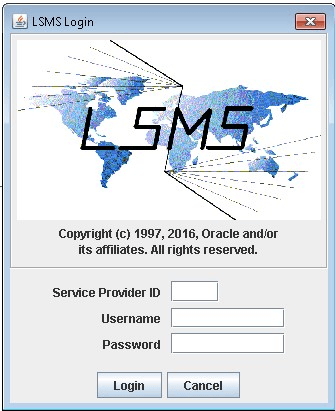
LSMS: Log in to the LSMS GUI as a member of the permission group that is authorized to perform this operation. |
 |
|
6. ☐ |
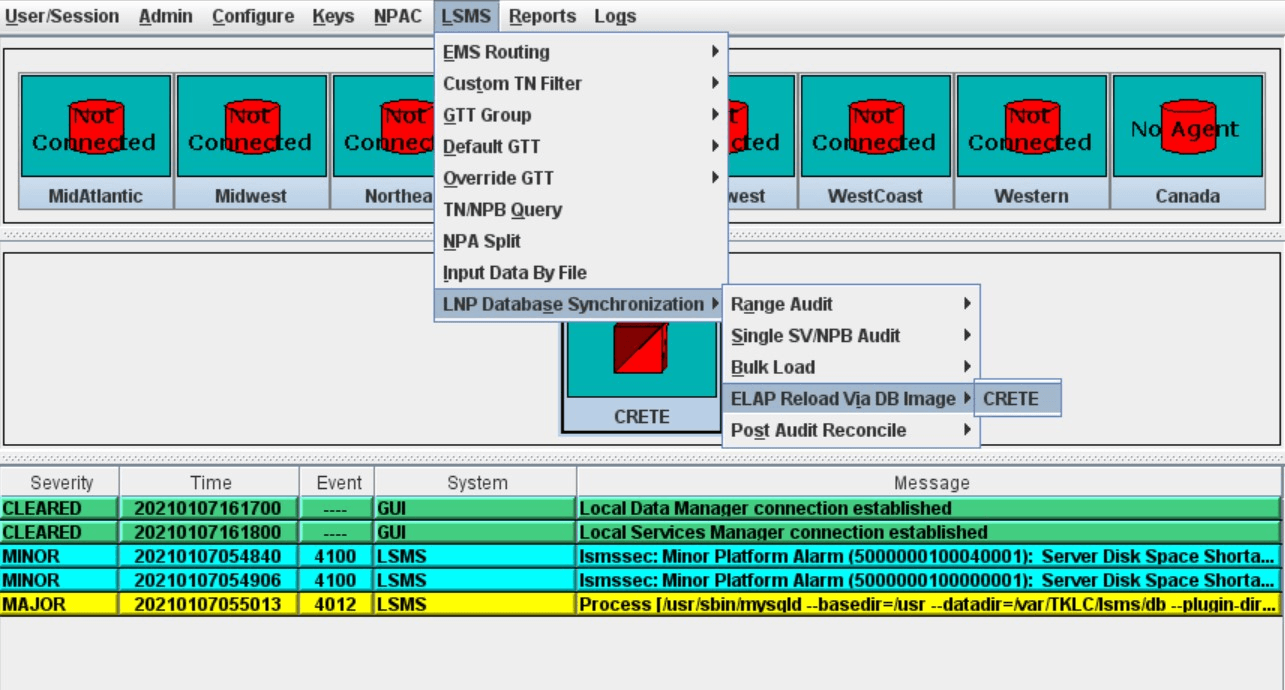
Select the LSMS icon. Right click on LSMS icon LSMS-> LNP Database Synchronization -> ELAP Reload via DB image |
 |
|
7. ☐ |
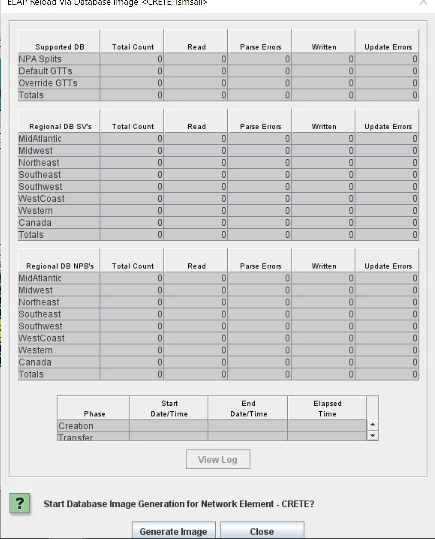
Click on generate image |
 |
This procedure is complete!