3.5.1 Procedure 4 Disconnect ELAP from LSMS
Table 3-9 Procedure 4 - Disconnect ELAP from LSMS
| STEP # | This procedure disconnects the ELAP from LSMS.Estimated time: 5 minutes Note: This procedure needs to be executed on all the connected ELAPs. | |
|---|---|---|
|
☐1. |
ELAP Active server: Verify ELAP 10.2 install |
Note: Verify the following.
|
|
☐2. |
LSMS Active server: Log in to the server as the user “lsmsadm”. |
|
|
☐3. |
LSMS Active server: Disconnect the connected ELAPs |
Look for all connected ELAPs and disconnect each of them. |
|
☐4. |
ELAP Active server: Login to ELAP GUI |
Login to the ELAP (connected to LSMS) GUI through VIP as uiadmin. |
|
☐5. |
ELAP Active server: Disable the Bulk Download |
Go to menu Maintenance -> LSMS HS Bulk Download -> Change Enabled Click on ‘Disable LSMS Bulk Download for this ELAP’ button. 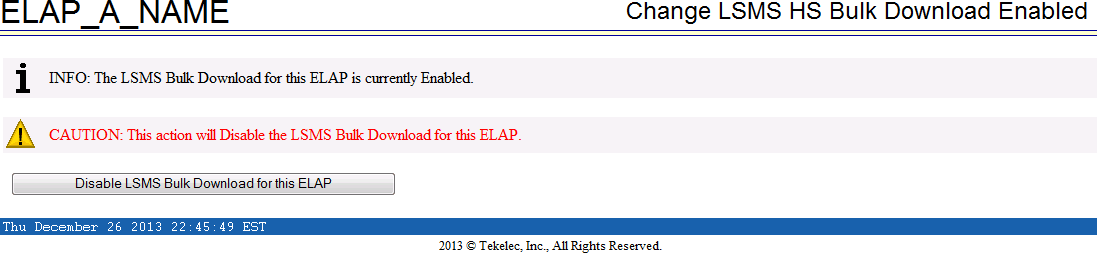  |
|
☐6. |
ELAP Active server: Disable the LSMS Connection |
Go to menu Maintenance -> LSMS Connection -> Change Enabled Click on ‘Disable LSMS Connection’ button. 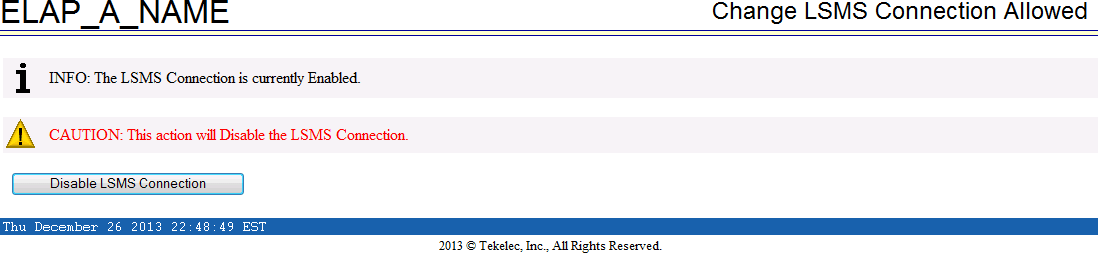  |
|
☐7. |
All connected ELAPs: Disconnect LSMS connection |
Repeat the steps 4 to 6 for all ELAPs connected to LSMS. |
|
This procedure is complete! |
||