4 Troubleshooting OCNWDAF
This chapter provides information to troubleshoot the common errors which can be encountered during the preinstallation, installation, upgrade, and rollback procedures of OCNWDAF.
4.1 Generic Checklist
The following sections provide a generic checklist for troubleshooting tips.
Deployment related tips
Perform the following checks after the deployment:
- Are OCNWDAF deployment, pods, and services created?
Are OCNWDAF deployment, pods, and services running and available?
Run the following the command:
Inspect the output, check the following columns:# kubectl -n <namespace> get deployments,pods,svc- AVAILABLE of deployment
- READY, STATUS, and RESTARTS of a pod
- PORT(S) of service
- Check if the microservices can access each other via REST interface.
Run the following command:
# kubectl -n <namespace> exec <pod name> -- curl <uri>
Application related tips
Run the following command to check the application logs and look for exceptions:
# kubectl -n <namespace> logs -f <pod name>You can use '-f' to follow the logs or 'grep' for specific pattern in the log output.
4.2 Deployment Related Issue
This section describes the most common deployment related issues and their resolution steps. It is recommended to perform the resolution steps provided in this guide. If the issue still persists, then contact My Oracle Support.
4.2.1 Installation
This section describes the most common installation related issues and their resolution steps.
4.2.1.1 Pod Creation Failure
A pod creation can fail due to various reasons. Some of the possible scenarios are as follows:
Verifying Pod Image Correctness
To verify pod image:
- Check whether any of the pods is in the ImagePullBackOff state.
- Check if the image name used for all the pods are correct. Verify the image names and versions in the OCNWDAF installation file. For more information about the custom value file, see Oracle Communications Networks Data Analytics Function Installation Guide.
Verifying Resource Allocation Failure
To verify any resource allocation failure:
- Run the following command to verify whether any pod is in the pending state.
kubectl describe <nwdaf-drservice pod id> --n <ocnef-namespace> - Verify whether any warning on insufficient CPU exists in the describe output of the respective pod. If it exists, it means there are insufficient CPUs for the pods to start. Address this hardware issue.
Verifying Resource Allocation Issues on Webscale Environment
Webscale environment has openshift container installed. There can be cases where,
- Pods does not scale after you run the installation command and the installation fails with timeout error. In this case, check for preinstall hooks failure. Run the oc get job command to create the jobs. Describe the job for which the pods are not getting scaled and check if there are quota limit exceeded errors with CPU or memory.
- Any of the actual microservice pods do not scale post the hooks completion. In this case, run the oc get rs command to get the list of replicaset created for the NF deployment. Then, describe the replicaset for which the pods are not getting scaled and check for resource quota limit exceeded errors with CPU or memory.
- Installation times-out after all the microservice pods are scaled as expected with the expected number of replicas. In this case, check for post install hooks failure. Run the oc get job command to get the post install jobs and do a describe on the job for which the pods are not getting scaled and check if there are quota limit exceeded errors with CPU or memory.
- Resource quota exceed beyond limits.
4.2.1.2 Pod Startup Failure
- If dr-service, diameter-proxy, and diam-gateway services are stuck in the Init state, then the reason could be that config-server is not yet up. A sample log on these services is as follows:
"Config Server is Not yet Up, Wait For config server to be up."To resolve this, you must either check for the reason of config-server not being up or if the config-server is not required, then disable it.
- If the notify and on-demand migration service is stuck in the Init state, then the reason could be the dr-service is not yet up. A sample log on these services is as follows:
"DR Service is Not yet Up, Wait For dr service to be up."To resolve this, check for failures on dr-service.
4.2.1.3 NRF Registration Failure
- Confirm whether registration was successful from the nrf-client-service pod.
- Check the ocnwdaf-nrf-client-nfmanagement logs. If the log has "OCNWDAF is Unregistered" then:
- Check if all the services mentioned under allorudr/slf (depending on OCNWDAF mode) in the installation file has same spelling as that of service name and are enabled.
- Once all services are up, OCNWDAF must register with NRF.
- If you see a log for SERVICE_UNAVAILABLE(503), check if the primary and secondary NRF configurations (primaryNrfApiRoot/secondaryNrfApiRoot) are correct and they are UP and Running.
4.3 Database Related Issues
This section describes the most common database related issues and their resolution steps. It is recommended to perform the resolution steps provided in this guide. If the issue still persists, then contact My Oracle Support.
4.3.1 Debugging MySQL DB Errors
If you are facing issues related to subscription creation, follow the procedure below to login to MySQL DB:
Note:
Once the MySQL cluster is created, the cndbtier_install container generates the password and stores it in the occne-mysqlndb-root-secret secret.- Retrieve the MySQL root password from occne-mysqlndb-root-secret secret.
Run the command:
$ kubectl -n occne-cndbtier get secret occne-mysqlndb-root-secret -o jsonpath='{.data}'map[mysql_root_password:TmV4dEdlbkNuZQ==] - Decode the encoded output received as an output of the previous step to get the actual password:
$ echo TmV4dEdlbkNuZQ== | base64 --decode NextGenCne - Login to MySQL pod, run the command:
$ kubectl -n occnepsa exec -it ndbmysqld-0 -- bashNote:
Default container name is:mysqlndbcluster.Run the command
kubectl describe pod/ndbmysqld-0 -n occnepsato see all the containers in this pod. - Login using MySQL client as the root user, run the command:
$ mysql -h 127.0.0.1 -uroot -p - Enter current root password for MySQL root user obtained from step 2.
- To debug each microservice, perform the following steps:
- For the ocn-nwdaf-subscription service, run the following SQL commands:
use <dbName>; use nwdaf_subscription; select * from nwdaf_subscription; select * from amf_ue_event_subscription select * from smf_ue_event_subscription - For the ocn-nrf-simulator service, run the following SQL commands:
use <dbName>; use nrf; select * from profile; - For the ocn-smf-simulator service, run the following SQL commands:
use <dbName>; use nrf; select * from smf_event_subscription; - For the ocn-amf-simulator service, run the following SQL commands:
use <dbName>; use nrf; select * from amf_event_subscription; - For the ocn-nwdaf-data-collection service, run the following SQL commands:
use <dbName>; use nwdaf_data_collection; select * from amf_event_notification_report_list; select * from amf_ue_event_report; select * from cap4c_ue_notification; select * from slice_load_level_notification; select * from smf_event_notification_report_list; select * from smf_ue_event_report; select * from ue_mobility_notification; - For the ocn-nwdaf-configuration-service service, run the following SQL commands:
use <dbName>;
use nwdaf_configuration_service;
select * from slice;
select * from tracking_are;
select * from slice_tracking_area;
select * from cell;
- For the ocn-nwdaf-subscription service, run the following SQL commands:
4.4 Apache Kafka Related Issues
To debug issues related to Apache Kafka pipelines (such as, unable to read messages from the pipeline or write messages to the pipeline) perform the following steps:
- Get the Kafka pods, run the command:
kubectl -n performance-ns get pods -o wide | grep "kafka" - Select any pod and access the pod using the command:
kubectl -n performance-ns exec -it kafka-sts-0 -- bash - Move to the directory containing the binary files, run the command:
cd kafka_2.13-3.1.0/bin/ - Obtain the list of topics, run the command:
kafka-topics.sh --list --bootstrap-server localhost:9092 - For each topic, run the following command:
kafka-console-consumer.sh --bootstrap-server 127.0.0.1:9092 --topic
    <topic-name>
4.5 CAP4C Related Issues
- cap4c-model-controller
- cap4c-model-executor
- druid-pod
- kafka
- mysql-pod
To obtain more information on the service pods, follow the steps listed below:
-
Each of these services is deployed as pod in Kubernetes. To find the status of the pods in Kubernetes run the following command:
$ kubectl get pods -n <namespace>Sample output:
NAME READY STATUS RESTARTS AGE cap4c-model-controller-deploy-779cbdcf8f-w2pfh 1/1 Running 0 4d8h cap4c-model-executor-deploy-f9c96db54-ttnhd 1/1 Running 0 4d5h cap4c-stream-analytics-deploy-744878569-5xr2w 1/1 Running 0 4d8h druid-pod 1/1 Running 0 4d8h - To verify the pod information, print the detail of each pod to:
$ kubectl describe pod cap4c-model-controller-deploy-779cbdcf8f-w2pfh  -n
    <namespace>
Sample output:
Name: cap4c-model-controller-deploy-779cbdcf8f-w2pfh Namespace: performance-ns Priority: 0 Node: sunstreaker-k8s-node-2/192.168.200.197 Start Time: Fri, 26 Aug 2022 15:31:39 +0000 Labels: app=cap4c-model-controller pod-template-hash=779cbdcf8f Annotations: cni.projectcalico.org/containerID: 480ca581a828184ccf6fabf7ec7cfb68920624f48d57148f6d93db4512bc5335 cni.projectcalico.org/podIP: 10.233.76.134/32 cni.projectcalico.org/podIPs: 10.233.76.134/32 kubernetes.io/psp: restricted seccomp.security.alpha.kubernetes.io/pod: runtime/default Status: Running - List the service configuration for the pods, run the command:
$ kubectl get svc -n <namespace>Sample output:
NAME              TYPE        CLUSTER-IP      EXTERNAL-IP
         PORT(S)    AGE cap4c-executor    ClusterIP   10.233.5.218    <none>
        8080/TCP   4d8h druid             ClusterIP   10.233.10.167   <none>
        8888/TCP   4d8h druid-svc         NodePort    10.233.39.96    <none>
        8888:32767/TCP 4d8h
4.6 Service Related Issues
This section describes the most common service related issues and their resolution steps. It is recommended to perform the resolution steps provided in this guide. If the issue still persists, then contact My Oracle Support.
4.6.1 Errors from Microservices
The OCNWDAF microservices are listed below:
- ocn-nwdaf-subscription
- ocn-nwdaf-data-collection
- ocn-nwdaf-communication
- ocn-nwdaf-configuration-service
- ocn-nwdaf-analytics
- ocn-nwdaf-gateway
- ocn-nwdaf-mtlf
- ocn-nrf-simulator
- ocn-smf-simulator
- ocn-amf-simulator
- mesa-simulator
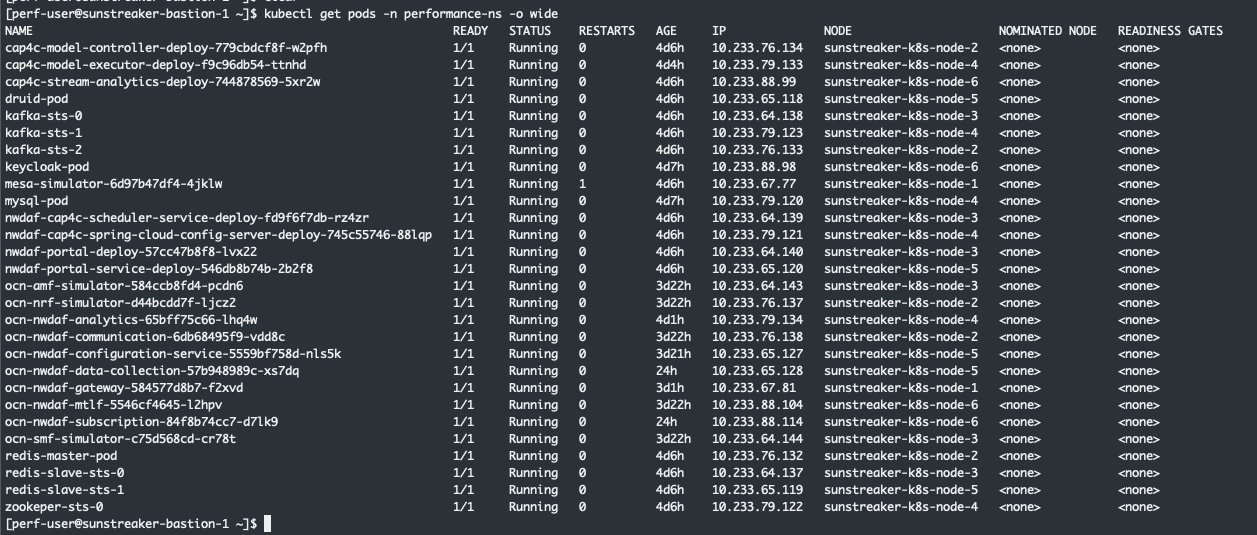
To debug microservice related errors, obtain the logs in the pods which are facing issues, run the following commands for each microservice:
- Obtain the pod information, run the command:
kubectl get pods -n <nameSpace> -o wideSample output:
Figure 4-1 Pod Information
- Obtain the log information for the pods, run the command:
kubectl logs <podName> -n <nameSpace>
kubectl logs ocn-nwdaf-subscription-84f8b74cc7-d7lk9 -n performance-nskubectl logs ocn-nwdaf-data-collection-57b948989c-xs7dq -n performance-nskubectl logs ocn-nwdaf-gateway-584577d8b7-f2xvd -n performance-nskubectl logs ocn-amf-simulator-584ccb8fd4-pcdn6 -n performance-ns