6 Kafka Cluster Management Procedures
The following sections describes the procedure to manage the kafka cluster.
6.1 Creating Topics for OCNADD
- Create topics (MAIN, SCP, SEPP, PCF, BSF and NRF) using configuration service, before starting data ingestion.
- If data has to be ingested from thirdparty NFs, then create topic "NON_ORACLE" using admin service, before starting data ingestion.
- For more information on topic creation and partitions, see the "OCNADD resource requirement" section in Oracle Communications Network Analytics Data Director Benchmarking Guide.
To create a topic connect, to any worker node and send a POST curl request to the API Endpoint described below.
API Endpoint: <ClusterIP:Config Port>/ocnadd-configuration/v1/<worker-group>/topic
where <worker-group> = <workerGroupNamespace>:<clusterName>
For example:
curl -k --location "https://ocnaddconfiguration:12590/ocnadd-configuration/v1/dd-worker-group1:dd-cluster/topic"curl -k --location --cert-type P12 --cert /var/securityfiles/keystore/clientKeyStore.p12:$OCNADD_SERVER_KS_PASSWORD "https://ocnaddconfiguration:12590/ocnadd-configuration/v1/dd-worker-group1:dd-cluster/topic"{
"topicName":"<topicname>",
"partitions":"3",
"replicationFactor":"2",
"retentionMs":"120000"
}Note:
- In case worker node access is not available then the adminservice
Service-Type can be changed to LoadBalancer or NodePort in the admin service
values.yaml(helm upgrade is required for any such changes). - For Loadbalancer service ensure that the admin port is not blocked in the cluster.
6.2 Kafka Cluster Capacity Expansion
The Kafka cluster capacity expansion may be needed if the traffic throughput requirement for the customer deployment has changed significantly. This method is the standard approach: first scale the brokers, then increase the topic partitions, and finally execute a single, comprehensive partition reassignment to distribute all partitions (existing and new) evenly across the larger cluster.
The capacity expansion can be carried out in the three-step process listed below:
- Adding more brokers to the existing Kafka cluster
- Increasing the partitions in the existing topics (for example, SCP, SEPP, MAIN)
- Partition reassignment for the topics
The procedures should be performed in the described sequence as needed in the Worker Group’s Kafka cluster.
-
Wait for each action to finish successfully before proceeding.
-
Monitor logs for errors, especially during the reassignment and partition increase steps.
-
Adjust hostnames, broker lists, and file paths as needed for your environment.
6.2.1 Adding Kafka Brokers to Existing Kafka Cluster
The Kafka brokers in the cluster should be increased based on the benchmarking guide recommendations for the desired throughput.
Refer to the Oracle Communications Network Analytics Benchmarking Guide for the Kafka broker resource profile, including the number of brokers and the number of partitions for the Source and MAIN topics.
Perform the following steps to increase the brokers in the existing Kafka cluster in the Worker Group:
- Update the custom values for the Worker Group to increase Kafka broker replicas.
# Update the helm chart to increase the number of Kafka brokers say 11 For Worker Group: Update the ocnadd-custom-values.yaml for worker group in the current release as indicated below global.kafkareplicas: 4 ======================> 11 increase this value to the desired value # Save the custom values in the corresponding helm charts - Scale the Kafka brokers. Scale the Kafka StatefulSet to the required replica count (for example, 11):
kubectl scale sts -n dd-wg kafka-broker --replicas 11 - Verify that new Kafka brokers are spawned. Verify the Kafka broker pods in the corresponding Worker Group.
Run the following command and ensure that the number of Kafka broker pods matches the configured replica count and that all brokers are in the Running state:
kubectl get po -n dd-wg - Continue to the next procedure to increase the partitions for the topic.
6.2.2 Adding Partitions to an Existing Topic
The topics in OCNADD must be created with the necessary partitions for the supported MPS during the deployment. In case the traffic load increases beyond the supported MPS, there may be the need to increase the number of partitions in the existing topics. This section describes the procedure to increase the number of partitions in the corresponding topic.
Caution:
The number of partitions cannot be decreased using this procedure. If partition reduction is required, the topic needs to be recreated with the desired number of partitions, in such case the complete data loss of the concerned topic is anticipated.
- Login to the bastion host.
- Enter inside any POD in the deployed OCNADD namespace, execute the
following command:
kubectl exec -it <pod-name>-n <namespace> -- bashExample:
kubectl exec -ti -n ocnadd-deploy ocnaddadminservice-xxxxxx -- bashNote:
The procedure has been explained using the SCP topic name and https curls as an example. Modify the command with respect to the topic name you are updating. And use http in case intraTls is not enabled. - Describe the corresponding topic using the below command. Also
provide the worker group name in the command
below:
curl -k --location "https://ocnaddconfiguration:12590/ocnadd-configuration/v1/<worker-group>/topic/SCP"If intraTLS is enabled or intraTls & mTLS enabled then use the following command:
curl -k --location --cert-type P12 --cert /var/securityfiles/keystore/clientKeyStore.p12:$OCNADD_SERVER_KS_PASSWORD "https://ocnaddconfiguration:12590/ocnadd-configuration/v1/<worker-group>/topic/SCP"The above command will list the topic details such as number of partitions, replication factor, retentionMs, and so on.
- Add/increase partitions in the topic by executing the following
command. Also provide the worker group name in the below command:
curl -v -k --location --request PUT "https://ocnaddconfiguration:12590/ocnadd-configuration/v1/<worker-group>/topic" --header 'Content-Type: application/json' \ --data-raw '{ "topicName": "SCP", "partitions": "24" }'; if intraTLS is enabled or intraTls & mTLS enabled then use the following command curl -v -k --location --cert-type P12 --cert /var/securityfiles/keystore/clientKeyStore.p12:$OCNADD_SERVER_KS_PASSWORD --request PUT "https://ocnaddconfiguration:12590/ocnadd-configuration/v1/<worker-group>/topic" --header 'Content-Type: application/json' \ --data-raw '{ "topicName": "SCP", "partitions": "24" }'; - Verify that the partitions have been added to the topic by
executing the following command. Also provide the worker group name in the
command
below:
curl -k --location "https://ocnaddconfiguration:12590/ocnadd-configuration/v1/<worker-group>/topic/SCP"If intraTLS is enabled or intraTls & mTLS enabled then use the following command:curl -k --location --cert-type P12 --cert /var/securityfiles/keystore/clientKeyStore.p12:$OCNADD_SERVER_KS_PASSWORD "https://ocnaddconfiguration:12590/ocnadd-configuration/v1/<worker-group>/topic/SCP" - Exit from the POD (container).
6.2.3 Partitions Reassignment in Kafka Cluster
The procedure is divided into three major steps:
- Identify the topics for partition reassignment
- Generate the reassignment plan
- Execute the reassignment plan
- Prepare the file listing all topics for reassignment (for example,
__consumer_offsets,__transaction_state, SCP, and MAIN):Create and copy the JSON file for the identified topics.
# Create topics-to-move-wg.json
{
  "topics": [
    {"topic": "SCP"},
    {"topic": "SEPP"},
    {"topic": "MAIN"},
    {"topic": "__consumer_offsets"},
    {"topic": "__transaction_state"}
  ],
  "version": 1
}
Copy the created JSON file to the appropriate Kafka broker (adjust the pod name and namespace):
kubectl cp topics-to-move-wg.json <dd-wg>/<kafka-pod-name>:/home/ocnadd/topics.json - Generate the reassignment plan to distribute all partitions across the new broker list in the corresponding group:
Generate the partition reassignment plan:
Exec into Kafka Broker (use worker group namespace)
unset JMX_PORT
cd kafka/bin
./kafka-reassign-partitions.sh --bootstrap-server kafka-broker:9092 \
  --topics-to-move-json-file /home/ocnadd/topics.json \
  --broker-list "1001,...,1011" --generate
Save the generated Proposed partition reassignment configuration as
reassignment.jsonand copy it to the Kafka broker pod:kubectl cp reassignment.json <dd-wg>/<kafka-pod-name>:/home/ocnadd/reassignment.json - Execute the reassignment plan to start the partition movement with throttling limits:
Exec into Kafka Broker (use worker group namespace) unset JMX_PORT cd kafka/bin ./kafka-reassign-partitions.sh --bootstrap-server kafka-broker:9092 \ --reassignment-json-file /home/ocnadd/reassignment.json \ --execute --throttle 50000000 --replica-alter-log-dirs-throttle 100000000 - Verify the partition reassignment:
Exec into Kafka Broker (use worker group namespace)
unset JMX_PORT
cd kafka/bin
./kafka-reassign-partitions.sh --bootstrap-server kafka-broker:9092 \
  --reassignment-json-file /home/ocnadd/reassignment.json --verify
6.3 Enabling Kafka Log Retention Policy
In Kafka, the log retention strategy determines how long the data is kept in the broker's logs before it is purged to free up storage space.
- Time-based retention:
Once the logs reach the specified age, they are considered eligible for deletion, and the broker will start a background task to remove the log segments that are older than the retention time. The time-based retention policy applies to all logs in a topic, including both the active logs that are being written and the inactive logs that have already been compacted.
The retention time is usually set using the "log.retention.hours" or "log.retention.minutes" configuration.
Parameters used:
log.retention.minutes=5 The default value for "log.retention.minutes" is set to 5 min.
- Size-based retention:
Once the logs reach the specified size threshold, the broker will start a background task to remove the oldest log segments to ensure that the total log size remains below the specified limit. The size-based retention policy applies to all logs in a topic, including both the active logs that are being written and the inactive logs that have already been compacted.
By default, these parameters are not available in the OCNADD helm chart. The parameters are customizable and can be added in 'ocnadd/charts/ocnaddkafka/templates/scripts-config.yaml', a helm upgrade needs to be performed in order to apply the parameters. A Kafka Broker restart is expected.
Parameters for size-based retention:
For size-based retention add the below parameters in 'ocnadd/charts/ocnaddkafka/templates/scripts-config.yaml' file, and perform a helm upgrade to apply the parameters.
#The maximum size of a single log file
log.segment.bytes=1073741824

#The maximum size of the log before deleting it
log.retention.bytes=32212254720

#Enable the log cleanup process to run on the server
log.cleaner.enable=true

#This is default cleanup policy. This will discard old segments when their retention time or size limit has been reached.
log.cleanup.policy=delete

#The interval at which log segments are checked to see if they can be deleted
log.retention.check.interval.ms=1000

#The amount of time to sleep when there are no logs to clean
log.cleaner.backoff.ms=1000

#The number of background threads to use for log cleaning
log.cleaner.threads=5
Calculate "log.retention.bytes":
The log retention size can be calculated as below.
Example: For 80% threshold of the PVC claim size,
"log.retention.bytes" will be calculated as: (pvc(in bytes) / TotalPartition) * threshold/100
Here TotalPartition will be the sum of partitions of all the topics. If any topic has replication factor 2, then the number of partitions will be twice the number of partitions in that topic. See Oracle Communications Network Analytics Data Director Benchmarking Guide section "OCNADD resource requirement" to determine the number of partitions per topic.
Note:
- It's important to choose an appropriate time-based retention and size-based retention policy that balances the need for retaining data for downstream processing against the need to free up disk space. If the retention size or retention time is set too high, it may result in large amounts of disk space being consumed, and if it's set too low, important data may be lost.
- Kafka also allows for a combination of both time-based and size-based retention by setting both "log.retention.hours" or "log.retention.minutes" and "log.retention.bytes" configurations, in which the broker will retain logs for the shorter of the two.
- The "log.segment.bytes" is used to control the size of log segments in a topic's partition and is usually set to a relatively high value (for example, 1 GB) to reduce the number of segment files and minimize the overhead of file management. It is recommended to set this value lower based on smaller PVC size.
- The above procedures should be applied for all the Kafka Broker clusters corresponding to each of the worker groups.
6.4 Expanding Kafka Storage
With the increase in throughput requirements in the OCNADD, the storage allocation in Kafka should also be increased. If the user had previously allocated storage for lower throughput, then, storage should be increased to meet the new throughput requirements.
The procedure should be applied to all the available Kafka Broker clusters corresponding to each of the worker groups in the Centralized deployment mode.
Caution:
- The PVC expansion is recommended to be performed before the release upgrade, for example, if the Data Director release is running in 23.3.0 (source release) and planned to be upgraded to 23.4 or higher (target release) and there is a need for the expanding the PVC storage because of higher throughput support in the target release then PVC expansion must be done in the source release using the below mentioned procedures
- It is not possible to rollback the Kafka to the previous release if the Kafka PVC size has been increased after the upgrade. In the case of rollback is still required then DR procedures for the Kafka should be followed and this may result in data loss if data is not consumed already.
- Check the
StorageClassto which your PVC is attached.Note:
- PVC storage size can only be increased. It cannot be decreased.
- It is mandatory to keep the same PVC storage size for all the Kafka brokers.
- Run the following command to get the list of storage
classes:
kubectl get scSample output:NAME PROVISIONER RECLAIMPOLICY VOLUMEBINDINGMODE ALLOWVOLUMEEXPANSION AGE occne-esdata-sc rook-ceph.rbd.csi.ceph.com Delete Immediate true 125d occne-esmaster-sc rook-ceph.rbd.csi.ceph.com Delete Immediate true 125d occne-metrics-sc rook-ceph.rbd.csi.ceph.com Delete Immediate true 125d standard (default) rook-ceph.rbd.csi.ceph.com Delete Immediate true 125d - Run the following command to describe a storage
class:
kubectl describe sc <storage_class_name>For example:kubectl describe sc standardSample output:Name: standard IsDefaultClass: yes Provisioner: rook-ceph.rbd.csi.ceph.com Parameter: clusterID=rook-ceph,csi.storage.k8s.io/ AllowVolumeExpansion: True MountOptions: discard ReclaimPolicy: Delete VolumeBindingMode: Immediate Events: <none>The PVC should belong to the StorageClass which has "AllowVolumeExpansion" set asTrue:AllowVolumeExpansion: True
- Run the following command to list all the available
PVCs:
kubectl get pvc -n <namespace>For example:kubectl get pvc -n ocnadd-deploySample output:NAME STATUS VOLUME CAPACITY ACCESS MODES STORAGECLASS AGE backup-mysql-pvc Bound pvc-6e0c8366-fdaa-488e-a09d-f976e74f025b 20Gi RWO standard 8d kafka-broker-security-zookeeper-0 Bound pvc-4f3c310c-1173-4d3d-824a-ddd2640ab028 5Gi RWO standard 8d kafka-broker-security-zookeeper-1 Bound pvc-70fffae2-4f2a-4ecc-8f74-abfa003a8c1e 5Gi RWO standard 8d kafka-broker-security-zookeeper-2 Bound pvc-e1b0b96d-e000-4e5c-a01c-d41cc8f3cfa4 5Gi RWO standard 8d kafka-volume-kafka-broker-0 Bound pvc-48845cf6-1708-400a-808e-5b9b3cda7242 20Gi RWO standard 8d kafka-volume-kafka-broker-1 Bound pvc-8acbde89-b223-4015-a170-ad6417b08be7 20Gi RWO standard 8d kafka-volume-kafka-broker-2 Bound pvc-7b444cba-d1ab-496b-8b60-7c7599ef8754 20Gi RWO standard 8d kafka-volume-kafka-broker-3 Bound pvc-e1584794-8e62-4f6a-8eff-c0c86e0864a1 20Gi RWO standard 8d ocnadd-cache-volume-ocnaddcache-0 Bound pvc-5bf8ce9c-7ea6-4cf3-b51e-6ca94104dc5b 1Gi RWO standard 8d ocnadd-cache-volume-ocnaddcache-1 Bound pvc-ddb0b53c-ec69-4e07-ac44-3ab98bee1d4c 1Gi RWO standard 8d - Run the following command to edit the required PVC and update the
storage
size:
kubectl edit pvc <pvc_name> -n <namespace>For example:kubectl edit pvc kafka-volume-kafka-broker-0 -n ocnadd-deploySample output:spec: accessModes: - ReadWriteOnce resources: requests: storage: <pvc_size>GiRepeat steps 2 and 3 for each available Kafka PVC. Increase the size of the next Kafka broker PVC only after confirming that the current Kafka broker PVC's augmented size is reflected in the output of step 3. To increase the <pvc_size> for all the Kafka broker pods created during deployment, follow these steps.
To understand the storage requirement for your Kafka broker pods based on supported throughput, see "Kafka PVC-Storage Requirements" section in Oracle Communications Network Analytics Data Director Benchmarking Guide.
- Run the following command to delete the stateful
set:
kubectl delete statefulset --cascade=orphan <statefulset_name> -n <namespace> - In the
ocnadd-custom-values-25.1.201.yamlfile, update the PVC size (.Values.ocnaddkafka.ocnadd.kafkaBroker.pvcClaimSize) to match the value configured in step 4.ocnaddkafka: ocnadd: ################ # kafka-broker # ################ kafkaBroker: name: kafka-broker replicas: 4 pvcClaimSize: <pvc_size>Gi - Perform the Helm upgrade to recreate the stateful set of Kafka
broker:
helm upgrade <release_name> <worker_grp_chart_name> -n <worker_grp_namespace> -f ocnadd-custom-values_<worker_grp>.yaml
6.5 Kafka Zookeeper to Kraft Migration
The following sections describes the procedure for Kafka Zookeeper to Kraft Migration.
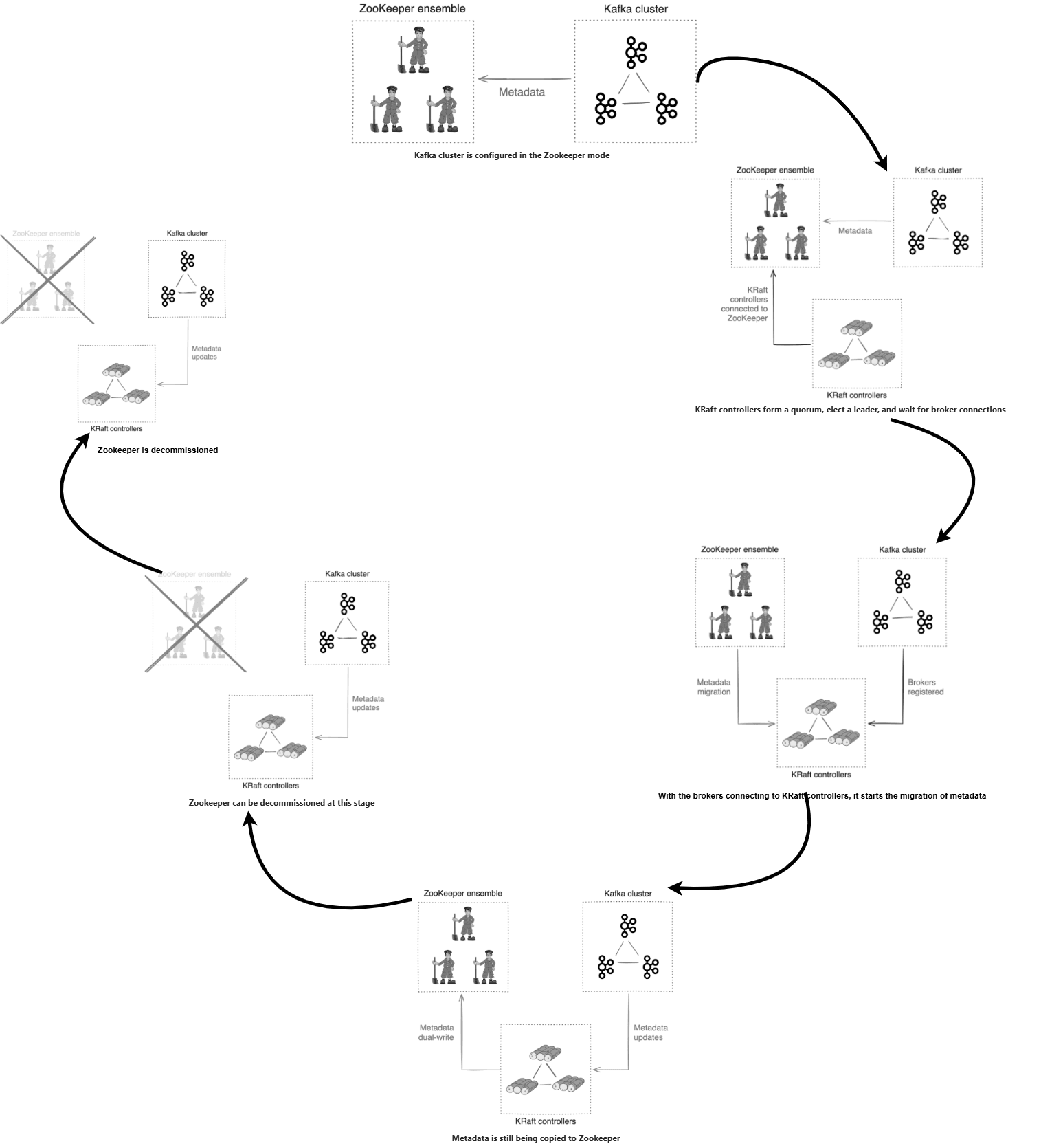
Kafka cluster management using Zookeeper has already been deprecated and will be removed in an upcoming Kafka release. It is recommended to use the Kafka KRaft controller for cluster management and to migrate Zookeeper-based Kafka cluster deployments to KRaft-controlled deployments.
This section provides an overview of the migration flow and outlines the procedure to facilitate the migration of a Zookeeper-based Kafka cluster to a KRaft-controlled Kafka cluster in Data Director.
6.5.1 Migration of Kafka Cluster to Kraft mode
This procedure is required to migrate a Kafka cluster running in Zookeeper mode to KRaft mode. Follow the steps below to complete the migration.
Note:
The parameterglobal.kafka.kraftEnabled must remain set to
false during the migration from Zookeeper mode to KRaft
mode.
- Provision the KRaft Controller Quorum
- Modify the
ocnadd-custom-values-<wg-group>.yamlfile created for the worker group (or default worker group) under the relevant chart folder, and update it as shown below:global.kafka.spawnKraftController: false ## ---> Update it to 'true' - Perform a Helm upgrade for the default Worker Group or the Worker Group in a
separate namespace, and wait for the
kraft-controllerreplicas to come up in a running state:helm upgrade <worker-group-release-name> -f ocnadd-custom-values-<wg-group>.yaml --namespace <worker-group-namespace> <helm_chart>Example:helm upgrade ocnadd-wg -f ocnadd-custom-values-wg-group.yaml --namespace dd-worker-group ocnadd_wg - Verify that the KRaft controller pods are successfully spawned and the
kraft-controllerservice is created:pod/kraft-controller-0 1/1 Running 0 2m18s pod/kraft-controller-1 1/1 Running 0 2m03s pod/kraft-controller-2 1/1 Running 0 109s service/kraft-controller ClusterIP None <none> 9085/TCP 3m26s service/kraft-controller-cs ClusterIP 10.233.23.86 <none> 9080/TCP 3m26s
- Modify the
- Put the Kafka Brokers in Migration Mode
- Modify the
ocnadd-custom-values-<wg-group>.yamlfile and update the following parameter:global.kafka.migrationBroker: false ## ---> Update it to 'true' - Perform a Helm upgrade for the Worker Group, and wait for the
kafka-brokerreplicas to restart:helm upgrade <worker-group-release-name> -f ocnadd-custom-values-<wg-group>.yaml --namespace <worker-group-namespace> <helm_chart>Example:helm upgrade ocnadd-wg -f ocnadd-custom-values-wg-group.yaml --namespace dd-worker-group ocnadd_wg - Verify that all Kafka broker pods are restarted and are in the running state.
- Modify the
- Migrate the Kafka Brokers to Use KRaft Mode
- a. Modify the
ocnadd-custom-values-<wg-group>.yamlfile and update the following parameter:global.kafka.kraftBroker: false ## ---> Update it to 'true' - Perform a Helm upgrade for the Worker Group, and wait for the
kafka-brokerreplicas to restart:helm upgrade <worker-group-release-name> -f ocnadd-custom-values-<wg-group>.yaml --namespace <worker-group-namespace> <helm_chart>Example:helm upgrade ocnadd-wg -f ocnadd-custom-values-wg-group.yaml --namespace dd-worker-group ocnadd_wg - Verify that all Kafka broker and KRaft controller pods are restarted and are in the running state.
- a. Modify the
- Finalize the Migration
Caution:
- Some users prefer to wait for a week or two before finalizing the migration. While this requires you to keep the Zookeeper cluster running for a while longer, it may be helpful in validating Kraft mode in your cluster.
- After completing this procedure, reverting to Zookeeper mode is no longer possible. If any error is encountered during the previous steps, rollback should be performed following the section Rolling Back to Zookeeper Mode During The Migration.
- Once the migration is finalized, rollback of the Data Director deployment to a previous release is not supported.
- Modify the
ocnadd-custom-values-<wg-group>.yamlfile and update the following parameter:global.kafka.finalizeMigration: false ## ---> Update it to 'true' - Perform a Helm upgrade for the Worker Group, and wait for the
kafka-brokerreplicas to restart:helm upgrade <worker-group-release-name> -f ocnadd-custom-values-<wg-group>.yaml --namespace <worker-group-namespace> <helm_chart>Example:helm upgrade ocnadd-wg -f ocnadd-custom-values-wg-group.yaml --namespace dd-worker-group ocnadd_wg - Verify that all Kafka broker and KRaft controller pods are restarted and are in the running state.
- Deprovision Zookeeper
- Modify the
ocnadd-custom-values-<wg-group>.yamlfile and update the following parameter to deprovision the Zookeeper cluster:global.kafka.removeZookeeper: false ## ---> Update it to 'true'Note: The following parameters must also be updated if OCCM was used to generate the certificates for Zookeeper:global.kafka.occmZookeeperClientUUID: 0969e413-7aa4-48cd-9300-1932de778272 ## UUID of ZOOKEEPER-SECRET-CLIENT-<namespace> from OCCM global.kafka.occmZookeeperServerUUID: 8352fabe-8da4-4bf5-8123-c12e5a78965b ## UUID of ZOOKEEPER-SECRET-SERVER-<namespace> from OCCMUUIDscan be obtained by logging into the OCCM UI and searching for the certificatesZOOKEEPER-SECRET-CLIENT-<namespace>andZOOKEEPER-SECRET-SERVER-<namespace> - Perform a Helm upgrade for the Worker Group and wait for the Zookeeper pods
to
terminate:
helm upgrade <worker-group-release-name> -f ocnadd-custom-values-<wg-group>.yaml --namespace <worker-group-namespace> <helm_chart>Example:
helm upgrade ocnadd-wg -f ocnadd-custom-values-wg-group.yaml --namespace dd-worker-group ocnadd_wg - Verify that Zookeeper secrets have been
deleted:
kubectl get secret -n <worker-group-namespace>

No secrets for the Zookeeper should be listed for the provided worker group namespace
d. Verify that Zookeeper PVCs have been deleted:
kubectl get pvc -n <worker-group-namespace>

No PVCs for the Zookeeper should be listed for the provided worker group namespace
- Modify the
Caution:
Ensure to revert the values of the following parameters to their default settings in
the corresponding ocnadd-custom-values-<wg-group>.yaml file
after the migration procedure is completed. Failure to do so may impact subsequent
upgrades.
kafka:
  kraftEnabled: false
  spawnKraftController: false
  migrationBroker: false
  kraftBroker: false
  finalizeMigration: false
  removeZookeeper: false
6.5.2 Rolling Back to Zookeeper Mode During The Migration
While the Kafka cluster is still in migration mode, it is possible to revert to Zookeeper mode. The steps to follow depend on how far the migration has progressed. To determine how to revert to Zookeeper mode, identify the final migration stage that has been completed from the table and take the corresponding action.
Provision the Kraft controller quorum
Stage: Provision the Kraft controller quorum
Action Required: Deprovision the Kraft controller quorum
Detailed steps to move back to Zookeeper mode:
- Modify the
ocnadd-custom-values-<wg-group>.yamlfile created for the worker group (or default worker group) under the relevant chart folder and update the following parameter:global.kafka.spawnKraftController: true ## ---> Update it to 'false' - Perform a Helm upgrade for the default Worker Group or the Worker Group in a
separate namespace, and wait for the
kraft-controllerreplicas to terminate:helm upgrade <worker-group-release-name> -f ocnadd-custom-values-<wg-group>.yaml --namespace <worker-group-namespace> <helm_chart>Example:
helm upgrade ocnadd-wg -f ocnadd-custom-values-wg-group.yaml --namespace dd-worker-group ocnadd_wg
Put the Kafka brokers in the migration mode
Stage: Put the Kafka brokers in the migration mode
Action Required:
- Deprovision the Kraft controller quorum.
- Using
zookeeper-shell.sh, rundelete /controllerso that one of the brokers can become the new old-style controller. Additionally, runget /migrationfollowed bydelete /migrationto clear the migration state from ZooKeeper. This will allow you to re-attempt the migration in the future. The data read from/migrationcan also be useful for debugging.Note:
It is important to perform thezookeeper-shell.shsteps quickly to minimize the amount of time the cluster operates without a controller. Until the/controllerznode is deleted, you can ignore any errors in the broker log related to failing to connect to the Kraft controller. These error logs should disappear after the cluster fully reverts to pure ZooKeeper mode. - Revert the Kafka broker migration mode.
Detailed steps to move back to Zookeeper mode:
- Modify the
ocnadd-custom-values-<wg-group>.yamlfile Located under the relevant chart folder for the worker group (or the default worker group), update the following value:global.kafka.spawnKraftController: true # ---> Update to 'false'Perform a Helm upgrade for the default Worker Group or the Worker Group in a separate namespace, then wait for the
kraft-controllerreplicas to terminate.helm upgrade <worker-group-release-name> -f ocnadd-custom-values-<wg-group>.yaml --namespace <worker-group-namespace> <helm_chart>Example:
helm upgrade ocnadd-wg -f ocnadd-custom-values-wg-group.yaml --namespace dd-worker-group ocnadd_wg - Using
zookeeper-shell.sh, rundelete /controllerso that one of the brokers can become the new old-style controller. Additionally, runget /migrationfollowed bydelete /migrationto clear the migration state from ZooKeeper. This will allow you to re-attempt the migration in the future. The data retrieved from/migrationcan also be useful for debugging.Steps:
- Exec into the ZooKeeper
pod:
kubectl exec -it -n <namespace> zookeeper-0 -- bashb. Change directory:
cd kafka/bin/c. Run the ZooKeeper shell and execute commands:
./zookeeper-shell.sh localhost:2181 delete /controller get /migration delete /migration quit exit - Perform the above steps on all ZooKeeper instances.
- Exec into the ZooKeeper
pod:
- Modify the
ocnadd-custom-values-<wg-group>.yamlfile created for the worker group (or default worker group) under the relevant chart folder and update it as below:global.kafka.migrationBroker: true # ---> Update to 'false'Perform a Helm upgrade for the default Worker Group or the Worker Group in the separate namespace and wait for the
kafka-brokerreplicas to restart.helm upgrade <worker-group-release-name> -f ocnadd-custom-values-<wg-group>.yaml --namespace <worker-group-namespace> <helm_chart>Example:
helm upgrade ocnadd-wg -f ocnadd-custom-values-wg-group.yaml --namespace dd-worker-group ocnadd_wg
Migrate the Kafka brokers to use Kraft mode
Stage: Migrate the Kafka brokers to use Kraft mode
Action Required:
- Revert the Kraft mode in Kafka brokers
- Deprovision the Kraft Controller Quorum
Using
zookeeper-shell.sh, rundelete /controllerso that one of the brokers can become the new old-style controller. Additionally, runget /migrationfollowed bydelete /migrationto clear the migration state from ZooKeeper. This will allow you to re-attempt the migration in the future. The data read from/migrationcan also be useful for debugging.Note:
It is important to perform thezookeeper-shell.shsteps quickly to minimize the time the cluster operates without a controller. Until the/controllerznode is deleted, you can ignore any errors in the broker logs related to failing to connect to the Kraft controller. These error logs should disappear after the cluster fully reverts to pure ZooKeeper mode. - Revert the Kafka Broker Migration Mode
Detailed steps to move back to Zookeeper mode:
- Modify the
ocnadd-custom-values-<wg-group>.yamlfile created for the worker group (or default worker group) under the relevant chart folder and update it as below:global.kafka.kraftBroker: true ##---> Update it to 'false'Perform Helm upgrade for the default Worker Group or the Worker Group in separate namespace and wait for the "kafka-broker" replicas to restart:helm upgrade <worker-group-release-name> -f ocnadd-custom-values-<wg-group>.yaml --namespace <worker-group-namespace> <helm_chart>Example:
helm upgrade ocnadd-wg -f ocnadd-custom-values-wg-group.yaml --namespace dd-worker-group ocnadd_wg - Modify the
ocnadd-custom-values-<wg-group>.yamlfile created for the worker group (or default worker group) under the relevant chart folder and update it as below:global.kafka.spawnKraftController: true ##---> Update it to 'false'Perform Helm upgrade for the default Worker Group or the Worker Group in separate namespace and wait for the "kafka-controller" replicas to terminatehelm upgrade <worker-group-release-name> -f ocnadd-custom-values-<wg-group>.yaml --namespace <worker-group-namespace> <helm_chart>Example:
helm upgrade ocnadd-wg -f ocnadd-custom-values-wg-group.yaml --namespace dd-worker-group ocnadd_wg - Using
zookeeper-shell.sh, rundelete /controllerso that one of the brokers can become the new old-style controller. Then, runget /migrationfollowed bydelete /migrationto clear the migration state from ZooKeeper. This will allow you to re-attempt the migration in the future. The data retrieved from/migrationcan also be useful for debugging.Steps:
- Exec into the ZooKeeper
pod:
kubectl exec -it -n <namespace> zookeeper-0 -- bash - Change directory to Kafka
binaries:
cd kafka/bin/ - Run
zookeeper-shell.shand execute the following commands:./zookeeper-shell.sh localhost:2181 delete /controller get /migration delete /migration quit exit - Perform the above steps on all ZooKeeper instances.
- Exec into the ZooKeeper
pod:
- Modify the
ocnadd-custom-values-<wg-group>.yamlfile created for the worker group (or default worker group) under the relevant chart folder and update it as below:global.kafka.migrationBroker: true ##---> Update it to 'false'Run Helm upgrade for the worker group namespace.helm upgrade <worker-group-release-name> -f ocnadd-custom-values-<wg-group>.yaml --namespace <worker-group-namespace> <helm_chart>Example:
helm upgrade ocnadd-wg -f ocnadd-custom-values-wg-group.yaml --namespace dd-worker-group ocnadd_wg
Finalize the migration
Stage: Finalize the migration
Action Required:
- If you have finalized the ZooKeeper (ZK) migration, you cannot revert to the previous mode.
- Some users choose to wait for a week or two before finalizing the migration. While this requires keeping the ZooKeeper cluster running for a bit longer, it can be beneficial for validating Kraft mode stability in your cluster.
Detailed steps to move back to Zookeeper mode:
Disaster recovery should be carried out using the latest available backup, typically taken as part of the nightly backup process. For detailed steps, refer to the "Deployment Failure" section in the Oracle Communications Network Analytics Suite Installation, Upgrade, and Fault Recovery Guide.