5 About the Sample Integration Reference Solution Package
This chapter introduces the reference solution package that demonstrates the essential concepts in integrating OSM with SCD. The sample artifacts are available in the OSM Software Development Kit (SDK) folder.
- Setting up OSM
- Installing the emulators
- Loading the capabilities cartridge
- Creating or Upgrading OSM cloud native
- Setting up SCD
- Installing the product model
- Importing the manifest file
- Updating the product model
- Creating the fulfillment model
- Submitting product orders
Installing the Emulators
- Billing
- Shipping
- Partner gateway
- Provisioning
- Creating the Emulator Images.
- Creating the Emulator Pods.
- Configuring the OSM cloud native instance to communicate with the emulators.
Note:
The names you add should match the following list, as the cartridge is configured to use them.requiredTargetSystems:
- name: som-emulator
description: "Emulator for SOM"
- name: shipping-emulator
description: "shipping portal"
- name: partnergateway-emulator
description: "Emulator for TMF 622 partner gateway"
- name: po-notification-listener
description: "622 upstream mock"
- name: billing-emulator
description: "Emulator for billing" # Define security scheme for target systems enabled with security
# For each security scheme defined kubernetes secret should be created using
# ${CNTK_HOME}/scripts/manage-target-system-credentials.sh script.
securitySchemes:
......
targetSystems:
systems:
po-notification-listener:
url: http://localhost:8080/mocked/fabric/notification/
protocol: http
description: mock system upstream to COM notifications
som-emulator:
url: http://<ip>:<port>/orchestration/<project>/<instance>/mock/tmf-api
protocol: http
description: som emulator
shipping-emulator:
url: http://<ip>:<port>/orchestration/<project>/<instance>/mock/tmf-api
protocol: http
description: shipping emulator
billing-emulator:
url: http://<ip>:<port>/orchestration/<project>/<instance>/mock/tmf-api
protocol: http
description: billing emulator
partnergateway-emulator:
url: http://<ip>:<port>/orchestration/<project>/<instance>/mock/tmf-api
protocol: http
description: Partner Gateway emulatorkubectl get pods -n projectThis displays the pods for the four emulators.
Loading the Capabilities Cartridge
The capabilities cartridge is provided as a .cpar archive. Load this cartridge into the OCA microservice when you create or upgrade your OSM cloud native instance.
Navigate to the SDK/Samples/TMFCartridges/Build Artifacts directory. The archive is labelled as RI_COM-2025xxxxx.cpar.
- Create a cpar image. Tag and push this image to an appropriate container image repository. For more information about creating a cpar image, see Creating OSM Cloud Native Images.
- Add the image details to the OSM cloud native
toolkit specificatin files for your OSM cloud native instance. Edit the project
specification, adding the image details to the capabilities cartridge section,
update the image path based on how the image was pushed:
#capabilitiesCartridgeList: []
capabilitiesCartridgeList:
- name: TMF_PO_B2C_Solution
    version: "1.0.0.0.0"
    image: "localhost/tmf_po_b2c_solution-cpar:1.0.0.0.0"
Creating or Upgrading OSM Cloud Native
- Update the OSM cloud native specification files:
- Enable OCA and specify its image in the project specification file.
- Uncomment OCA related annotations in the project specification file.
- Specify the capabilities cartridge list, as described in Step 2, in Loading the Capabilities Cartridge.
- Add the SCD callback URL in the instance specification
file.
# OSM Cartridge Assembler
#osm-cartridge-assembler: {} # This empty declaration should be removed if adding items here.
osm-cartridge-assembler:
  # SCD Base URL
  scdBaseURL: "http://<ip>:8001"
- Create the ocaOidc secret using the
manage-credentialsscript in the cloud native toolkit. The first set of OIDC credentials you create should be used for accessing OCA.You will be prompted asking if you want to create credentials for SCD. ChooseNote:
You will need this information when you are setting up the connection to Solution Designer.1to create the credentials. This second set of OIDC credentials are needed to enable OCA's callback to SCD. - Create the ingress.
- Create your OSM cloud native instance.
kubectl get pods -n namespacekubectl logs -n namespace <oca pod>[main] [INFO ] [oracle.comms.ordermanagement.Main] - Loaded Capability Cartridges are -
[main] [INFO ] [oracle.comms.ordermanagement.Main] - TMF_PO_B2C_Solution/1.0.0.0.0http://<instance>.<project>.osm.org:30305/orchestration/<project>/<instance>/cartridgeAssembler/v1/capabilitiesManifestNote:
Save this URL as you will need it while setting up the connection with Solution Designer.Installing the Product Model
- Navigate to SDK/Samples/TMFCartridges/ProductModel and
locate the script
productSpecLoader.shand the readme file, README.md. - Review the README.md file to find out any prerequistites you need to complete.
- After completing the prerequisite steps, run the script
productSpecLoader.shwith the initiative ID and the commercial domain ID to load the product specifications into the specified initiative with the specified commercial domain.productSpecLoader.sh $INITIATIVE_ID $COMMERCIAL_DOMAIN_ID
Importing the Capabilities Manifest File
- Navigate to SDK/Samples/TMFCartridges/BuildArtifacts and locate the capabilities manifest file RI_COM-2025xxxxxx-capabilitiesManifest.json.
- Log in to Solution Designer and navigate to the Fulfillment application.
- Click Import and select, or drag and drop the manifest file. Click Import to import the file.
The tabs at the bottom of the page show you some of the entities that are available in the capabilities cartridge such as Fulfillment Patterns, Fulfillment Functions, and Fulfillment Systems.
Updating the Product Model
- Create the following product specifications:
- Bundled Offering Product Specification
- Promotional Offering Product Specification
- Product Offering Pricing Product Specification
- Wireless Data CPE Product Specification. Within this, add
the following commercial parameters:
- IMEI
- Type
- Brand
- Model (Text)
- Create converters:
- Navigate to Common Elements and select Converters from the bottom of the page.
- Here, add a new converter, called bandwidth, and select the type measurement.
- Add the following entries:
Unit of Measure Value KB 1 MB 1024 GB 1048576 - Add a second converter, called roamingAreaMap, and select the type Value Map.
- Add the following entries:
Input Output All ALL Canada CA USA US Europe EU Schengen Area SA Middle East ME Australia and New Zealand ANZ National NTL International INTL Asia AS
- Use converters on product specification parameters:
- Open the Data Roaming Product Specification and navigate to Parameter Mapping.
- Here, edit the mappings for Roaming Area to Roaming Zone. Click the icon to add a converter, choose roamingAreaMap and click Save. Repeat this step for the Voice Roaming Product Specification and the Text Roaming Production Specification.
- Open the Wireless Data Bandwidth Product Specification and navigate to Parameter Mapping.
- Here, edit the mappings. Click the icon to add the converter for monthly quota to monthly atribute. Select the bandwidth converter and click Save.
Creating the Fulfillment Model
- Navigate to the PSR Models application.
- Click the ellipses and select Create Product Fulfillment Model from the menu that opens.
- Name your model, and select the Capabilities Cartridge. Click Continue. The Select commercial doman step opens.
- Select the Mobile Domain. The Build Model step opens.
- In the Build Model step, you can configure products and map them to the CFS. You can also update or remove existing mappings as needed. Once you have done that, click Continue. The Configure Parameters step opens.
- You do not need to make any changes in the Configure Parameters step as the parameters and parameter mappings are made available while importing the product model. Click Continue.
- Define fulfillment by editing the canvas that opens. Add the
following Product-Fulfillment mappings.
Product Specification Fulfillment Pattern Bundled Offering Product Specification
Product Offering Pricing Product Specification
Billing Only
Promotional Offering Product Specification
Non Billing Item
Wireless Handset Product Specification
Shipped Product
Digital TV Product Specification
Simple Product
SIM Card Product Specification
Shipped Service
All Remaining Product Specifications
Simple Service
- Create the following routing rules, exactly as provided below. This
will allow you to validate the basics with the existing product orders.
Rule Product Centric Function Condition Route To Granularity Shipping Rule
No
ShipOrderFunction
None
Shipping System
WholeGranularity
Billing Rule
No
FulfillBillingFunction
None
EmulatedBilling
ServiceBundleGranularity
ProvisioningRule
No
ProvisionOrderFunction
None
Emulated_SOM
WholeGranularity
ProdProvRule
Yes
ProductProvisionOrderFunction
Case1: Channel contains "Amazon"
Case2: Channel contains "Disney"
default:
AmazonPrime
Disney
PartnerGateway
OrderItemGranularity
OrderItemGranularity
WholeGranularity
- In the Publishing Center, publish your initiative to your workspace, where a connection with OSM is configured.
Submitting Product Orders
- Open Postman and click Import.
- In the window that opens, navigate to the OSM SDK: SDK/Samples/TMFCartridges/ProductOrders/RI-COM-2025xxxxx.json.
- Set the following variable values for the collection:
- The OIDC scope for the gateway
microservice
GW_SCOPE : tmf - The OIDC client id for the gateway
microservice
GW_CLIENT_ID : osm_api - The OIDC secret for the gateway
microservice
GW_SECRET: OIDC secret - The OIDC token URL for the gateway
microservice
TOKEN_URL: OIDC token URL - The OSM cloud native project name
PROJECT: - The OSM cloud native instance name
INSTANCE:
- The OIDC scope for the gateway
microservice
- Once you have updated the values for the variables, you can submit an order to OSM gateway for processing.
The orders in the following sections demonstrate various aspects of the default fulfillment model.
Order VPO41010_E_1531
-
Order State: The order should be in the Completed state. This confirms that your emulators are configured properly and are handling the messages exchanged for the system interactions.
-
Version: The cartridge version should match the version seen in SCD after a successful publish action.
-
Order Transformation: You should see five Transformed Order Lines. This indicates that five CFS line items were created, using both the Primary and Auxiliary mappings. The Wireless Data CFS line has an example of both the converters.
The Wireless Data Bandwidth PS has a Monthly Quota attribute on the inbound order of 20 GB. The transformed line representing the CFS shows the Monthly Quota attribute, which is the KB conversion.
Similarly, the Roaming Area attribute on the Data Roaming PS is converted from Europe in the inbound order to EU in the transformed line, representing the CFS.
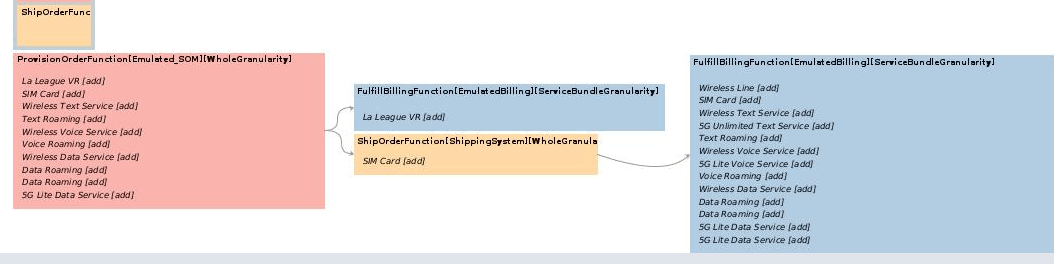
The transformed lines also show that the Service Specification Name and Id fields are also auto populated. No explicit mapping of these values is required. The OCA microservice maps these values during cartridge assembly.Figure 5-1 VPO41010_E_1531 Order Orchestration Plan
Order VPO41010_E_1204
Figure 5-2 VPO41010_E_1204 Order Orchestration Plan
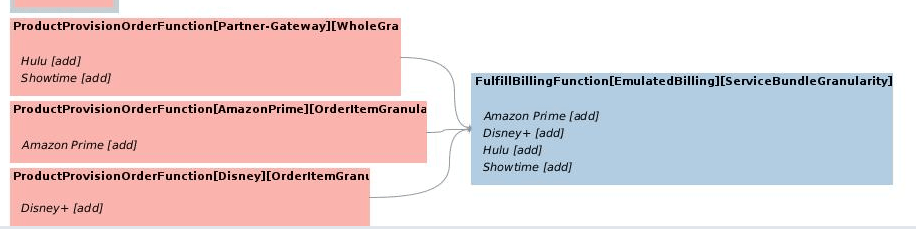
This confirms the routing rule configuration, wherein the channel selection of Amazon Prime goes individually to the Amazon Prime system. Similarly, the channel selection of Disney+ goes individually to the Disney System. All other channel selections go to the Partner-Gateway system at whole granularity, or all together.
Additionally, all lines go together to the Emulated Billing system.