12 Publishing Initiatives
Use workspaces to publish your initiatives for testing the design and launching the initiatives to production.
Managing External Systems
You must have the Service Catalog Admin user role to manage the external systems. External systems represent applications including connection details that Solution Designer connects to for operations such as publishing (OSM and UIM) and product catalog synchronization (Launch). In Workspaces, these external systems can be added as participants.
You can perform the following tasks in the External Systems page:
About UIM External System
The external system type UIM is a microservice that interacts with the DevOps engine to generate UIM cartridges when an initiative is published to a workspace. A workspace is an interface that enables Solution Designer to interact with the DevOps engine, which includes all necessary plug-ins required by Solution Designer to build the requested UIM cartridge. After generation, you can deploy the cartridge into UIM.
A UIM cartridge is a collection of PSR models, which include specifications, characteristics, design parameters, parameter mappings, design policies, and delivery policies defined in Solution Designer. The artifacts are compiled into a deployable JAR file.
Cartridge Generation Process
-
Build the service or technology model in PSR models: See "Creating PSR Models using Guided Process" for information on how to create service models and technology models.
-
Transition the initiative to the Advanced Configuration stage: After you finish defining the model, move the initiative to the advanced configuration stage to implement advanced design policies. In this stage, you can publish the initiative to the Test workspace to generate a Design Studio workspace. Then implement the advanced design policies in the Design Studio workspace based on your business needs.
-
Publish the initiative to the Test workspace: The workspace interacts with the UIM Participant, a microservice that participates in the publish operation. The UIM Participant, in turn, communicates with the DevOps engine to generate the required Design Studio workspaces and cartridges.
-
Monitor cartridge generation: After the cartridge is generated, the DevOps engine informs the UIM Participant, which then updates the workspace regarding the request status. The locations of the generated cartridge artifacts and the Design Studio workspace (which can be imported into Design Studio) are displayed in the Publishing tab of the corresponding initiative.
-
Download and import the Design Studio workspace: Import the workspace into the Design Studio Eclipse environment to:
- Code the design and assign logic for advanced policies,
- Define parameter mappings,
- Configure logic for design and delivery action mappings.
The generated workspace contains both a base class and an extended designer class:
- The base class is Java code generated by the DevOps engine to implement specification behavior and must not be modified.
- The extended designer class allows you to add custom code at provided
extension points. You can:
- Code and assign policies based on your business requirements,
- Debug existing design and assign policies for errors, including compilation errors.
See "Extending Solution Designer" in Developer's Guide for more information on extended designer class.
-
Upload custom code: After completing the custom code in Design Studio, upload the updates to Solution Designer either manually or by running the Object Store Utility. See "Working with Object Store Utility" in Developer's Guide for more information on Object Store Utility.
-
Publish and deploy cartridges: Transition the initiative to the functional testing stage or the acceptance testing stage. Publish the initiative to the Test workspace, which triggers the DevOps engine to build the requested cartridge for deployment to a runtime environment. Download the cartridge artifacts and deploy them in UIM. See "Deploying Cartridges" in UIM Cartridge Guide for more information on deploying cartridges in UIM.
-
Release the initiative: After the initiative is transitioned to the release stage, publish it to the Production workspace. The DevOps engine then builds the production cartridge for deployment to the production UIM runtime environment.
About OSM External System or OSM Cartridge Assembler
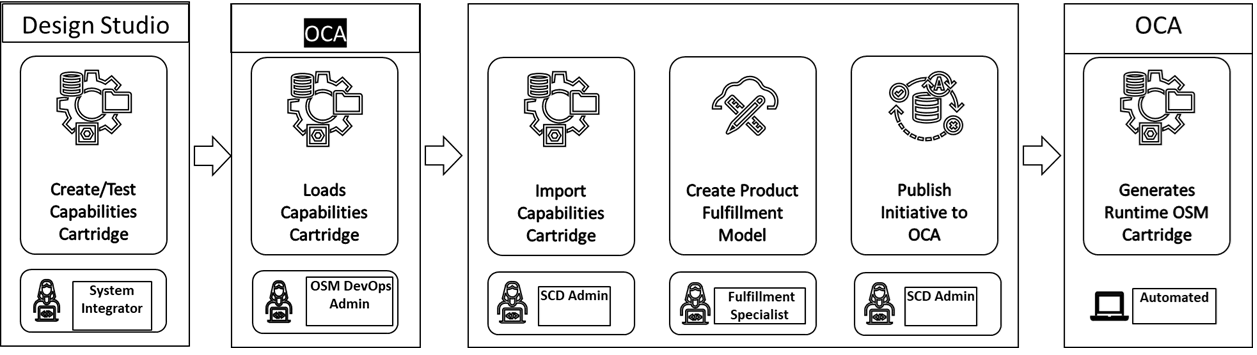
The OSM external system type (also called as OSM Cartridge Assembler (OCA)) is a microservice to seamlessly unify TMF cartridges created in Design Studio with content modeled in Solution Designer, enabling dynamic assembly and streamlined deployment of cartridges to OSM. The OCA microservice is the component responsible for merging the content between OSM and Solution Designer; and deploying the resulting cartridge to OSM.
Figure 12-1 describes the work flow between Solution Designer and OCA.
Figure 12-1 Solution Designer to OCA Workflow
OCA Cartridge Generation Process:
-
Create the Capabilities Cartridge: Begin the process by creating a capabilities cartridge in Design Studio that includes fulfillment patterns, fulfillment functions, and fulfillment systems required by Solution Designer. See "Packaging and Deploying a Capabilities Cartridge " in Design Studio Modeling OSM Orchestration for information on how to generate the capabilities cartridge in Design Studio.
-
Load Cartridge into OCA: After creation and testing, import the cartridge into OCA by the OSM DevOps admin. See "Installing OSM Cartridge Assembler (OCA) for Integration with Solution Designer" in OSM Cloud Native Deployment Guide for information on how to load the capabilities cartridge in OCA.
-
Generate and Import Manifest: OCA produces a manifest (a JSON file) describing the cartridge contents. The SCD admin then imports this manifest into Solution Designer, which provides access to fulfillment entities, fulfillment patterns, fulfillment functions, fulfillment systems, order item properties, and granularities. See "Importing Capabilities Cartridges" on how to import capabilities cartridge into Solution Designer.
-
Create Product Fulfillment Model: The fulfillment specialist creates the product fulfillment model in Solution Designer. This involves adding product specifications, mapping them to CFSs, providing parameter mapping, defining target fulfillment patterns, and setting routing rules for order decomposition. See "Creating Product Fulfillment Models using Guided Process"
-
Publish Model Back to OCA: After completing the model, the SCD admin publishes it back to OCA. See"Publishing Initiatives to OSM Participant" for information on how to publish the model to OCA.
-
Generate and Deploy OSM COM Cartridge: OCA uses the model and capabilities cartridge to generate an OSM Central Order Management (COM) cartridge, which is deployed to the OSM runtime automatically.
-
Accept OSM COM Orders: The OSM runtime can then process OSM COM orders.
Creating External Systems
You must have the service catalog admin user role to create new external systems. After you install Solution Designer, you must manually create external systems for the workspaces to publish the initiative content.
-
In the Publishing Center application, click the External Systems tab.
-
In the External Systems page, click Create External System.
A Create External System page opens .
-
Enter the following details:
Table 12-1 New external system details
Field Name Required or optional Description Name Required Name of the external system.
ID
Required Unique Identifier of the external system
Type Required The type of the external system. The predefined values are:-
UIM
-
OSM ( also called OSM Cartridge Assembler, or OCA)
-
Launch
External systems with type as UIM or OSM can be added as participants in the workspaces.
Endpoint URL
Required The endpoint URL to access the external system. UIM:
http://uim-participant:8080OSM: Endpoint URL for the OSM Cartridge Assembler. Contact your OSM DevOps Admin.
Scope Required Scope to obtain access to Solution Designer.
UIM:
/lcmOSM: Scope defined in OSM for Solution Designer.
Authentication ID Required Authentication Id to connect to the external system. Authentication password Required Password to authenticate the external system.
Token Endpoint URL Required An endpoint URL of the OIDC to access the external system. Description Optional Description of the external system. Note:
You can create only one external system of type Launch. You can create more than one external systems for UIM and OSM. -
-
Click Test Connection to verify that the connection can be established using the provided details.
You receive a message indicating whether the connection is successful or has failed with errors.
-
Click Create when the connection is successful.
The external system is created.
Updating External Systems
-
In the Publishing Center application, click the External Systems tab.
-
On the External Systems page, select the external system to edit.
The external system details drawer opens.
-
Click Edit.
-
Update the necessary details and click Update.
The details are updated and you are returned to the External Systems page.
Deleting External Systems
-
In the Publishing Center application, click the External Systems tab.
-
On the External Systems page, select the external system to delete.
The external system details drawer opens.
-
Click Delete.
The external system is deleted only if it is not associated with any workspace..
Managing Workspaces
A workspace is a secure, logical environment that allows you to collaboratively manage, configure, and deploy publishing initiatives. Workspaces provide structured separation between different projects, stages (such as Test and Production), or teams, enabling controlled access, versioning, and workflow management. Each workspace operates independently, ensuring that changes or activities within one do not impact others, and supporting best practices for security, compliance, and quality assurance.
The following workspaces are available in Solution Designer:
-
Non-production or Test workspace: A workspace where initiatives are published to the test instance and the test cartridges are generated. These cartridges are deployed in the application run-time instances and you can do the functional testing. Based on the functional testing results, you can modify the initiative contents and then perform acceptance testing. The modified initiatives are published again to the test workspace until the initiative content is finalized and passes the acceptance testing.
-
Production workspace: A workspace where the initiatives are published and the production cartridges are generated. After the initiative is released to the production workspace, a production cartridge is generated which in turn is deployed to the application's run-time instance. There can be only one production workspace per Solution Designer instance.
Creating Workspaces
To create workspaces:
-
In the Publishing Center application, click the Workspaces tab.
-
In the Workspaces page, click Create Workspace.
A Create Workspace page opens .
-
Enter Name, Id and Description.
-
Click Create and Continue.
The workspace details page opens. The details page contains two tabs:
-
Operations log: Lists all the publish operations for this workspace.
-
Participants: Lists all the participants added to this workspace. You can add participants by clicking Add.
-
-
Click Participants tab to add, edit, or remove participants in the workspace. See "Adding Participants to the Workspace", "Editing Participants in the Workspace", and "Removing Participants from the Workspace" for more information.
-
Click Back to return to the Workspaces page.
Adding Participants to the Workspace
Add external systems as participants in the workspace. The prerequisite is to create the external systems before adding them as participants.
-
In the Participants tab, click Add.
The Add Participant drawer opens and lists the available external systems.
-
Select an external system and click Add.
The selected external system is added as a participant in the workspace.
Viewing Workspaces
You must have the service catalog admin role to view the workspaces and manage the connection for the workspaces.
-
In the Solution Designer landing page, click the Publishing Center application.
-
Click Workspaces tab and then click the workspace.
The workspace details page opens, showing the Last operation summary, which displays the status of the most recent publish operation.
-
The following tabs are displayed:
-
The Operations log tab lists all initiatives published for the selected workspace and shows the status of each publish operation. Status values include:
-
COMPLETE: The publish to the workspace succeeds, and test cartridges generate successfully.
-
FAILED: The publish to the workspace fails.
-
SIMULATED_COMPLETE: In the Advanced Configuration stage of the initiative, you can perform simulated publish to the workspace to generate Design Studio workspace. This process lets you download the Design Studio workspace and import it in Design Studio to code the advanced policies. The publish operation to the test workspace is successful and the Design Studio workspace is generated successfully. This status is applicable only to UIM participant.
-
SIMULATED_FAILED: The simulated publish is unsuccessful and a log is generated to show the errors that caused the failure. This status is applicable only to UIM participant
-
STAGED: The publish operation to the Production workspace is in progress.
-
-
The Participants tab lists the participants that are defined for the selected workspace. You can add , edit, or remove participants in this tab. See "Adding Participants to the Workspace", "Editing Participants in the Workspace", and "Removing Participants from the Workspace" for more information.
-
-
Click Back to return to the Workspaces page.
Deleting Workspaces
To delete a workspace:
-
In the Solution Designer landing page, click the Publishing Center application.
-
Click the Workspaces tab and then click the workspace to be deleted.
The workspace details page opens.
-
Click Delete.
The selected workspace is deleted and you are returned to the Workspaces page. Workspaces are not deleted if a publish operation is in progress.
Publishing Initiatives to Participants
In Solution Designer, a participant is a microservice that interacts with the respective DevOps engine to process publish requests and generate the corresponding cartridges.
You can add participants to a workspace that are defined as external systems. You can publish initiatives to a workspace that is configured for a specific participant. The cartridges are generated based on the type of the PSR model that is published. If a workspace is configured for multiple participants, the priority setting determines the order in which the initiative is published.
For example, if the Test workspace is configured for both the OSM Participant (priority 1) and the UIM Participant (priority 2), the initiative is published to the OSM Participant first, followed by the UIM Participant. If the publish process fails for the OSM Participant, the process stops and is not sent to the UIM Participant.
Publishing Initiatives to UIM Participant
You must have the Service Catalog Administrator role to publish initiatives. After you finish defining the service models or technology models and their contents, transition the initiative from the Definition stage to the Advanced Configuration stage.
You can then publish the initiative to the UIM participant to create the test and production cartridges, which can be deployed to the UIM runtime.
The processes for generating production cartridges are as follows:
Publishing Initiatives to Generate Design Studio Workspaces
You must have the service catalog administrator role to publish the initiatives. After you complete defining the service or technology models and their contents, you transition the initiative from the Definition stage to the Advanced Configuration stage. In the advanced configuration stage, you can publish the initiative to the Test workspace to generate a UIM Design Studio workspace. This process of publishing the initiatives in Advanced Configuration stage is called simulated publish. See "Lifecycle of Initiatives" for more details on various statuses of initiatives.
Note:
Simulated publish is applicable only to UIM participant.-
In the Solution Designer landing page, click the Publishing Center application and then click the Initiatives tab.
-
In the Initiatives page, search for the initiative and click to open it.
The initiative details page opens.
-
Ensure that the initiative is in Advanced Configuration stage. The initiative must have completed the definition stage and not be approved for testing yet.
-
Click Publish.
-
Select a workspace from the available list and click Publish. You publish the initiative to generate only Design Studio workspaces when the definition is completed and before you complete advanced configuration.
-
Click the Publishing tab.
A new row for the publish operation is added and the Publish result is in In Progress.
-
You must wait until you receive a pop-up message Publish successful to workspace Test. The status changes from In Progress to Simulated Success. If the publish operation fails, the Publish result changes to Simulated Failed. You can republish the initiative after fixing the error messages that are listed in the log.
-
Click Show outcome.
The Outcome drawer opens and you can see the publishing status for each participant. From the drawer, you can download the workspace, download the cartridge, or download the error log, whichever is appropriate based on the publish status.
-
If the Publish result is Simulated Success, download the Design Studio workspace and import them to Design Studio (Eclipse) workspace to implement custom code for extension points. The workspace includes a base class and an extended designer class. Add your custom logic in the extended designer class. See "Extending Solution Designer" in Developer's Guide.
-
If the publish status is Simulated Failed, click Error Log link to download the
After you resolve the errors, republish the initiative until the publish operation succeeds.error-report-xxxx.txtfile, which lists the errors that caused the failure.
-
-
After the simulated publish is successful, see Publishing Initiatives to Generate Test Cartridges to generate test cartridges that can be deployed in the run-time test environments.
Publishing Initiatives to Generate Test Cartridges
You must have the service catalog administrator role to publish initiatives. After you complete the implementation in the advanced configuration phase, you transition the initiative from the Advanced Configuration phase to the Functional Testing phase. After the approver approves the initiative to start functional testing, you can publish the initiative to the Test workspace to generate a test cartridge. See "Lifecycle of Initiatives" for more details on various statuses of initiatives.
-
In the Solution Designer landing page, click the Publishing Center application and then click the Initiatives tab.
-
In the Initiatives page, search for the initiative and click to open it.
The initiative details page opens.
-
Click Publish.
-
Select a workspace and click Publish. You publish the initiative to generate a UIM Cartridge which can be deployed in the UIM test environment to perform functional testing.
Note:
You will see Publish only when the initiative is approved for functional testing, in acceptance testing phase, and before the initiative is approved for rollout. See "Lifecycle of Initiatives" for more details on various phases of initiatives. -
Click the Publishing tab.
The Publishing details page opens. You see a row with the name Test which indicates the Test workspace with the Publish result as In Progress.
-
You must wait until you receive a pop-up message Publish successful to workspace Test. The status changes from In Progress to Success. If the publish operation fails, the Publish result changes to Failed. You can republish the initiative after fixing the error messages that are listed in the log.
-
Click Show outcome.
The Outcome drawer opens and you can see the publishing status for each participant. From the drawer, you can download the workspace, download the cartridge, or download the error log, whichever is appropriate based on the publish status.
-
If the Publish result is Success, download the Design Studio cartridge that can be deployed into the run-time test environment. You can also click Download Design Studio Workspace link to download the workspace that you can import to Design Studio eclipse environment. In Design Studio, you can build solution cartridges for OSM and ASAP.
-
If the publish status is Failed, click Error Log link to download the
After you resolve the errors, republish the initiative until the publish operation succeeds.error-report-xxxx.txtfile, which lists the errors that caused the failure.
-
Publishing Initiatives to Generate Production Cartridges
You must have the Service Catalog Admin user role to publish initiatives to the Production workspace to generate the production cartridges.
-
In the Solution Designer landing page, click the Publishing Center application and then click the Initiatives tab.
-
In the Initiatives page, search for the initiative and click to open it.
The initiative details page opens.
-
In the Lifecycle tab, click Release Initiative.
The initiative's content is automatically published to the Production workspace.
-
Click the Publishing tab.
The Publishing details page opens. You see a row with the name Production which indicates the Production workspace with the Publish result as In Progress.
After the requested cartridge is generated successfully in the Production workspace, the initiative's status transitions to Released.
If there is an error in the Publish operation, the initiative's status remains in Approval status. Release Initiative is enabled to republish the initiative to the Production workspace.
-
You must wait until you receive a pop-up message Publish successful or Publish failed. If the publish operation succeeds, the status changes from In Progress to Success. If the publish operation fails, the Publish result changes to Failed. You can republish the initiative after fixing the error messages that are listed in the log.
-
Click Show outcome.
The Outcome drawer opens and you can see the publishing status for each participant. From the drawer, you can download the workspace, download the cartridge, or download the error log, whichever is appropriate based on the publish status.
-
If the Publish result is Success, download the Design Studio cartridge that can be deployed into the run-time test environment. You can also click Download Design Studio Workspace link to download the workspace that you can import to Design Studio eclipse environment. In Design Studio, you can build solution cartridges for OSM and ASAP.
-
If the publish status is Failed, click Error Log link to download the
After you resolve the errors, republish the initiative until the publish operation succeeds.error-report-xxxx.txtfile, which lists the errors that caused the failure.
-
Publishing Initiatives to OSM Participant
You must have the service catalog administrator role to publish the initiatives. After you complete defining the Product fulfillment models and their contents, you transition the initiative from the Definition stage to the Functional Testing stage.
-
In the Solution Designer landing page, click the Publishing Center application and then click the Initiatives tab.
-
In the Initiatives page, search for the initiative and click to open it.
The initiative details page opens.
-
Click Publish.
-
Select a workspace and click Publish.
Note:
You will see Publish only when the initiative is approved for functional testing, in acceptance testing phase, and before the initiative is approved for rollout. See "Lifecycle of Initiatives" for more details on various phases of initiatives. -
Click the Publishing tab.
The Publishing details page opens. You see a row with the name Test which indicates the Test workspace with the Publish result as In Progress.
-
You must wait until you receive a pop-up message Publish successful or Publish failed. If the publish operation succeeds, the status changes from In Progress to Success. If the publish operation fails, the Publish result changes to Failed. You can republish the initiative after fixing the error messages that is listed in the log.
-
Click Show outcome link.
The Outcome drawer opens and you can see the publishing status for each participant.
-
If Publish result is Success, the OSM cartridge is generated with the same name as the capabilities cartridge with version appended with the publish operation ID. OCA then deploys the OSM cartridge to the OSM runtime. See "Viewing Deployed Cartridges and Setting Default Versions" in Order Management Web Client User's Guide to view the deployed cartridges in the OSM Order Management Web client.
-
If Publish result is Failed, click Error Log link to download the
After you resolve the errors, republish the initiative until the publish operation succeeds.error-report-xxxx.txtfile, which lists the errors that caused the failure.
-
-
After you complete the functional testing and acceptance testing, transition the initiative stages accordingly. After the initiative is in Approved for rollout stage, click Release Initiative.
The initiative's content is automatically published to the Production workspace.
-
Click the Publishing tab.
The Publishing details page opens. You see a row with the name Production which indicates the Production workspace with the Publish Status as In Progress.
After the requested cartridge is generated successfully in the Production workspace, the initiative's status transitions to Released.
If there is an error in the Publish operation, the initiative's status remains in Approval status. Release Initiative is enabled to republish the initiative to the Production workspace.
-
You must wait until you receive a pop-up message Publish successful or Publish failed. If the publish operation succeeds, the result changes from In Progress to Success. If the publish operation fails, the Publish result changes to Failed. You can republish the initiative after fixing the error messages that are listed in the log.
-
Click Show outcome.
The Outcome drawer opens and you can see the publishing status for each participant.
-
If Publish result is Success, the OSM cartridge is generated with the same name as the capabilities cartridge with version appended with the publish operation ID. OCA then deploys the OSM cartridge to the OSM runtime. See "Viewing Deployed Cartridges and Setting Default Versions" in Order Management Web Client User's Guide to view the deployed cartridges in the OSM Order Management Web client.
-
If Publish result is Failed, click Error Log link to download the
After you resolve the errors, republish the initiative until the publish operation succeeds.error-report-xxxx.txtfile, which lists the errors that caused the failure.
-
Synchronizing the Product Catalog with Launch
Launch (Product Catalog) and Solution Designer (Service and Resource Catalog) connect what service providers sell with how those offerings are fulfilled and operated. Launch defines products and services for the market, including bundles, promotions, pricing, and associated rules and terms, ensuring consistent presentation across channels. Solution Designer defines the underlying Customer-Facing Service (CFS) specifications, supporting resources (physical and logical), Service Level Agreements (SLAs), and the processes for provisioning, activation, and support. The two catalogs use a shared set of definitions that are managed in one application and federated to the other. See External Product Catalog Integration Guide for information on synchronizing the product catalog between Solution Designer and Launch.
To synchronize the catalogs:
-
Create a new initiative in Solution Designer. See "Creating Initiatives" for information on how to create initiatives in Solution Designer.
-
In Solution Designer, complete the PSR model by modelling Customer-Facing Services (CFS), underlying Resource-Facing Services (RFS), and resources along with the design and delivery policies.
See "Creating PSR Models using Guided Process" for information on how to define PSR models in Solution Designer.
-
After you configure the CFS, transition the initiative to the Released status.
When the initiative moves to Released in Solution Designer, the CFS and its details are sent to Launch. If publishing to Launch succeeds, a green check mark appears on the Initiatives list page in Solution Designer. In Launch, verify that the initiative appears on the Initiatives page with the same name as in Solution Designer. Also, verify that all items, including design parameters, are synchronized.
If synchronization fails, Launch returns error messages to Solution Designer. Correct the errors and retry. An error icon appears on the Initiative list page. Open the initiative to view the error message at the top of the page. Click Re-sync to synchronize the initiative with Launch again.
-
In Launch, define the product specification:
-
Create the product specification for the synchronized CFS from Solution Designer.
-
Define the commercial parameters for the product.
-
Map the product to the CFS, including parameter mappings.
-
Map the new product specification to product offers.
See "Create a Product Specification" in Launch User's Guide for information on how to create a product specification.
-
-
In Launch, transition the lifecycle stage to Ready to Publish.
-
Publish the initiative from Launch to Solution Designer to synchronize the PS, its attributes, and the PS-CFS mappings. See "Publish Initiatives to Spoke Systems" in Launch User's Guide for information on publishing the initiative to Solution Designer.
If publishing succeeds, the publish operation status is Awaiting Confirmation. The Launch Administrator manually notifies the Service Catalog Administrator in Solution Designer. If publishing fails, Solution Designer returns error messages to Launch. Correct the errors and retry. -
In Solution Designer,
-
Open the product specification and update the primary commercial domain and secondary commercial domains for the synchronized product specification. Ensure that the product specifications are present and read-only. Verify the PS-CFS mapping and that attributes are mapped to data elements.
-
Fulfillment Specialist creates a product fulfillment model to manage the fulfillment of the synchronized product specifications. In the product fulfillment model, the fulfillment specialist associates the synchronized product specifications to fulfillment patterns and defines routing rules to manage which fulfillment system the synchronized product specifications will be sent to.
-
Service Catalog Admin transitions the initiative to Complete Definition and then to Approve for Testing. When you select Approve for Testing, the initiative moves to Functional Testing. At this point, Solution Designer sends a confirmation to Launch.
-
-
In Solution Designer, navigate to Publishing Center, click Initiatives, search for and open the initiative. In the Lifecycle tab, transition the initiative to Complete Definition and then Approve for Testing. When you select Approve for Testing, the initiative moves to Functional Testing. At this stage, Solution Designer sends a confirmation to Launch.
-
In Launch, ensure that the status of the publish operation is moved to Success and the status of the initiative is in In test status.
You can then publish the initiative to runtime applications from both Solution Designer and Launch. When both applications are ready for publishing it to the runtime applications, a user intervention is required to publish to their respective runtime applications. In Solution Designer. service catalog administrator publishes the synchronized initiative to Oracle Communications Order and Service Management (OSM). In Launch, Catalog Admin publishes the initiative to its runtime destinations such as Siebel and PDC.
Errors and Troubleshooting Issues
This section describes the error messages you may encounter while publishing the initiative and how to troubleshoot issues.
Error Messages in Publish Operation
- Error: Unable to connect to URL
-
Cause: Some of the required values are missing.
Action: You must manually fix all the validation errors displayed in the Solution Designer User Interface for the items associated with the published initiative. You can view the errors by clicking View Errors in PSR Models, Service Specifications, and Resource Specifications results page. You can view the errors in the Initiative Items tab in the initiative details page.
Troubleshooting Issues
Configuration Issues
The publish operation of an initiative may fail if the participants are not configured properly. To set up the external systems correctly, see "Creating External Systems".
- Incorrect participant information for the connections in the workspace.
- Incorrect UIM participant deployment configuration.
After you correct the configuration issues, the publish operation mostly succeeds.
Validation Errors
After you fix the configuration issues, the publish operation may fail due to validation errors.
When there are validation errors for the specifications or the PSR Models, error markers appear during transitioning the initiative. You can view the validation errors in the Initiatives Items tab in the initiatives editor page and in the specifications results page in the Specifications application and fix those errors. After fixing all the validation errors, republish the initiative to the test workspace.
Other Errors
After you fix all the validation errors and have a proper configuration of the UIM participant, the publish operation may fail due to downstream UIM participant issues. You can check the reason for the failure by clicking Show outcome in the Publishing tab in the initiative details page and then click Error Log . You can view the reason, fix the issue, and republish the initiative.
If the failure reason is unclear from the Workspaces application, you can contact your system administrator to view the logs for the UIM participant, headless design studio, or workspace manager for the detailed failure reason. You can fix those issues and republish the initiative.