3 Oracle Server X9-2 Platform Preparation
Oracle Communications produces a variety of software products that run on the Oracle Server X9-2 platform. See the Release Notes for which Oracle Communications applications run on the X9-2.
Use your Hardware documentation to install and establish system management by way of Oracle Integrated Lights Out Manager (ILOM). Then use the steps below to prepare the Oracle X9-2 for session delivery software installation.
- Configure the BIOS settings. See the X9-2 Service
Manual for instructions on how to configure each setting.
- Disable Hyper-Threading.
Note:
Refer to Hyperthreading and CPU Affinity for Oracle guidelines on the use of Hyper-threading. - Disable C6 Reporting.
- Disabling Intel PXE Boot Agent.
- Reboot the server.
- Disable Hyper-Threading.
- Perform a cold shutdown by removing all system power.
Available Connections
Please read all of the information for each of the available connections prior to cabling the Oracle Server X9-2.
| Port | Description | You Need: |
|---|---|---|
| NET MGT | Provides a 10/100/1000 BASE-T Ethernet connection to the Service Processor (SP) through an RJ-45 connector. The NET MGT port provides support connections to the SP using the Oracle Integrated Lights Out Manager (ILOM) CLI and Web interface. By default, the NET MGT port is configured to use DHCP to automatically obtain an IP address. Alternatively, you can assign a static IP address to the NET MGT port. To use the NET MGT port, you must configure its network settings. When configured, use the NET MGT port IP address to log on to the device using a browser or secure shell. | Category 6 (or better) Ethernet cable to
connect the NET MGT port to your network
IP address for this port (required from DHCP or a static address) |
| NET 0 |
The 1 Gbps host management RJ-45 connector port enables you to connect the Oracle Server X9-2 to your network. |
A Category 6 (or better) Ethernet cable to
connect to the NET 0 port to your network
Network parameters such as an IP address (can be provided by DHCP services or assigned a static address in the OS) |
| SER MGT (COM1) | Provides a TIA/EIA-232 serial Oracle/Cisco
standard connection to the SP through an RJ-45 connector.
SER MGT (COM1) connects to either Service Processor by default, but can be redirected to the host. Default settings:
|
A terminal device (For example, terminal,
connection to a terminal server, or computer such as a laptop running
terminal emulation software)
A cable to connect the terminal device to the SER MGT (COM1) port |
| USB | Provides USB3.0 connection to the computer. You can connect and disconnect USB cables to the USB port without affecting server operations. | Installation media
Note: Maximum USB cable length: 5 meters |
X9-2 Back Panel Connectors and Ports
The following figure shows the locations of cable connectors and ports on the back of Oracle Server X9-2 and the cables and devices that you connect to them.
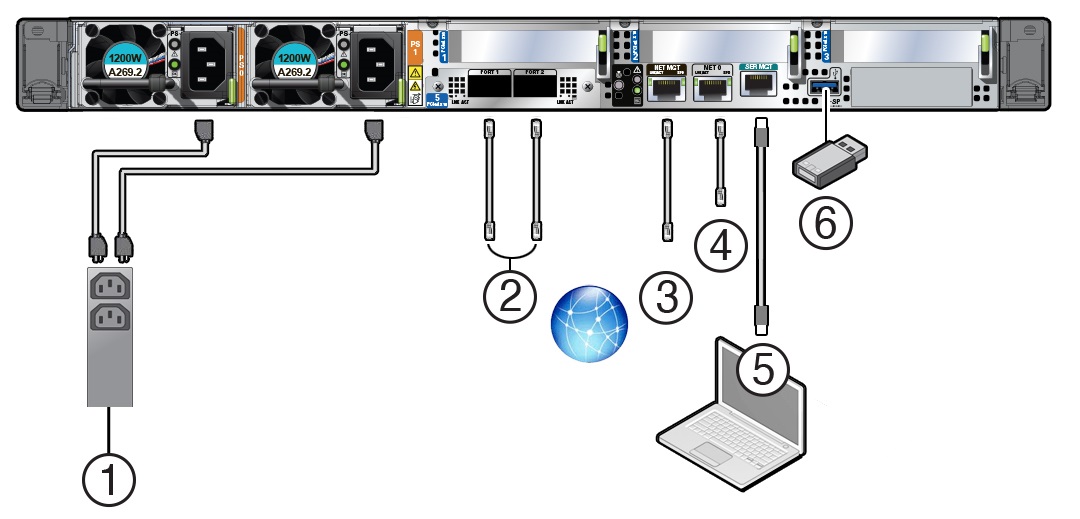
| Call Out | Cable Port or Expansion Slot | Description |
|---|---|---|
|
1 |
Power supply 0 input power Power supply 1 input power |
The server has two power supply connectors, one for each power supply, labeled PS0 and PS1. Power supply 0 input power and Power supply 1 input power both connect to a rack power distribution unit (PDU). Do not attach power cables to the power supplies until you finish connecting the data cables to the server. The server goes into Standby power mode, and the Oracle ILOM service processor initializes when the AC power cables are connected to the power source. System messages might be lost after 60 seconds if the server is not connected to a terminal, PC, or workstation. Oracle ILOM signals a fault on any installed power supply that is not connected to an AC power source, which might indicate a loss of redundancy. |
|
2 |
OCP-V3 NIC QSFP |
(Optional) 10/25/50/100/200 Gbs Open Compute Project (OCP) Version 3.0 (V3) Network Interface Card (NIC) with two QSFP ports (PORT 1 and PORT 2) Two QSFP 28/56 GbE Ethernet connectors for the Ethernet controller. Note: These ports are not used for the Session Router or Enterprise Session Router. |
|
3 |
Network management port (NET MGT) |
The service processor NET MGT port is the optional connection to the Oracle ILOM service processor. The service processor NET MGT port uses an RJ-45 cable for a 100/1000BASE-T connection. The NET MGT port is configured by default to use Dynamic Host Configuration Protocol (DHCP). |
|
4 |
Host Management Ethernet port (NET 0) |
NET 0: 1 Gbps Host Management RJ-45 connector port The host management Ethernet port enables you to connect the system to the network. The Ethernet port uses an RJ-45 cable for a 1 Gbps Host Management connection. |
|
5 |
Serial management port (SER MGT) |
The service processor SER MGT port uses an RJ-45 cable and terminal (or emulator) to provide access to the Oracle ILOM command-line interface (CLI). Using Oracle ILOM, you can configure it to connect to the system console. This port does not support network connections. |
|
6 |
USB port |
The USB port supports hot-plugging. You can connect and disconnect a USB cable or a peripheral device while the server is running without affecting system operations. |
Cable the Oracle Server X9-2
After mounting the Oracle Server X9-2 in an equipment rack and installing all components, use the following instructions to connect all appropriate data cables to the ports before powering the system up and beginning the configuration.
Oracle qualified the following configurations of the Oracle Server X9-2.
- Configuration A: A four-port 10GBASE-T Ethernet NIC
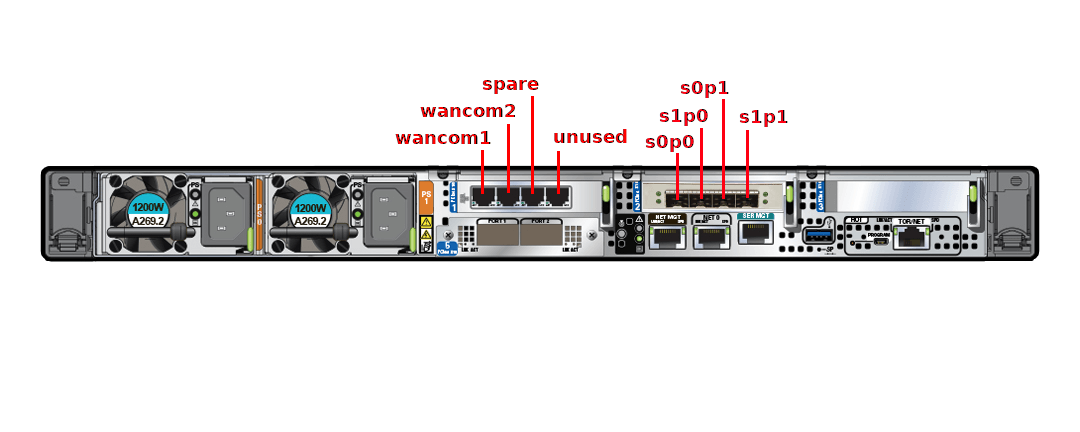
- Configuration B: A four-port 10-Gigabit QSFP+ NIC
The quad-port NICs use Intel XL710 series cards.
On board interfaces for all configurations include:
- One 100/1000 BASE-T RJ-45 Oracle Integrated Lights Out Manager (ILOM) service processor (SP) network management (NET MGT) port
- One 1 Gbps Host Management RJ-45 connector port, labeled NET 0
- One RJ-45 serial management (SER MGT) port
Figure 3-1 Oracle Server X9-2 Configuration A: four-port 10GBASE-T Ethernet NIC
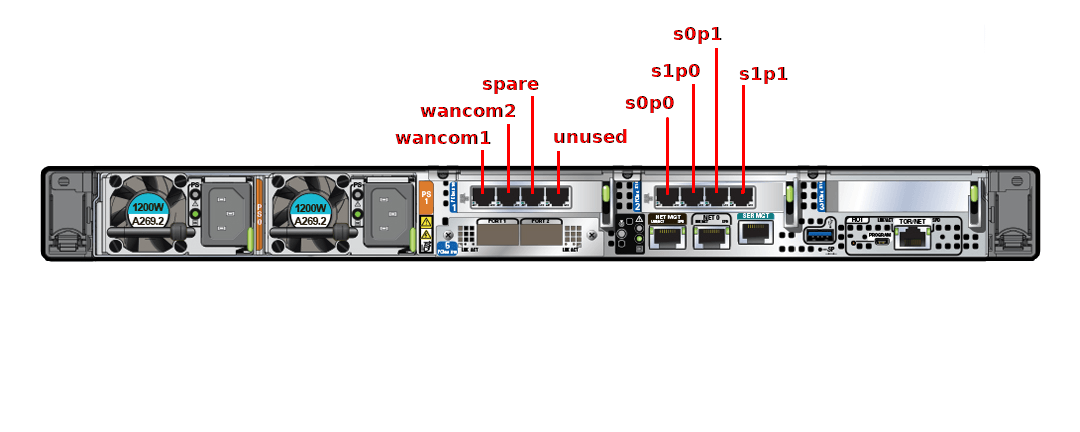
Figure 3-2 Oracle Server X9-2 Configuration B: four-port 10-Gigabit QSFP+ NIC
Oracle recommends using Category 6 (or better) for all Ethernet connections.
You do not need to use every port for proper operation.
After booting the Session Router, use the interface-mapping
command to map physical interfaces to configuration names.
Cable the Local Console
You can connect the Administration console to the local SER MGT (COM1) serial console port. You can also operate the console using serial emulation over ILOM.
- Connect a serial console cable with an RJ-45 connector to the SER MGT port.
- Connect ethernet to the ILOM port and use serial emulation.
When configuring boot loader parameters, set the Console Device to COM1. Never use COM2 or VGA. The Oracle Server X9-2 server cannot boot the system when set to the default of VGA. You must change this bootparameter when deploying over this platform.
Refer to the section "Change Boot Parameters by Interrupting a Boot in Progress" within the Installation and Platform Preparation Guide to learn how to set your Console Device bootparameter to "COM1". Refer to Set Up a Remote Console to learn how to run an SSH session via iLOM using Virtual Serial Port Emulation.
Follow this procedure to cable your console:
- To cable a serial connection,
insert the serial console cable into the SER MGT (COM1) port.
Figure 3-3 Connecting to USB and SER MGT (COM1) Ports

Note:
Refer to the Oracle Server X9-2 hardware documentation for information on how to configure the terminal application to connect to the console, and how to establish communications with the Oracle Server X9-2.
Connect ILOM to the Oracle Server X9-2
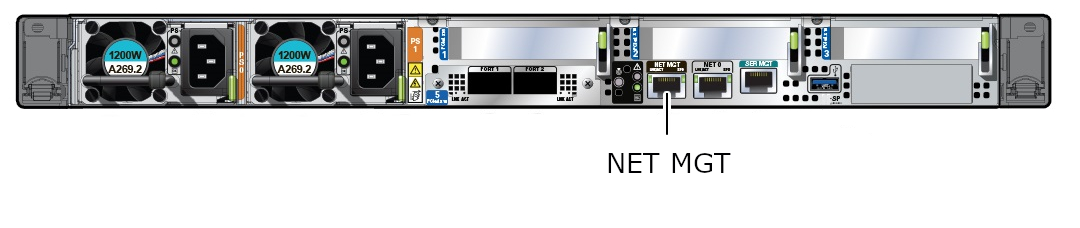
Use the following procedure to make a connection to the Oracle Server X9-2 Oracle Integrated Lights Out Manager (ILOM) port. For a remote permanent connection to the Service Processor over the ILOM connection, use the rear panel NET MGT port.
Note:
Keep Ethernet cables separated from power cables by at least 60mm where possible and never run them in the same channel of the rack without segregation.- Category 6 (or better) Ethernet
- Plug the RJ-45 connector into
the ILOM port.
Figure 3-4 Connecting to ILOM over the Network
- Refer to the Oracle Server X9-2 hardware documentation for information about how to configure the Web browser application to connect to the console, and how to establish communications with the Oracle Server X9-2.
Install the Software on the Oracle Server X9-2
The Oracle Communications Session Router requires software installation when deployed on the Oracle Server X9-2.
Software installation to Oracle Server X9-2 includes the following high-level steps:
Next Steps After the Software Installation
Oracle recommends the following steps after installation on the Oracle Server X9-2 platform.
- Execute the format hard-disk command, per your requirements. See the "Formatting the Disk Volume" for reference and instructions. .
- Turn off the SBC using the Halt command. This provides a graceful software shutdown, after which the hardware is still powered on.
- Power cycle the hardware using the power switch, a power controller, or by physically disconnecting and reconnecting the power cable.
To configure the SBC, refer to the Configuration Guide.
Boot parameter changes to consider prior to service configuration include:
- Set the Target Name to your preferred name.
- Set the Console Device to COM1 (serial).
- Set the IP Address to your preferred management port IP address.
- Set the Netmask for your management port IP address.
- Set the Gateway address for your management port IP address.
Note:
The boot parameters default Boot File is “/boot/bzImage”. Be aware that upgrading code includes obtaining images with, for example, an SCz prefix and the .bz file extension.