Expanding Storage

Follow the instructions given in this section to expand the storage for Session Monitor.

For Single Disk systems, this script allows you to input only one disk size, which is automatically allocated across both MySQL and Block Storage. Independent allocation for either MySQL or Block Storage is not supported on Single Disk systems, as both reside on the same partition.
For Dual Disk systems, the script provides the flexibility to input disk sizes independently for either the MySQL partition, or the Block Storage partition, or for both partitions, allowing a more granular control over storage allocation.
To Expand OCSM Storage:
  1. Log in to the Session Monitor server’s CLI as the root user or root privileged user.
  2. Verify the space available. Before expanding the storage, review the available space by executing the following command:
    /usr/bin/df -kh /var/lib/mysql /opt/oracle/ocsm/var/vsi
    If your local files are taking up space, move or delete the local files to free up space, or adjust your expansion plan based on the available size.
  3. Prepare the environment: Before running any commands to expand, initialize the environment:
    source /opt/oracle/ocsm/ocsm_env.sh
  4. Review the current configuration: Run the storage expansion tool with the --info (or -i) option to view information about the current disk configuration, including the maximum expandable capacity for each disk, without making any changes:
    ocsm-resize-storage --info

    Note:

    All sizes shown by the script are approximate and may vary by a few Gigabytes. If you encounter an error during the expansion process, adjust the values accordingly.

    Figure 20-1 : Example output of the --info option on a Dual Disk system
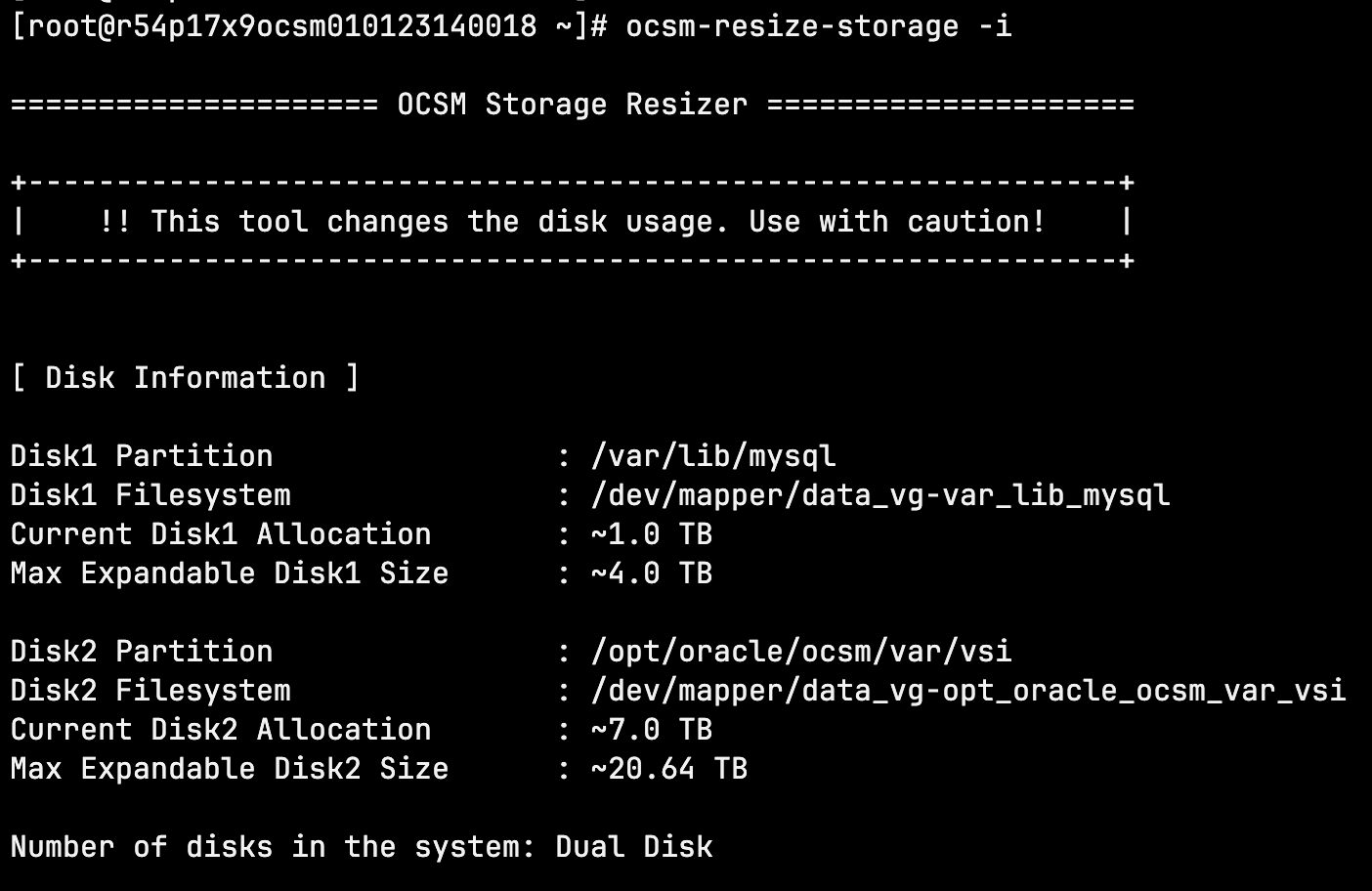

    Example output of the --info option on a Dual Disk system

  5. Execute storage expansion script:
    Input Restrictions::

    Note:

    • The input size must be the new total size (not just the size being added). E.g. if your current disk is 500GB and you added 250GB, your input should be 750GB
    • The size should be provided as a non-decimal integer, immediately followed by the unit, with no spaces (e.g., 100G).
    • Supported units are: M or m (megabytes), G or g (gigabytes), and T or t (terabytes).
    • It is not necessary for the units for disk1 and disk2 to be the same; different units can be used for each disk. (e.g. --disk1 500G --disk2 2T)
    • Decimal values are not supported for input sizes. Instead of entering values like 200.5G or 2.1T, use the equivalent whole number in a smaller unit (For example. enter 2148G instead of 2.1T).
    1. For Single Disk system, execute the following command to expand storage:
      ocsm-resize-storage --disk1 <NEW_TOTAL_SIZE>
      or
      ocsm-resize-storage -d1 <NEW_TOTAL_SIZE>

      Example: If your current disk is 500 GB and you added 250 GB, run the command:
      ocsm-resize-storage --disk1 750G
    2. For dual-disk systems, execute the appropriate command from the list below to expand storage:
      • To Expand both MySQL (disk1) and Block Storage (disk2):
        ocsm-resize-storage --disk1 <NEW_MYSQL_SIZE> --disk2 <NEW_BLOCK_SIZE>   
         
        (or)
         
        ocsm-resize-storage -d1 <NEW_MYSQL_SIZE> -d2 <NEW_BLOCK_SIZE>
        
        
      • To Expand only MySQL storage:
        ocsm-resize-storage --disk1 <NEW_MYSQL_SIZE>  (or)  ocsm-resize-storage -d1 <NEW_MYSQL_SIZE>
      • To Expand only Block Storage:
        ocsm-resize-storage --disk2 <NEW_BLOCK_SIZE>  (or)  ocsm-resize-storage -d2 <NEW_BLOCK_SIZE>
      Examples;
      ocsm-resize-storage --disk1 500G --disk2 2T
      ocsm-resize-storage --disk1 500G
      ocsm-resize-storage --disk2 2T
  6. Review the displayed allocation summary: If all validations pass, the script displays a summary comparing current and target storage allocations before proceeding. Review the allocation before proceeding.

    Figure 20-2 Sample Output
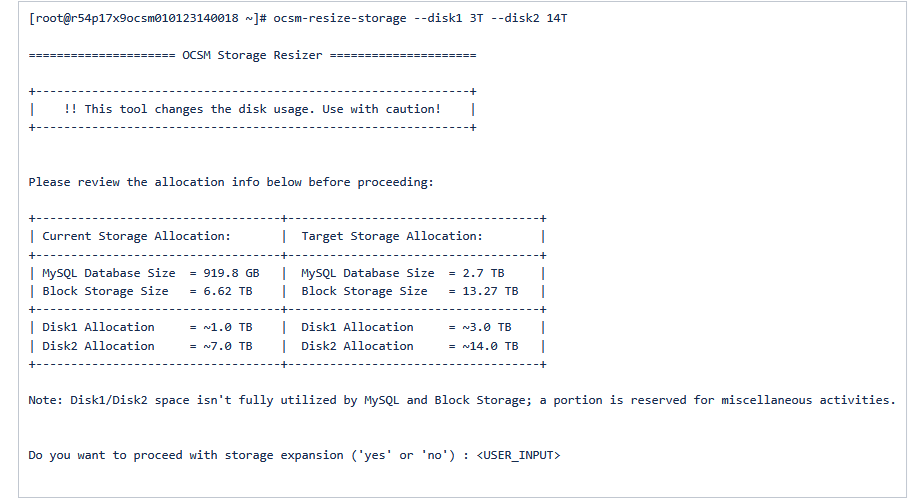

    Sample Output

    Note:

    Not all of the specified disk size is allocated to MySQL and Block storage; OCSM reserves a portion for system use, so the displayed sizes may be less than the total disk size entered.
  7. Type 'yes' to start the storage expansion. This process may take a few seconds to a few minutes, depending on the storage size.
  8. After it is completed, the storage is successfully expanded.