Correlation Matrix
Overview
This custom correlation matrix visualization computes pairwise correlations across selected measures and displays the results as an interactive heatmap.
Use this visualization when you need to analyze correlations across multiple numeric measures (for example, Revenue, Units, and Margin %) in a single interactive heatmap. It works with both Subject Areas (semantic model) and datasets, which helps you stay on governed enterprise data and avoid exporting or duplicating data. It also highlights statistical significance directly in the matrix by using X markers and tooltip hints such as p < 0.05, so you can quickly see not only correlation strength and direction but also whether results are statistically meaningful. If your data includes outliers or non-linear but monotonic relationships, switch to Spearman correlation by using the simple Pearson/Spearman toggle.
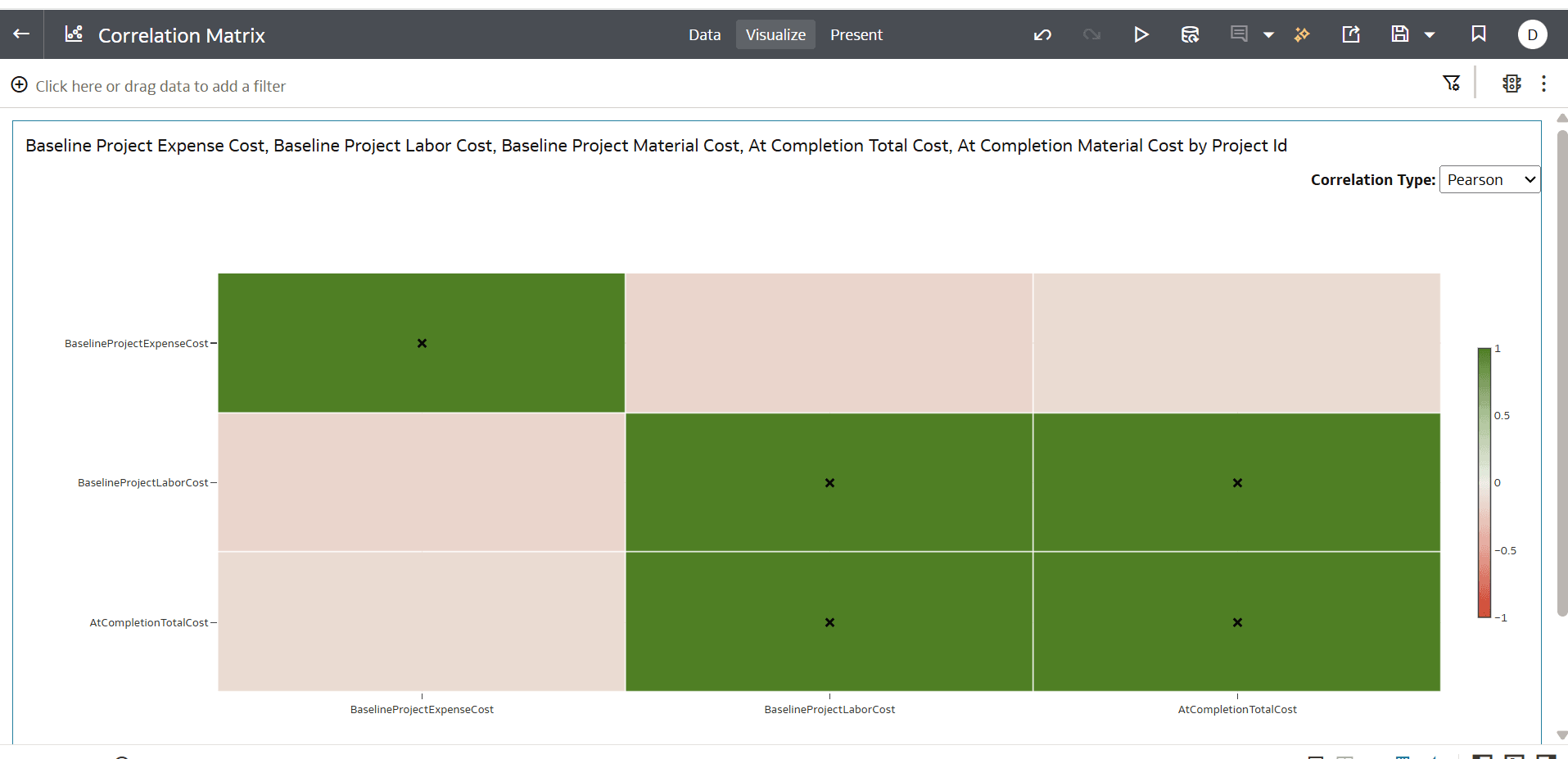
How the Visualization Displays Data
- Color scale: encodes the correlation coefficient r from -1 to 1
- Negative (red) → near zero (neutral) → positive (green)
- Significance overlay: X markers appear for cells that meet the configured confidence level (95% by default).
- Labels and tooltips: show r rounded to 2 decimals and add p < 0.05 when significant at 95%.
- Toggle: Pearson/Spearman selection is available in a dropdown in the visualization header.
- Rendering: client-side using Plotly; responsive to tile size; compatible with OAC fonts and themes.
Data Requirements
Required Fields
- Rows: Exactly 1 categorical attribute (for example, Customer, Product, Region, Month). This attribute defines the observation set.
- Values: 2 to 5 numeric measures.
- Correlations are calculated pairwise and ignore null/NaN values.
- Measures with fewer than 2 valid values (non-null, non-NaN, and non-zero) are dropped.
Limits, Assumptions, and Constraints
- Field placement limits
- Exactly one attribute in rows.
- 2–5 numeric measures in Values
- Data and performance limits
- Manifest “soft limits”: up to approximately 10,000 rows and 5,000 columns. Performance depends on the actual data volume and browser resources.
- No server-side processing. All computation runs client-side in the workbook.
- Significance methodology
- Two-tailed Pearson critical values with linear interpolation by degrees of freedom: df = n - 2
- For Spearman, significance uses the same Pearson-based approach as a practical approximation (especially for larger n).
- Data cleaning behavior
- Pairwise calculation ignores null/NaN values.
- Measures with insufficient valid values are dropped.
Building the Chart in OAC
- In an OAC workbook (using a Subject Area or dataset), add Correlation Matrix Plugin from the Gallery.
- Drag 1 categorical attribute to Rows. Example: use a grain that represents comparable observations, such as Customer–Month.
- Drag 2–5 numeric measures to Values.
- In the visualization header, select a correlation type:
- Pearson: linear correlation (default)
- Spearman: rank-based (often better with outliers or monotonic non-linear relationships)
- Resize the tile as needed. The visualization is responsive and follows OAC theming.
Troubleshooting
| Issue | Likely cause | What to try |
|---|---|---|
| Visualization does not appear after import | The plugin .zip file is structured incorrectly (for example, files are inside an extra top-level folder). | Confirm the .zip file contains the plugin files at the root level (not inside an extra folder). Re-import the plugin, then refresh the browser. |
| Chart is blank | Fields are not placed correctly, or measures do not have enough valid observations. | Verify you have exactly 1 attribute in Rows and 2–5 numeric measures in Values. Confirm each measure has at least 2 valid numeric observations (non-null, non-NaN, non-zero). |
| No X markers (no significance indicators) | The sample size is too small, or the selected fields are not clean numeric values. | If n is low, the significance threshold is stricter because df = n - 2. Aggregate to a less granular level or include more rows. Confirm the fields are numeric and do not contain excessive null values. |
| Rendering is slow | Too many rows, too many measures, or heavy browser workload. | Filter to a smaller time range or segment. Reduce the number of measures (3–5 is often easier to read). |