Gantt Chart
(Required) <Enter a short description here.>
Overview
The Gantt Chart custom visualization shows tasks on a timeline using Start Date and End Date. Each task appears as a horizontal bar. If your data contains multiple rows with the same task name, the visualization can merge them into one bar that spans the earliest start and latest end date. Tasks can be grouped to add alternating background bands, which makes large charts easier to scan. Optional numeric measures appear in tooltips and (if configured) can also appear in task labels.
- Plan project or program schedules using task start and end dates.
- Create release or sprint plans with milestones and phases.
- Review portfolio timelines by grouping tasks by workstream, owner, or department.
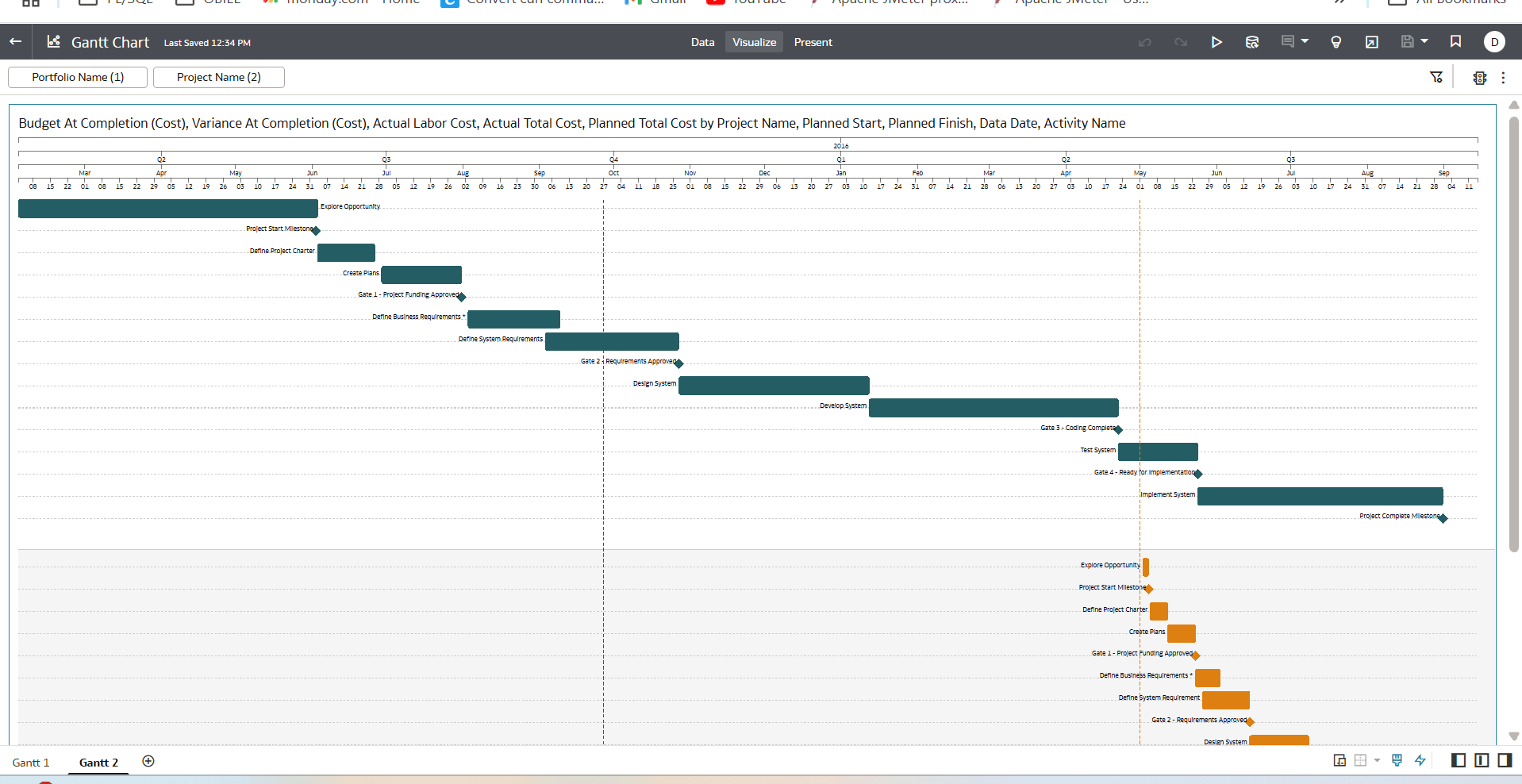
How the Visualization Displays Data
- Bars and milestones:
- If a task has a valid Start Date and End Date, it appears as a bar from start to end.
- If End Date is the same as Start Date (or earlier), the task appears as a milestone (diamond).
- Grouping
- Tasks are grouped by a Group field.
- Each group appears in its own horizontal band with alternating background shading and separators.
- Labels
- Each bar shows a task label near the bar.
- Labels use a compact font to reduce overlap
- Tooltips
- When you hover over a bar or milestone, the tooltip shows: Group, Task, Start Date, End Date, Reference Date, Duration (days), and any numeric measure provided.
- Numeric values are formatted with thousands separators and two decimal places.
- Reference date line
- Each task can display a vertical line at its Reference Date to indicate a key checkpoint (for example, a data as-of date).
- Time axes
- The chart shows four synchronized axes at the top: Day Month Quarter Year: Days, Month, Quarter, and Year.
- Tick density automatically adjusts to the visible date range and available width.
- Duplicate task handling (consolidation)
- If multiple rows have the same Task Name (and the same Color, if provided), the visualization merges them into one task: Start Date = earliest Start Date, End Date = latest End Date, Reference Date = latest Reference Date, Duration = recalculated from the merged start and end dates, Measures (if present) = summed across the merged rows.
Data Requirements
Provide the following fields in your dataset and assign them to the shelves indicated. The visualization expects the required fields to render.
Required fields
| Field | Shelf |
| Start Date | Row |
| End Date | Row |
| Reference Date | Row |
| Task Name | Row |
| Group | Category |
- Color (Color): A categorical field used to color tasks. If you use Color, tasks are merged only when Task Name and Color both match.
- Measures (Values): 0–5 numeric measures. These appear in tooltips and can be included in the label. When tasks are merged, measures are summed.
- Use OAC Date or Date-Time types for Start Date, End Date, and Reference Date.
- Make sure date values are valid and not empty.
- Use text fields for Task Name and Group.
- Measures must be numeric.
Configurable Properties
- Location: Visualization Properties → General → Axis Font Size.
- Purpose: Changes the font size of the timeline axes for readability.
- Input: A small positive number (pixels), for example: 6, 8,10
Limits, Assumptions, and Constraints
- Supports up to approximately 10,000 rows and 5,000 columns (plugin configuration limit).
- Supports up to five measures.
- Row: Start Date, End Date, Reference Date, Task Name
- Category: Group
- Color: Optional (one categorical field)
Date validity
Missing or invalid dates can prevent the chart from determining a time range and can result in a blank or incomplete chart.
- Tasks are merged based on Task Name and (if supplied) Color.
- Group is taken from the first occurrence.
- Measures are summed when tasks are merged.
Layout
- The chart uses the available canvas size.
- With many tasks, labels might overlap or truncate. Consider filtering, grouping, or resizing the canvas.
Interactivity
Marking/selection and embedding are not supported by this plugin.
Building the Chart in OAC
- Add the visualization to your canvas.
- Assign fields:
- Row: Start Date, End Date, Reference Date, Task Name
- Category: Group
- Color (optional): a categorical field
- Values (optional): up to 5 numeric measures
- (Optional) Set Axis Font Size in the properties.
- Resize the canvas or filter data to improve readability.
Troubleshooting
| Issue | Likely cause | What to check / how to fix |
|---|---|---|
| Chart does not render or appears empty | Required fields are missing or assigned to the wrong shelves.
Invalid, missing, or blank date values prevent the chart from determining a time range |
Confirm these assignments:
Verify Start Date and End Date contain valid dates in your dataset. Make sure the visualization can determine at least one valid date range. |
| Milestones shown unexpectedly | End Date is the same as Start Date, or earlier | Check the task’s Start Date and End Date values. If they are equal (or End Date is earlier), the visualization renders a milestone (diamond). |
| Unexpected merging of tasks | Duplicate consolidation is enabled by design for matching tasks | If multiple rows share the same Task Name (and the same Color, if used), they are merged. Use more specific Task Name values, or adjust Color to prevent unintended merges. |
| Colors not applied | No field is assigned to the Color shelf | Add a categorical field to Color. If Color is not provided, default colors are used. |
| Axis labels too small or overlapping | Axis font size is too small for the canvas size and date density | Update Axis Font Size (Visualization Properties → General). Also try resizing the canvas or filtering the date range. |
| Measures not visible in tooltip | Measures are not assigned to Values
Measure values are blank or non-numeric |
Assign your numeric fields to Values (up to five measures).
Confirm the measures are numeric and populated. Blanks and non-numeric values are ignored. |