Milestones Slip Chart
Overview
Use the Milestones Slip Chart to see how a task’s estimated finish date changes over time.
Each task appears as a line that connects multiple reporting points, with the estimated finish date shown on the X-axis at the top and the calendar date shown on the Y-axis on the left, where the most recent dates appear at the top. A diagonal reference line helps you compare estimated dates to calendar time: points on the diagonal indicate no schedule slip, and points above or below the diagonal indicate that the schedule moved (either slipped or pulled in).
You can use this visualization to learn how a task’s finish date slips or pulls in across reporting cycles and how multiple tasks trend over the same time period.
- Track schedule stability across weekly or monthly status updates.
- Identify tasks with persistent slippage versus tasks that are stabilizing or improving .
- Communicate schedule movement to stakeholders at a glance.
Avoid this chart when you only need a single point-in-time view (a timeline or bar chart might be clearer) or when you need totals or aggregation, because this chart shows point-in-time status per task.
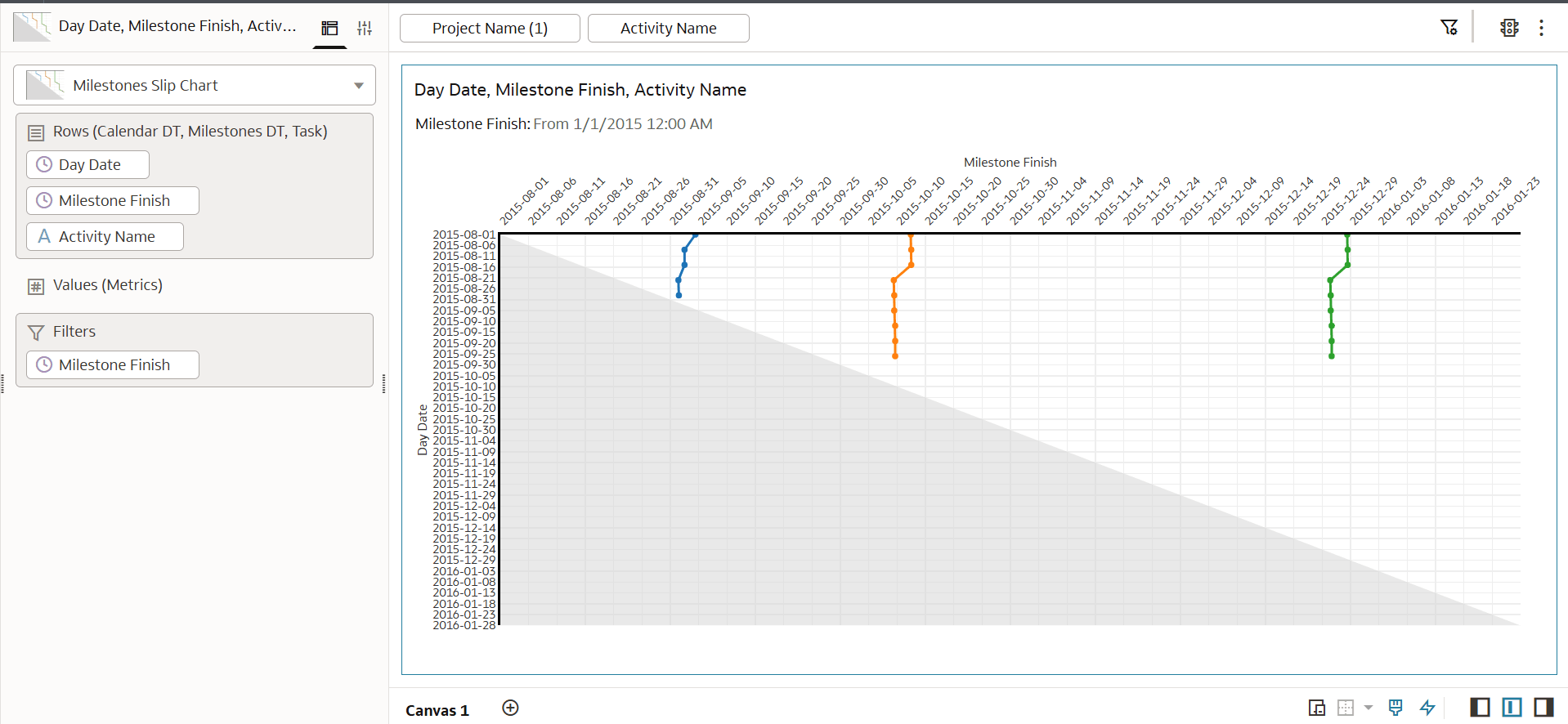
How the Visualization Displays Data
- Axis
- X-axis (top): Estimated finish date; fixed range with tick spacing based on the overall date span.
- Y-axis (left): Calendar date; most recent at the top and oldest at the bottom.
- Lines and markers
One line (with markers) per task shows how the estimated finish date changes over time.
- Reference diagonal
A diagonal guideline helps you compare estimated finish dates against calendar time.
Data Requirements
The visualization requires exactly three attributes on row, in this order:
- Calendar Date (Y-axis)
- Estimated Finish Date (X-axis)
- Task (identifier or name)
Note:
- Both date fields must be recognized as dates in OAC (or be parseable as dates).
- Task can be any categorical identifier (for example, task name or task ID).
- Measures are allowed but not used by this visualization.
Recommended data shape
- Include one record per task per calendar date (reporting date).
- Sort your data by Calendar Date within each task so lines connect in chronological order.
Example columns:
- Calendar Date: 2025-01-10, 2025-01-17,...
- Estimate Finish Date: 2025-02-15, 2025-02-22,...
- Task: Design, Build API,….
Configurable Options
- Properties: None. This visualization does not provide user-configurable properties in the Properties panel.
- Colors and legend: One line per task. No legend is shown; use hover to identify lines.
- Interactivity: Hover tooltips are available. Zoom/pan and selection are not supported.
Limits and Constraints
- Required fields: Exactly three Row attributes (Calendar Date, Estimated Finish Date, Task) in that order.
- Data volume: Approximately 10,000 rows (larger datasets can reduce readability and performance).
- Date parsing: Date fields must be valid dates; invalid values can prevent meaningful plotting.
- Measures: Accepted but ignored.
- Sorting: Points connect in dataset order; sort by Calendar Date within each Task to avoid zig-zags.
Building the Chart in OAC
- Add Milestones Slip Chart to your canvas (Category: Task/Milestone).
- Drag fields to Row in the following order:
- Calendar Date (the reporting or baseline date)
- Estimated Finish Date (the date you want to monitor)
- Task (a categorical identifier)
- Add measures. The measures are optional and are ignored by this visualization.
Note:
- The X-axis title uses the display name of the second Row field.
- The Y-axis title uses the display name of the first Row field.
Troubleshooting
| Issue | Likely Cause | What To Do |
|---|---|---|
| Blank or partial chart | Row does not contain exactly three attributes, or the fields are in the wrong order
One or both date fields are not recognized as dates (or can’t be parsed) Null or invalid date values |
In Row, add exactly three attributes in this order: Calendar Date, Estimated Finish Date, Task.
erify both date fields are true date types in OAC, or use a consistent parseable format (for example, YYYY-MM-DD). Remove, replace, or filter out null/invalid dates in Calendar Date and Estimated Finish Date. |
| Unexpected axis titles | Field display names are unclear or fields are swapped | Confirm Calendar Date is the first Row field (Y-axis title) and Estimated Finish Date is the second Row field (X-axis title). Rename fields (display names) if needed. |
| Lines jump back and forth (zig-zag) | Records are not sorted chronologically within each task | Sort records by Calendar Date within each Task so points connect in time order. |
| Too many tasks to read | Too many task lines or too wide a date range | Filter to a smaller set of tasks, or limit the date range to reduce clutter. |