PreviousNext
JavaScript must be enabled to correctly display this content
7 Create the Object Storage Bucket Key
Sign in to the Oracle Cloud Console as an Account Administrator with appropriate privileges.
Open the Navigation menu, select Identity & Security, and in the Key Management section, select Vault.
On the Vaults page, select the Vault list and select <VAULT_NAME>.
On the Vaults details page, select Master encryption keys.
Select Create Key.
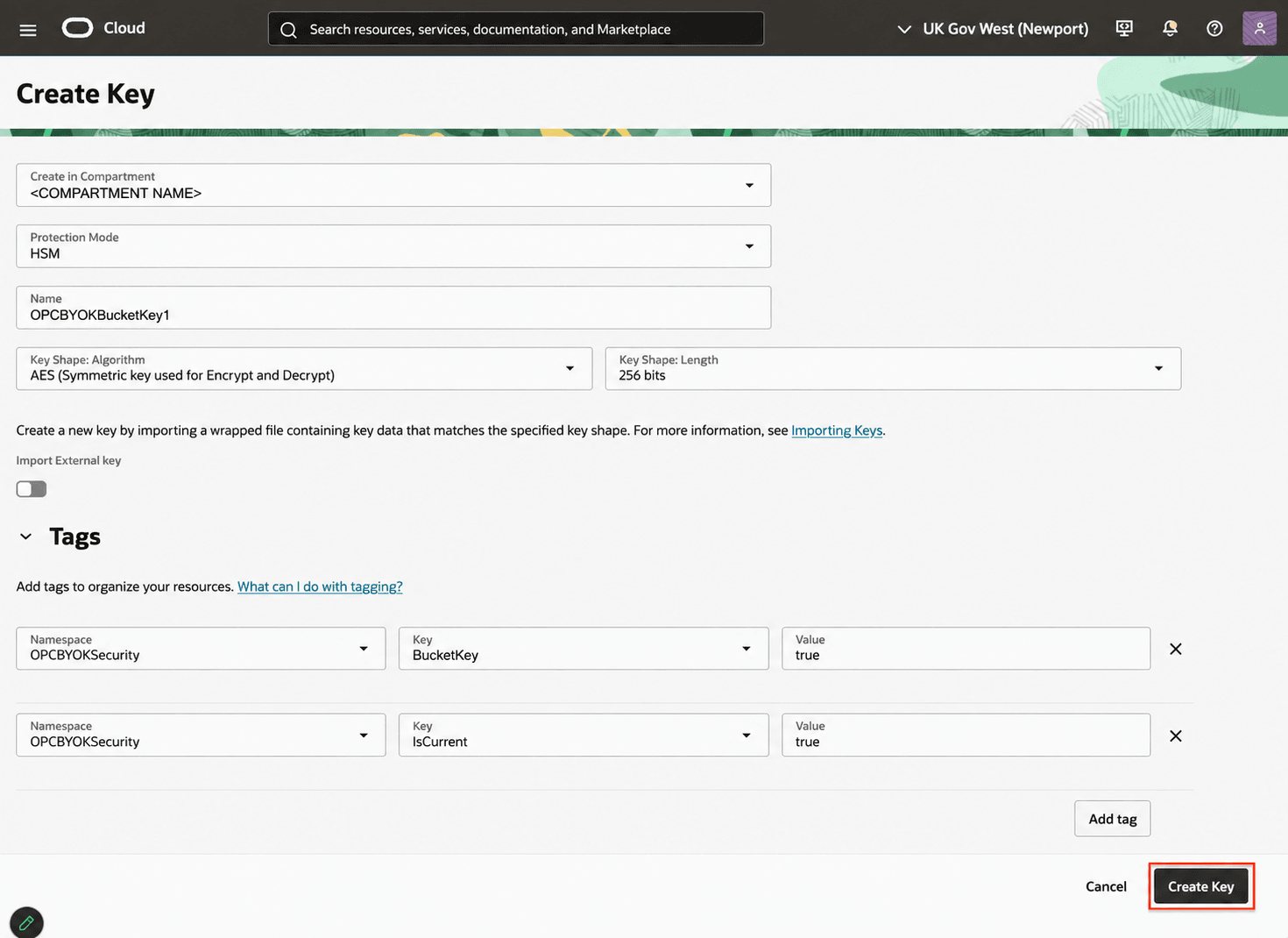
On the Create Key page, enter the following:
In the Create in Compartment list, select the <COMPARTMENT_NAME>.
In the Protection Mode list, select HSM.
In the Name field, enter: OPCBYOKBucketKey1.
In the Key Shape: Algorithm list, select AES (Symmetric key used for Encrypt and Decrypt).
In the Key Shape: Length list, select 256 bits.
Import External Key: By default, this toggle is off. It indicates OCI will create the key. If you want to import an external key, follow the instructions in Import an External Key to wrap the external key and upload, and then return here to continue.