Create a lookahead filter
When defining filters, you can select data based on their relationship to the project start date, finish date, or current date, rather than specific calendar dates. This prevents you from having to update the filter each time you update the project.
To create a six-week lookahead filter
- Choose Project, Activities, then choose View, Filter By.
- Click New....
- Type a filter name, such as Six-Week Lookahead.
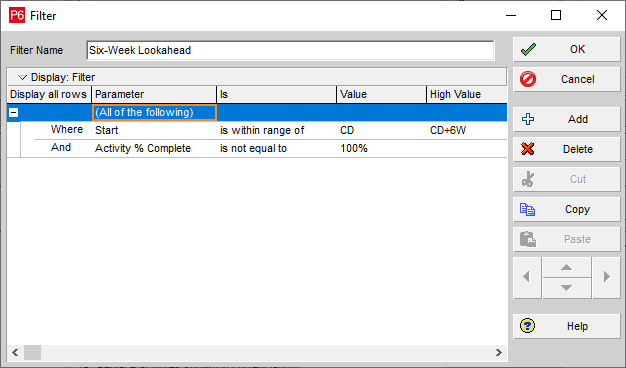
- In the top row of the table, select "(All of the following)".
- In the next row of the table:
- In the Parameter field, select Start.
- In the Is field, select "is within range of".
- In the Value field, select CD - Current Date.
- In the High Value field, type
CF+6w.
- Click Add, then in the new row:
- In the parameter field, select Activity % Complete.
- In the Is field, select "is not equal to".
- In the Value field, type 100.
Your filter should look like this:
- In the When applying the selected filter(s): area:
- Select "Replace activities shown in current layout" to remove activities that do not match your filter from the view.
- Select "Highlight activities in current layout which match criteria" to keep all activities on screen, but highlight those that match your filter.
- Click OK to save the filter criteria.
- Mark the checkbox in the Select column next to the newly created filter, then click OK.
Tip
- You can type into the Parameter field to perform a type-ahead search for the parameter you need.
- You can type into the Value and High Value fields, for example "CD+6w" sets the value as the current date plus six weeks.