Working with Activities
Although you might view activities any number of ways in P6, including on dashboards, reports, and the Resource Assignments page, the most common and direct way to work with project activities is on the Activities page and, specifically, in the Activity Table.
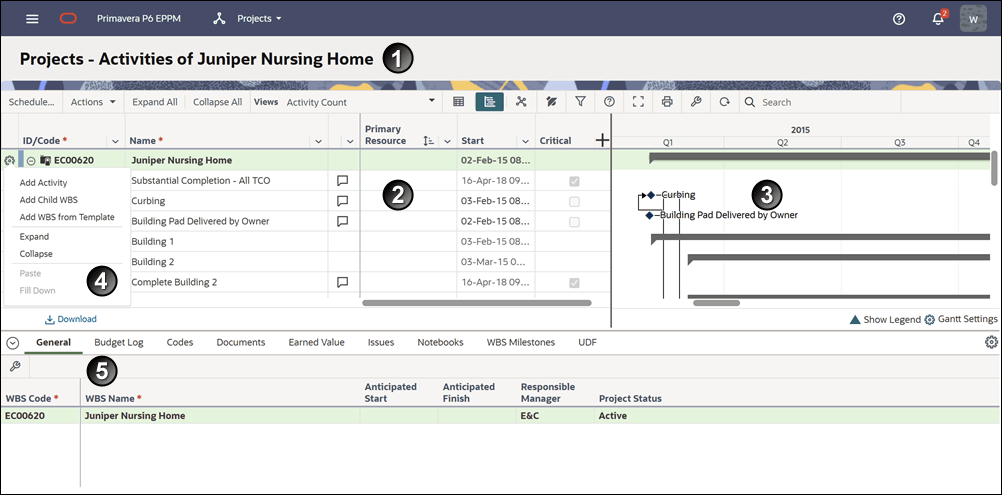
The Activity Table
| Item | Description |
|---|---|

|
Open Projects: Open the projects you want to work with using the  Open Projects control on the context selector. Then click Activities in the  Navigation Menu. The Activities page shows which projects are currently open. |

|
Grid: You can select activities and update them within the grid or on the detail windows. |

|
Gantt: Refer to the optional Gantt view to supplement your work in the table with a visual representation of the schedule. |

|
 Context: Add and delete activities or add, delete, expand, and collapse WBS elements with this menu. |

|
 Expand Dock and  Collapse Dock: Expand or collapse the dock to view detailed information about the selected activity. |

|
 Show/  Hide Tabs: Show or hide the tabs you want to see in the view. |
Note:
- Using P6 Administrator application, your administrator can set a default value for the maximum number of activities that appear on the Activities page.
- Your Administrator can provide a URL to access the Activities Page directly after logging into the system.