Working with Select a Value Dialog Boxes
Throughout the application, certain types of fields require specific types of values. To assist you in selecting from only a constrained list of available choices, the interface will display Select a Value dialog boxes for you to search for and select a specific value appropriate for the current field.
Note:
Field lists of values are used when the available choices are manageable (usually, less than 10 values). However, when the number of available choices is large (for example, there might be hundreds of projects), the application will offer Select a Value dialog boxes.
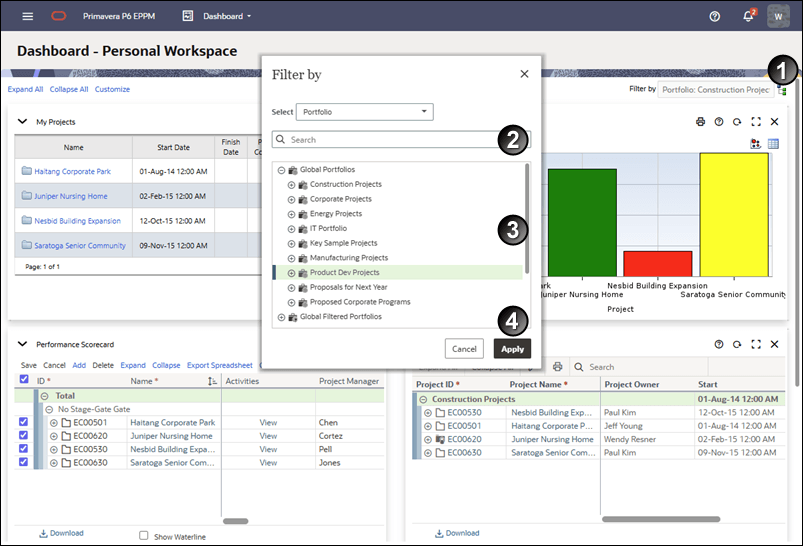
Table 1 of 2: Select a Value Dialog Boxes
| Item | Description |
|---|---|

|
Select a Value icon: Throughout the application, click  Select a Value to open a selection dialog box. |

|
Search Area: The top part of the dialog box contains search controls to help you constrain the values based on your criteria. |

|
Results area: The middle part of the dialog box displays the available values based on your search criteria, if any. Make your selection here. |

|
Command buttons: The bottom part of the dialog box contains command buttons. Standard buttons include OK, Apply, Select and Assign to accept the value you selected, and Close or Cancel to cancel the operation, close the dialog box, and return to the previous screen. |
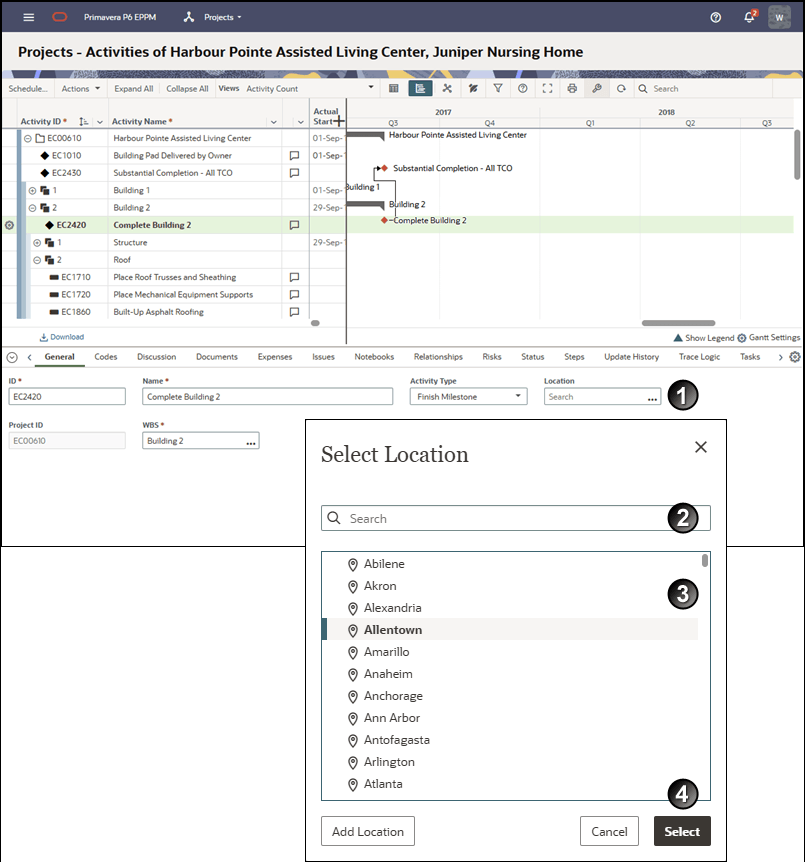
Table 2 of 2: Select a Value Dialog Boxes
| Item | Description |
|---|---|
|
|
Selection icons: Similar to the icon, in these examples, click Assign... or Select to choose a particular item. |
|
|
Search Area: The top part of the dialog box contains custom search controls to help you constrain the values based on your criteria. |
|
|
Results Area: The middle part of the dialog box displays the available values based on your search criteria, if any. Make your selection here. |
|
|
Command Buttons: The bottom part of the dialog box contains command buttons. Standard buttons include OK, Apply, Select and Assign to accept the value you selected, Close to shut the dialog box after you made assignments, or Cancel to cancel the operation, close the dialog box, and return to the previous screen. Other buttons can also appear in this area. |