Assignments Tab
Use this tab to view the resources and roles assigned to the activity selected in the main grid.
The gear menu ( ) options in the Assignments tab vary depending on the project type.
There is only one option for Cost-loaded and Schedule-based projects:
- View Assignment Spread
The following options are available for the Resource-loaded projects:
- View Assignment Spread
- Assign CBS
- Assign Rate Source
Select a resource row, select gear menu for that row, and select View Assignment Spread. This option (for any selected resource) displays the spread data for that resource, in a split screen "Assignment Spread of ..." at the bottom, as shown.
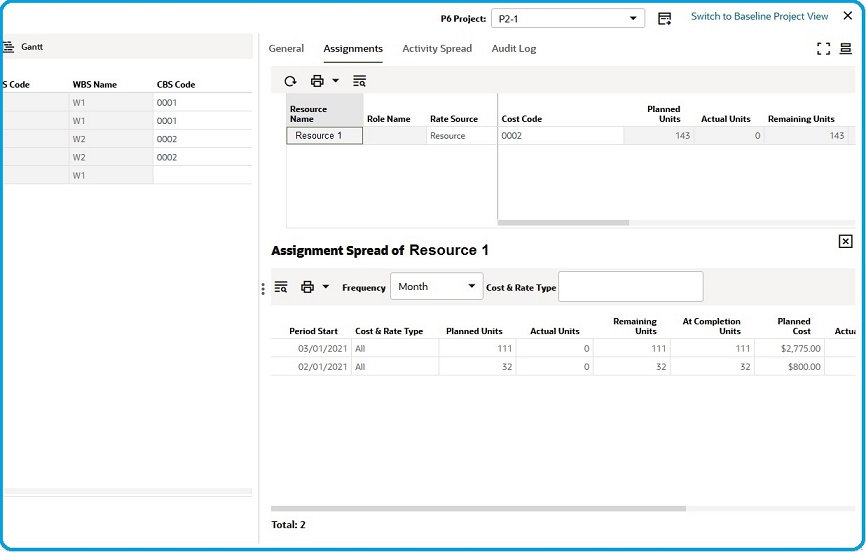
You can view the daily spread data of the resource. The Frequency drop-down field and the Cost & Rate Type field will show additional options to select.
- In the Frequency list, change the granularity level of the spread to Week, Month, or Year.
- In the Cost & Rate Type list, select Cost or Units. Column headings change accordingly.
The "Assignment Spread of ..." pane also displays spread details, such as Period Start, Panned Units, and so forth in columns.
All the resources associated with the activity are displayed. Both the CBS Code and the Rate Source columns are editable. By default, the picker icon is not displayed until you select the cell of the columns.
- Resource Name
- Role Name
- Rate Source
You can double-click in the Resource Source cell and select one of the following rate sources:
- Resource
In the case of the resource.
- Role
For the roles.
- Override
You can edit the price or unit for planning and actuals if the value for the Rate Source is selected as: Override.
- Cost Code
You can edit the value of the CBS Code field for a particular resource and assign the same CBS Code field value to other resources by dragging the CBS Code to multiple rows.
- Planned Units
- Actual Units
- Remaining Units
- At Completion Units
- Price/Unit (Planning)
- Price/Unit (Actuals)
- Planned Cost
- Actual Cost
- Remaining Cost
- At Completion Cost
The Cancel and Save options appear when you attempt to edit the Rate Source value, or the CBS Code, or other fields based on the Rate Source in the Assignments tab. If you try to navigate to an activity sheet without saving the tab information, the system notifies you.