Project or Shell Cost Sheet Toolbar Options
The following explains the project/shell cost sheet toolbar options, after you open the project/shell cost sheet from the company cost sheet.
Refresh: Use this option to update the information displayed on the screen.
Print: Use this option to print the information displayed on the screen (Print) or export the list displayed to an external file (Export to CSV or Export to Excel).
Note:
- For export to Microsoft Excel, the system currently supports only Euro (EUR) and United States Dollar (USD) currency symbols.
- If you export data from a business process (BP) record, sheet (such as an Activity Sheet), or log (such as Company Funding Sheet Log) to Excel, be aware that depending on how your negative values are formatted, you might need to configure your columns in Excel to match the correct data type (Number). Otherwise, the columns will not be treated as numeric and will not sum as expected. One supported format includes placing the negative sign between the currency symbol and the amount (for example, $-1,000).
Find on Page: Use this option to search the information displayed on the screen to find a particular item or entry. Selecting this option will open a row on top of the rows within the log, and you can enter values in each column to start a search for a specific item in the log.
Menu Options (  ): This option lets you access the following features:
| Feature | Description |
|---|---|
| Export |
Lets you export the following:
|
| Snapshots | To open the Snapshot Log and access all the snapshots taken from the cost sheet. |
| Currency |
To select one of the following currency options for the cost sheet:
|
| Budget Distribution | To open the Budget Distribution window. Note that the open padlock icon signifies that the budget for this cost sheet is unlocked. For more information, see the "Working with Budget Distribution Overview" and "Working with Budget Distribution Distributed Amount" sections later in this topic. |
| Row Coloring |
To apply color to the columns. Your options are:
|
| Properties | To open the Properties window. This option lets you review properties such as CBS code label, CBS item label, whether the cost sheet has been enabled to received data from P6, and so forth. The Properties fields are read-only. |
| Audit Log |
To see a record of all the actions that have been taken on the project/shell cost sheet based on the import of a CSV file or an API-based update. The following are captured in the Audit Log:
Use the toolbar options to refresh, print, or find items within the Audit Log. |
Currency
This is a toggle key that lets you switch to Base Currency or switch to Project Currency.
Working with Budget Distribution Overview
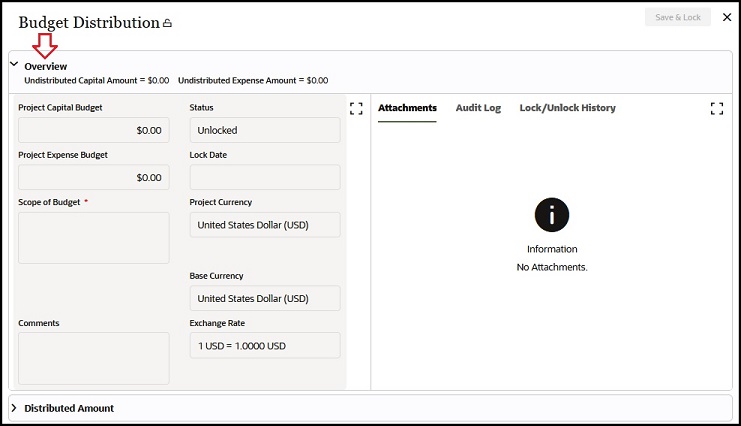
When you select Budget Distribution from the Menu Options, as shown in the image below, the Overview block provides two sets of information within two panes. For example, the left pane provides information about the project budget capital, expense, and scope, and the right pane provides properties information within the following tabs:
- Attachments tab: Contains any available files that have been attached to the budget as supporting record.
- Audit Log tab: Lists all the actions taken on the budget.
- Lock/Unlock History tab: Provides a history regarding the times that the budget has been locked or unlocked, which includes date, time, explanation, and user name.
Working with Budget Distribution Distributed Amount
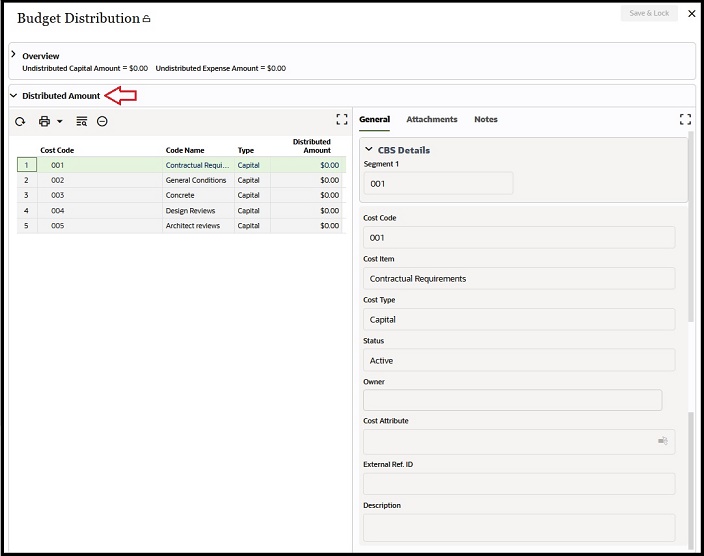
When you select Budget Distribution from the Menu Options, as shown in the image below, the Distribution Amount block shows cost code details and properties. The Distribution Amount block is divided into two panes:
- The left pane lists the cost codes and the cost codes information related to the budget distribution.
- The right pane is the properties pane which contains the information to a selected cost code that is listed in the left pane.
These properties pane has the following tabs:
General tab: When you select a cost code from the left pane, this tab shows the CBS details for that cost code. All the fields are read-only.
Attachments tab: When you select a cost code from the left pane, this tab lists any files that are attached to that cost code.
Notes tab: When you select a cost code from the left pane, this tab lists any notes related to that cost code.
Use the Distribution Amount block toolbar options to refresh, print, find, or collapse-expand the groups of cost codes listed (if any).